
1. Introduction
The BoxWave AccuPoint Active Stylus is designed to provide a precise and natural writing experience on your Hantek TO1154C device. This electronic stylus features an ultra-fine tip and requires no Bluetooth pairing, making it simple to use right out of the box. Its durable construction ensures reliability for daily tasks.
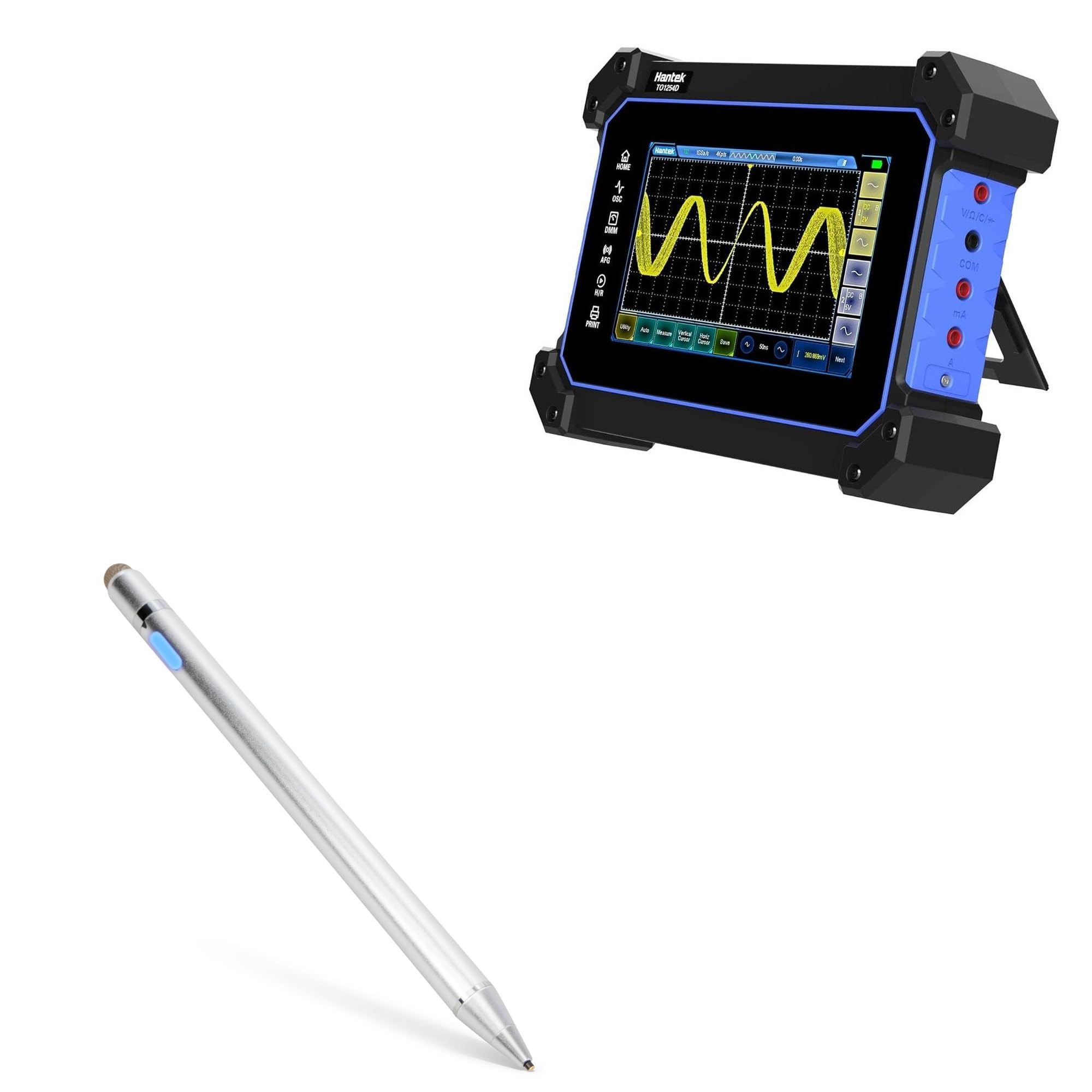
Image 1.1: The BoxWave AccuPoint Active Stylus Pen in Metallic Silver.

Image 1.2: Overview of the AccuPoint Active Stylus, highlighting its 2-in-1 functionality.
Key Features:
- No Pairing Required: Simply press the power button to activate.
- Ultra Fine Tip: A 2mm tip allows for precise interaction with your screen.
- Long Battery Life: Built-in battery provides up to 12 hours of continuous use.
- Durable Construction: Solid brushed aluminum barrel for strength and stability.
- Rechargeable: Includes a MicroUSB cable for convenient charging.
Note: The AccuPoint Active Stylus does not support Palm Rejection or Pressure Sensitivity.
2. Setup
Follow these steps to prepare your AccuPoint Active Stylus for first use:
- Charge the Stylus: Before initial use, fully charge the stylus using the provided MicroUSB cable. Connect the cable to the stylus's charging port and a standard USB power source (e.g., computer, wall adapter). The indicator light will show charging status.
- Power On: Press the power button located on the stylus barrel. The indicator light will illuminate, signifying the stylus is active and ready for use.
- No Pairing: The stylus does not require Bluetooth pairing. It emits electronic pulses to interact with your device's screen directly.

Image 2.1: Detailed view of the stylus features, including the charging port and indicator light.

Image 2.2: Visual representation of key features like the precise tip and rechargeable design.
3. Operating Instructions
The AccuPoint Active Stylus is designed for intuitive use on your Hantek TO1154C. Once powered on, it functions like a traditional pen.
Basic Operation:
- Writing and Drawing: Hold the stylus naturally and touch the ultra-fine tip to your device's screen to write, draw, or annotate.
- Tapping and Swiping: Use the stylus to tap on icons, select menu options, and swipe through content with enhanced precision.
- Indicator Light: The indicator light will remain illuminated when the stylus is active.

Image 3.1: The stylus in use, demonstrating its accuracy and sensitivity.

Image 3.2: A hand operating the stylus on a tablet, showing precise interaction with applications.

Image 3.3: The stylus allows for natural tap, swipe, and writing motions without pairing.

Image 3.4: The stylus offers precise control across applications and features a comfortable, sleek design.
4. Maintenance
Proper care and maintenance will extend the life of your AccuPoint Active Stylus.
Charging:
- When the indicator light turns red, the battery is low and requires charging.
- Connect the provided MicroUSB cable to the stylus and a USB power source.
- The indicator light will be red during charging and turn green when fully charged.
- A full charge provides approximately 12 hours of use.

Image 4.1: Indicator light colors for power status and charging.

Image 4.2: The stylus connected to a laptop via MicroUSB for convenient charging.
Cleaning and Storage:
- Wipe the stylus body with a soft, dry cloth. Avoid abrasive cleaners.
- Keep the tip clean and free from debris to ensure optimal performance.
- Store the stylus in a safe place to prevent damage to the tip when not in use.
5. Troubleshooting
If you encounter issues with your AccuPoint Active Stylus, refer to the following common solutions:
| Problem | Possible Cause | Solution |
|---|---|---|
| Stylus does not turn on. | Low battery. | Charge the stylus using the provided MicroUSB cable. |
| Stylus is unresponsive or inaccurate. | Stylus not powered on; dirty tip; device screen issue. | Ensure the stylus is powered on (blue indicator light). Clean the stylus tip and your device screen. Restart your Hantek TO1154C device. |
| Stylus not charging. | Faulty cable or power source; charging port obstruction. | Try a different MicroUSB cable or USB power source. Check the charging port for any debris. |
6. Specifications
Detailed specifications for the BoxWave AccuPoint Active Stylus:

Image 6.1: Visual breakdown of the stylus's features and specifications.
| Feature | Detail |
|---|---|
| Model Number | bw-1434-50907-10305 |
| Color | Metallic Silver |
| Tip Size | 2mm (Ultra Fine Tip) |
| Battery Life | Up to 12 hours of use |
| Charging Port | MicroUSB |
| Material | Brushed Aluminum |
| Weight | 1.3 Ounces |
| Batteries Included | Yes (1 Product Specific battery) |
7. Support & Warranty
For technical assistance or inquiries regarding your BoxWave AccuPoint Active Stylus, please refer to the following information:
Technical Support:
BoxWave provides limited 3rd party technical support for your device (up to 3 inquiries via messaging). Please note that BoxWave is not affiliated with or endorsed by Hantek.
Warranty Information:
Please refer to the product packaging or the BoxWave official website for specific warranty terms and conditions. Keep your proof of purchase for any warranty claims.