
1. Introduction
This manual provides essential information for the safe and efficient installation, operation, and maintenance of your Masterplug Smart EV Wall Charger (Model EVCM3ST7B-MP). Please read all instructions carefully before use and retain this manual for future reference.
The Masterplug Smart EV Wall Charger is a Mode 3, Type 2 charging unit designed for electric and hybrid plug-in vehicles. It offers dynamic fast charging up to 7.4kW (32A) and features smart control via the Sync Energy App, solar charging compatibility, and robust safety protections.
2. Safety Information
Your safety and the proper functioning of the charger are paramount. Observe all warnings and precautions.
- Professional Installation: Installation must be performed by a qualified electrician in accordance with all local and national electrical codes and regulations.
- Integrated Safety: The charger includes built-in protection against electric shock, leakage, fire, overload, short-circuit, and overheating. Do not bypass or modify these safety features.
- Environmental Conditions: The unit is designed for outdoor use with an IP65 weather-resistant rating. It operates between -20°C and +55°C. Ensure the installation location is suitable and protected from extreme conditions beyond these specifications.
- Cable Integrity: Regularly inspect the charging cable for any signs of damage. Do not use the charger if the cable or connector is damaged.
- Emergency Stop: Familiarize yourself with the location of your electrical panel's circuit breaker for the EV charger, which can be used as an emergency disconnect.
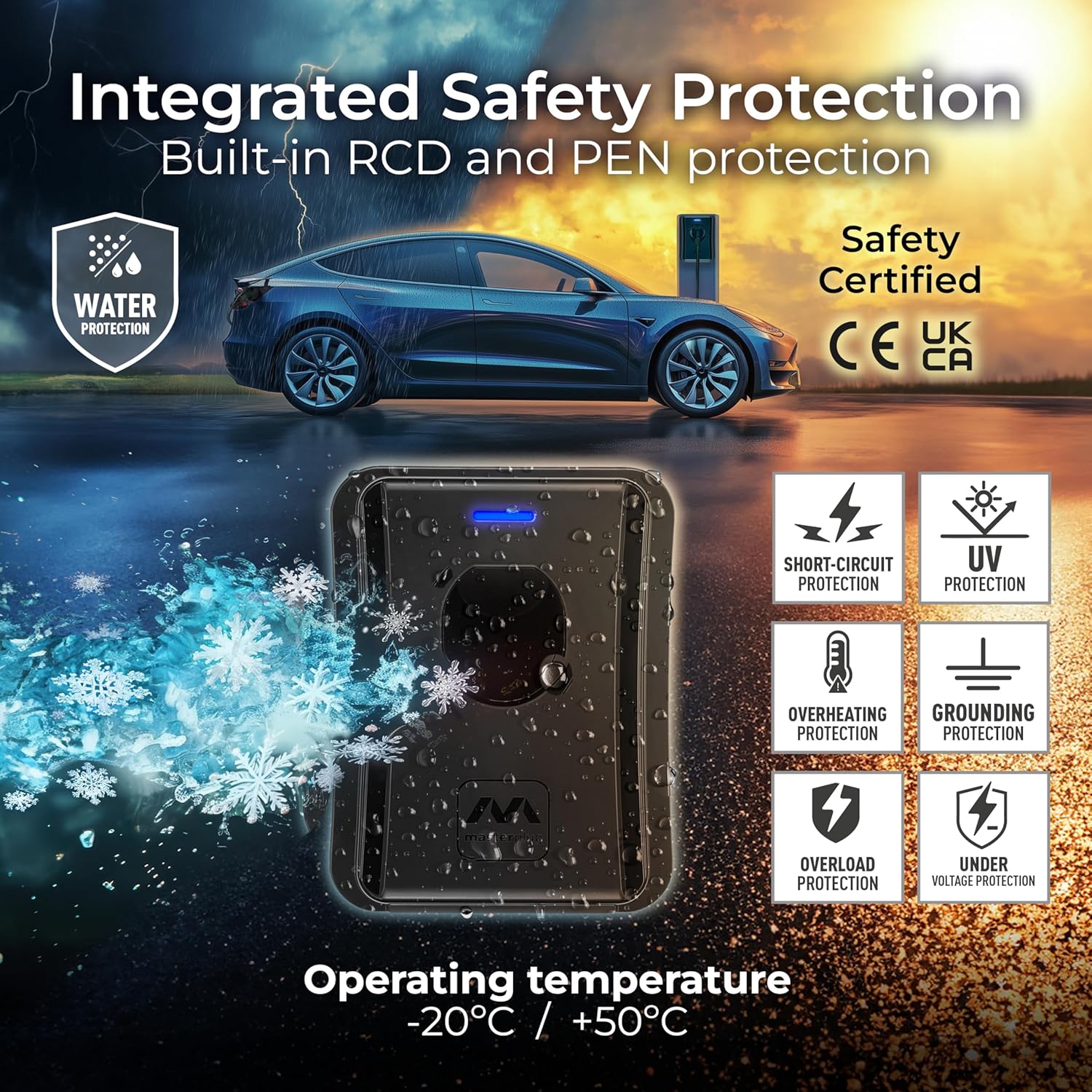
Image: Integrated safety protections ensure secure operation in various conditions.
3. Package Contents
Verify that all components are present in the package:
- 1 x Masterplug Smart EV Wall Charger unit with fixed 5m Type 2 cable
- Installation template
- Mounting hardware (screws, wall plugs)
- User Manual (this document)
4. Setup and Installation
Installation should only be carried out by a certified electrician.
- Site Selection: Choose a suitable location on a solid wall or structure, ensuring adequate clearance around the unit for ventilation and access. The unit is IP65 rated for outdoor use.
- Power Supply: Ensure a dedicated electrical circuit with appropriate overcurrent protection (e.g., 32A breaker) is available. The charger requires a single-phase supply.
- Mounting: Use the provided installation template to mark drilling points. Securely mount the charger to the wall using the supplied mounting hardware. The four-point fixing allows for horizontal and vertical adjustment.
- Electrical Connection: Connect the charger to the main electrical supply according to the wiring diagram provided in the full installation guide (not included in this user manual). Ensure all connections are tight and secure.
- Initial Power-Up: Once electrical connections are complete and verified, restore power to the circuit. The charger's LED indicator will illuminate, indicating power.
- App Configuration: Download the Sync Energy App from your device's app store. Follow the in-app instructions to connect the charger to your Wi-Fi network via Wi-Fi, LAN, or Bluetooth. You will need the charger's unique name and password, typically found on a sticker within the packaging or installation guide.

Image: Example of a properly installed Masterplug EV Wall Charger.

Image: The charger's fixed 5m cable provides convenient reach for vehicle charging.
5. Operating Instructions
5.1 Standard Charging
- Ensure the charger is powered on and connected to your network via the Sync Energy App.
- Connect the Type 2 charging cable to your electric vehicle's charging port.
- The charger's LED indicator will show the charging status.
- Initiate charging via the Sync Energy App. The app allows you to monitor charging status and control the charging session.
- To stop charging, use the Sync Energy App or disconnect the cable from your vehicle (if the vehicle allows).

Image: The charger features an LED indicator for quick status checks and supports dynamic fast charging.

Image: The Type 2 connector ensures broad compatibility with most EVs.
5.2 Smart Charging via Sync Energy App
The Sync Energy App provides advanced control and monitoring features:
- Remote Monitoring: View real-time charging status, energy consumption, and cost.
- Scheduling: Use the Tariff Sense feature to schedule charging sessions during off-peak hours to take advantage of lower electricity rates.
- User Management: Control access and manage charging for multiple users (if applicable).
- Firmware Updates: The app facilitates firmware updates for improved functionality and security.

Image: The Sync Energy App provides detailed charging information and control.
5.3 Solar Charging Function
The charger is compatible with solar energy systems, allowing you to utilize excess solar power for vehicle charging.
- Integration: Connect the charger to your home energy management system (if compatible) to enable solar charging.
- Optimization: The charger can intelligently use surplus solar energy, reducing reliance on grid power and lowering charging costs.
- Refer to the Sync Energy App for specific settings and monitoring related to solar charging.

Image: The charger can utilize excess solar energy for efficient vehicle charging.
6. Maintenance
Regular maintenance ensures the longevity and safe operation of your EV charger.
- Cleaning: Clean the exterior of the charger with a soft, damp cloth. Do not use abrasive cleaners or solvents. Ensure the unit is powered off before cleaning.
- Cable Inspection: Periodically inspect the charging cable and connector for any cuts, fraying, cracks, or discoloration. If any damage is found, discontinue use immediately and contact a qualified technician for repair or replacement.
- Firmware Updates: Keep the charger's firmware updated via the Sync Energy App to ensure optimal performance and access to the latest features and security enhancements.
- Professional Inspection: It is recommended to have a qualified electrician inspect the charger and its electrical connections annually.
7. Troubleshooting
If you encounter issues with your Masterplug EV Wall Charger, refer to the following common problems and solutions:
| Problem | Possible Cause | Solution |
|---|---|---|
| Charger not powering on | No power from the main supply; circuit breaker tripped. | Check the circuit breaker in your electrical panel. Ensure the main power supply to the charger is active. If the issue persists, contact a qualified electrician. |
| Vehicle not charging | Cable not properly connected; charging session not initiated via app; vehicle charging settings; charger fault. | Ensure the Type 2 connector is fully inserted into the vehicle's port. Verify the charging session is started in the Sync Energy App. Check your vehicle's charging settings. If the charger's LED indicates an error, refer to the app for details or contact support. |
| App connectivity issues | Wi-Fi signal weak or disconnected; incorrect network credentials; router issues. | Ensure your Wi-Fi network is active and the signal strength at the charger location is adequate. Re-enter network credentials in the Sync Energy App. Restart your router and the charger. If problems persist, try connecting via LAN or Bluetooth if available. |
| Slow charging speed | Vehicle limitations; power supply issues; app settings. | Verify your vehicle's maximum charging rate. Check the Sync Energy App for any power limits or scheduled charging profiles that might be active. Ensure the electrical supply is stable and meets the charger's requirements. |
For issues not listed here or if troubleshooting steps do not resolve the problem, please contact Masterplug customer support.
8. Specifications
| Feature | Specification |
|---|---|
| Model Number | EVCM3ST7B-MP |
| Charging Power | Up to 7.4 kW |
| Current | 32A |
| Charging Mode | Mode 3 |
| Connector Type | Type 2 (fixed 5m cable) |
| Power Supply | Single-phase, 230V |
| Connectivity | Wi-Fi, LAN, Bluetooth (via Sync Energy App) |
| Ingress Protection (IP) Rating | IP65 (weather-resistant) |
| Operating Temperature | -20°C to +55°C |
| Material | Polycarbonate |
| Dimensions (L x W x H) | 23.6 x 12.9 x 30.4 cm |
| Weight | 3.7 kg |
| Special Features | Short Circuit Protection, Overload Protection, Overheating Protection, Solar Charging Function |
9. Warranty and Support
9.1 Manufacturer's Warranty
The Masterplug Smart EV Wall Charger comes with a 3-year manufacturer's warranty from the date of purchase. This warranty covers defects in materials and workmanship under normal use. Please retain your proof of purchase for warranty claims.
The warranty does not cover damage caused by improper installation, misuse, unauthorized modifications, accidents, or natural disasters.
9.2 Technical Support
For technical assistance, warranty claims, or further inquiries, please contact Masterplug customer support. Contact details can typically be found on the Masterplug official website or on your product packaging.
When contacting support, please have your product model number (EVCM3ST7B-MP) and proof of purchase readily available.