
Introduction
This manual provides detailed instructions for the installation, operation, and maintenance of your EONON 10.1-inch 2DIN Car Navigation System, Model GA2197. This advanced car stereo features the latest Android 13 operating system, a high-resolution IPS display, and extensive connectivity options including wireless CarPlay, Android Auto, Mirroring, Wi-Fi, and Bluetooth 5.0. Please read this manual thoroughly before using the product to ensure proper and safe operation.
Safety Information
- Installation: Professional installation is highly recommended. Incorrect wiring or installation can cause damage to the device or vehicle.
- Operation: Do not operate the device in a way that distracts you from driving. Always prioritize road safety.
- Power Supply: Ensure the device is connected to a 12V DC power supply.
- Temperature: Avoid exposing the device to extreme temperatures or direct sunlight for prolonged periods.
- Cleaning: Use a soft, dry cloth for cleaning. Do not use abrasive cleaners or solvents.
Package Contents
Please verify that all items listed below are included in your package:
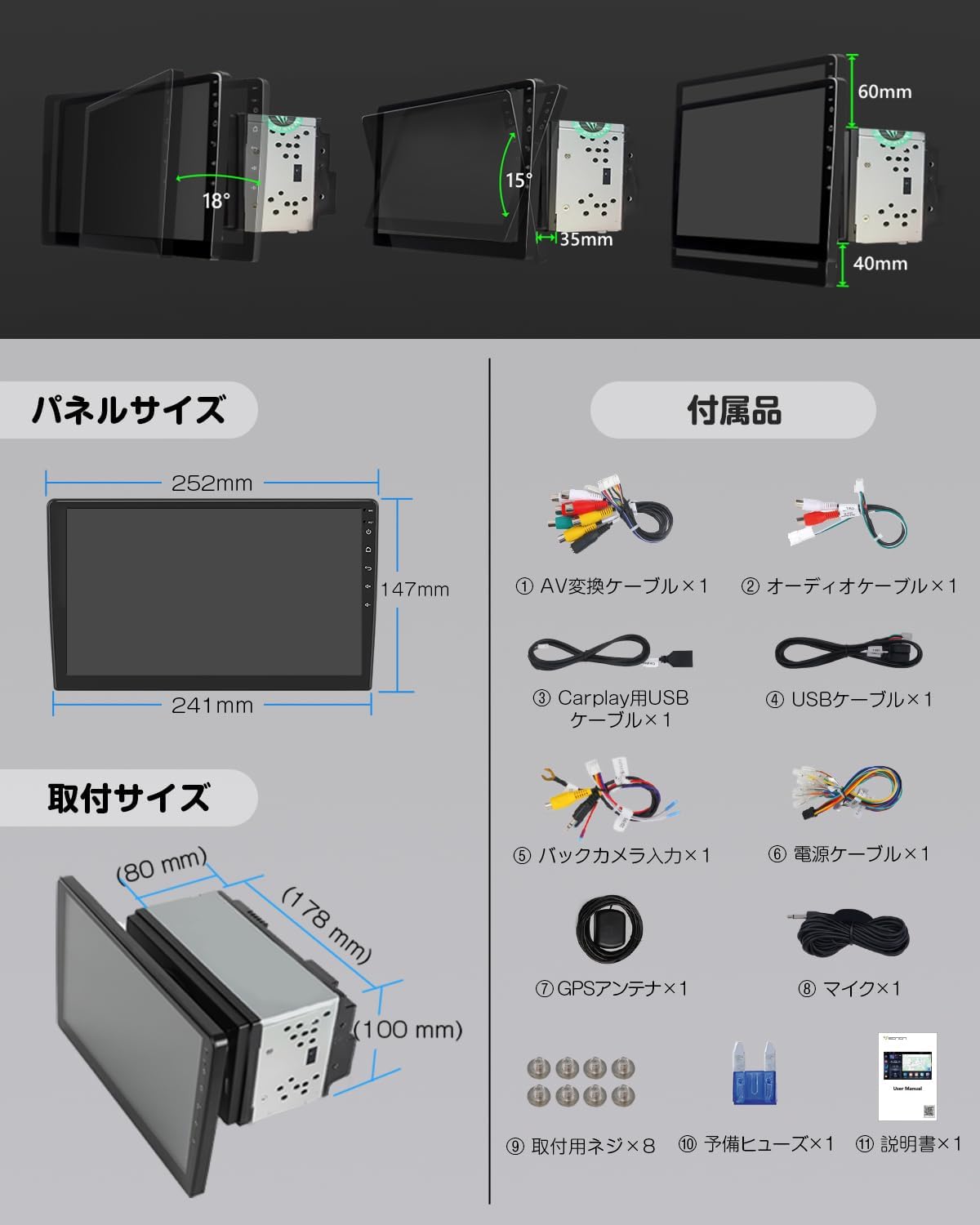
Image: Overview of the product's panel size, installation size, and included accessories.
- AV Conversion Cable x 1
- Audio Cable x 1
- CarPlay USB Cable x 1
- USB Cable x 1
- Backup Camera Input Cable x 1
- Power Cable x 1
- GPS Antenna x 1
- Microphone x 1
- Mounting Screws x 8
- Spare Fuse x 1
- Instruction Manual x 1
Product Overview

Image: Front view of the EONON 10.1-inch 2DIN Car Navigation System displaying a map and various application icons.
Key Features
- Latest Android 13 System: Equipped with the most advanced Android 13 system for enhanced performance and broader app compatibility, providing a smarter and smoother driving experience.
- High-Efficiency Processor: Utilizes a cost-effective chip for high performance and low power consumption, ensuring smooth operation of multiple applications and fast data transfer.
- Japan-Specific Right-Hand Drive Design: The touchscreen is specifically designed for right-hand drive vehicles, optimizing user experience for Japanese customers.
- 10.1-inch IPS Large Screen: Features a 1280x720 ultra-high resolution display, offering clear and detailed visuals for navigation and media. The IPS screen provides a wider viewing angle for comfortable travel.
- Navigation Capabilities: Easily use online and offline maps by installing map applications or using an Android map card (G3048, sold separately). Download Google Maps and other map apps to always get the latest map information.
- WiFi Connectivity: Connect to the internet via Wi-Fi or tethering. Download and install apps freely to enjoy music and videos.
- Wireless & Wired Android Auto/CarPlay: Seamlessly connect your smartphone for navigation, calls, and music. Supports wireless connection for convenience. Compatible with iPhone 5 and later for CarPlay. For wireless Android Auto, smartphones must support 5GHz Wi-Fi and have the latest Android Auto app installed (e.g., Android 11.0+). Wired Android Auto requires Android 6.0+.
- Wireless & Wired Mirroring Function: Use the "TLINK" mirroring function to synchronize photos, music, and videos from your smartphone to the unit. Supports both wireless and wired connections.
- Bluetooth 5.0: Offers faster data transfer speeds, wider communication range, and enhanced anti-interference capabilities. Supports music apps like Spotify and Apple Music for high-quality audio, and enables hands-free calling while driving.
- Enhanced In-Car Sound: Equipped with TDA7388 surround stereo for an immersive audio experience. Delivers excellent sound quality and powerful output (max 4 x 45W) for a wide and realistic sound. Features a 36-band graphic equalizer for customizable sound.
- FM/AM/Wide FM Support: Features the advanced SI4755 module for improved radio reception and quality across a wide frequency range.
- Steering Wheel Control Function: Register frequently used operations to your steering wheel buttons for safe and convenient control while driving.
- Software Update Support: Supports OTA updates to fix software issues and improve security, keeping your device up-to-date with a simple tap. (Note: This update is for software, not Android system upgrades).
- AHD Backup Camera Support: Compatible with AHD backup cameras up to 1920x1080 resolution (EONON A0119J, A0126J sold separately). Automatically switches to the backup camera screen when reverse gear is engaged.
- TV Viewing Capability: Connect an external terrestrial digital tuner (EONON A500 compatible) to watch TV.
- OBD2 Compatible: Can link with an OBDII car diagnostic tool (EONON V0056 sold separately) to check vehicle performance information like engine RPM via the Torque app.
- Drive Recorder Mode: Connect an Android car USB HD drive recorder (EONON R0020 sold separately) to view recorded footage and monitor traffic conditions on the large navigation screen.
- RCA/HDMI Full Screen Share: Supports outputting images and screen displays from all modes to external monitors like headrest monitors via RCA or high-quality HDMI output. (Note: Some apps may not support video output).
- UI Selectable: Offers three UI options and customizable home screen. Adjust panel light colors to match your preference.
Setup
Installation
The GA2197 features a short body design, making installation easier compared to previous car navigation systems. Even beginners can install it with ease.
Image: Detailed diagrams showing the panel size (252mm top, 241mm bottom, 147mm height) and installation size (178mm width, 80mm depth, 100mm height) of the unit.
Panel Size: 252mm (top) x 147mm (height) x 241mm (bottom)
Installation Size: 178mm (width) x 80mm (depth) x 100mm (height)
The LCD panel can be adjusted up to approximately 35 degrees. The panel can be adjusted up to 40mm vertically upwards and 60mm vertically downwards.

Image: A comprehensive wiring diagram showing various connections for the car navigation system, including power, audio, video, and control inputs.
Refer to the wiring diagram for proper connection of all cables. Ensure all connections are secure before powering on the device.
Initial Setup
- After installation, turn on your vehicle's ignition to power on the unit.
- Follow the on-screen prompts to select your preferred language, set the date and time, and configure initial system settings.
Network Connection (Wi-Fi)
To access online features, connect the unit to a Wi-Fi network or use your smartphone's tethering function.

Image: Illustrations demonstrating Wi-Fi connectivity and the availability of online and offline map applications like Google Maps.
- Go to Settings > Network & Internet > Wi-Fi.
- Select your desired Wi-Fi network and enter the password if required.
- For iPhone users experiencing Wi-Fi connection issues, setting a static IP is recommended.
Operating Instructions
Basic Operation
- The unit operates via its 10.1-inch IPS touchscreen. Tap, swipe, and pinch to navigate the interface.
- The user interface is customizable. Go to Settings to choose from three UI options and personalize your home screen layout.
- Adjust the panel light colors to match your vehicle's interior or your mood.
Navigation
The unit supports various navigation applications. You can download map apps from the Google Play Store or use an Android map card (sold separately).
- Launch your preferred navigation app from the home screen or app drawer.
- Enter your destination and follow the on-screen directions.
- The system provides real-time traffic information and clear route guidance (with internet connection).
Audio/Video Playback
- Bluetooth Audio: Pair your smartphone via Bluetooth 5.0 to stream music from apps like Spotify or Apple Music. Go to Settings > Bluetooth to pair your device.
- FM/AM/Wide FM Radio: Access radio stations using the built-in tuner. The SI4755 module ensures enhanced reception.
- USB Media: Connect USB drives to play audio and video files.
- Sound Customization: Utilize the 36-band graphic equalizer to fine-tune the audio output to your preference.
Image: A screenshot of the unit's display showing music playback via Bluetooth 5.0.

Image: A screenshot of the unit's display showing the Wide FM radio interface with frequency tuning options.
Smartphone Integration (CarPlay, Android Auto, Mirroring)
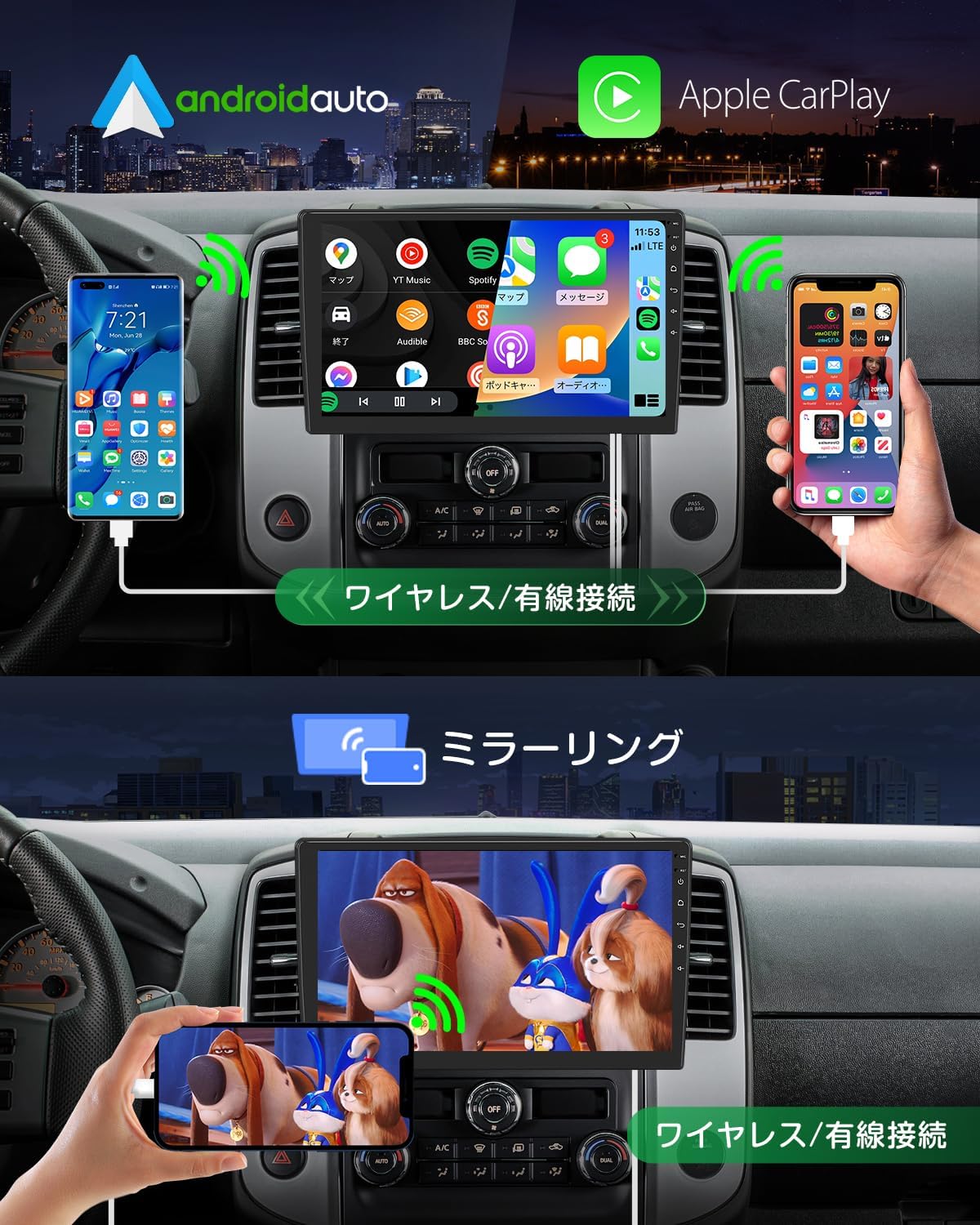
Image: Demonstrates wireless and wired connections for Apple CarPlay and Android Auto, as well as the mirroring function displaying smartphone content on the unit's screen.
- CarPlay/Android Auto: Connect your iPhone or Android smartphone wirelessly or via USB. Once connected, you can use voice commands or touch the display to access navigation, make calls, and enjoy music.
- Mirroring: Use the "TLINK" app to mirror your smartphone's screen onto the unit. This allows you to view photos, listen to music, and watch videos directly from your phone on the larger display.
External Device Connectivity
- Backup Camera: Connect an AHD backup camera (EONON A0119J, A0126J sold separately) to automatically display the rear view when shifting into reverse.
- OBD2: Pair with an OBDII car diagnostic tool (EONON V0056 sold separately) via Bluetooth to monitor vehicle data using the Torque app.
- Drive Recorder: Connect a compatible USB HD drive recorder (EONON R0020 sold separately) to record driving footage and view it on the unit's screen.
- TV Tuner: An external terrestrial digital tuner (EONON A500 compatible) can be connected for in-car TV viewing.
- External Monitors: Use RCA or HDMI outputs (EONON A0595/A0596 sold separately) to share the screen content with external monitors like headrest displays.
Steering Wheel Control

Image: A screenshot of the unit's interface for learning and configuring steering wheel controls.
Program your vehicle's steering wheel buttons to control common functions of the unit, such as volume, track skipping, and mode switching, for safer operation while driving.
Maintenance
Software Updates (OTA)

Image: A screenshot of the unit's display showing the OTA (Over-The-Air) software update interface, indicating available updates.
The unit supports Over-The-Air (OTA) software updates. These updates address software issues and enhance security, ensuring your device remains in optimal condition. Simply tap to initiate the upgrade process. Note that these updates are for the device's software, not for upgrading the Android operating system version.
Troubleshooting
If you encounter issues with your EONON GA2197, please refer to the following common problems and solutions:
- Touchscreen Unresponsive/Misbehaving: If the touch panel is unresponsive or registers incorrect inputs, try restarting the unit. If the issue persists, ensure the screen is clean and free of debris. In rare cases, a factory reset might be necessary (consult support before performing).
- Slow Response/Lag: If the unit feels slow or applications launch with a delay, try closing unused background applications. Ensure there is sufficient free storage space. A restart can often resolve temporary performance issues.
- Backup Camera Delay/Not Switching: If the backup camera image is delayed or doesn't switch automatically when reverse gear is engaged, double-check the wiring connections for the backup camera input. Ensure the camera itself is functioning correctly.
- Wireless CarPlay/Android Auto Connection Issues: If you experience difficulty connecting wirelessly, ensure your smartphone's Wi-Fi (especially 5GHz for Android Auto) and Bluetooth are enabled and properly paired. Update the Android Auto/CarPlay app on your phone to the latest version. For Android Auto, confirm your phone meets the 5GHz Wi-Fi requirement.
- Keyless Entry Interference: Some users have reported interference with keyless entry systems. This can sometimes be resolved by ensuring the unit's power is off when the vehicle is parked and not in use, or by adjusting the unit's position slightly if possible. If the issue persists, consult a professional installer or Eonon support.
- Poor Wi-Fi Reception: If Wi-Fi signal strength is low, ensure the Wi-Fi antenna is properly connected and positioned. Try moving your Wi-Fi hotspot closer to the unit if using tethering.
- No Sound/Poor Sound Quality: Check all audio cable connections. Verify the volume settings on the unit and ensure the equalizer settings are not causing distortion.
For persistent issues or problems not listed here, please contact Eonon customer support.
Specifications
| Feature | Specification |
|---|---|
| Screen Size | 10.1 inches |
| Display Type | LCD (IPS) |
| Resolution | 1280 x 720 |
| Operating System | Android 13 |
| RAM | 2GB |
| ROM (Internal Storage) | 32GB |
| Processor | 8-core (High-efficiency chip) |
| Bluetooth Version | 5.0 |
| Connectivity | Bluetooth, HDMI, USB, Wi-Fi |
| Max Power Output | 4 x 45W (TDA7388) |
| Mounting Type | Dashboard Mount |
| Compatible Vehicle Type | Passenger Car |
| Product Model Number | GA2197 |
| Package Dimensions | 32.5 x 23.1 x 19.6 cm |
| Item Weight | 2.69 kg |
Warranty and Support
Eonon products are designed for reliability and performance. For warranty information, please refer to the documentation included with your purchase or visit the official Eonon website. If you require technical assistance, troubleshooting, or have questions about your GA2197 unit, please contact Eonon customer support. Our team is dedicated to providing comprehensive support to ensure your satisfaction.
No official seller videos were found for this product.


