
1. Introduction
This manual provides essential information for the setup, operation, maintenance, and troubleshooting of your TULPAR T5 V23.4 Gaming Laptop. Please read this guide thoroughly to ensure proper use and to maximize your device's performance and longevity.
The TULPAR T5 V23.4 is a high-performance gaming laptop designed for immersive gaming and demanding tasks. It features an Intel Core i7 12700H processor, NVIDIA RTX 4060 graphics, a vibrant 15.6-inch Full HD 144Hz IPS display, 16GB of RAM, and a fast 1TB NVMe SSD, all running on Windows 11 Home.
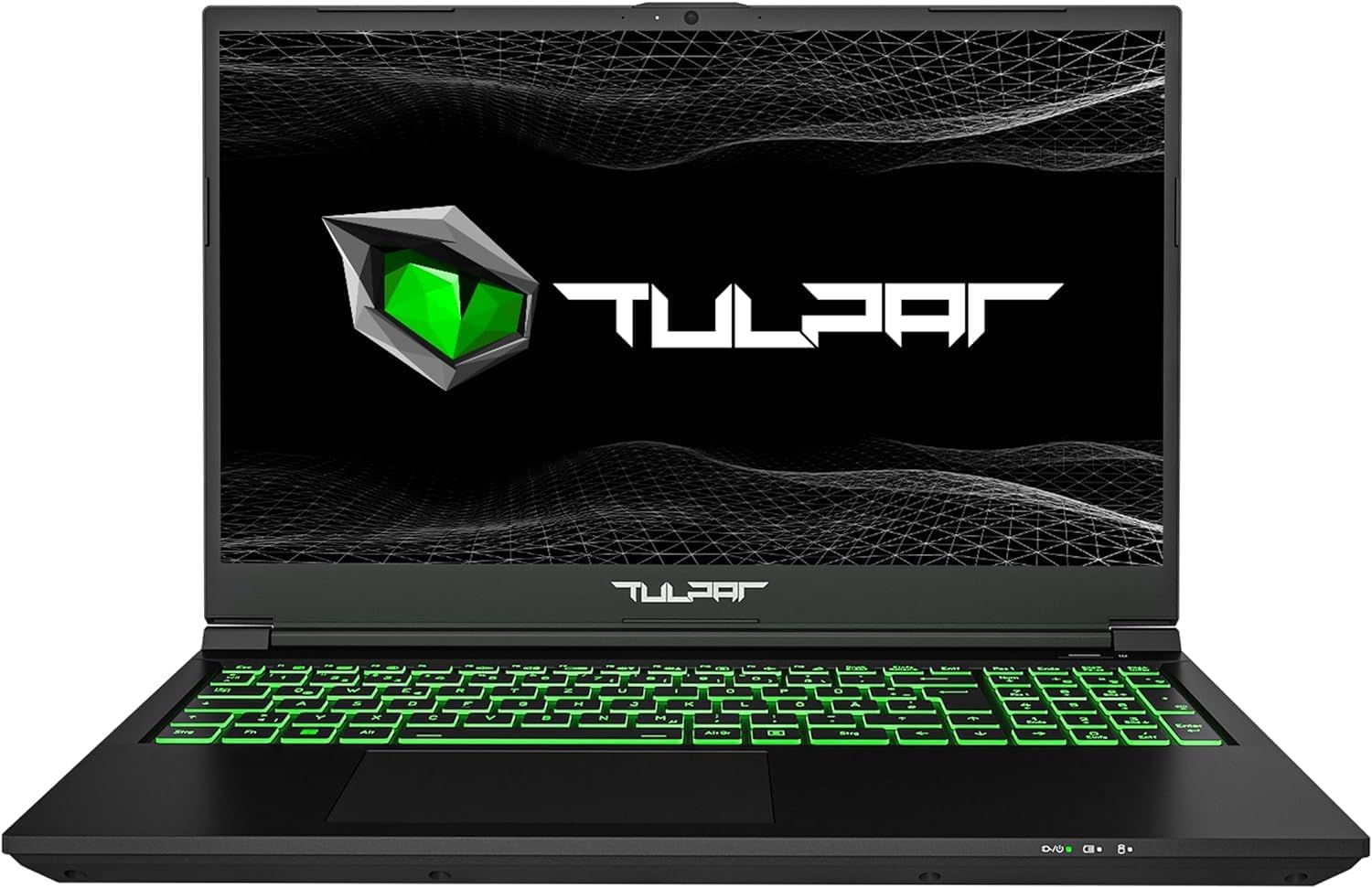
Image 1.1: Front view of the TULPAR T5 V23.4 Gaming Laptop, showcasing its illuminated keyboard and display.
2. Initial Setup
2.1 Unboxing and First Power On
- Carefully remove the laptop and all accessories from the packaging.
- Connect the power adapter to the laptop's power input port and then to a power outlet.
- Open the laptop lid and press the power button, typically located above the keyboard or on the side.
2.2 Windows 11 Setup
Upon first boot, you will be guided through the Windows 11 Home setup process. Follow the on-screen instructions to:
- Select your region and keyboard layout.
- Connect to a Wi-Fi network.
- Sign in with your Microsoft account or create a new one.
- Set up privacy settings and create a user PIN.
2.3 Driver Installation and Updates
Your TULPAR T5 V23.4 comes with pre-installed drivers. However, it is recommended to check for and install the latest drivers and system updates for optimal performance and security. This can typically be done via the manufacturer's support website or through the pre-installed Tulpar Control Center application.
3. Operation
3.1 Key Features Overview
- Processor: Intel Core i7-12700H (12th Gen) for high-speed processing.
- Graphics: NVIDIA GeForce RTX 4060 8GB GDDR6 for advanced gaming and creative tasks.
- Display: 15.6-inch Full HD (1920x1080) IPS LED display with a 144Hz refresh rate for smooth visuals.
- Memory: 16GB RAM, expandable up to 64GB.
- Storage: 1TB NVMe Gen4 SSD for rapid boot times and data access.
- Operating System: Windows 11 Home.

Image 3.1: The Intel Core i7-12700H 12th Generation processor, designed for high performance and efficiency.

Image 3.2: The NVIDIA RTX 4060 8GB graphics card, providing advanced visual processing for gaming.

Image 3.3: The 15.6-inch 144Hz Full HD IPS display offers smooth motion and vibrant colors.

Image 3.4: NVMe Gen4 SSD technology ensures fast loading and data transfer speeds.
3.2 Keyboard and Touchpad
The laptop features a backlit QWERTZ keyboard with customizable RGB single-zone lighting. Use the Tulpar Control Center application to personalize the lighting effects and assign colors to specific games or applications.

Image 3.5: The RGB keyboard with customizable single-zone backlighting.
3.3 Audio System
Enhance your audio experience with Sound Blaster Studio. This software allows you to individually customize settings for both headphones and speakers, creating a more immersive sound environment.

Image 3.6: Sound Blaster Studio interface for audio customization.
3.4 Connectivity and Ports
The TULPAR T5 V23.4 offers a range of connectivity options:
- Wireless: Wi-Fi 6 (AX201) for fast and stable internet connections.
- Wired: RJ45 Ethernet port for reliable wired network access.
- Ports:

Image 3.7: Port layout of the TULPAR T5 V23.4 Gaming Laptop.
- USB 3.2 Gen2 Type-C (Data Only)
- HDMI 1.4
- Mini DP 1.4
- Power Connector
- Kensington Lock Slot
- USB 3.2 Gen1
- USB 2.0
- Microphone Jack
- Headphone Jack
- Micro-SD Card Reader
- USB 3.2 Gen2 Type-C
- RJ45 Ethernet Port

Image 3.8: The laptop supports Wi-Fi 6 for enhanced wireless performance.
3.5 Tulpar Control Center
The Tulpar Control Center software allows you to manage various aspects of your laptop's performance, including:
- Switching between performance modes (e.g., Silent, Performance, Power-saving).
- Customizing keyboard RGB lighting.
- Monitoring system status.
4. Maintenance
4.1 Cleaning
- Screen: Use a soft, lint-free cloth specifically designed for electronics. Dampen it slightly with water or a screen cleaner solution. Avoid harsh chemicals.
- Keyboard and Chassis: Use a soft brush or compressed air to remove dust and debris. Wipe surfaces with a slightly damp, soft cloth.
- Cooling Vents: Periodically use compressed air to clear dust from the cooling vents to maintain optimal airflow.
4.2 Software Updates
Regularly update your operating system (Windows 11) and device drivers to ensure security, stability, and optimal performance. You can check for updates through Windows Update and the Tulpar Control Center or the official TULPAR support website.
4.3 Storage and RAM Upgrades
The TULPAR T5 V23.4 is designed with upgradeability in mind. It typically includes an additional M.2 slot for expanding storage and allows for RAM upgrades up to 64GB. For detailed instructions on how to perform these upgrades, please refer to the official TULPAR service documentation or consult a qualified technician.
5. Troubleshooting
5.1 Common Issues and Solutions
- Laptop not powering on: Ensure the power adapter is securely connected to both the laptop and a working power outlet. Check if the power button is functioning correctly.
- Fan noise is loud during gaming: This is normal behavior for high-performance gaming laptops. The cooling system increases fan speed to dissipate heat during intensive tasks. Ensure cooling vents are not obstructed.
- Short battery life during gaming: Gaming is a power-intensive activity. It is normal for battery life to be significantly shorter when gaming compared to general use. For extended gaming sessions, keep the laptop connected to the power adapter.
- Performance issues (lag, stuttering):
- Ensure all drivers (especially graphics drivers) are up to date.
- Check power settings in Windows and the Tulpar Control Center to ensure the laptop is in a performance mode.
- Close unnecessary background applications.
- Monitor system temperatures to prevent thermal throttling.
- Wi-Fi connectivity issues:
- Restart your router and modem.
- Ensure Wi-Fi drivers are updated.
- Check network settings in Windows.
6. Specifications
| Feature | Specification |
|---|---|
| Brand | TULPAR |
| Model Number | T5 V23.4 |
| Series | T5 V23.2 Series |
| Color | Black |
| Operating System | Windows 11 Home |
| Processor Brand | Intel |
| Processor Type | Core i7-12700H (12th Gen) |
| Processor Speed | 2.3 GHz (Base), up to 4.7 GHz (Boost) |
| Number of Cores | 10 (6 Performance, 8 Efficiency) |
| Installed RAM | 16 GB |
| Maximum Memory | 64 GB |
| Storage Type | 1 TB NVMe Gen4 SSD |
| Display Size | 15.6 Inches |
| Display Resolution | 1920 x 1080 pixels (Full HD) |
| Display Technology | IPS LED, 144Hz Refresh Rate |
| Graphics Card | NVIDIA GeForce RTX 4060 (8GB GDDR6) |
| Wireless Technology | Wi-Fi 6 (802.11a/b/g/n/ax) |
| Bluetooth | Not specified as compatible |
| USB Ports | 2x USB 3.2 Gen2 Type-C, 1x USB 3.2 Gen1, 1x USB 2.0 |
| Video Output | HDMI 1.4, Mini DP 1.4 |
| Ethernet | RJ45 Ethernet Port |
| Audio Jacks | Microphone, Headphone |
| Card Reader | Micro-SD |
| Dimensions (L x W x H) | 35 x 2 x 23 cm |
| Keyboard | Backlit QWERTZ |
| Date First Available | April 26, 2024 |
7. Warranty and Support
7.1 Warranty Information
Your TULPAR T5 V23.4 Gaming Laptop is covered by a manufacturer's warranty. Please refer to the warranty card included with your product or visit the official TULPAR website for detailed terms and conditions. Some manufacturers may offer additional services, such as annual free cleaning and maintenance; verify such offers directly with TULPAR.

Image 7.1: TULPAR's service promise, which may include free lifetime maintenance. Please check official documentation for details.
7.2 Technical Support
For technical assistance, driver downloads, or service inquiries, please contact TULPAR customer support through their official website. Have your product model number (T5 V23.4) and serial number ready when contacting support.


