
SIXTOP 2+32G Android Car Stereo for Hyundai Elantra 2014-2016
SIXTOP Android Car Stereo User Manual
Model: 2+32G for Hyundai Elantra 2014-2016
1. Product Overview
The SIXTOP Android Car Stereo is designed to upgrade the in-car entertainment and navigation system for Hyundai Elantra models from 2014 to 2016. This unit features a 9-inch touchscreen display, offering a comprehensive suite of functionalities including wireless CarPlay, Android Auto, Mirror Link, GPS navigation, FM/RDS radio, Bluetooth connectivity, and support for steering wheel controls and a backup camera. With 2GB RAM and 32GB ROM, it provides a smooth user experience and ample storage for applications.

Figure 1: SIXTOP Android Car Stereo main unit with various app icons displayed on the screen.
2. Package Contents and Specifications
2.1 Package Contents
Please verify that all items listed below are included in your package:
- Car Stereo with Frame
- AHD Rear Camera
- Microphone (MIC)
- RCA Cable
- GPS Antenna
- Rear Camera Input Cable
- User Manual
- Power Cord
- USB Cables (2)
- Installation Tool
- Power Cable
- Accessories (screws, brackets)

Figure 2: Diagram showing the dimensions of the car stereo and all included accessories such as cables, camera, microphone, and user manual.
2.2 Technical Specifications
| Feature | Specification |
|---|---|
| Memory (RAM/ROM) | 2GB RAM + 32GB ROM |
| Screen Resolution | 1024 x 600 |
| Power Output | 4*45W |
| Work Temperature | -20°C to 75°C |
| Radio Band | FM/RDS |
| Reversing Input | AHD/CVBS |
| Audio Format Support | APE/FLAC/WAV/MP3/WMA etc. |
| Video Format Support | MKV/RMVB/AVI/MP4/MDV etc. |
| Supported Languages | English, French, Italian, Korean, Japanese, Arabic, Spanish, Portuguese, Russian, Turkish, Vietnamese, Hebrew, Polish, German |
| Picture Format Support | PNG/JPEG/JPG/GIF/WBMP/BNP etc. |
| Connectivity | Bluetooth, WiFi |
| Special Features | Touchscreen, Android Auto, CarPlay, GPS Navigation |
| Feature | Specification |
|---|---|
| Image Sensor | 140A |
| TV System | NTSC / PAL Option |
| Power | DC 12V |
| Effective Pixels | 1280 x 720 Pixels |
| Video Output | 1.0Vpp, 75Ohm |
| White Balance | Auto |
| Video Cable Length | About 6M |
| Power Supply Cable Length | About 1.5M |
| Low-light Level Night Vision | 15m visible distance for night |
| Electronic Shutter | 1/50 to 1/100,000 seconds, 1/60 to 1/100,000 seconds |
Table 1: Detailed technical specifications for the Android Radio and AHD Camera components.
3. Installation Guide
This section provides general guidance for installing your SIXTOP Android Car Stereo. Professional installation is recommended. Ensure the vehicle's power is disconnected before beginning installation.
3.1 Pre-Installation Check
- Confirm compatibility with your Hyundai Elantra (2014-2016 model years).
- Verify all package contents are present and undamaged.
- Gather necessary tools (e.g., trim removal tools, screwdrivers, wire strippers).
3.2 Removing the Original Radio
Carefully remove the existing car stereo and trim panels from your vehicle's dashboard. Use appropriate trim removal tools to avoid damaging the interior. Disconnect all wiring harnesses from the original unit.

Figure 3: Comparison of the car dashboard before and after the installation of the SIXTOP Android Car Stereo.
3.3 Wiring Connections
Connect the provided wiring harnesses to the new Android Car Stereo and the vehicle's existing wiring. Pay close attention to the specific connections for power, speakers, antenna, and auxiliary inputs/outputs.
- Power Cord: Connect the main power harness.
- RCA Cables: For audio/video input/output.
- GPS Antenna: Mount the GPS antenna in a location with a clear view of the sky (e.g., dashboard, under windshield).
- USB Cables: Route USB cables to an accessible location for connecting external devices.
- Microphone (MIC): Connect the external microphone for improved call quality.
- Rear Camera Input: Connect the rear camera input cable to the stereo.

Figure 4: Detailed wiring diagram illustrating the connections for the rear view camera, including power and video signal lines.
Rear Camera Wiring: Connect the camera's power cable to the vehicle's reverse light power source (positive) and ground (negative). Connect the camera's video output to the "Rear Camera Input" on the stereo. Ensure the reverse control wire on the stereo's power cord (often marked "Reverse" or "Back") is connected to the positive pole of the car's reversing light.
3.4 Mounting the New Stereo
Secure the new SIXTOP Android Car Stereo into the dashboard opening using the provided brackets and screws. Ensure it is firmly seated and aligned correctly. Reinstall any removed trim panels.
3.5 Initial Power On
Reconnect the vehicle's power. Turn on the ignition and power on the stereo. Follow any on-screen prompts for initial setup, such as language selection and time zone.
4. Operating Instructions
4.1 CarPlay and Android Auto
The stereo supports both wireless CarPlay and Android Auto, allowing seamless integration with your smartphone for navigation, music, calls, and messages.
- Connection: Ensure your phone's WiFi and Bluetooth are enabled. Connect your phone via Bluetooth first, then open the "ZLINK5" APP on the stereo. Alternatively, use a USB cable to connect your phone and then open the "ZLINK5" APP.
- Voice Control: Synchronize your phone's voice assistant for hands-free control.

Figure 5: Screenshots demonstrating the user interfaces for Apple CarPlay and Android Auto on the car stereo display.
4.2 Mirror Link Function
Mirror Link allows you to project your smartphone's screen onto the car stereo display, ideal for viewing downloaded videos or other content.
- Activation: Select the "ZLINK5" APP and switch to the "Mirror Link" connection option.
- Connection Type: Supports both USB and WiFi connections for Mirror Link.

Figure 6: Illustration of the Mirror Link feature, showing a smartphone screen mirrored onto the car stereo display.
4.3 WiFi and GPS Navigation
Connect to WiFi to download apps, stream online music, and watch videos. The built-in GPS allows for offline navigation.
- WiFi Connection: Go to settings to connect to an available WiFi network. Once connected, you can access the Play Store to download various applications.
- GPS Navigation: The unit has built-in GPS. You can download offline navigation maps directly from the Play Store. Online maps also function perfectly when connected to WiFi.

Figure 7: Screenshots showing the WiFi connection interface and the GPS navigation map display on the car stereo.
4.4 FM/RDS Radio and Bluetooth
Enjoy your favorite radio stations and seamless Bluetooth connectivity for calls and music.
- FM/RDS Radio: Tune into FM radio stations. RDS (Radio Data System) provides additional information like station name and song title.
- Bluetooth: Supports hands-free calling (incoming/outgoing calls), phonebook synchronization, and mobile phone music playback.
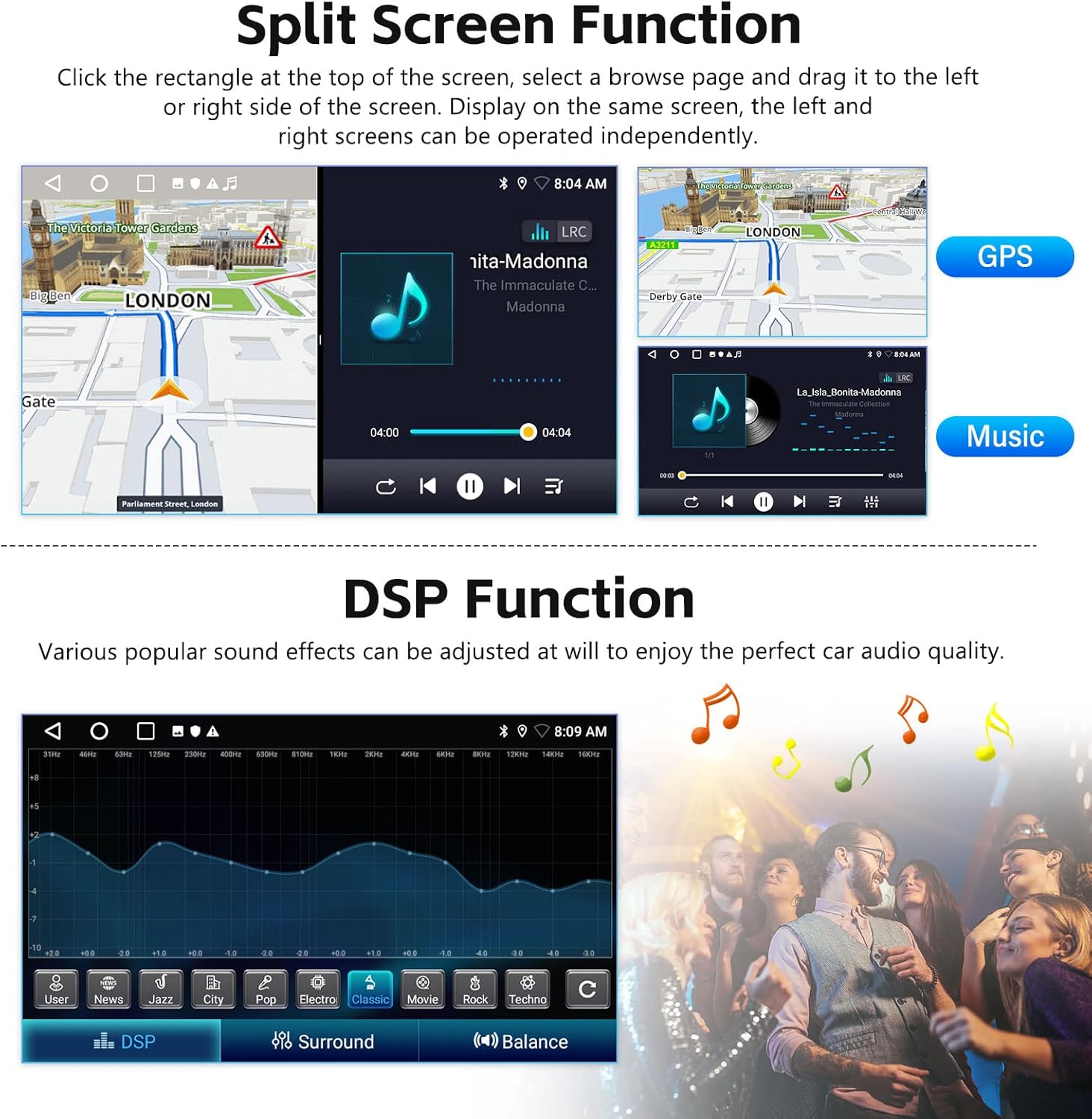
Figure 8: Displays of the FM radio tuning interface and Bluetooth settings/music playback screens.
4.5 Steering Wheel Control Function
Control the car audio system using your vehicle's original steering wheel buttons for convenience and safety.
- Setup: Access the steering wheel control settings in the stereo's menu to map functions to your vehicle's buttons.

Figure 9: Screenshot of the steering wheel control learning interface and an image of a hand operating steering wheel buttons.
4.6 Reversing Display (Backup Camera)
The included waterproof night vision camera provides a clear reversing image, automatically switching when the vehicle is in reverse gear.

Figure 10: Depiction of the reversing display showing the view from the backup camera with parking guidelines.
4.7 Split Screen Function
Operate two applications simultaneously on the screen, such as navigation and music playback.
- Activation: Click the rectangle icon at the top of the screen, then select a browse page and drag it to either the left or right side of the screen. Both screens can be operated independently.

Figure 11: Example of the split screen function, showing GPS navigation on one side and music playback on the other.
4.8 DSP Function and Desktop Themes
- DSP Function: Adjust various sound effects to customize your audio experience.
- Desktop Themes: The stereo offers 26 different desktop themes. Long-press a blank space on the homepage to change to your preferred theme.

Figure 12: A collage showcasing the variety of 26 desktop themes available for the car stereo interface.
5. Maintenance
To ensure the longevity and optimal performance of your SIXTOP Android Car Stereo, follow these maintenance guidelines:
- Cleaning: Use a soft, dry cloth to clean the touchscreen and exterior. Avoid abrasive cleaners or solvents.
- Software Updates: Periodically check for software updates to ensure you have the latest features and bug fixes. Connect to WiFi and navigate to the system settings for update options.
- Environmental Conditions: Avoid exposing the unit to extreme temperatures, direct sunlight for prolonged periods, or excessive moisture.
6. Troubleshooting
This section addresses common issues you might encounter. If the problem persists, please contact customer support.
| Problem | Possible Cause | Solution |
|---|---|---|
| No sound after installation | Car equipped with an amplifier or higher vehicle configuration requiring a specific wiring harness/CANBUS protocol box. | Contact customer service with pictures of your original car center console and CD back slot to inquire about a suitable power cord or CANBUS solution. |
| CarPlay/Android Auto not connecting | Bluetooth/WiFi not enabled on phone, "ZLINK5" app not open, or incorrect USB cable. | Ensure phone's Bluetooth and WiFi are on. Open "ZLINK5" app. Try a different, high-quality USB cable if using wired connection. |
| GPS not acquiring signal | GPS antenna improperly installed or obstructed. | Ensure GPS antenna is mounted in a location with a clear view of the sky. Check antenna connection to the stereo. |
| Screen unresponsive or frozen | Temporary software glitch. | Perform a soft reset by pressing and holding the power button until the unit restarts. If issue persists, consult customer support. |
7. Warranty and Support
7.1 Product Warranty
The SIXTOP Android Car Stereo comes with a 1-Year Warranty from the date of purchase, covering manufacturing defects. Please retain your proof of purchase for warranty claims. The warranty does not cover damage caused by improper installation, misuse, accidents, or unauthorized modifications.
7.2 Customer Support
For technical assistance, troubleshooting, or warranty inquiries, please contact SIXTOP customer service:
- Email: sixtop123@163.com
- Manufacturer: SIXTOP

Figure 13: Image representing customer support, with contact email provided.
Ask a question about this manual
Ask about setup, troubleshooting, compatibility, parts, safety, or missing instructions. Manuals+ will review the question and use this page’s manual context to help answer it.