1. Product Overview
The Podofo Car Radio is an advanced in-car entertainment and navigation system designed for specific Ford models. It features a 7-inch touchscreen display, runs on Android 13, and comes with 2GB RAM and 64GB ROM for smooth performance and ample storage. Key functionalities include wireless Apple CarPlay, Android Auto, Bluetooth connectivity, GPS navigation, FM radio, and support for an AHD reversing camera.
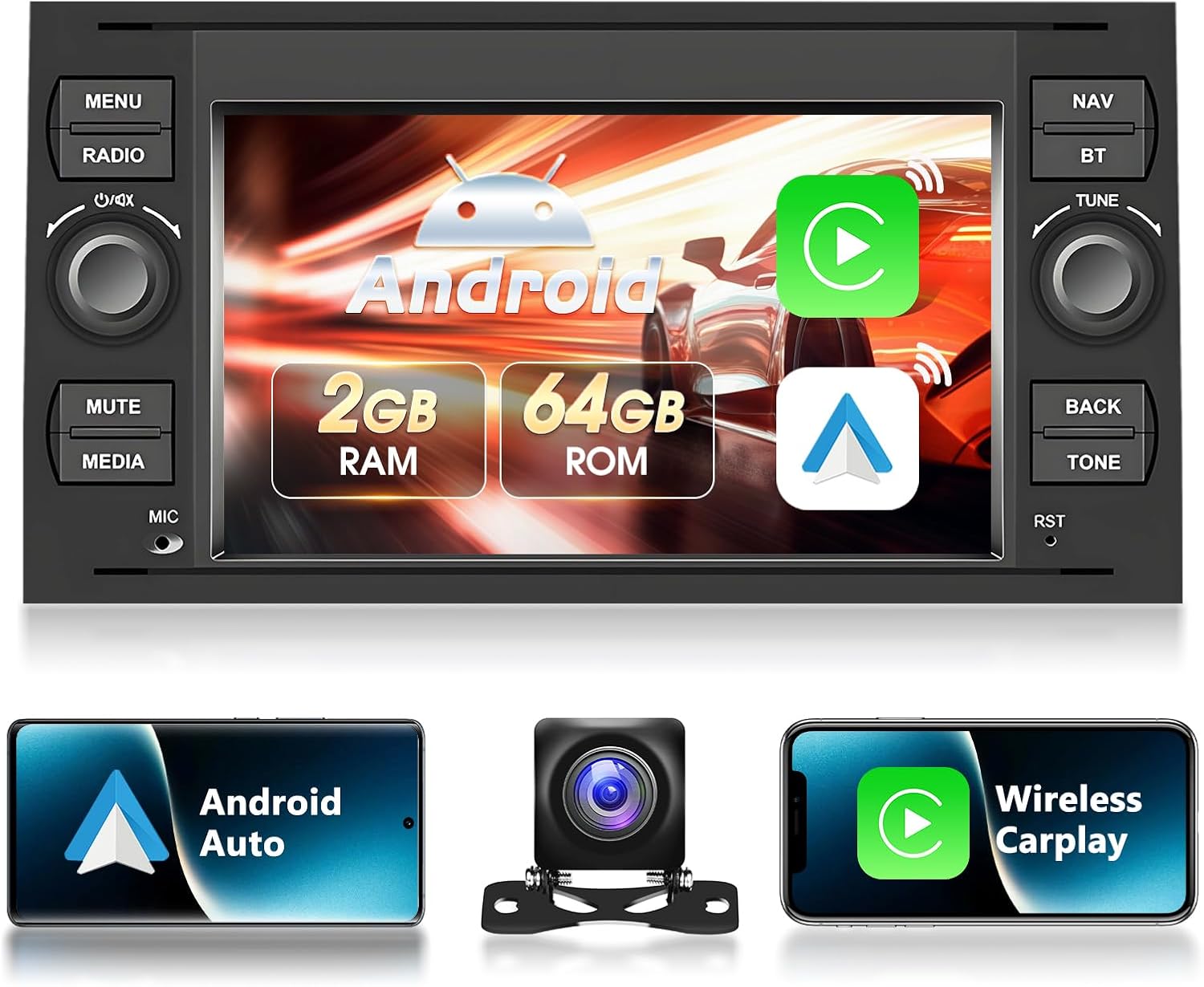
Image: Podofo Car Radio main unit with Android, Carplay, and Android Auto logos, showing 2GB RAM and 64GB ROM. Below are icons for Android Auto, a reversing camera, and Wireless Carplay.
1.1 Compatible Models
This car radio is compatible with the following Ford models:
- Ford Transit (from 2005)
- Ford Fiesta (from 2005)
- Ford Focus Focus2 (2005-2007)
- Ford Galaxy (2005-2007)
- Ford Mondeo (2003-2007)
- Ford Fusion (2006-2011)
- Ford Kuga (2008-2011)
- Ford C-Max (2007-2009)
- Ford S-Max (2007-2009)
- Ford Connect (2007-2009)

Image: Diagram showing compatible Ford models for the car radio, including Focus, Galaxy, Mondeo, Fusion, Kuga, C-Max, S-Max, and Connect, with an image of the head unit installed in a Ford dashboard.
2. Setup and Installation
2.1 What's in the Box
Please check the package contents upon receipt to ensure all items are present:
- 1 x Podofo Car Radio Unit
- 1 x GPS Antenna
- 2 x Power Harnesses
- 1 x User Manual
- 2 x USB Cables
- 1 x RCA Cable
- 1 x AHD Rear Camera (if included in package)
- Various accessories for installation

Image: Contents of the product package, including the main unit and various cables and accessories.
2.2 Wiring and Connection
Proper wiring is crucial for the correct functioning of the car radio. Refer to the detailed wiring diagrams provided in the physical user manual for specific connections. Below is a general guide for the reversing camera wiring:
- Connect the A6 wire (BACK wire inside the power cable) to the 'H' connector.
- Connect the 'J' and 'K' connectors to the positive pole of the backup lamp (BUL).
- Connect the 'L' connector to grounding or leave unconnected if not required.
Ensure all connections are secure before powering on the device.

Image: Reversing Camera Wiring Diagram.
3. Operating Instructions
3.1 Power On/Off
The unit powers on automatically when the car ignition is turned on. To power off, turn off the car ignition. A short press of the power button (if available) may put the unit into standby mode.
3.2 Wireless CarPlay and Android Auto
The car radio supports wireless Apple CarPlay and Android Auto. Once connected, the unit will display supported applications from your smartphone, such as music, maps, and messaging apps.
- Connection: Enable Bluetooth and Wi-Fi on your smartphone. Follow the on-screen prompts on the car radio to pair your device.
- Mirror Link: You can also project your mobile phone screen onto the car radio's HD display to view content like videos.

Image: Wireless CarPlay, Android Auto, and Mirror Link functionality.
3.3 GPS Navigation and Wi-Fi
After connecting to Wi-Fi, you can download free offline navigation maps or use online navigation applications. The unit supports various navigation apps available through the App Store.
- Wi-Fi Connection: Go to Settings > Network > Wi-Fi to connect to an available network.
- Map Download: Use the pre-installed map application or download your preferred navigation app from the App Store.

Image: GPS Navigation and Wi-Fi features.
3.4 Bluetooth Functionality
The integrated Bluetooth 4.2 system allows for hands-free calling and Bluetooth music streaming. You can automatically load your phonebook for easy access to contacts.
- Pairing: Enable Bluetooth on your phone and search for the car radio device. Select and pair.
- Hands-Free Calls: Make or receive calls directly from the car radio interface.
- Music Streaming: Play audio from your phone through the car's speakers.

Image: Bluetooth Music and Hands-Free Call functionality.
3.5 FM Radio and EQ Settings
The high-quality FM radio allows you to receive real-time traffic conditions, news broadcasts, and weather forecasts. The equalization (EQ) settings support various sound effect scene selections to customize your audio experience.
- FM Tuning: Use the radio interface to scan for stations or manually tune to frequencies.
- EQ Adjustment: Access the EQ settings through the audio menu to select presets or customize sound profiles.
3.6 Steering Wheel Controls and Split Screen
The unit supports original steering wheel controls, allowing you to manage audio functions without taking your hands off the wheel. It also features a split-screen function, enabling you to run two applications simultaneously.
- Steering Wheel Control Setup: Ensure the canbus is correctly connected and the correct car model is selected in the settings.
- Split Screen Activation: Refer to the on-screen instructions or the physical manual for activating and managing split-screen mode.

Image: Steering Wheel Controls, Split Screen Function, EQ Function, and FM Radio.
3.7 HD Reversing Camera
The included HD reversing camera provides a 158° wide-angle view. When reversing, the parking lines will automatically display on the screen, and the camera image will appear, enhancing safety and preventing scratches.
- Automatic Display: The camera view automatically activates when the vehicle is put into reverse gear.
- Parking Lines: Dynamic parking lines assist with precise maneuvering.
Image: HD Reversing Camera in operation.
4. Maintenance
To ensure the longevity and optimal performance of your Podofo Car Radio, follow these maintenance guidelines:
- Cleaning: Use a soft, dry cloth to clean the screen and exterior. For stubborn smudges, a slightly damp cloth with a mild, non-abrasive cleaner can be used, but avoid spraying liquids directly onto the unit.
- Software Updates: Periodically check for software updates via the system settings or the manufacturer's website to ensure you have the latest features and bug fixes.
- Environmental Conditions: Avoid exposing the unit to extreme temperatures, direct sunlight for prolonged periods, or excessive moisture.
5. Troubleshooting
If you encounter issues with your car radio, refer to the following common problems and solutions:
| Problem | Possible Cause | Solution |
|---|---|---|
| Unit does not power on. | Loose power connection, blown fuse, car ignition off. | Check power cables and fuse. Ensure car ignition is on. |
| No sound. | Volume too low, mute activated, speaker wiring issue. | Increase volume. Check mute setting. Verify speaker connections. |
| Bluetooth not connecting. | Bluetooth off on phone/unit, incorrect pairing. | Ensure Bluetooth is enabled on both devices. Delete previous pairings and re-pair. |
| GPS signal weak/lost. | GPS antenna obstructed or improperly installed. | Ensure GPS antenna has a clear view of the sky and is securely connected. |
| Reversing camera not displaying. | Incorrect wiring, camera malfunction. | Check camera power and video input connections. Ensure car is in reverse. |
If the problem persists after attempting these solutions, please contact customer support.
6. Specifications
Key technical specifications for the Podofo Car Radio:
- Brand: podofo
- Model Number: 8227L-DEMO
- Operating System: Android 13
- Memory: 2GB RAM + 64GB ROM
- Screen Size: 7 inches
- Screen Resolution: 1024 x 600
- Connectivity: USB, Wi-Fi, Bluetooth 4.2
- Compatible Devices: Smartphone, Tablet
- Special Features: Wireless Apple CarPlay, Android Auto, Mirror Link, GPS Navigation, FM Radio, Steering Wheel Control Support, Split Screen Function, EQ Adjustment, AHD Reversing Camera Support
- Audio Output Mode: 4 channel stereo
- Surround Sound Channel Configuration: 2.0
- Output Power: 45 Watts
- Product Dimensions: 7.6D x 7.6H centimeters (approx. 23cm x 11.9cm x 7.6cm)
7. Warranty and Support
7.1 Manufacturer's Warranty
This product comes with a 2-year manufacturer's warranty. Please retain your proof of purchase for warranty claims. The warranty covers defects in materials and workmanship under normal use.
7.2 Customer Support
For technical assistance, troubleshooting beyond this manual, or warranty inquiries, please contact Podofo customer service. Refer to the contact information provided on the product packaging or the official Podofo website.


