
Zomolither A7097Q3541A5
Zomolither 9 Inch HD Touch Screen Car Radio Stereo User Manual
Model: A7097Q3541A5 | Brand: Zomolither
1. Product Overview
This Zomolither car radio is specifically designed for Subaru Forester Impreza WRX models from 2008 to 2012. It features a 9-inch 2.5D capacitive HD touch screen and operates on a 12V system. The unit offers a comprehensive in-car entertainment and navigation experience, integrating modern connectivity options with essential car audio functionalities.
Key features include Apple CarPlay, Android Auto, Mirror Link, built-in Bluetooth, FM radio, and support for a backup camera. The system is designed to enhance your driving experience by providing seamless smartphone integration and improved control over your vehicle's audio and navigation.
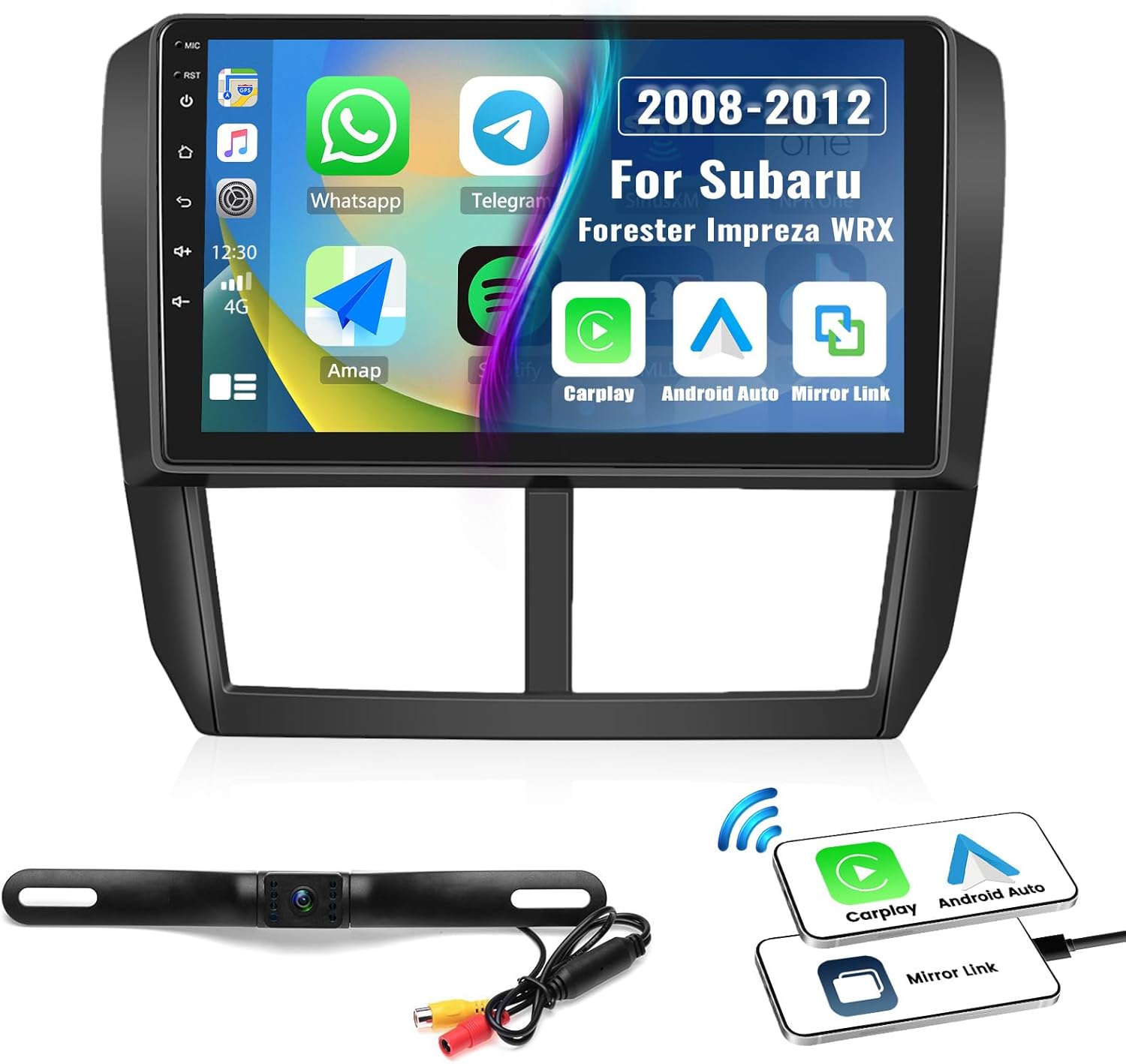
Image: The Zomolither 9-inch car radio stereo unit, showing its large display, along with the included backup camera and modules for Apple CarPlay, Android Auto, and Mirror Link connectivity.
2. Features
- Vehicle Compatibility: Specifically designed for Subaru Forester Impreza WRX 2008-2012 models.
- Apple CarPlay & Android Auto: Supports wired connection for seamless integration with smartphones, allowing access to navigation, contacts, email, notifications, and music.
- Mirror Link: Enables mirroring of Android and iOS phone screens directly onto the 9-inch HD touch screen via USB connection.
- Bluetooth Connectivity: Built-in Bluetooth for hands-free calling and wireless audio streaming.
- FM Radio: Features an FM radio function with 18 preset stations for convenient access to your favorite broadcasts.
- Backup Camera Support: Includes an AHD backup camera with 170-degree ultra-wide angle and waterproof design, automatically displaying the rear view when reversing.
- Steering Wheel Control (SWC): Supports learning and control of original car steering wheel buttons for enhanced convenience and safety.
- High-Definition Touch Screen: Large 9-inch 1024*600 HD capacitive touch screen for clear visuals and responsive interaction.
- EQ Adjustment: Offers various surround sound field modes, strong bass, soft midrange, and bright treble for a transparent stereo sound experience.
3. What's in the Box
The package includes all necessary components for installation and operation:
- Android Car Stereo (with Frame)
- AHD Backup Camera
- External Microphone
- Power Cable
- Installation Tool
- GPS Antenna
- USB Cable
- RCA Cable
- User Manual

Image: Diagram showing the dimensions of the 9-inch head unit and a comprehensive list of all included accessories and cables in the package.
4. Specifications
| Attribute | Value |
|---|---|
| System | 2900 (Wince, MP5 Player) |
| Screen Size | 9 inch 2.5D capacitive screen |
| Screen Resolution | 1024*600 |
| Voltage | 12V |
| Output Power | 4*45Watts |
| USB Interface | USB2.0 |
| Radio Range | FM 87.5-108.0MHZ |
| Audio Format Support | MP3/AAC/OGG/FLAC/APE |
| Video Format Support | AVI/3GP/MP4/MOV/MPG/MKV/VOB/RMVB/RM |
| Image Format Support | JPEG/BMP/GIF/PNG |
| Supported Languages | English, Chinese, Arabic, Turkish, Russian, Thai, Persian, German, French, Portuguese, Spanish, Italian, Indonesian, Polish, Greek, Czech, Japanese, Israel |
| Item Weight | 3.25 pounds |
| Package Dimensions | 13.5 x 8.78 x 3.58 inches |
| Model Number | A7097Q3541A5 |
5. Setup and Installation
Before beginning installation, ensure your vehicle's ignition is off and the battery is disconnected to prevent electrical damage. Refer to your vehicle's specific wiring diagram for accurate connections. The included installation tool can assist with trim removal.
5.1 General Installation Steps:
- Carefully remove the original car radio unit and dashboard trim.
- Connect the provided power cable, RCA cable, USB cables, and GPS antenna to the new Zomolither unit.
- Connect the AHD backup camera cable if you intend to use this feature. Ensure proper routing to the rear of the vehicle.
- Secure the new unit into the dashboard opening.
- Reconnect the vehicle's battery and test all functions before fully reassembling the dashboard trim.
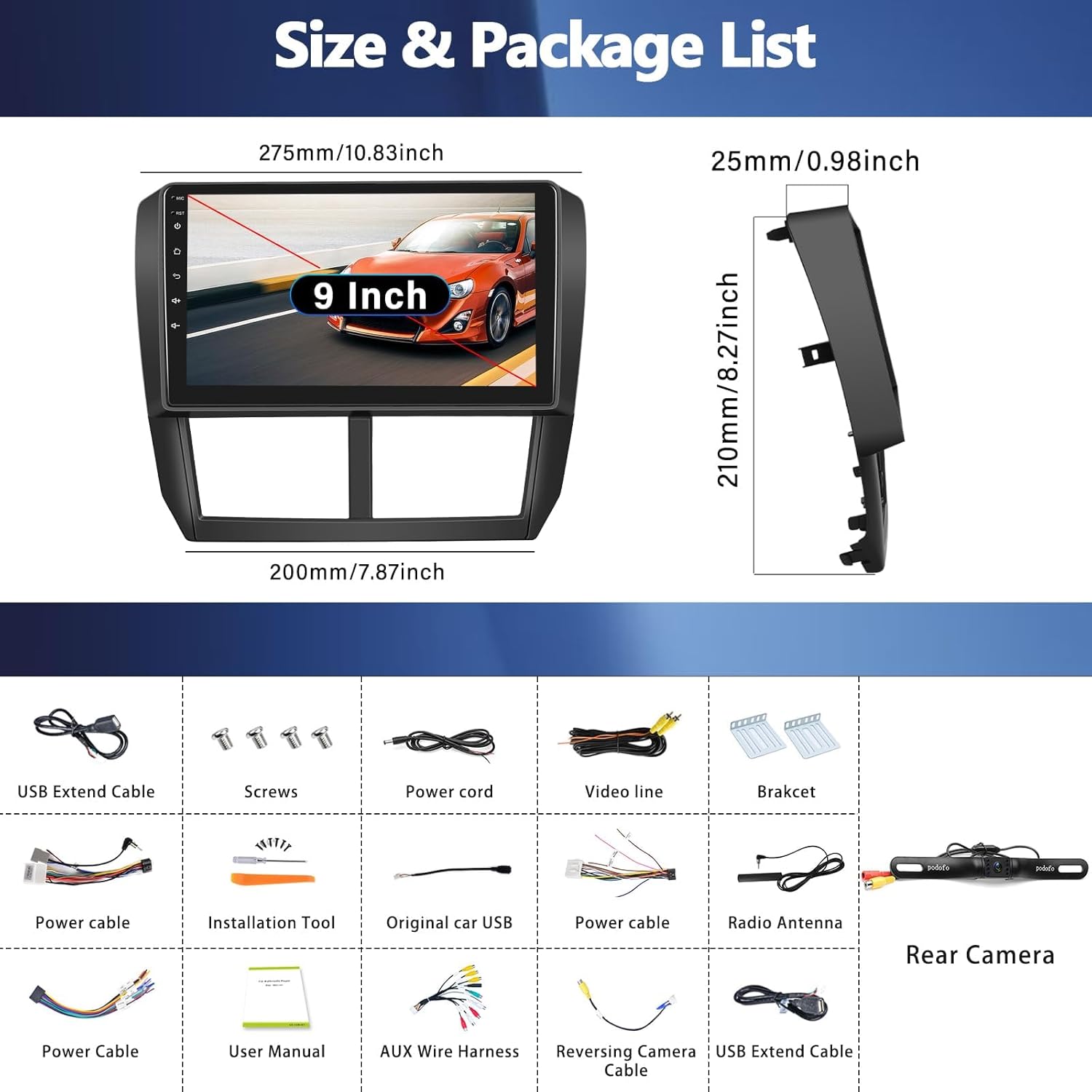
Image: Visual comparison showing the car dashboard before and after the installation of the Zomolither 9-inch car radio, demonstrating a seamless fit.
6. Operating Instructions
6.1 Apple CarPlay & Android Auto
Connect your smartphone to the car stereo via a USB cable. The unit will automatically detect and launch Apple CarPlay or Android Auto, allowing you to access navigation, phone contacts, email, notifications, and music directly from the car's display. This feature is designed to keep you focused on the road while utilizing your phone's functionalities.
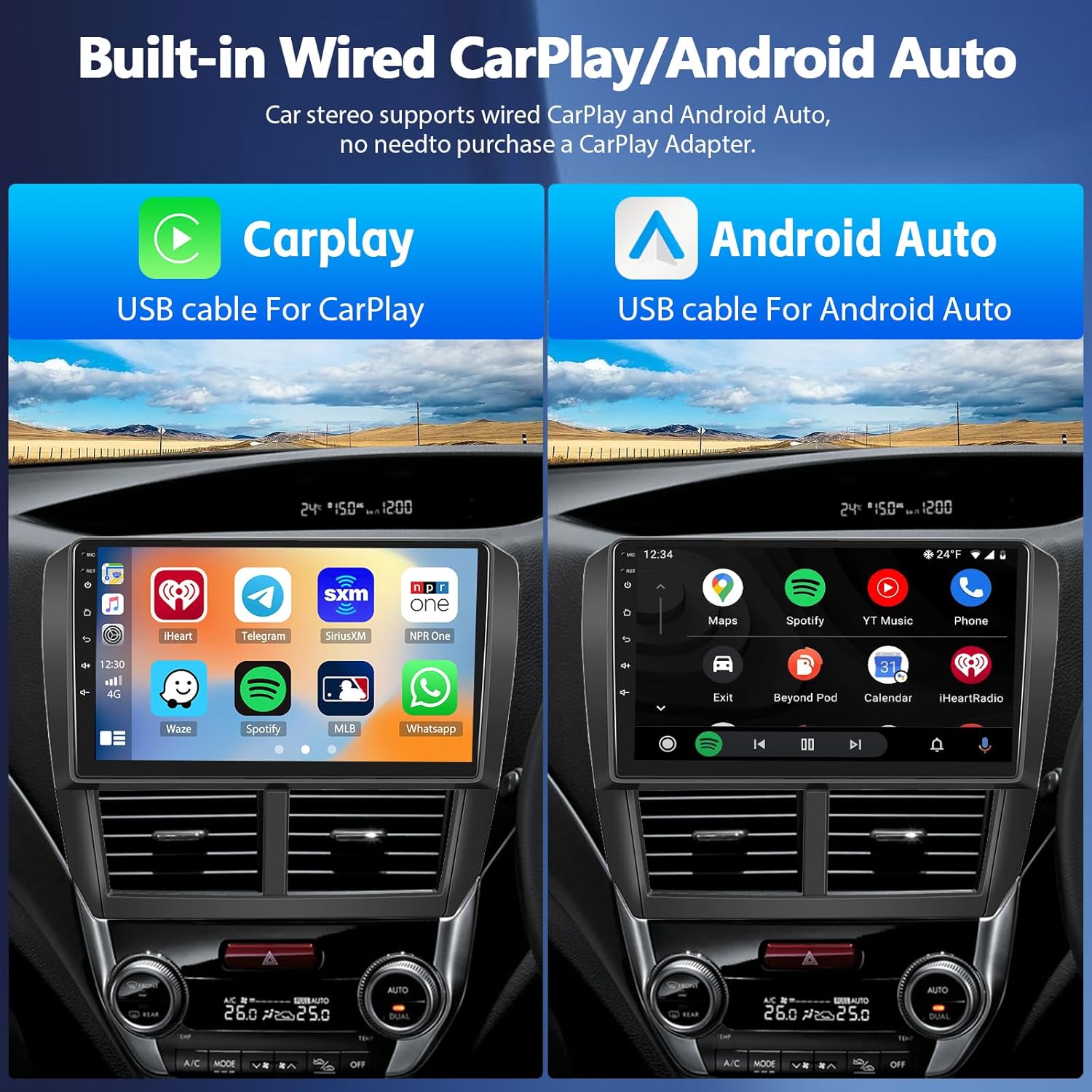
Image: The car radio display showing the user interfaces for both Apple CarPlay and Android Auto, demonstrating app integration and navigation capabilities.
6.2 Mirror Link
To use Mirror Link, connect your mobile phone to the car radio via the USB interface. This function allows you to mirror your phone's screen onto the 9-inch HD touch screen, enabling direct control of your phone's applications and content from the car radio display. This is compatible with both Android and iOS devices.

Image: A visual representation of the Mirror Link function, showing a smartphone's display content being replicated on the car radio's large touchscreen.
6.3 Bluetooth & FM Radio
The built-in Bluetooth allows for hands-free calling and wireless audio streaming from your connected device. Pair your phone with the unit to make and receive calls safely. The FM radio function provides access to local radio stations with 18 preset memory slots for quick tuning.

Image: The car radio screen displaying both the Bluetooth music playback interface and the FM radio tuning interface, highlighting the audio features.
6.4 Backup Camera
The included AHD backup camera provides a clear, wide-angle view of the area behind your vehicle. When the vehicle is shifted into reverse, the screen automatically switches to display the camera feed, significantly improving safety during parking and maneuvering.

Image: An illustration detailing the features of the backup camera (HD, waterproof, 110° viewing angle, night vision) and its clear display on the car radio screen when reversing.
6.5 Steering Wheel Control (SWC)
The unit supports learning functions for your vehicle's original steering wheel controls. After correct wiring during installation, navigate to the SWC settings on the unit. Follow the on-screen instructions to assign functions (e.g., volume up/down, track skip, mode) to your steering wheel buttons. This allows for convenient and safe operation without taking your hands off the wheel.
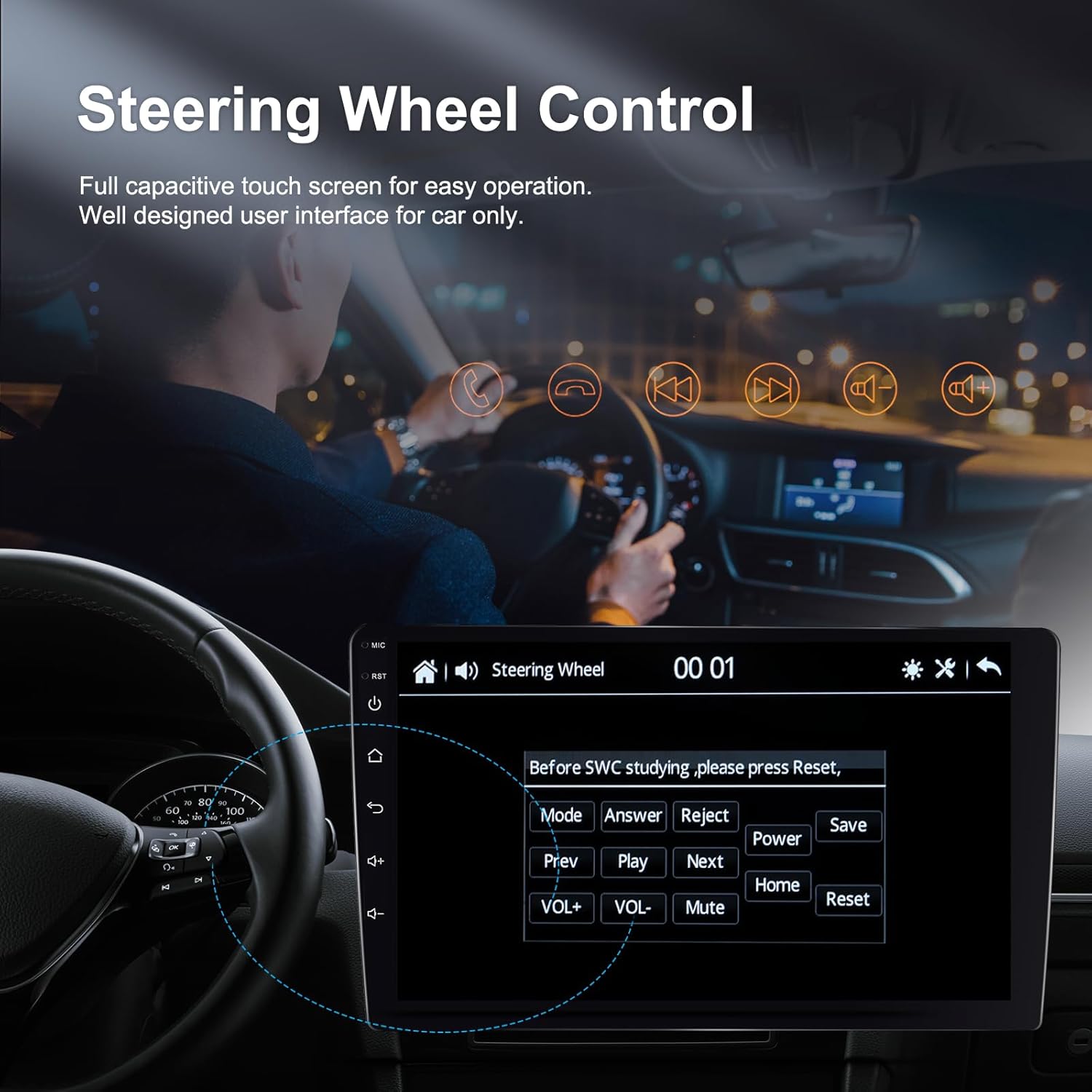
Image: The car radio display showing the user interface for programming steering wheel controls, with options to assign various functions to physical buttons on the steering wheel.
7. Maintenance
To ensure the longevity and optimal performance of your Zomolither car radio, follow these maintenance guidelines:
- Screen Cleaning: Use a soft, lint-free cloth to gently wipe the touch screen. For stubborn smudges, slightly dampen the cloth with water or a screen-safe cleaner. Avoid abrasive materials or harsh chemicals.
- Software Updates: Periodically check the manufacturer's website or contact support for any available software or firmware updates. Keeping the software updated can improve performance and add new features.
- Environmental Conditions: Avoid exposing the unit to extreme temperatures, direct sunlight for prolonged periods, or excessive moisture.
- Cable Connections: Ensure all cables are securely connected and free from kinks or damage. Loose connections can lead to intermittent functionality.
8. Troubleshooting
If you encounter issues with your Zomolither car radio, refer to the following common troubleshooting steps:
- No Power: Check all power connections. Ensure the vehicle's ignition is on and the fuse is not blown.
- No Sound: Verify speaker connections. Check volume levels on both the unit and any connected devices. Ensure the mute function is not activated.
- Touch Screen Unresponsive: Try restarting the unit. If the issue persists, a factory reset might be necessary (refer to the unit's settings menu).
- Bluetooth Connectivity Issues: Ensure Bluetooth is enabled on both the unit and your device. Delete previous pairings and try re-pairing. Move closer to the unit if interference is suspected.
- Backup Camera Not Displaying: Check the camera's power and video signal connections. Ensure the vehicle is in reverse gear.
- Steering Wheel Controls Not Working: Re-verify the wiring connections for SWC. Re-perform the SWC learning process in the unit's settings.
For persistent issues not resolved by these steps, please contact Zomolither customer support.
9. Warranty and Support
The Zomolither 9 Inch HD Touch Screen Car Radio Stereo comes with a 2-year manufacturer warranty.
For any technical assistance, product inquiries, or warranty claims, please contact Zomolither support:
- Online Support Email: Zomolither@126.com
- Visit the Zomolither Store: Zomolither Amazon Store
If you're unsure about product compatibility with your car, you can send pictures of your car's dashboard to the support team before purchase for assistance.
Ask a question about this manual
Ask about setup, troubleshooting, compatibility, parts, safety, or missing instructions. Manuals+ will review the question and use this page’s manual context to help answer it.