
iClever BK18
iClever BK18 Foldable Bluetooth Keyboard User Manual
Model: BK18
Product Overview
The iClever BK18 Foldable Bluetooth Keyboard is a portable and versatile input device designed for on-the-go productivity. It features a unique tri-folding design, an integrated touchpad that can switch to a number pad, and multi-device connectivity, making it compatible with a wide range of operating systems including Windows, macOS, iOS, and Android.
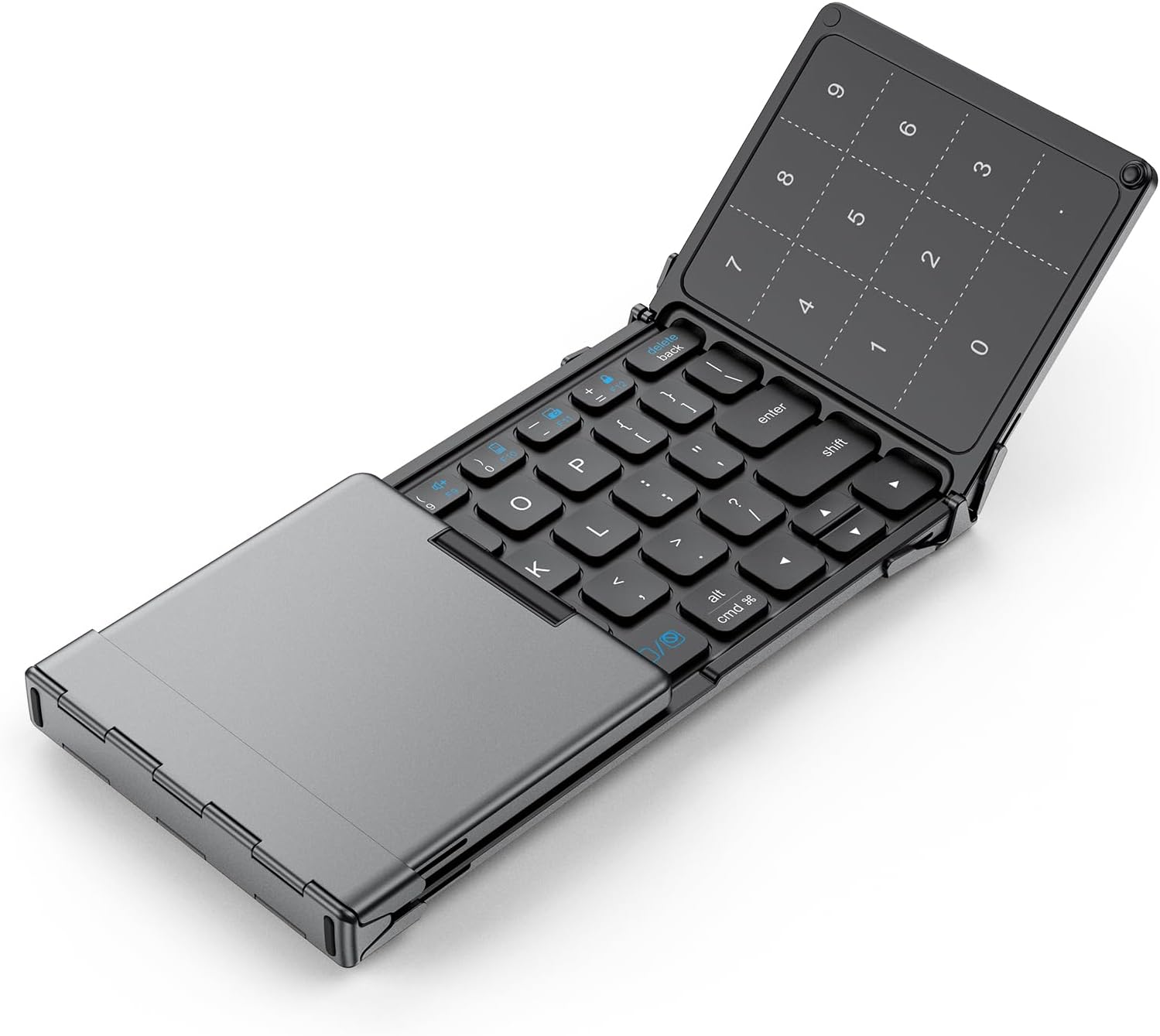
Image: The iClever BK18 Foldable Bluetooth Keyboard in its fully unfolded state, showcasing the main QWERTY keyboard layout on the left and the integrated touchpad/number pad on the right. This image highlights the compact yet functional design of the keyboard.
What's in the Box
- Foldable Keyboard
- USB Cable (for charging)
- Stand Holder (for devices like tablets or smartphones)
- Carry Bag

Image: The iClever BK18 Foldable Bluetooth Keyboard, its included stand holder, USB charging cable, and carry bag are neatly arranged on a table beside a laptop. This visual demonstrates the complete package and emphasizes the keyboard's portability and readiness for use with other devices.
Setup and Connectivity
The iClever BK18 keyboard utilizes Bluetooth 5.0 for wireless connectivity. It can be paired with up to three devices simultaneously, allowing for seamless switching between them.
Pairing Instructions:
- Charge the Keyboard: Before first use, ensure the keyboard is fully charged using the provided USB-C cable. The charging port is located on the side.
- Power On: Unfold the keyboard to automatically power it on.
- Enter Pairing Mode: Press and hold the Fn key along with one of the Bluetooth channel keys (Q, W, or E) for 3-5 seconds until the corresponding indicator light blinks rapidly. This indicates it's in pairing mode.
- Enable Bluetooth on Your Device: On your computer, tablet, or smartphone, go to Bluetooth settings and turn Bluetooth on.
- Select "iClever BK18": In the list of available Bluetooth devices, select "iClever BK18". Follow any on-screen prompts to complete the pairing process.
- Switching Devices: To switch between paired devices, simply press Fn + Q, Fn + W, or Fn + E, depending on which channel your device is paired to.
The included stand holder can be used to prop up your smartphone or tablet for an optimal viewing and typing experience.

Image: A visual representation of the iClever BK18 keyboard's multi-device connectivity, showing it wirelessly linked to a desktop monitor, a laptop, and a smartphone. This illustrates the keyboard's versatility across different computing environments.

Image: The iClever BK18 Foldable Bluetooth Keyboard is displayed alongside operating system logos for Android, Windows, iOS, and Mac, visually confirming its broad compatibility with various devices and platforms.
Operating the Keyboard
Touchpad and Number Pad Functionality:
The iClever BK18 features a versatile touchpad that can be toggled between a standard touchpad and a dedicated number pad. This enhances data entry and navigation.
- Toggle Mode: Press Fn + Space to switch between touchpad mode and number pad mode.
- Touchpad Gestures:
- One finger click: Left click
- Two fingers click: Right click
- Slide one finger: Move cursor
- One finger quick click to hold and drag: Select and move items
- Two fingers move vertically or horizontally: Scroll
- Two fingers move (pinch/spread): Zoom in/out (application dependent)

Image: A diagram visually explaining the three operational modes of the iClever BK18's touchpad: Default Touchpad, Number Pad, and No Function. It highlights that these modes can be cycled by pressing the Fn + Space key combination, offering flexible input options.

Image: This diagram illustrates common touchpad gestures supported by the iClever BK18 keyboard, including single-finger clicks, two-finger clicks, single-finger sliding for cursor movement, and two-finger movements for scrolling and zooming. It serves as a quick reference for touchpad navigation.
Maintenance and Care
To ensure the longevity and optimal performance of your iClever BK18 keyboard, please follow these maintenance guidelines:
- Charging: The keyboard has a 210 mAh rechargeable battery. It provides up to 180 days of standby time and approximately 60 days of active use. Recharge via the USB-C port, which takes roughly 2 hours for a full charge.
- Cleaning: Use a soft, dry cloth to clean the keyboard surface. Avoid using harsh chemicals or abrasive materials.
- Storage: When not in use, fold the keyboard gently and store it in the provided carry bag to protect it from dust and scratches.
- Spill Prevention: The keyboard is not spill-proof. Avoid exposing it to liquids to prevent damage.
- Handling: Handle the keyboard gently, especially when folding and unfolding, to maintain the integrity of its stable hinges, which are designed for over 10,000 folds.

Image: The iClever BK18 Foldable Bluetooth Keyboard is shown in its compact, folded state, accompanied by text highlighting its impressive battery life: "60 Days Working" and "180 Days Standby Time." This emphasizes the convenience of its long-lasting power.
Troubleshooting
If you encounter issues with your iClever BK18 keyboard, please refer to the following common solutions:
- Keyboard Not Connecting:
- Ensure the keyboard is fully charged.
- Verify Bluetooth is enabled on your device and the keyboard is in pairing mode (indicator light blinking).
- Try unpairing and re-pairing the keyboard from your device's Bluetooth settings.
- Ensure no other devices are interfering with the Bluetooth connection.
- Touchpad Not Responding/Clicking:
- Ensure the touchpad is not in number pad mode (press Fn + Space to toggle).
- For iOS devices, ensure "AssistiveTouch" or other accessibility settings are configured correctly for external pointing devices if experiencing issues with clicking.
- Typing Errors/Missed Keystrokes:
- Ensure the keyboard is on a stable, flat surface.
- Check battery level; low battery can affect performance.
- Note that key pitch (15mm) is smaller than standard laptop keyboards (18mm), which may require adjustment.
- No Dedicated Number Pad:
- The BK18 does not have a separate physical number pad. The number pad functionality is integrated into the touchpad and activated via Fn + Space.
- No Wired Mode or USB Receiver:
- This keyboard is Bluetooth-only and does not support wired connections or require a USB receiver.
For more detailed troubleshooting, please refer to the official Troubleshooting Guide (PDF) available online.
Specifications
| Feature | Detail |
|---|---|
| Brand | iClever |
| Model Number | BK18 |
| Connectivity Technology | Bluetooth 5.0 (Wireless only) |
| Compatible Devices | Windows 10+, macOS 10.13+, iPad (10.2 / Pro / Air), iPhone 13+, Android 8+ phones & tablets (Note: Not compatible with iPad mini) |
| Keyboard Description | 63-key foldable Bluetooth keyboard with precision touchpad (non-backlit); laptop-style keys under 50 dB; Multi-Device Connection; touchpad turns into numpad via Fn + Space |
| Number of Keys | 63 |
| Battery Capacity | 210 mAh (rechargeable via USB-C) |
| Battery Life | Approx. 60 days active use, 180 days standby |
| Charging Time | Approx. 2 hours |
| Product Dimensions (Folded) | 7.27 x 3.74 x 0.67 inches |
| Item Weight | 7.5 ounces |
| Special Feature | Tri-fold pocket design, 3-device Bluetooth switching, convertible touchpad/numpad, fold-to-power design; 220g lightweight |
Warranty and Support
For warranty information, product support, or to explore other iClever products, please visit the official iClever store or refer to the comprehensive user manual.
- Official User Manual (PDF): Download Here
- Visit the iClever Store: iClever Amazon Store
Related documentsBK18


Ask a question about this manual
Ask about setup, troubleshooting, compatibility, parts, safety, or missing instructions. Manuals+ will review the question and use this page’s manual context to help answer it.