
PoundMax 100027813
ONN 24" FHD 1080p 165hz 1ms FreeSync Gaming Monitor User Manual
Model: 100027813
Introduction
This manual provides essential information for setting up, operating, and maintaining your Onn 24" FHD 1080p 165hz 1ms FreeSync Gaming Monitor. Please read this manual thoroughly before using the product to ensure proper functionality and longevity.
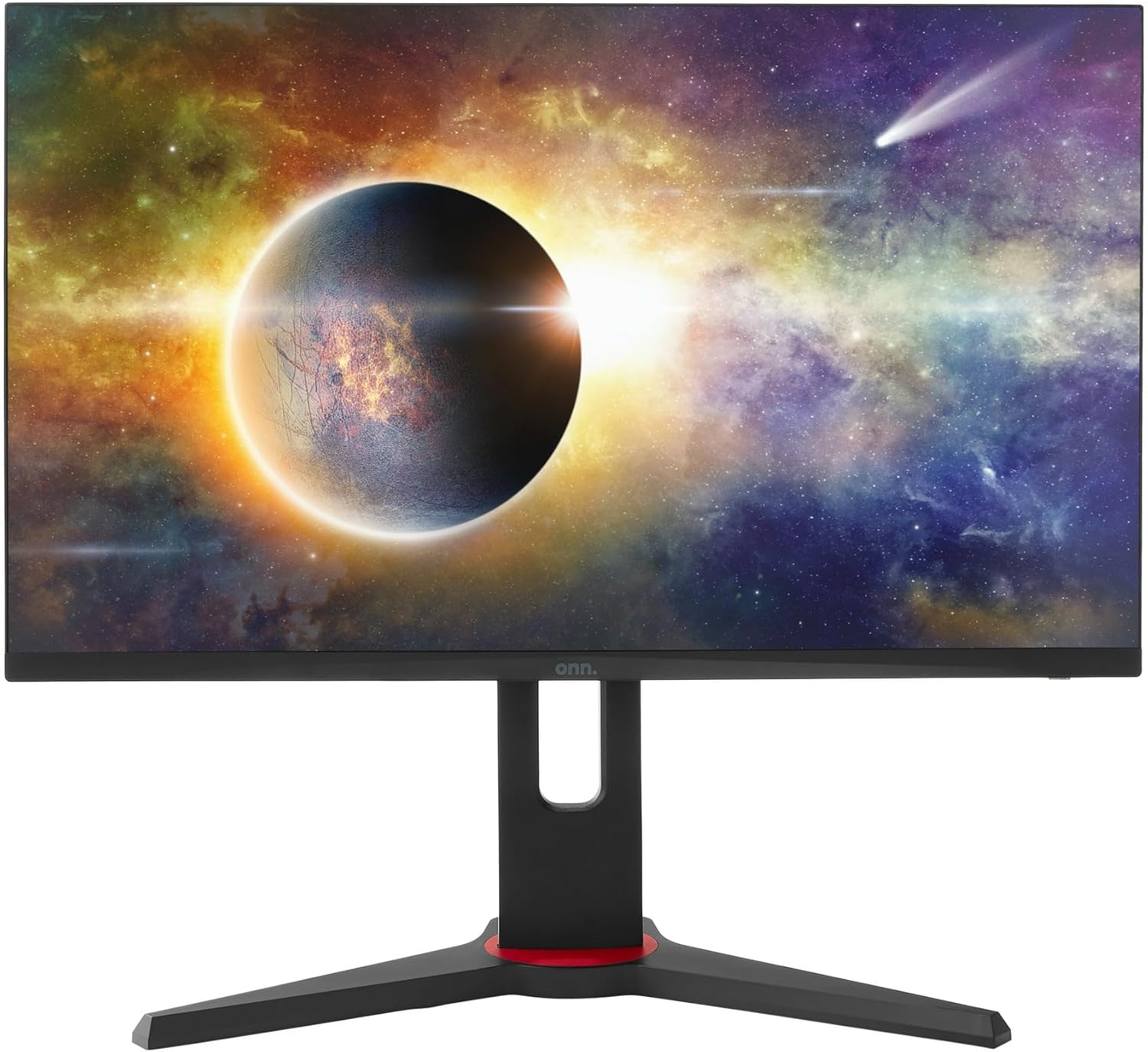
Image: Front view of the Onn 24 inch FHD Gaming Monitor. This monitor features a sleek design with a narrow bezel, ideal for immersive gaming and multimedia experiences.
What's in the Box
Upon unboxing, ensure all the following components are present:
- 1 FHD gaming monitor (24")
- 1 HDMI cable 6 ft (1.85 m)
- 1 AC adapter and power cable 6 ft (1.85 m)
- 1 monitor stand (base and neck)
Setup
1. Assembling the Monitor Stand
- Carefully remove the monitor and stand components from the packaging.
- Attach the stand neck to the monitor panel. Ensure it clicks securely into place or is fastened with screws if provided (refer to specific instructions in the included quick start guide for screw details).
- Connect the stand base to the stand neck. Tighten any screws firmly to ensure stability.

Image: Rear view of the monitor, illustrating the stand attachment point and VESA mounting compatibility. The VESA pattern is 75 x 75 mm.
2. Connecting to a Device
The monitor supports DisplayPort and HDMI connections.
- DisplayPort: Connect one end of a DisplayPort cable (not included) to the DisplayPort output on your computer and the other end to the DisplayPort input on the monitor.
- HDMI: Connect one end of the included HDMI cable to the HDMI output on your computer or gaming console and the other end to either HDMI 1 or HDMI 2 input on the monitor.
- Audio Output: For external audio, connect headphones or external speakers to the headphone jack on the monitor.

Image: Detailed view of the monitor's connectivity ports. From left to right: power input, HDMI 1, HDMI 2, DisplayPort, and headphone jack.
3. Powering On
Connect the AC adapter to the monitor's power input and then plug the power cable into a wall outlet. Press the power button on the monitor (location typically on the back or bottom right) to turn it on.
Operating the Monitor
On-Screen Display (OSD) Menu
The OSD menu allows you to adjust various monitor settings. Use the buttons located on the monitor (usually on the back or bottom) to navigate the menu.
- Navigation: Typically, one button opens the menu, and others are used for up/down/left/right navigation and selection.
- Visual Gaming Modes: Select from eight pre-set visual gaming modes to optimize display settings for different game genres.
- Adaptive-Sync Technology: This monitor supports Adaptive-Sync, which synchronizes the monitor's refresh rate with your graphics card's frame rate to reduce screen tearing and stuttering. Ensure this feature is enabled in both the monitor's OSD and your graphics card settings.
- Low Blue Light Adjustment: Reduce eye strain by adjusting the low blue light setting, especially during prolonged use.
Adjusting the Stand
The monitor stand offers multiple adjustment options for ergonomic viewing:
- Height: Adjust the monitor height by up to +80mm.
- Tilt: Tilt the screen from +25 degrees to -5 degrees.
- Swivel: Swivel the monitor left or right by +/-30 degrees.
- Pivot: Pivot the screen +0/+90 degrees to view in portrait mode.

Image: Side profile of the monitor, highlighting the adjustable stand. This design allows for various ergonomic adjustments including height, tilt, swivel, and pivot.
Maintenance
Proper maintenance ensures the longevity and optimal performance of your monitor.
- Cleaning the Screen: Gently wipe the screen with a soft, lint-free cloth. For stubborn marks, lightly dampen the cloth with water or a non-abrasive, monitor-safe cleaning solution. Avoid spraying liquid directly onto the screen.
- Cleaning the Casing: Use a soft, dry cloth to clean the monitor casing. Do not use strong detergents or abrasive cleaners.
- Ventilation: Ensure the monitor's ventilation openings are not blocked to prevent overheating.
- Storage: When not in use for extended periods, store the monitor in a cool, dry place, away from direct sunlight and extreme temperatures.
Troubleshooting
If you encounter issues with your monitor, refer to the following common troubleshooting steps:
| Problem | Possible Cause | Solution |
|---|---|---|
| No image on screen | Power cable disconnected; Video cable disconnected or loose; Incorrect input source selected. | Check power connections; Ensure video cable is securely connected to both monitor and device; Press the input source button on the monitor to cycle through inputs (HDMI 1, HDMI 2, DisplayPort). |
| Image is blurry or distorted | Incorrect resolution setting; Graphics card driver issues. | Set the display resolution to 1920 x 1080p in your computer's display settings; Update your graphics card drivers. |
| Screen flickering | Refresh rate mismatch; Faulty cable; Adaptive-Sync issues. | Ensure refresh rate is set to 165Hz in display settings; Try a different video cable; Disable Adaptive-Sync temporarily to see if the issue persists. |
| No audio from headphone jack | Volume too low; Incorrect audio output selected on computer. | Increase volume on connected headphones/speakers and computer; Ensure monitor is selected as the audio output device in your computer's sound settings. |
If the problem persists after trying these steps, please contact customer support.
Specifications
| Feature | Detail |
|---|---|
| Model Number | 100027813 |
| Screen Size | 24 inches |
| Resolution | FHD 1920 x 1080p |
| Refresh Rate | 165Hz |
| Response Time | 1ms (TR) |
| Aspect Ratio | 16:9 |
| Display Technology | Adaptive-Sync |
| Screen Surface | Anti-glare, Matte |
| Connectivity | 1 x DisplayPort, 2 x HDMI, 1 x Headphone Jack |
| VESA Pattern | 75 x 75 mm |
| Stand Adjustments | Height (+80mm), Tilt (+25°/-5°), Swivel (+/-30°), Pivot (+0/+90°) |
| Product Dimensions (with stand) | 8.6 x 21.2 x 20 inches |
| Item Weight | 13.9 pounds |
| Manufacturer | Onn |
Warranty and Support
For warranty information and technical support, please refer to the documentation included with your purchase or contact the manufacturer directly. Keep your proof of purchase and the monitor's model number (100027813) readily available when seeking support.
Manufacturer: Onn
Ask a question about this manual
Ask about setup, troubleshooting, compatibility, parts, safety, or missing instructions. Manuals+ will review the question and use this page’s manual context to help answer it.