
Introduction
This manual provides detailed instructions for setting up, operating, maintaining, and troubleshooting your TopMate 2.4G Wireless Keyboard and Mouse Ultra Slim Combo. This combo offers a stable 2.4G wireless connection, efficient desktop functionality, silent operation, and an ultra-slim, portable design, making it ideal for various computing environments.
Package Contents
- 1 x Wireless Keyboard
- 1 x Wireless Mouse
- 1 x USB Nano Receiver (stored at the bottom of the mouse)
- 2 x AA Batteries (for keyboard)
- 2 x AAA Batteries (for mouse)
- 1 x Keyboard Cover
Setup
1. Install Batteries
The keyboard requires 2 AA batteries and the mouse requires 2 AAA batteries. Locate the battery compartments on the underside of both the keyboard and the mouse. Insert the batteries, ensuring correct polarity (+/-).

Image: Close-up view of the mouse's underside, showing the battery compartment with two AAA batteries and the USB receiver slot.

Image: Two AA batteries and two AAA batteries, as included with the product.
2. Connect USB Nano Receiver
The USB Nano receiver is stored in the battery compartment of the mouse. Gently remove it. Plug the Nano receiver into an available USB port on your computer (PC, Laptop, Macbook, desktop, Chromebook, Smart TV).

Image: A laptop with the USB receiver plugged in, illustrating the wireless connection to the keyboard and mouse.
3. Power On
Turn on the power switch located on the underside of both the keyboard and the mouse.

Image: Close-up of the keyboard's underside, highlighting the ON/OFF switch.
The devices are plug-and-play and should connect automatically.
Operating Instructions
Keyboard Usage
The full-size keyboard includes a numeric keypad and 12 function keys (F1-F12). Use the function keys for quick access to multimedia controls (music, volume) and mail. Note: Hot-keys may not be fully compatible with Mac systems.
The scissor switch keys provide a quiet and comfortable typing experience.
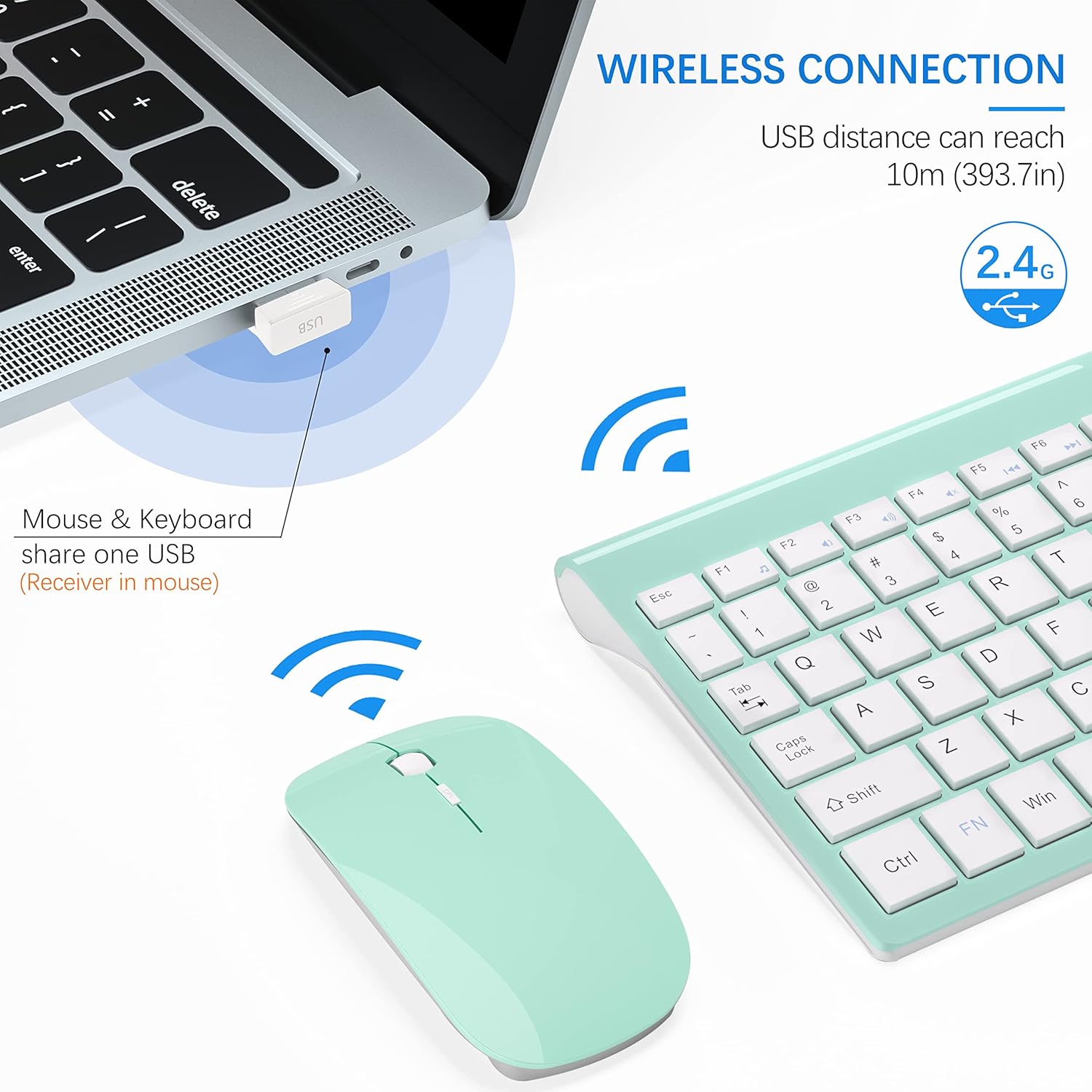
Image: Detailed view of the keyboard's scissor switch mechanism, emphasizing silent operation.
Mouse Usage
The silent cordless mouse features 5 adjustable DPI levels: 800, 1200, 1600, 2000, and 2400. To adjust the DPI, press the DPI button located near the scroll wheel. Each press cycles through the available DPI settings.
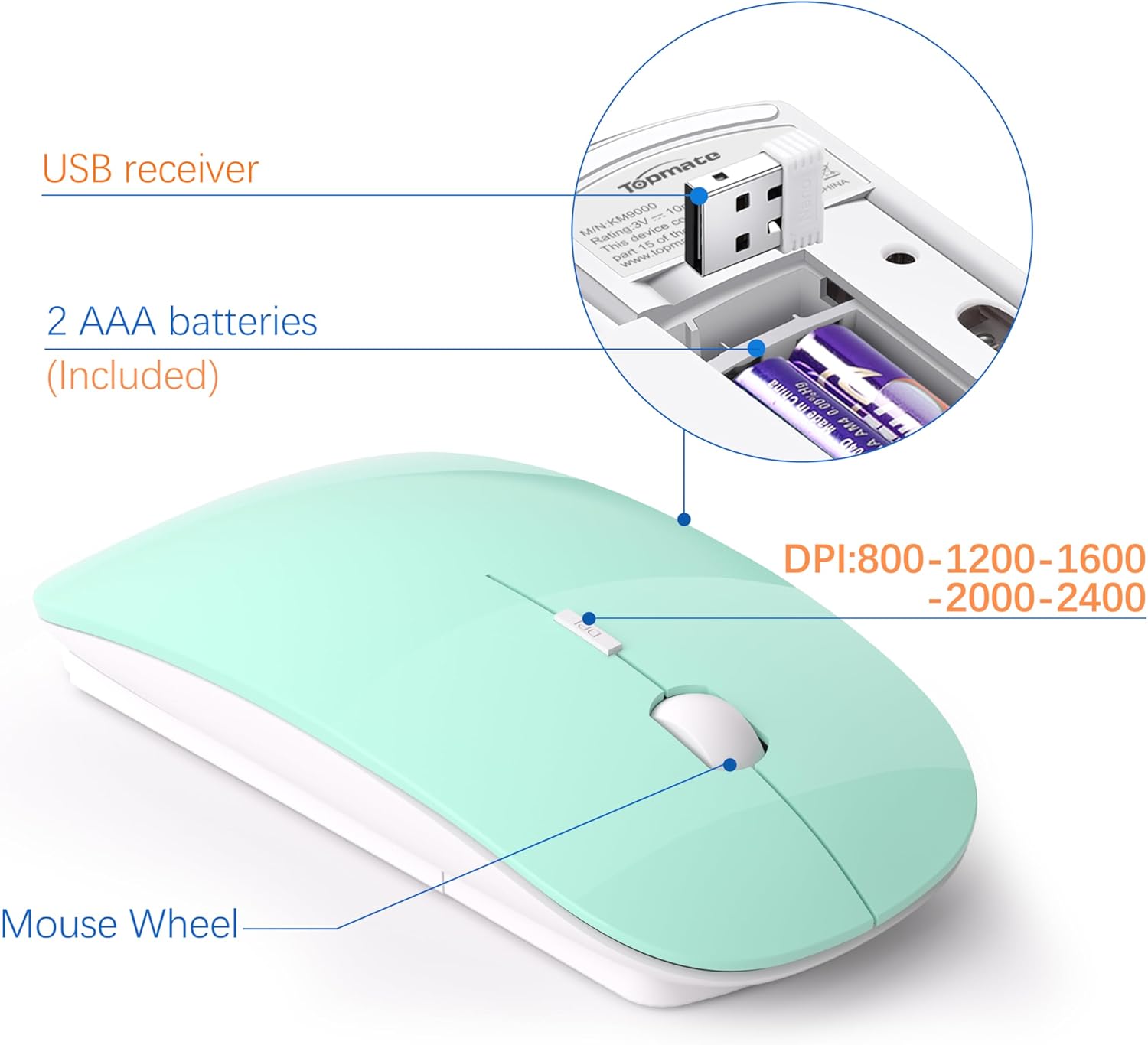
Image: The wireless mouse with an illustration of its 5 DPI settings (800-2400) and the DPI adjustment button.
The mouse is designed for quiet clicks, minimizing disturbance.
Maintenance
Cleaning
Use a soft, dry cloth to clean the surfaces of the keyboard and mouse. For stubborn dirt, slightly dampen the cloth with water. Avoid excessive moisture.
Keyboard Cover
The included keyboard cover helps protect the keyboard from dust, spills, and debris. Place the cover over the keyboard when not in use or during periods of high risk for spills.

Image: The transparent keyboard cover being applied, demonstrating its protective function against dust and liquid.
Battery Replacement
When the keyboard or mouse performance degrades (e.g., delayed response, connection issues), it may be time to replace the batteries. Follow the battery installation steps in the "Setup" section. Battery life is approximately 3 to 5 months, varying by usage conditions.
Troubleshooting
Connection Issues
- Ensure the USB Nano receiver is securely plugged into a working USB port. Try a different USB port if necessary.
- Make sure both the keyboard and mouse are powered on.
- Check the batteries. Replace them if they are low or depleted.
- The wireless range is up to 10 meters (393.7 inches). Ensure the devices are within this range of the receiver.
- Avoid placing the receiver near strong electromagnetic interference sources (e.g., other wireless devices, large metal objects).
Video: A user demonstrating the setup and reliable performance of the wireless keyboard and mouse combo in a workspace. This video highlights the ease of connection and quiet operation.
Keyboard Keys Not Responding
- Check battery levels.
- Remove the keyboard cover and check if any debris is under the keys.
- Re-establish the connection by unplugging and re-plugging the USB receiver.
Mouse Cursor Jumps or is Unresponsive
- Check battery levels.
- Ensure the mouse is on a clean, flat surface.
- Adjust the DPI setting to see if it improves responsiveness.
- Re-establish the connection by unplugging and re-plugging the USB receiver.
Specifications
| Feature | Detail |
|---|---|
| Connectivity | 2.4G Wireless (USB Nano Receiver) |
| Wireless Range | Up to 10 m (393.7 in) |
| Keyboard Dimensions | 14.55 x 5.5 x 0.8 inches (37 x 14 x 2 cm) |
| Keyboard Type | Full-size with Numeric Keypad, Scissor Switch Keys |
| Mouse DPI Levels | 800 / 1200 / 1600 / 2000 / 2400 |
| Battery Type | Keyboard: 2 x AA (included), Mouse: 2 x AAA (included) |
| Estimated Battery Life | 3-5 months (varies by usage) |
| Compatibility | Windows XP / ME / Vista / 7 / 8 / 10 / 11, Mac OS (hot-keys not fully compatible) |
| Color | Mint Green |
| Item Weight | 1.6 pounds |
Warranty and Support
TopMate offers a 2-Year Warranty for this Wireless Keyboard and Mouse Set.
If any quality problems occur within two years of purchase, TopMate will replace the product for free.
For warranty claims or technical support, please contact TopMate customer service through the retailer's platform or visit the official TopMate store: TopMate Store on Amazon.


