
1. Introduction
Thank you for choosing the Ctronics 4K Security Camera Outdoor. This manual provides detailed instructions for the installation, operation, and maintenance of your new security camera. Designed for robust outdoor surveillance, this camera offers advanced features such as 4K Ultra HD resolution, AI-powered detection, auto-tracking, and dual-band Wi-Fi connectivity. Please read this manual thoroughly before use to ensure proper setup and optimal performance.
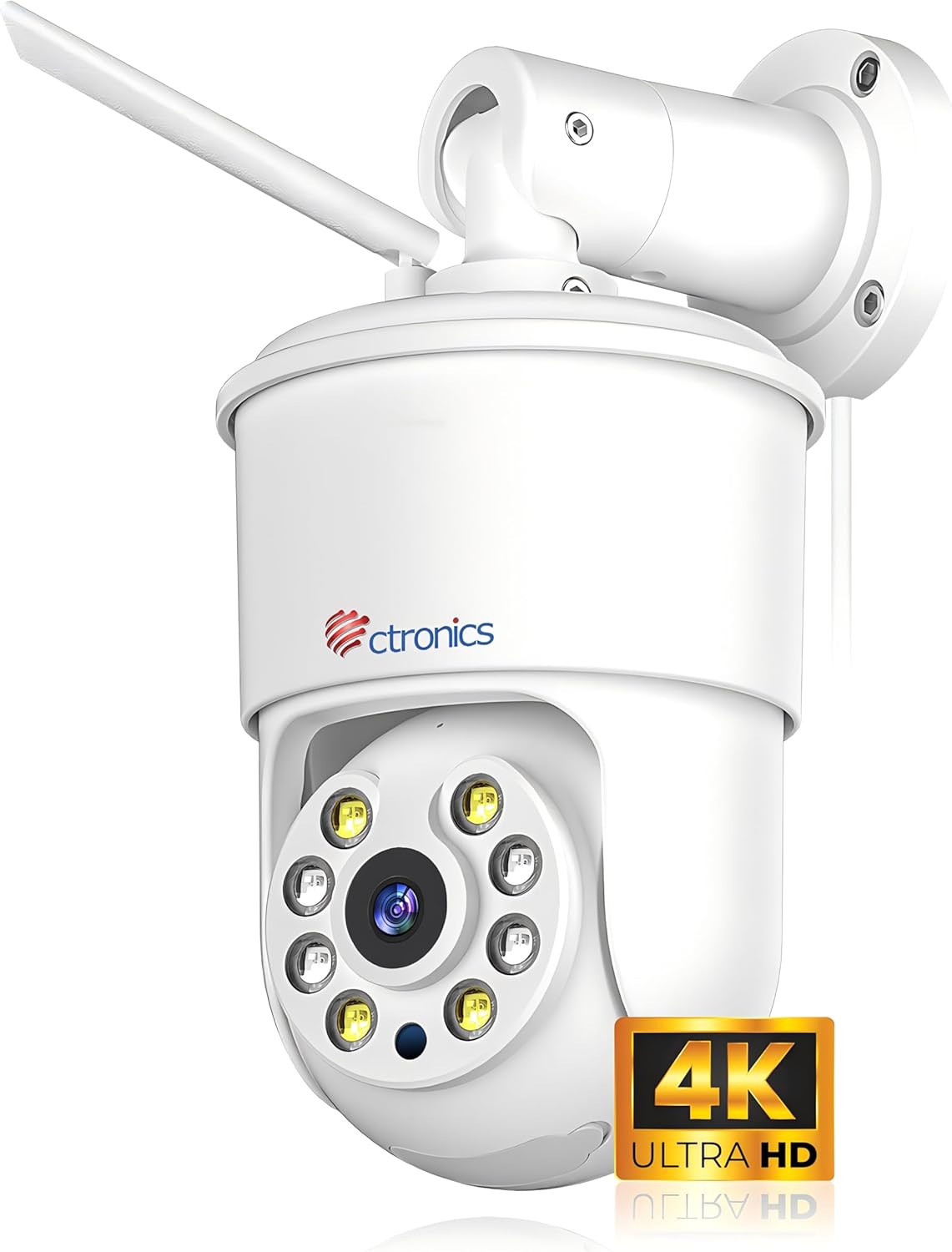
Figure 1.1: Ctronics 4K Security Camera Outdoor (Model: CTIPC-840C-4K)
2. Product Overview
2.1 Key Features
- 4K Ultra HD Resolution: Equipped with a SONY IMX415 sensor, delivering 8 million pixels (3840x2160) for crystal-clear images.
- Full-Color Night Vision: Innovative technology captures vivid images even in low-light or total darkness.
- Smart AI Detection: Precise detection and tracking of people, vehicles, and pets.
- Auto Tracking: Automatically follows detected subjects within the camera's field of view.
- Sound and Light Alarms: Integrated alarms to deter potential threats.
- Dual-Band WiFi: Supports 2.4G and 5G WiFi for faster and more stable connections.
- Remote Monitoring: Access real-time footage via smartphone or computer from anywhere.
- All-Metal Body: Robust construction for superior durability and heat dissipation, suitable for outdoor use.
- Flexible Storage: Supports up to 256GB Micro SD cards, cloud storage, FTP, and NAS.
- Two-Way Audio: Built-in microphone and speaker for communication.
- Preset Positions: Set and save specific viewing angles for quick access.
2.2 Package Contents
Ensure all items are present in the box:
- Ctronics 4K Security Camera
- WLAN Cable
- Mounting Screws and Anchors
- Power Adapter (Corded Electric)
- Quick Start Guide
3. Setup
3.1 Mounting the Camera
The camera offers flexible installation with both ceiling and wall mounting options. Choose a location that provides optimal viewing coverage and a stable surface for mounting.
- Select Location: Identify a suitable outdoor location, ensuring it is within Wi-Fi range and has access to a power outlet.
- Mark Drilling Points: Use the mounting template (if provided) or the camera base to mark the screw holes on the wall or ceiling.
- Drill Holes: Drill pilot holes at the marked points. Insert wall anchors if mounting on masonry or drywall.
- Secure Camera: Align the camera base with the holes and secure it using the provided screws.

Figure 3.1: Flexible Installation Options (Ceiling and Wall Mount)
3.2 Powering On
Connect the power adapter to the camera's power input port and then plug it into a standard electrical outlet. The camera will power on and initiate its startup sequence.
3.3 Network Connection
The Ctronics camera supports both 2.4GHz and 5GHz Wi-Fi for flexible and stable connectivity.
- Download App: Download the "Ctronics Pro" app from your smartphone's app store (iOS or Android).
- Create Account: Open the app and register for a new account or log in if you already have one.
- Add Device: Follow the in-app instructions to add your new camera. This typically involves scanning a QR code on the camera or using Bluetooth networking for quick pairing.
- Connect to Wi-Fi: Select your Wi-Fi network (2.4GHz or 5GHz) and enter the password. Ensure your phone is connected to the same Wi-Fi network during setup.

Figure 3.2: Fast Bluetooth Networking for Initial Setup
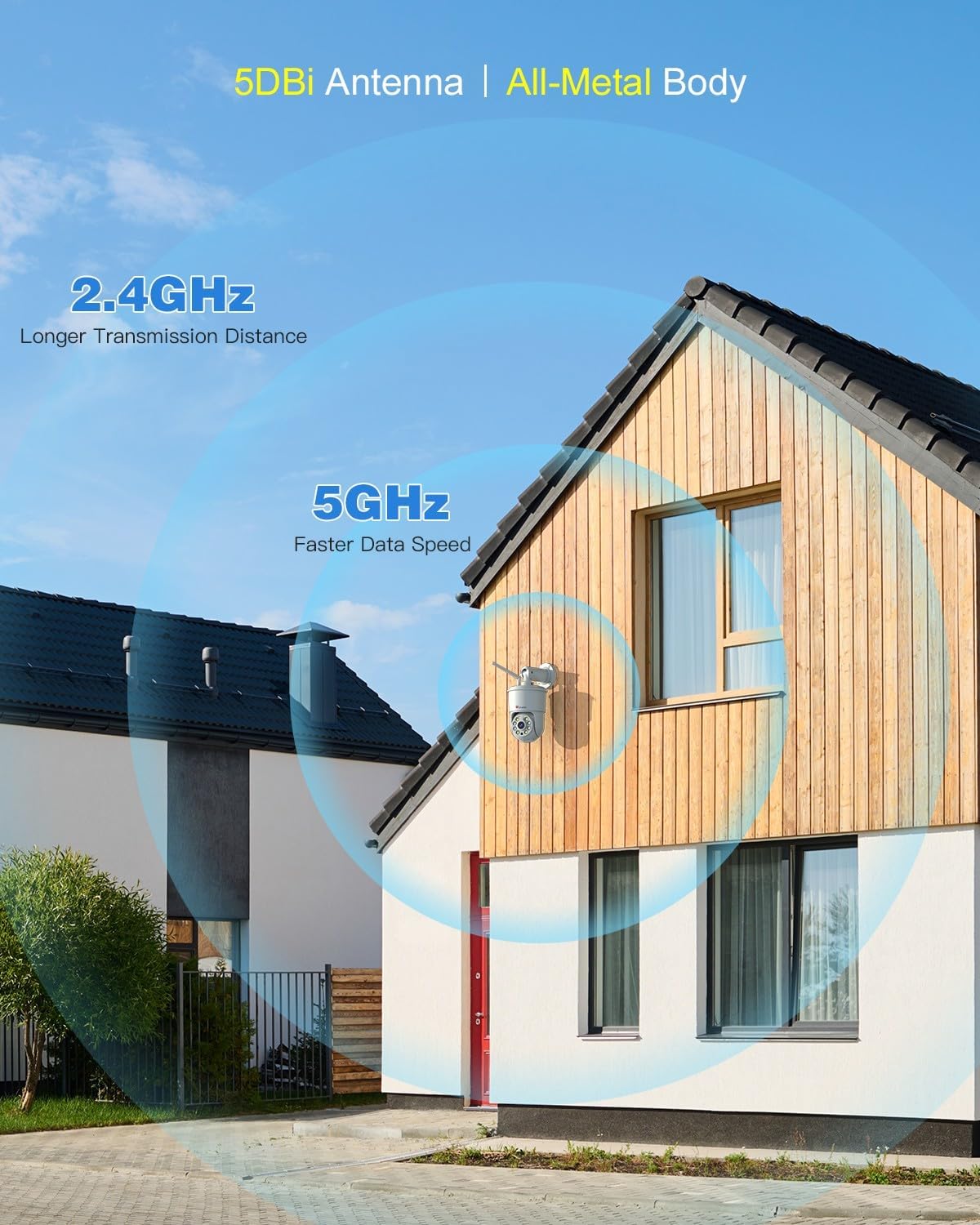
Figure 3.3: Dual-Band Wi-Fi Connectivity
4. Operating Instructions
4.1 Live View and Playback
Once connected, you can view live footage and access recorded videos through the Ctronics Pro app or PC client. The 4K resolution provides exceptional clarity.

Figure 4.1: 4K 8MP Ultra HD Resolution and Color Night Vision

Figure 4.2: Remote Monitoring via PC and Mobile Devices
4.2 Smart AI Detection and Auto Tracking
The camera utilizes advanced AI to distinguish between humans, vehicles, and pets, reducing false alarms. When a detected object enters the monitoring area, the camera can automatically track its movement.
- Human Detection: Focuses on human shapes to minimize alerts from swaying trees or insects.
- Vehicle Detection: Identifies vehicles for specific monitoring needs.
- Pet Detection: Recognizes pets, useful for monitoring animal activity.
- Auto Tracking: The camera will pan and tilt to follow the detected subject.

Figure 4.3: AI Human, Vehicle, and Pet Detection with Auto Tracking
4.3 Sound and Light Alarms
Upon detection of an intruder, the camera can activate a sound alarm and flash its built-in lights to deter them. You will also receive instant notifications on your connected device.

Figure 4.4: Sound & Light Alerts for Enhanced Security
4.4 Two-Way Audio
Communicate with visitors or deter unwanted guests using the camera's integrated microphone and speaker. This feature allows for real-time, two-way conversations.

Figure 4.5: Two-Way Audio Communication
5. Advanced Features
5.1 Preset Positions and Detection Zones
Set up to 8 preset positions for quick navigation to specific areas. You can also customize detection zones to focus monitoring on critical areas and ignore irrelevant ones, reducing unnecessary alerts.

Figure 5.1: Preset Positions and Customizable Detection Zones
5.2 Multi-Camera Management
The Ctronics Pro app allows you to monitor up to four cameras simultaneously with Quad View Preview. You can manage over 36 cameras and organize them into groups for effortless management. Family sharing features allow multiple users to access the camera feed.

Figure 5.2: Advanced App Features for Multi-Camera Management
5.3 Video Masking
For privacy protection, you can define user-defined video masks to block out specific areas from being recorded or viewed.

Figure 5.3: Video Masking for Privacy
6. Storage Options
Your Ctronics camera offers multiple secure storage solutions for your footage:
- Micro SD Card: Supports up to 256GB Micro SD cards for local storage. Insert the card into the designated slot on the camera.
- Cloud Storage: Secure cloud storage options are available through the Ctronics app (subscription may be required).
- FTP/NAS: Compatible with FTP and NAS systems for continuous 24/7 recording and secure data backup.

Figure 6.1: Flexible Storage Solutions
7. Maintenance
To ensure the longevity and optimal performance of your Ctronics 4K Security Camera, follow these maintenance guidelines:
- Cleaning: Regularly wipe the camera lens and body with a soft, damp cloth to remove dust and dirt. Do not use harsh chemicals or abrasive cleaners.
- Weather Protection: The camera features an all-metal body and an IP66 international protection rating, making it highly resistant to dust and water jets. While designed for outdoor use, avoid direct exposure to extreme weather conditions if possible to prolong its lifespan.
- Firmware Updates: Check the Ctronics Pro app periodically for firmware updates. Keeping the firmware updated ensures the latest features and security enhancements.
- Cable Inspection: Periodically inspect the power cable and WLAN cable for any signs of wear or damage.

Figure 7.1: All-Metal Body and Weather Resistance (IP66)
8. Troubleshooting
If you encounter issues with your Ctronics 4K Security Camera, refer to the following common problems and solutions:
| Problem | Possible Cause | Solution |
|---|---|---|
| Camera offline/Cannot connect to Wi-Fi | Weak Wi-Fi signal, incorrect password, router issues, camera too far from router. | Ensure camera is within Wi-Fi range. Check Wi-Fi password. Restart router and camera. Try connecting to 5GHz if available for better stability. |
| Poor image quality | Dirty lens, low light conditions, network bandwidth issues. | Clean the camera lens. Ensure sufficient lighting for optimal color night vision. Check network speed. |
| Frequent false alarms | Sensitivity too high, objects like trees or shadows triggering detection. | Adjust detection sensitivity in the app. Set up custom detection zones to exclude irrelevant areas. Utilize AI detection filters (human, vehicle, pet). |
| No recording to SD card | SD card full, corrupted, or not inserted correctly. | Check if the SD card is inserted correctly. Format the SD card via the app. Replace with a new SD card if corrupted. Ensure recording settings are enabled. |
| Two-way audio not working | Microphone/speaker muted in app, network delay. | Ensure microphone and speaker are enabled in the app. Check network connection for stability. |
If the problem persists, please refer to the Ctronics official website for more detailed troubleshooting guides or contact customer support.
9. Specifications
| Feature | Specification |
|---|---|
| Model Name | CTIPC-840C-4K |
| Indoor/Outdoor Usage | Outdoor |
| Video Capture Resolution | 4K (3840x2160) |
| Effective Still Resolution | 8 MP |
| Connectivity Technology | Wireless (Wi-Fi 2.4G/5G, Bluetooth) |
| Power Source | Corded Electric (12 Volts, 12 watts) |
| Controller Type | Ctronics APP |
| Mounting Type | Wall Mount, Ceiling Mount |
| Night Vision Range | 30 Meters |
| Frame Rate | 15 frames per second |
| Material | Metal |
| Flash Memory Type | Micro SD |
| Flash Memory Supported Size Maximum | 256 GB |
| International Protection Rating | IP66 |
| Item Dimensions L x W x H | 8.27 x 5.91 x 3.94 inches |
| Item Weight | 2.4 pounds |
| Alert Type | Audio and Motion |
| Zoom Type | Digital Zoom (4x) |
10. Warranty and Support
Ctronics products are manufactured with high-quality standards. For warranty information, please refer to the warranty card included with your product or visit the official Ctronics website. For technical support, product inquiries, or assistance with setup and troubleshooting, please contact Ctronics customer service through the following channels:
- Official Website: www.ctronics.com
- Email Support: Refer to the contact information provided on the product packaging or the official website.
Please have your model number (CTIPC-840C-4K) and purchase details ready when contacting support.


