
1. Introduction
The Ulefone Armor Pad 3 Pro is a rugged tablet designed for durability and high performance in challenging environments. It features a large 33280mAh battery, a 10.36-inch 2K display, powerful cameras, and dual 1100LM LED lights. This manual provides essential information for setting up, operating, and maintaining your device.
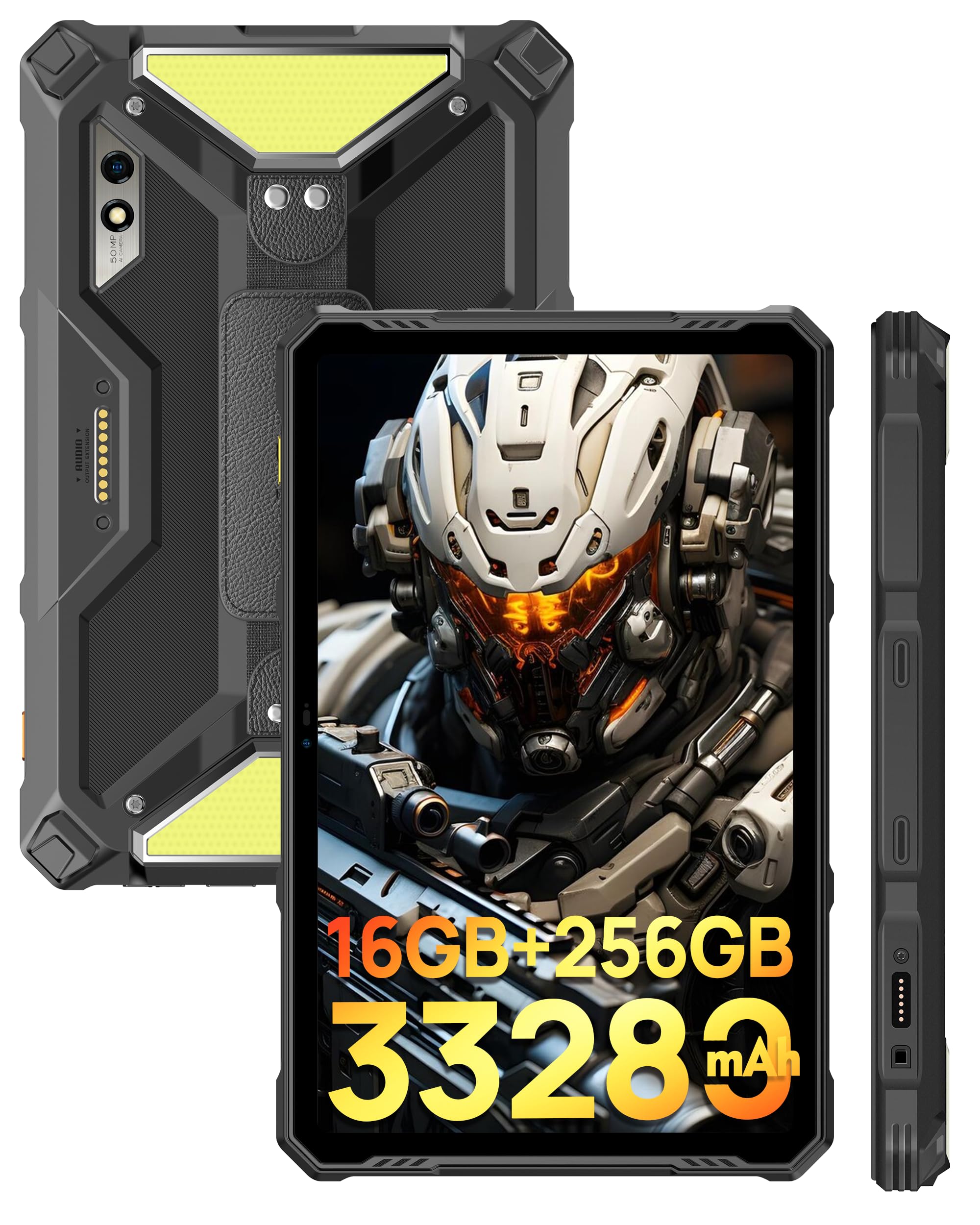
Image: Front and back view of the Ulefone Armor Pad 3 Pro Rugged Tablet, highlighting its robust design.
Video: An overview of the Ulefone Armor Pad 3 Pro Rugged Tablet, showcasing its features and design.
2. What's in the Box
Verify that all items are present in the package:
- 1 x AC Power Charger
- 1 x USB Type-C 2.0 Charging Cable
- 1 x Hand Strap & 1 x Screwdriver & 4 x Screws
- 1 x SIM Needle
- 1 x Protective Film (Pre-installed)

Image: The Ulefone Armor Pad 3 Pro tablet displayed with its standard accessories, including charger, cables, and tools.
3. Setup
3.1. Charging the Device
Before first use, fully charge the tablet using the provided AC power charger and USB Type-C cable. The device supports 66W fast charging.
3.2. Power On/Off
- To power on: Press and hold the Power button until the Ulefone logo appears.
- To power off: Press and hold the Power button, then select 'Power off' from the options.
3.3. SIM Card and TF Card Installation
The tablet supports dual Nano SIM cards and one TF card for expandable storage. Use the provided SIM needle to open the card tray.
- Locate the SIM card tray on the side of the tablet.
- Insert the SIM needle into the small hole next to the tray and press gently until the tray ejects.
- Place your Nano SIM cards and/or TF card into the designated slots on the tray. Ensure correct orientation.
- Carefully push the tray back into the tablet until it clicks into place.
4. Operating Instructions
4.1. Display and Navigation
The Ulefone Armor Pad 3 Pro features a 10.36-inch 2K display protected by Corning Gorilla Glass 5. Navigate the Android 13 operating system using touch gestures.

Image: The tablet's 10.36-inch 2K display showcasing vibrant visuals and its durable Corning Gorilla Glass 5 protection.
4.2. Battery Management
The tablet is equipped with a 33280mAh mega battery. It supports 66W fast charging and 10W reverse charging (OTG) to power other devices.

Image: Visual representation of the 33280mAh battery capacity, 66W fast charging, and reverse charging capabilities.
4.3. Camera Functions
Capture high-quality photos and videos with the 50MP rear camera (Samsung ISOCELL GN1 sensor) and the 32MP front camera.
- Open the Camera app from the home screen or app drawer.
- Tap the shutter button to take a photo.
- Switch between photo and video modes as needed.
- Use the front/rear camera toggle to switch between cameras.

Image: Details of the 50MP rear camera, including sensor size and aperture, with example photos.

Image: The 32MP front camera in use for video calls or selfies.
4.4. Dual 1100LM LED Lights
The tablet features two powerful 1100 lumen LED lights for illumination. These lights have 3 lighting modes and 3 brightness levels, accessible via a physical button on the left side.
- Press the dedicated light button to activate the LED lights.
- Press repeatedly to cycle through brightness levels and modes.

Image: The tablet's dual 1100 lumen LED lights in action, providing powerful illumination for various scenarios.
4.5. Connectivity
The Armor Pad 3 Pro supports 4G cellular, 2.4G/5G WiFi, Bluetooth 5.2, NFC, and HDMI output.
- WiFi: Connect to wireless networks via Settings > Network & internet > Wi-Fi.
- Bluetooth: Pair with Bluetooth devices via Settings > Connected devices > Bluetooth.
- NFC: Enable NFC for contactless payments and data transfer via Settings > Connected devices > Connection preferences > NFC.
- HDMI: Connect to an external display using an HDMI cable for screen mirroring.

Image: The tablet connected to an external display via HDMI, demonstrating its screen mirroring capability.

Image: Illustrates the tablet's dual 4G LTE and 2.4G/5G WiFi connectivity, along with fingerprint ID and face unlock security features.
4.6. uSmart Expansion Connector
The uSmart Expansion Connector allows for fast and stable connections to professional tools such as endoscopes and microscopes (sold separately).

Image: The uSmart Expansion Connector shown with compatible accessories like a digital microscope and endoscopes, demonstrating its versatility.
Video: A showcase of the Ulefone Armor Pad 3 Pro's accessory ecosystem, including the uSmart expansion tools like endoscopes and microscopes.
4.7. Other Features
- Stereo Dual Speakers: Enjoy enhanced audio with built-in front-facing speakers.
- Fingerprint Sensor & Face Unlock: Secure your device with biometric authentication.
- Glove Mode: Use the touchscreen while wearing gloves.
- GPS: Integrated GPS + GLONASS + Galileo + BeiDou for accurate navigation.
- Digital Toolbox: Access various utility tools like Sound Meter, Compass, Magnifier, etc.

Image: The tablet's stereo front-facing dual speakers for spatial audio effects and its headset-free FM radio function.
5. Maintenance
To ensure the longevity and optimal performance of your Ulefone Armor Pad 3 Pro, follow these maintenance guidelines:
- Cleaning: Wipe the device with a soft, damp cloth. Avoid harsh chemicals or abrasive materials. Ensure all port covers are securely closed before cleaning with water.
- Temperature: Operate the tablet within its specified temperature range. Avoid prolonged exposure to extreme heat or cold.
- Impact Protection: While rugged, avoid unnecessary drops or impacts.
- Port Covers: Always ensure the USB-C and SIM/TF card slot covers are tightly sealed to maintain water and dust resistance.
6. Troubleshooting
If you encounter issues with your tablet, refer to the following common solutions:
- Device not powering on: Ensure the battery is charged. Connect to the charger and wait a few minutes before attempting to power on again.
- Screen frozen or unresponsive: Press and hold the Power button for about 10-15 seconds to force a restart.
- Connectivity issues (Wi-Fi/Bluetooth/4G): Try toggling the respective feature off and on in Settings. For cellular issues, ensure your SIM card is correctly inserted and your plan is active.
- Apps crashing: Clear the cache of the problematic app (Settings > Apps > [App Name] > Storage & cache > Clear cache). If the issue persists, try reinstalling the app.
- Slow performance: Close unnecessary background apps, clear cache, or consider a factory reset as a last resort (back up your data first).
7. Specifications
| Feature | Specification |
|---|---|
| Brand | Ulefone |
| Model Name | Ulefone Armor Pad 3 Pro |
| Operating System | Android 13 |
| Processor | MediaTek MT8788 Octa-core (2 GHz) |
| RAM Memory | 16 GB (8GB physical + 8GB virtual) |
| Storage Capacity | 256 GB (expandable up to 2 TB via TF card) |
| Screen Size | 10.36 Inches |
| Display Resolution | 2048x1536 (2K), 500 Nits Brightness |
| Display Type | LCD with Corning Gorilla Glass 5 |
| Rear Camera | 50 MP |
| Front Camera | 32 MP |
| Battery Capacity | 33280 mAh |
| Fast Charging | 66W |
| Reverse Charging | 10W OTG |
| Ruggedness | IP68/IP69K, MIL-STD-810H Certified |
| Connectivity | 4G LTE, Wi-Fi (2.4G/5G), Bluetooth 5.2, NFC, HDMI |
| GPS | GPS + GLONASS + Galileo + BeiDou |
| Special Features | Dual 1100LM LED Lights, uSmart Expansion Connector, Stereo Dual Speakers, Fingerprint Sensor, Glove Mode, Custom Key, PTT |
| Dimensions (L x W x Thickness) | 6.57"L x 10.3"W x 0.83"Th |
| Item Weight | 1018 Grams |
8. Warranty and Support
The Ulefone Armor Pad 3 Pro comes with a 1-Year Limited Warranty from the manufacturer, Ulefone. For technical support, warranty claims, or service inquiries, please contact Ulefone customer service through their official website or the retailer where the product was purchased.
Please retain your proof of purchase for warranty validation.


