
OiLiehu A7146A3216A4MI2
OiLiehu Android 13 Car Radio User Manual
For Hyundai Tucson IX35 (2010-2015) - Model A7146A3216A4MI2
1. Introduction
This manual provides detailed instructions for the installation, operation, and maintenance of your OiLiehu Android 13 Car Radio. Designed specifically for Hyundai Tucson IX35 models from 2010 to 2015, this unit offers advanced features including Wireless Carplay, Android Auto, GPS navigation, Bluetooth connectivity, FM RDS radio, WiFi, Mirror Link, rear camera support, and steering wheel control integration. Please read this manual thoroughly before installation and use to ensure proper function and safety.
2. Safety Information
- Professional Installation Recommended: Due to the complexity of car electrical systems, professional installation is highly recommended to prevent damage to the unit or your vehicle.
- Power Supply: Ensure the unit is connected to a 12V DC power supply with negative grounding. Incorrect voltage can cause damage.
- Wiring: Do not modify or cut the wiring harness. Incorrect wiring can lead to malfunctions or electrical hazards.
- Driving Safety: Do not operate the unit in a way that distracts you from driving. Always prioritize road safety.
- Temperature: Avoid exposing the unit to extreme temperatures or direct sunlight for prolonged periods.
- Moisture: Keep the unit away from water and excessive moisture to prevent electrical shock or damage.
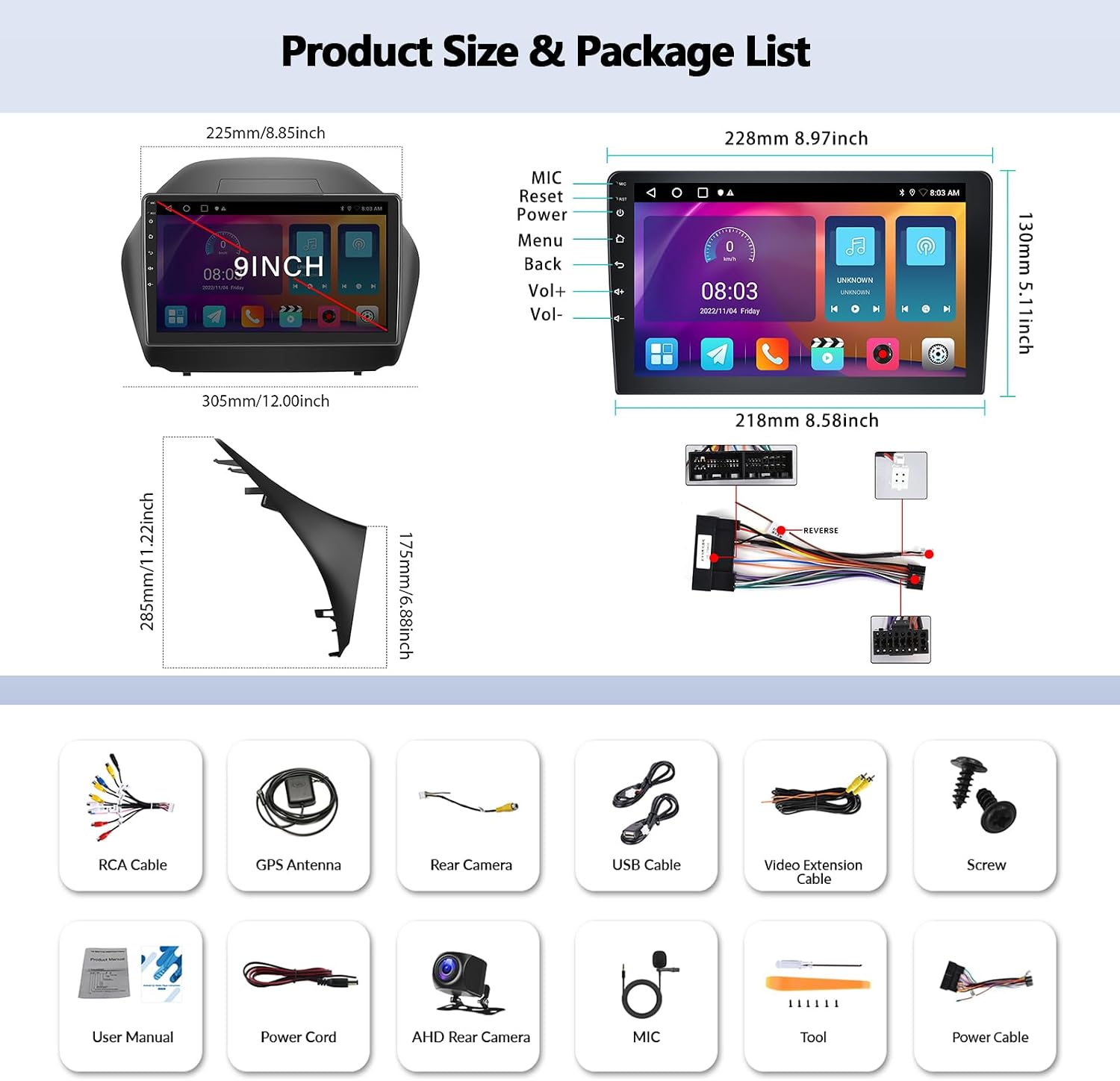
3. Package Contents
Please check the package for the following items:
- OiLiehu Android 13 Car Radio Unit
- AHD Rear Camera
- Screws for installation
- User Manual (this document)
- Power Cord (main wiring harness)
- RCA Cable
- USB Cable
- Video Extension Cable
- Microphone (MIC)
- Installation Tool
- GPS Antenna
4. Product Overview
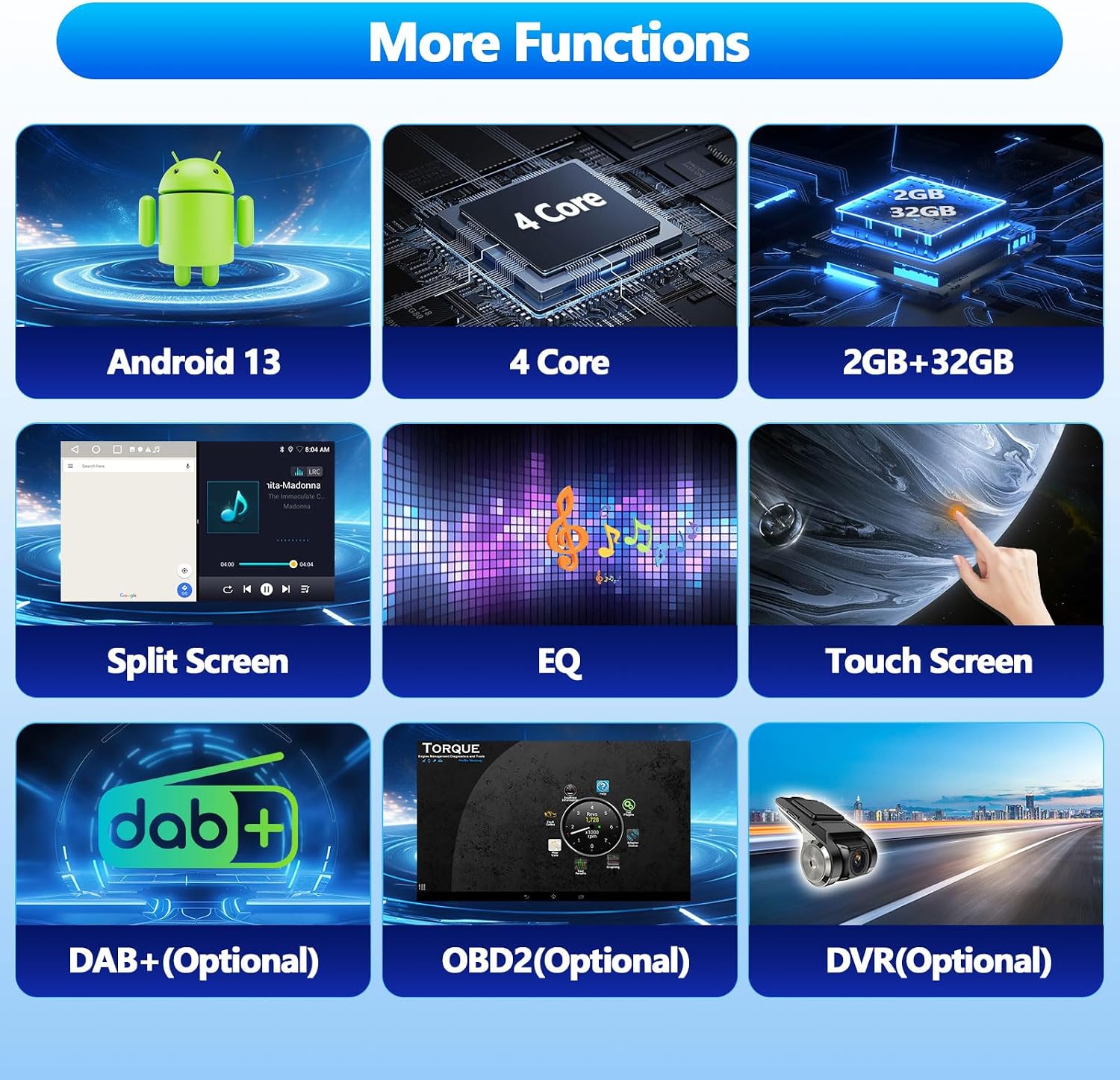
The OiLiehu Android 13 Car Radio features a 10.1-inch touchscreen display and is designed to seamlessly integrate into your Hyundai Tucson IX35 (2010-2015) dashboard. It runs on Android 13 with 2GB RAM and 32GB ROM, providing a responsive and feature-rich experience.

Key features include:
- Android 13 Operating System
- 10.1-inch Capacitive Touchscreen (1024 x 600 resolution)
- 2GB RAM + 32GB ROM
- Wireless Carplay & Android Auto
- Built-in GPS Navigation
- Bluetooth for Hands-free Calling and Music Streaming
- FM Radio with RDS
- WiFi Connectivity
- Mirror Link Functionality
- Support for Original Steering Wheel Controls
- Rear Camera Input with Automatic Switching
- Audio Equalizer (EQ) Settings
- Split Screen Function
- Support for optional external devices: DAB+, OBD2, DVR (not included in package)
5. Setup and Installation
5.1 Pre-Installation Checks
- Verify vehicle compatibility: This unit is designed for Hyundai Tucson IX35 models from 2010 to 2015.
- Disconnect the vehicle's battery negative terminal before starting any electrical work.
- Ensure all package contents are present and undamaged.
5.2 Wiring Diagram and Connections
Refer to the provided wiring diagram (usually on a sticker on the unit or in a separate small diagram) for specific connections. General connections include:
- Power Harness: Connect to vehicle's power, ground, and accessory wires.
- Speaker Wires: Connect to vehicle's speaker outputs.
- GPS Antenna: Connect to the dedicated GPS port on the unit and mount in a location with a clear view of the sky.
- USB Cables: Connect to the unit's USB ports for external storage or phone connection.
- Rear Camera Input: Connect the provided AHD Rear Camera to the 'CAM IN' or 'REVERSE' video input. Connect the camera's power to the vehicle's reverse light circuit and the trigger wire to the unit's 'REVERSE' trigger input.
- External Microphone: Connect the external microphone for improved call quality.

5.3 Physical Installation
- Carefully remove the original car radio and trim panels.
- Connect all necessary wiring harnesses and cables to the new OiLiehu unit.
- Mount the GPS antenna in an optimal location, typically on the dashboard with a clear view of the sky.
- Install the AHD Rear Camera at the rear of the vehicle, ensuring proper alignment and wiring.
- Secure the new car radio unit into the dashboard opening using the provided screws and brackets.
- Reinstall all trim panels.
- Reconnect the vehicle's battery negative terminal.

5.4 Steering Wheel Control Setup
The unit supports the original steering wheel controls of your Hyundai Tucson IX35. After installation, you may need to configure these controls:
- Go to Settings > Steering Wheel Learn or similar option on the unit.
- Follow the on-screen prompts to assign functions (e.g., volume up/down, track skip, answer call) to your vehicle's steering wheel buttons.
6. Operating Instructions
6.1 Basic Operation
- Power On/Off: The unit typically powers on with the vehicle's ignition. A power button on the unit or screen may also be available for manual control.
- Touchscreen: Navigate through menus and applications by tapping, swiping, and dragging on the 10.1-inch capacitive touchscreen.
- Home Screen: Customize widgets and app shortcuts on the home screen for quick access.
6.2 WiFi Connectivity
Connect the unit to a WiFi network or your phone's hotspot to access online features and applications.
- Go to Settings > Network & Internet > Wi-Fi.
- Select your desired network and enter the password if required.

6.3 GPS Navigation
The unit has a built-in GPS receiver. You can use pre-installed navigation apps or download others from the Google Play Store (requires WiFi connection).
- Launch the navigation application from the home screen or app drawer.
- Enter your destination to receive turn-by-turn directions.
- Supports both online and offline maps (offline maps require prior download).
6.4 Bluetooth Functionality
Connect your smartphone via Bluetooth for hands-free calling and audio streaming.
- Enable Bluetooth on your smartphone and on the car radio (usually via the Bluetooth app or Settings).
- Search for available devices on your phone or the car radio. The unit's Bluetooth name is typically 'CarBT'.
- Pair the devices. The default PIN is usually '0000'.
- Once paired, you can make/receive calls, access your phonebook, and stream music.

6.5 FM Radio with RDS
Access local radio stations and receive station information via RDS.
- Open the 'Radio' application.
- Use the scan function to find available stations or manually tune to a frequency.
- Save your favorite stations to presets.
- RDS (Radio Data System) provides information like station name, program type, and traffic announcements.
6.6 Wireless Carplay & Android Auto
Connect your iPhone or Android phone wirelessly for a seamless in-car experience.
- Ensure Bluetooth and Wi-Fi are enabled on both your phone and the car radio.
- Open the 'Carplay' or 'Android Auto' application on the unit.
- Follow the on-screen instructions to pair your phone. For some phones, a wired connection might be required for the initial setup.
- Once connected, you can access navigation, music, messages, and voice assistants (Siri/Google Assistant) directly from the car radio display.
Compatibility Note: For Apple phones, iOS version 16.5 or higher may not be compatible. For Android phones, Android version 12 or higher may not be compatible. Samsung and Huawei phones are generally not supported for this feature.

6.7 Mirror Link
Mirror your smartphone screen onto the car radio display.
- Open the 'Mirror Link' application on the unit.
- Follow the instructions to connect your iOS or Android smartphone. This may involve scanning a QR code or connecting via USB.
Compatibility Note: For iOS smartphones, version 15 or lower is recommended. For Android smartphones, version 11 or lower is recommended.

6.8 Rear Camera Display
When the vehicle is shifted into reverse gear, the unit will automatically display the feed from the connected AHD Rear Camera, assisting with parking and maneuvering.
6.9 Split Screen Function
The unit supports split-screen mode, allowing you to run two applications simultaneously (e.g., navigation and music player).
- To activate, open one app, then long-press the recent apps button or swipe from the bottom (depending on Android version) to select another app for split-screen view.
6.10 Sound Settings (EQ)
Customize your audio experience using the built-in equalizer.
- Access the 'EQ' or 'Sound Settings' application.
- Adjust various audio parameters such as bass, treble, balance, and fader, or select from preset equalizer modes.
6.11 Optional Features (Not Included)
The unit supports additional functionalities with separately purchased accessories:
- DAB+ (Digital Audio Broadcasting): Requires an external DAB+ receiver.
- OBD2 (On-Board Diagnostics): Requires an OBD2 dongle for vehicle diagnostics.
- DVR (Digital Video Recorder): Requires an external USB DVR camera for recording driving footage.
7. Maintenance
- Cleaning the Screen: Use a soft, lint-free cloth to gently wipe the touchscreen. For stubborn smudges, slightly dampen the cloth with water or a screen cleaner designed for electronics. Avoid harsh chemicals.
- Software Updates: Periodically check for software updates via the unit's settings (requires WiFi connection) to ensure optimal performance and access to new features.
- General Care: Avoid placing heavy objects on the unit or exposing it to direct sunlight for extended periods when parked.
8. Troubleshooting
| Problem | Possible Cause | Solution |
|---|---|---|
| Unit does not power on. | Loose power connection, blown fuse, incorrect wiring. | Check all power connections. Inspect vehicle's fuse box and the unit's inline fuse. Verify wiring against the diagram. |
| No sound. | Volume too low, mute activated, incorrect speaker wiring, audio settings. | Increase volume. Check if mute is active. Verify speaker connections. Adjust EQ/sound settings. |
| Bluetooth not connecting. | Bluetooth off, device not discoverable, incorrect pairing process. | Ensure Bluetooth is enabled on both devices. Make the phone discoverable. Re-attempt pairing with PIN '0000'. Clear previous pairings. |
| GPS signal weak or lost. | GPS antenna obstruction, poor antenna placement, software issue. | Ensure GPS antenna has a clear view of the sky. Check antenna connection. Restart the unit. |
| Carplay/Android Auto not working. | Phone compatibility, incorrect connection, app issues. | Verify phone OS version compatibility (iOS <16.5, Android <12). Ensure Wi-Fi and Bluetooth are on. Try a wired connection first. Restart phone and unit. Note: Samsung/Huawei phones may not be compatible. |
| Rear camera not displaying. | Incorrect wiring, camera malfunction, reverse trigger not connected. | Check camera power and video input connections. Ensure the reverse trigger wire is correctly connected to the vehicle's reverse light circuit. |
9. Specifications
| Feature | Detail |
|---|---|
| Model Number | A7146A3216A4MI2 |
| Operating System | Android 13 |
| RAM | 2 GB |
| Internal Storage | 32 GB |
| Screen Size | 10.1 Inches |
| Screen Resolution | 1024 x 600 |
| Touchscreen Type | Capacitive |
| Connectivity Technology | Bluetooth, USB, WiFi |
| Special Features | Wireless Carplay, Android Auto, GPS, FM RDS, Mirror Link, Steering Wheel Control, Rear Camera Input, EQ |
| Compatible Vehicle Type | Hyundai Tucson IX35 (2010-2015) |
| Product Dimensions (L x W x H) | 25.7 x 25.7 x 25.7 cm (approx. 10.1 x 10.1 x 10.1 inches) |
| Weight | 2.2 kg |
10. Warranty and Support
For warranty information and technical support, please refer to the documentation provided with your purchase or contact OiLiehu customer service through the retailer where the product was purchased. Keep your proof of purchase for warranty claims.
For further assistance, you may visit the OiLiehu brand store online: OiLiehu Brand Store
Related documentsA7146A3216A4MI2

Ask a question about this manual
Ask about setup, troubleshooting, compatibility, parts, safety, or missing instructions. Manuals+ will review the question and use this page’s manual context to help answer it.