
Introduction
Thank you for choosing the Portronics Bubble Square Wireless Keyboard. This manual provides essential information for setting up, operating, and maintaining your new keyboard. Please read it carefully to ensure optimal performance and longevity of your device.
Product Overview
The Portronics Bubble Square Wireless Keyboard offers dual connectivity options (Bluetooth 5.3 and 2.4 GHz USB Receiver) and supports simultaneous pairing with up to three devices. It features a full-size layout with comfortable key spacing for fatigue-free typing and includes multimedia hotkeys for enhanced functionality. A convenient built-in smartphone holder is integrated for improved multitasking.
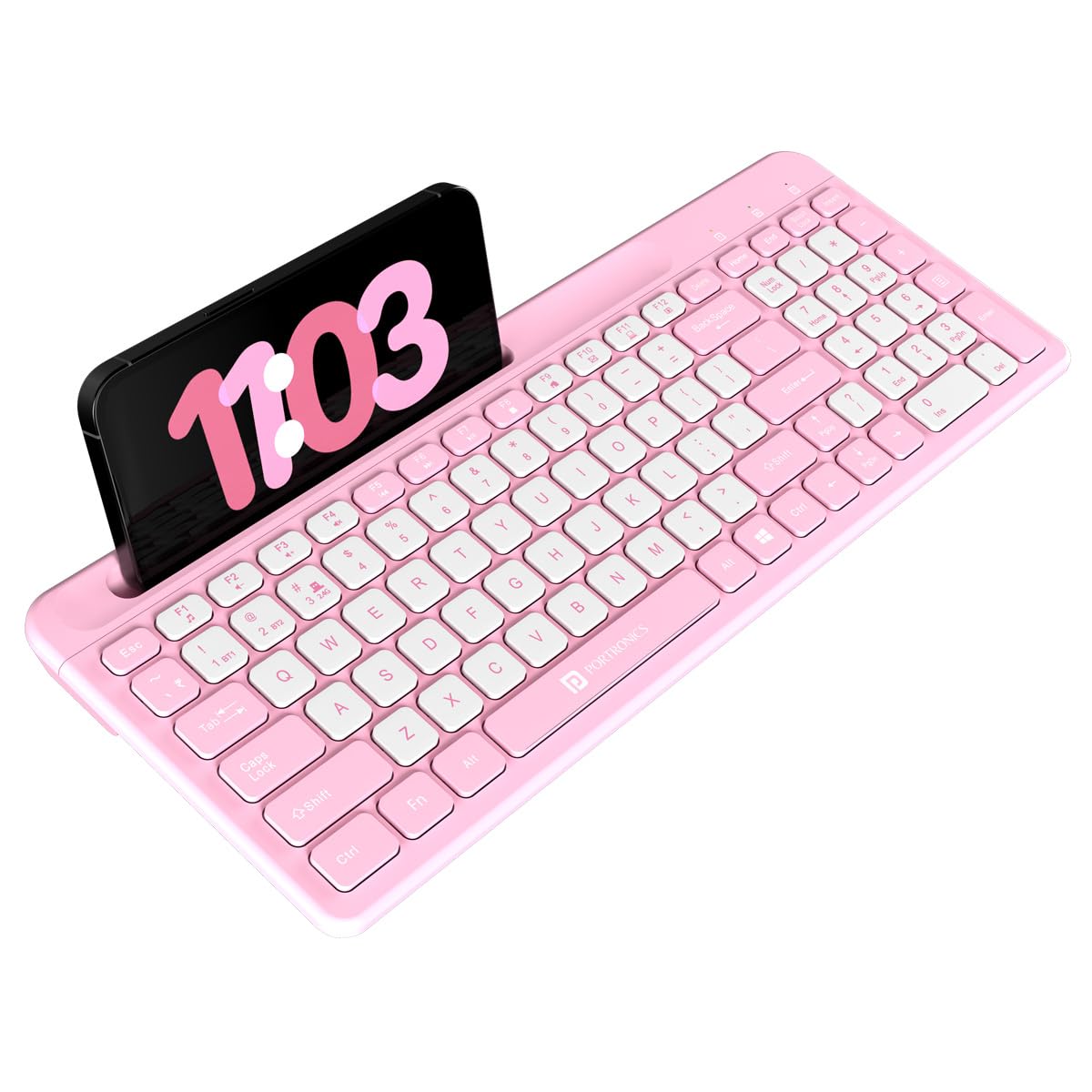
Image: Front view of the Portronics Bubble Square Wireless Keyboard, showcasing its full-size layout and integrated smartphone holder.
What's in the Box
- Portronics Bubble Square Wireless Keyboard
- 2.4 GHz USB Receiver (stored in the battery compartment)
- User Manual
Setup
1. Battery Installation
- Locate the battery compartment on the underside of the keyboard.
- Open the battery compartment cover.
- Insert the required AAA batteries (not included) according to the polarity indicators.
- Close the battery compartment cover securely.

Image: The underside of the keyboard, highlighting the USB receiver storage slot and the AAA battery compartment.
2. Connecting via 2.4 GHz USB Receiver
- Retrieve the 2.4 GHz USB receiver from the keyboard's battery compartment.
- Plug the USB receiver into an available USB port on your computer or device.
- Turn on the keyboard using the power switch.
- The keyboard should automatically connect to your device.
3. Connecting via Bluetooth (Pairing up to 3 Devices)
The keyboard supports Bluetooth 5.3 and can be paired with up to three devices simultaneously.
- Turn on the keyboard.
- Press and hold the Fn key and one of the Bluetooth keys (1 BT1, 2 BT2, or 3 BT3) for 3-5 seconds until the corresponding indicator light flashes, indicating pairing mode.
- On your device (laptop, PC, smartphone, tablet), enable Bluetooth and search for available devices.
- Select "Portronics Bubble Square" from the list of found devices.
- Follow any on-screen prompts to complete the pairing process.
- Repeat for up to two additional Bluetooth devices using the other Bluetooth keys.
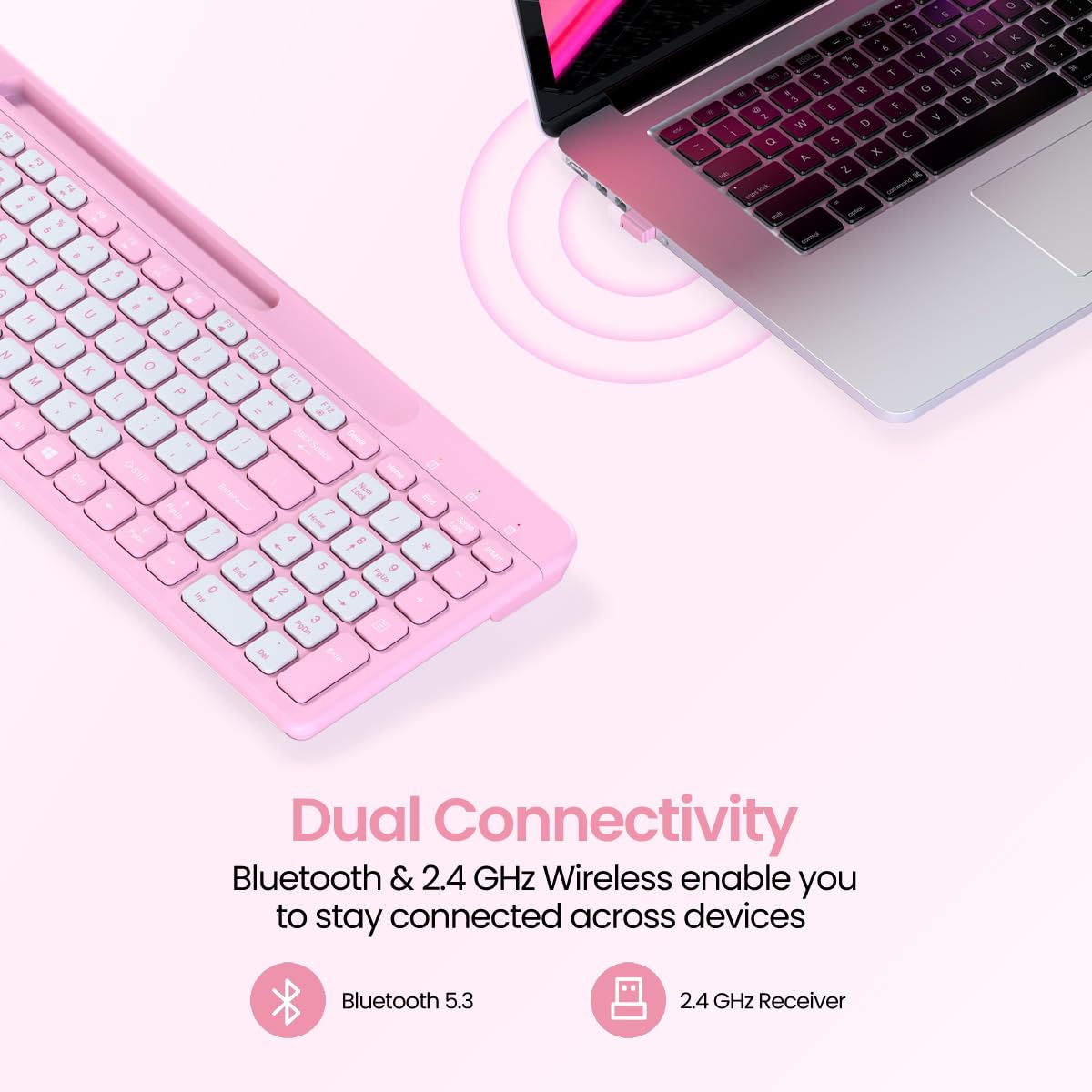
Image: The keyboard demonstrating dual connectivity with both Bluetooth and 2.4 GHz wireless options.

Image: The keyboard illustrating multi-device pairing, showing connections to a desktop monitor, a tablet, and a smartphone.
Operation
1. Switching Between Devices
To switch between paired devices, simply press the Fn key along with the corresponding connection key:
- Fn + 1 BT1: Switch to Bluetooth Device 1
- Fn + 2 BT2: Switch to Bluetooth Device 2
- Fn + 3 BT3: Switch to Bluetooth Device 3
- Fn + 4 2.4G: Switch to 2.4 GHz USB Receiver connection
2. Using Multimedia Hotkeys
The keyboard features dedicated multimedia hotkeys for quick access to various functions. Press the Fn key in combination with the F1-F12 keys to activate these functions:
- Fn + F1: Media Player
- Fn + F2: Volume Down
- Fn + F3: Volume Up
- Fn + F4: Mute
- Fn + F5: Previous Track
- Fn + F6: Next Track
- Fn + F7: Play/Pause
- Fn + F8: Stop
- Fn + F9: Home
- Fn + F10: Mail
- Fn + F11: My Computer
- Fn + F12: Favorites

Image: A visual representation of the keyboard layout, specifically pointing out the multimedia hotkeys (F1-F12) and their functions.
3. Using the Smartphone Holder
The integrated groove at the top of the keyboard serves as a convenient smartphone holder. Simply place your smartphone in the groove to keep it upright and within easy view while typing, facilitating seamless multitasking.
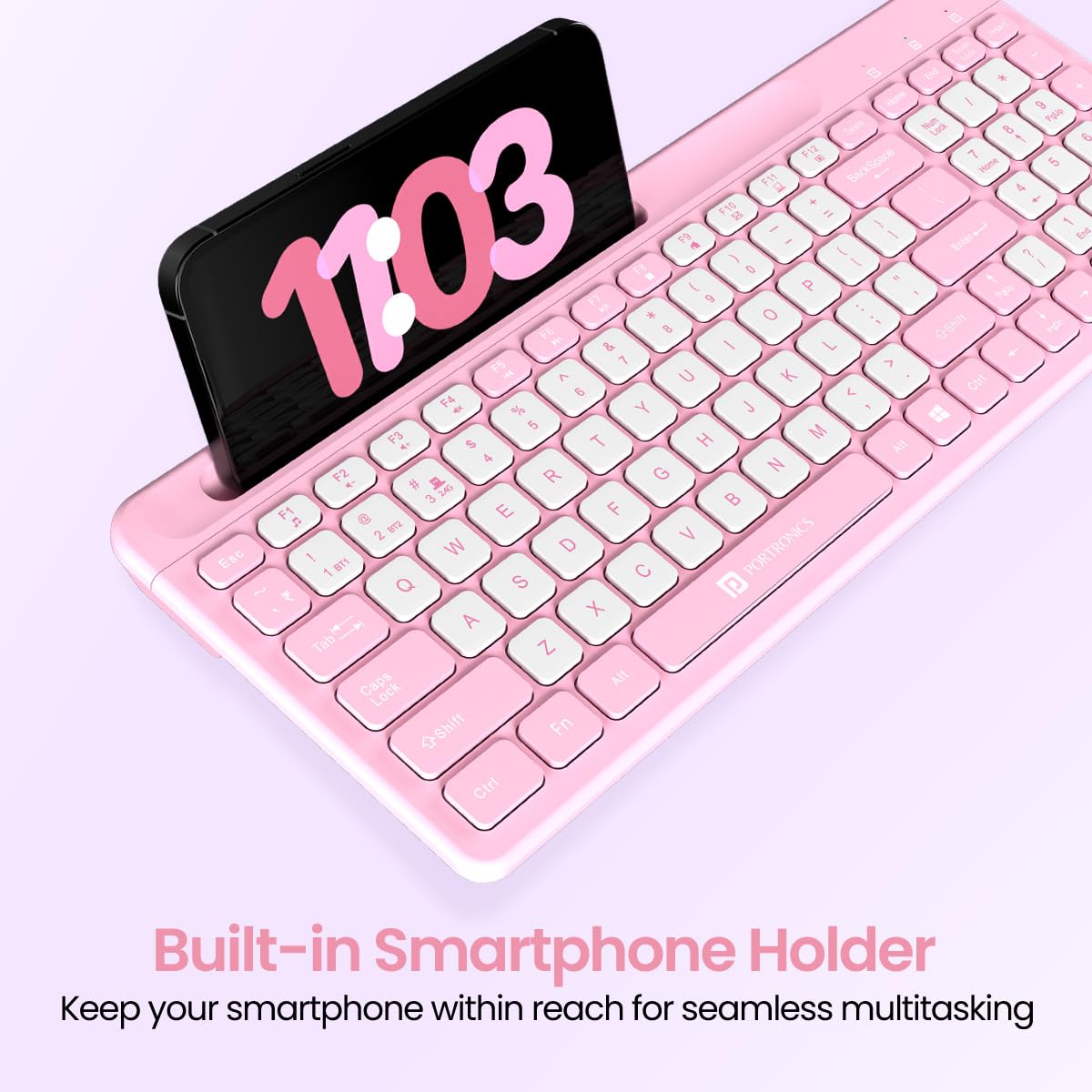
Image: The keyboard with a smartphone securely placed in its built-in holder, demonstrating its utility for multitasking.
4. Ergonomic Design
The keyboard is designed with ergonomics in mind, featuring a spacious layout and comfortable key spacing to reduce typing fatigue during extended use.

Image: A user's hands comfortably typing on the keyboard, highlighting the ergonomic design for prolonged use.
5. Versatile Compatibility
The keyboard is compatible with a wide range of devices, including laptops, PCs, smartphones, and tablets, offering maximum convenience across various operating systems like Windows 10.

Image: An illustration showing the keyboard's versatile compatibility with multiple device types such as laptops, desktops, tablets, and mobile phones.
Maintenance
- Cleaning: Use a soft, dry cloth to clean the keyboard surface. For stubborn dirt, slightly dampen the cloth with water or a mild cleaning solution. Avoid excessive moisture.
- Storage: Store the keyboard in a cool, dry place away from direct sunlight and extreme temperatures.
- Battery Replacement: Replace batteries when the keyboard's performance degrades or the indicator light signals low power.
Troubleshooting
- Keyboard not connecting:
- Ensure batteries are correctly installed and charged.
- Verify the keyboard is powered on.
- For 2.4 GHz connection, ensure the USB receiver is properly plugged into the device.
- For Bluetooth connection, ensure Bluetooth is enabled on your device and the keyboard is in pairing mode (indicator light flashing). Try re-pairing the device.
- Ensure you have selected the correct connection mode (Fn + 1/2/3 for Bluetooth, Fn + 4 for 2.4G).
- Keys not responding:
- Check battery level.
- Ensure the keyboard is connected to the correct device.
- Clean around the affected keys to remove any debris.
- Intermittent connection:
- Move the keyboard closer to your device to reduce interference.
- Avoid placing the keyboard near other wireless devices that might cause interference.
- Replace batteries if they are low.
Specifications
| Feature | Detail |
|---|---|
| Brand | Portronics |
| Model Number | POR-2206 |
| Connectivity Technology | Bluetooth 5.3, 2.4 GHz Wireless |
| Compatible Devices | Laptop, PC, Smartphone, Tablet |
| Keyboard Description | Multimedia, Full-Size Layout |
| Operating System | Windows 10 (and other compatible OS) |
| Item Dimensions (LxWxH) | 39.5 x 15.8 x 3.2 cm |
| Item Weight | 640 g |
| Batteries Required | AAA (Not Included) |
Product Video Overview
Video: A comprehensive overview of the Portronics Bubble Square Wireless Keyboard, demonstrating its key features such as dual connectivity, multi-device pairing, built-in smartphone holder, and multimedia hotkeys.
Warranty and Support
Portronics products are designed for reliability and performance. For warranty information, technical support, or service inquiries, please refer to the warranty card included with your product or visit the official Portronics website. You may also contact customer support at help@portronics.com or call +91 9555-245-245.
