
1. Introduction and Overview
The Ulefone Armor Pad PRO is a rugged 8-inch Android tablet designed for durability and high performance in challenging environments. It combines advanced technology with robust protection, making it ideal for outdoor enthusiasts, field workers, and anyone needing a reliable device that can withstand harsh conditions.

Image: Ulefone Armor Pad PRO rugged tablet, highlighting its display and robust design.
Key features include:
- Extreme Durability: IP68/IP69K waterproof and dustproof, and MIL-STD-810H certified for drop protection.
- Powerful Performance: Equipped with up to 16GB RAM (8GB physical + 8GB virtual) and 128GB internal storage, expandable up to 2TB via microSD.
- Long-lasting Battery: A massive 7650mAh battery provides extended usage, up to 14 hours of intensive tasks.
- Vibrant Display: 8.0-inch HD+ display with 800 x 1280 pixels resolution and 500 nits brightness for sunlight readability.
- High-Resolution Cameras: Features a 48MP rear camera and a 32MP front camera for clear photos and video calls.
- Global Connectivity: Supports 4G LTE, 2.4G+5G WiFi, GPS, GLONASS, Galileo, and NFC.
- Enhanced Security: Integrated fingerprint sensor for secure access.
2. Package Contents
Upon opening your Ulefone Armor Pad PRO package, you should find the following items:
- Ulefone Armor Pad PRO Tablet
- Charger
- USB Cable
- User Manual
- Warranty Card
- Charging Instructions
- Accessories Ecosystem Brochure
Please inspect all items for any damage or missing components. If anything is amiss, contact customer support immediately.
3. Device Layout and Controls
Familiarize yourself with the physical layout of your Ulefone Armor Pad PRO tablet:

Image: Side view of the Ulefone Armor Pad PRO, illustrating the location of its ruggedized ports and buttons.
- Power Button: Located on the side, used to power on/off or wake/sleep the device.
- Volume Buttons: Adjacent to the power button, for adjusting audio levels.
- USB-C Port: Covered by a protective flap, used for charging and data transfer.
- SIM/MicroSD Card Slot: Also protected by a flap, for inserting SIM cards and expanding storage.
- Custom Key: A programmable button for quick access to specific functions or apps.
- Rear Camera: 48MP camera with flash, located on the back, protected by a raised bezel.
- Front Camera: 32MP camera, located on the front for selfies and video calls.
- Dual Speakers: Positioned for stereo sound output.
- Fingerprint Sensor: Integrated for biometric security.

Image: Rear view of the Ulefone Armor Pad PRO, showcasing the 48MP camera and the tablet's ruggedized back panel.
4. Setup
4.1 Initial Power On
To power on your Ulefone Armor Pad PRO for the first time, press and hold the Power button until the Ulefone logo appears on the screen. The tablet will then guide you through the initial setup wizard.
4.2 SIM Card and MicroSD Card Installation
The Armor Pad PRO supports dual SIM cards and a microSD card for expanded storage up to 2TB. Locate the SIM/microSD card slot on the side of the device, gently open the protective flap, and insert your cards as indicated by the tray's diagram. Ensure the flap is securely closed to maintain water and dust resistance.
4.3 First-Time Setup Wizard
Follow the on-screen prompts to complete the initial setup:
- Select Language: Choose your preferred language.
- Connect to Wi-Fi: Select your Wi-Fi network and enter the password.
- Google Account: Sign in with your Google account or create a new one. This is essential for accessing the Google Play Store and other Google services.
- Date & Time: Set your current date and time, or allow the network to set it automatically.
- Security: Set up a screen lock (PIN, pattern, password, or fingerprint).

Image: The Ulefone Armor Pad PRO screen showing battery statistics, emphasizing its long-lasting 7650mAh battery.
5. Operating Instructions
5.1 Display and Navigation
The 8.0-inch HD+ display offers clear visuals with 500 nits brightness, ensuring readability even in direct sunlight. Navigate the Android 13 interface using touch gestures: tap to select, swipe to scroll, pinch to zoom.
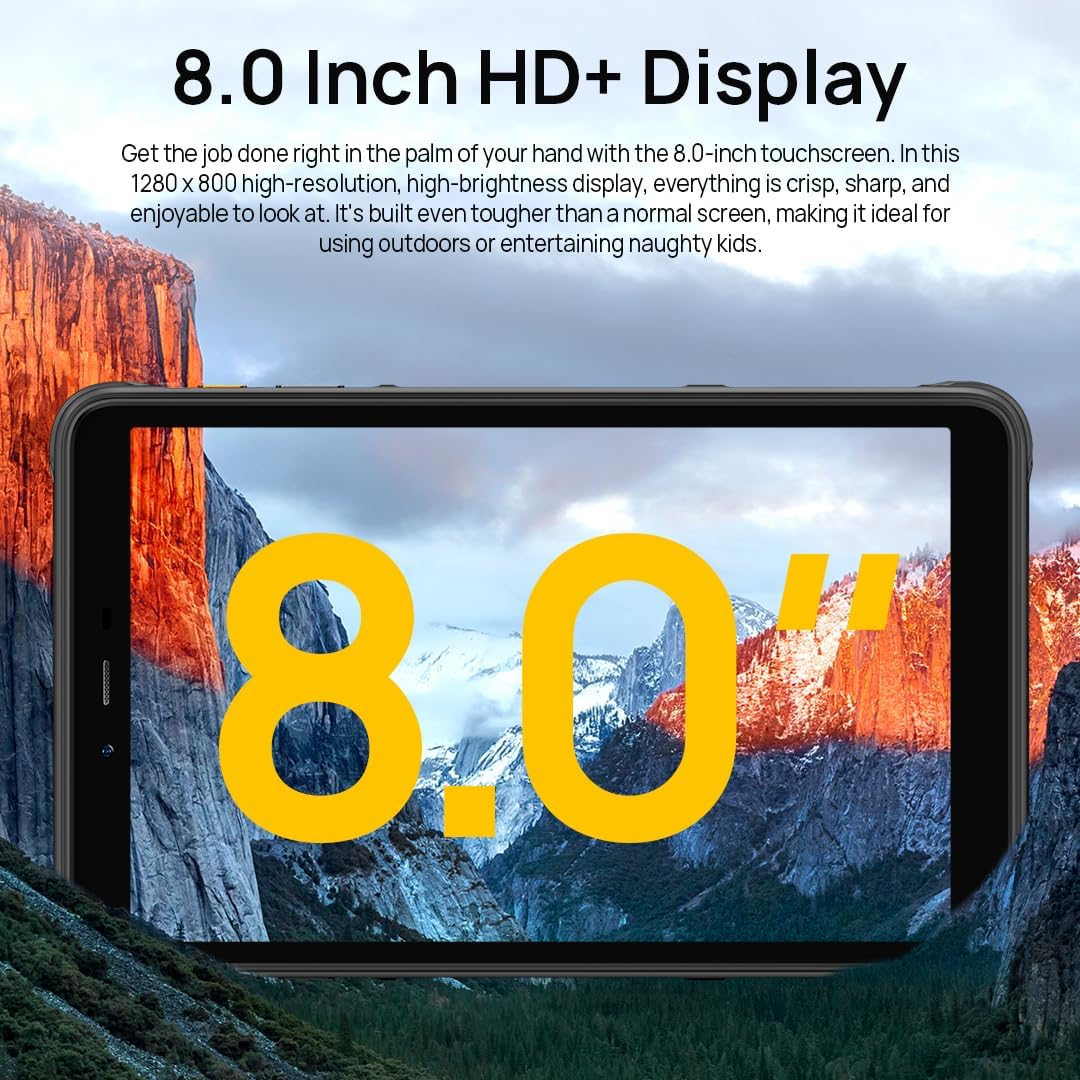
Image: The Ulefone Armor Pad PRO showcasing its 8.0-inch HD+ display, ideal for outdoor use and entertainment.

Image: A person using the Ulefone Armor Pad PRO outdoors, illustrating its 500 nits sunlight readable display.
5.2 Cameras
Capture high-quality images and videos with the tablet's advanced camera system.
- Rear Camera (48MP): Ideal for detailed photos and videos. Open the Camera app and select 'Photo' or 'Video' mode. Tap to focus, and press the shutter button to capture.
- Front Camera (32MP): Perfect for selfies and video calls. Switch to the front camera within the Camera app.

Image: A detailed view of the Ulefone Armor Pad PRO's 48MP rear camera, designed for high-quality imaging.

Image: A user engaged in a video call, demonstrating the clarity of the Ulefone Armor Pad PRO's 32MP front camera.
5.3 Audio
The tablet features dual stereo speakers, providing a rich and immersive audio experience for media consumption and communication.
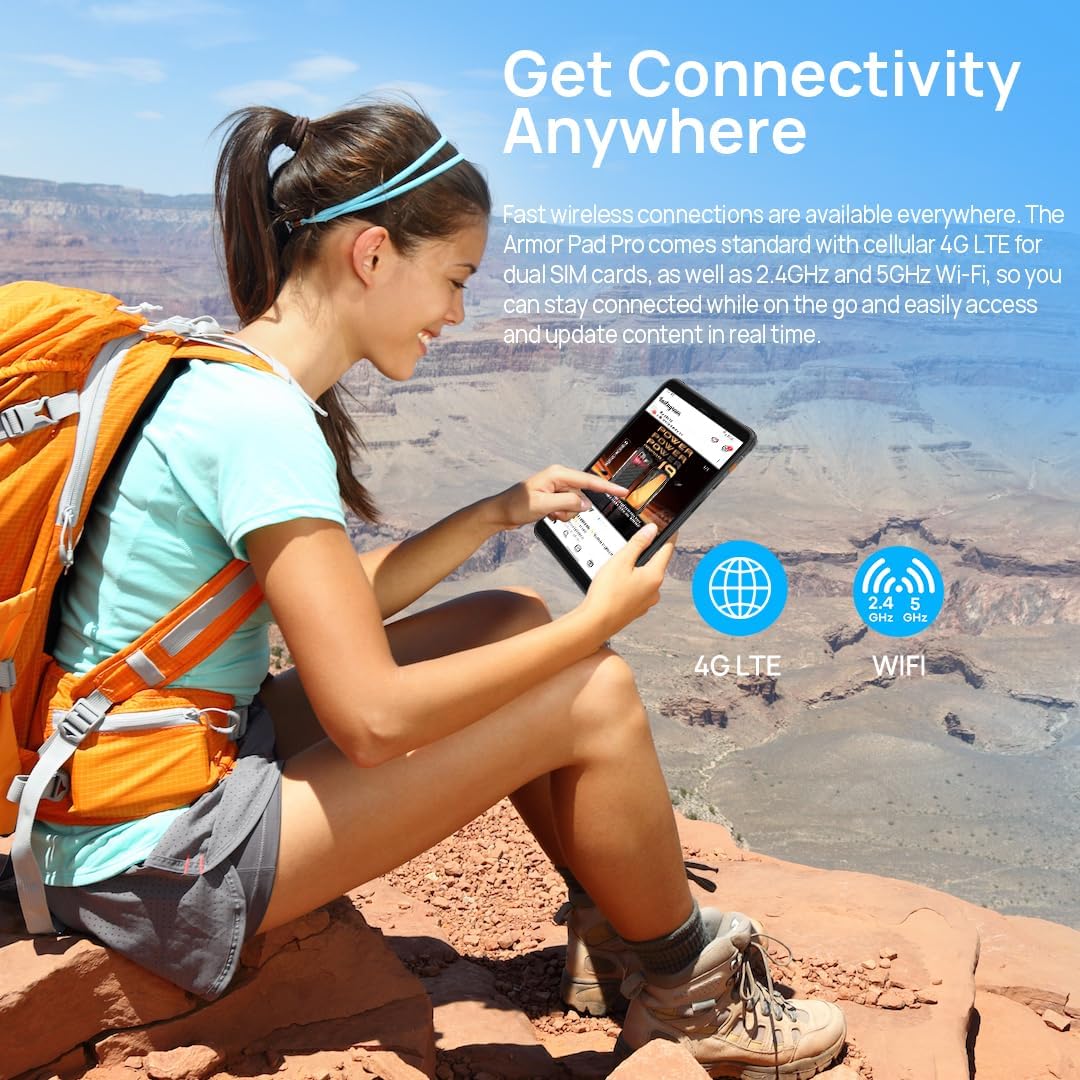
Image: The Ulefone Armor Pad PRO showing a musical performance on its screen, emphasizing the tablet's dual stereo speakers for enhanced audio.
5.4 Connectivity
Stay connected with various options:
- 4G LTE: Insert a compatible SIM card to access cellular data and make calls. Note: Not compatible with AT&T, Cricket Wireless, Sprint, Straight Talk, Boost Mobile, or other CDMA-based carriers.
- Wi-Fi (2.4G+5G): Connect to wireless networks for internet access.
- GPS/GLONASS/Galileo: Utilize built-in navigation systems for precise location tracking.
- NFC: Enable Near Field Communication for data sharing and mobile payments (e.g., Google Pay).

Image: A person using the Ulefone Armor Pad PRO outdoors, illustrating its 4G LTE and Wi-Fi connectivity options.

Image: The Ulefone Armor Pad PRO demonstrating its NFC capability for contactless payments.
5.5 Security Features
The tablet offers robust security options:
- Fingerprint Sensor: Register your fingerprints in Settings > Security > Fingerprint to unlock your device quickly and securely.
- Face Unlock: Configure face recognition for convenient unlocking.

Image: The Ulefone Armor Pad PRO highlighting its integrated fingerprint sensor for secure and convenient access.
5.6 Custom Key
The programmable Custom Key on the side of the tablet can be assigned to various functions, such as Push-to-Talk (PTT), flashlight, screenshot, or launching specific applications. Configure this in Settings > Smart Assistant > Custom Key.

Image: The Ulefone Armor Pad PRO displaying various customizable shortcut options for its dedicated key.
5.7 Gloves Mode
For use in cold environments or industrial settings, the Armor Pad PRO supports Gloves Mode, allowing responsive touch interaction even when wearing gloves. Activate this feature in Settings > Smart Assistant > Gloves Mode.

Image: Two workers using the Ulefone Armor Pad PRO while wearing gloves, demonstrating the tablet's Gloves Mode functionality.
6. Maintenance and Care
The Ulefone Armor Pad PRO is built to be rugged, but proper care will extend its lifespan and maintain its performance.
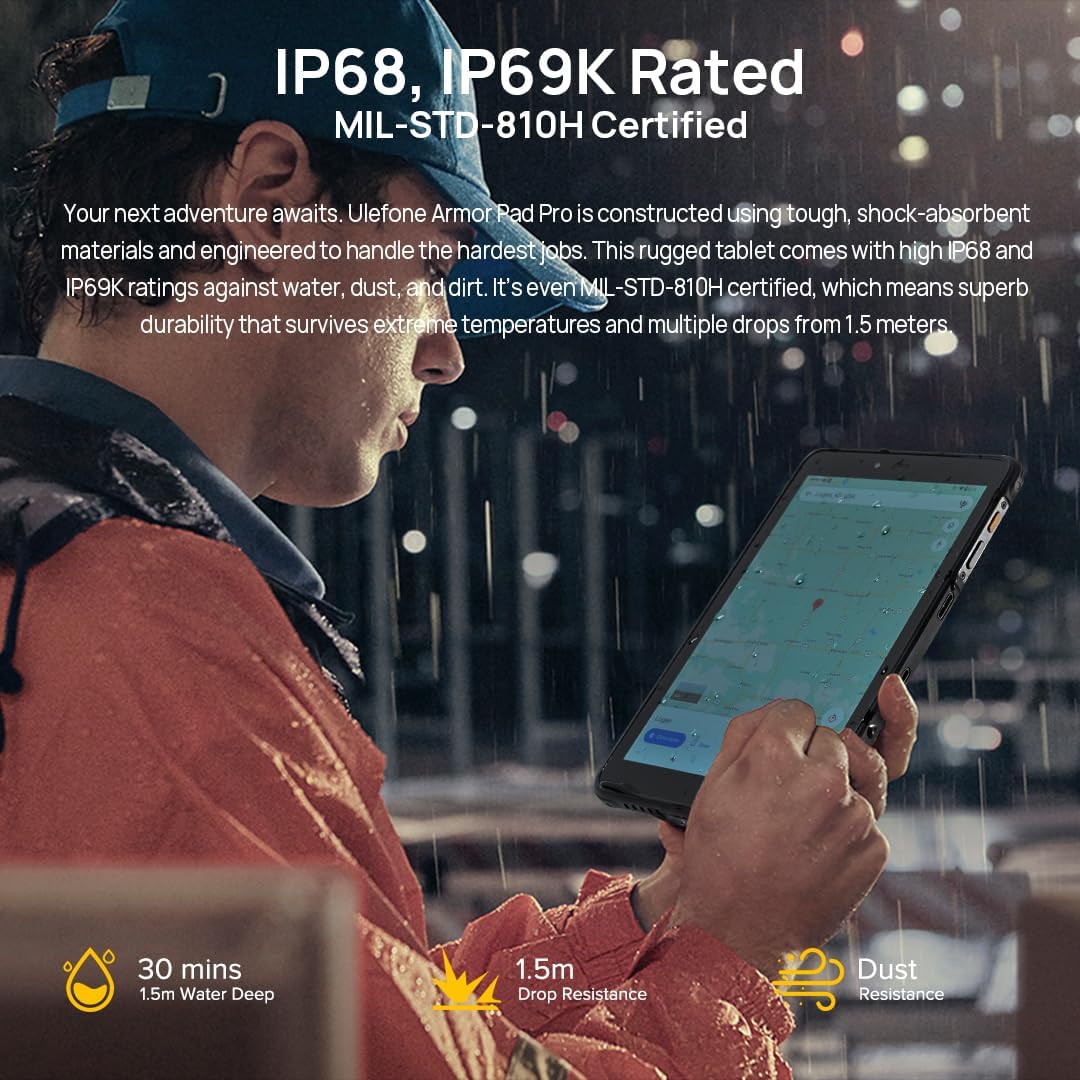
Image: A person using the Ulefone Armor Pad PRO in a wet outdoor setting, emphasizing its IP68/IP69K and MIL-STD-810H ruggedness certifications.
- Water and Dust Resistance: Ensure all port covers are securely closed before exposing the device to water or dust. Do not intentionally submerge the device beyond its rated depth (1.5m for 30 minutes) or expose it to high-pressure water jets.
- Drop Protection: While MIL-STD-810H certified for drops up to 1.5m, extreme impacts can still cause damage. Avoid unnecessary drops.
- Battery Care: Avoid exposing the battery to extreme temperatures. Use only the provided charger and cable. Do not fully discharge the battery frequently.
- Cleaning: Use a soft, damp cloth to clean the device. Avoid harsh chemicals or abrasive materials. For ports, ensure they are dry before charging.
- Temperature: Operate the device within recommended temperature ranges. Extreme heat or cold can affect performance and battery life.
7. Troubleshooting
If you encounter issues with your Ulefone Armor Pad PRO, try the following solutions:
- Device Not Responding: Press and hold the Power button for about 10-15 seconds to force a restart.
- Cannot Connect to Wi-Fi: Ensure Wi-Fi is enabled in Settings. Restart your router and the tablet. Forget the network and reconnect.
- Poor Cellular Signal: Check if your SIM card is properly inserted. Ensure you are in an area with network coverage. Note network compatibility restrictions mentioned in Section 5.4.
- Battery Drains Quickly: Reduce screen brightness, close unused apps, disable unnecessary connectivity features (Bluetooth, GPS) when not in use. Check battery usage in Settings to identify power-hungry apps.
- Apps Crashing/Freezing: Clear the cache and data of the problematic app in Settings > Apps. If the issue persists, uninstall and reinstall the app.
- Device Overheating: Close background apps, reduce screen brightness, and avoid using the device while charging for extended periods.
- Factory Reset: As a last resort, if software issues persist, you can perform a factory reset in Settings > System > Reset options > Erase all data (factory reset). Warning: This will erase all data on your device. Back up important data before proceeding.
8. Specifications
| Feature | Specification |
|---|---|
| Brand | Ulefone |
| Model Name | Ulefone Armor PAD PRO |
| Operating System | Android 13 |
| Screen Size | 8 Inches |
| Screen Resolution | 800 x 1280 Pixels |
| Processor | MediaTek MT8788 (2 GHz, 8 Cores) |
| RAM | 16 GB (8GB physical + 8GB virtual) |
| Internal Storage | 128 GB Flash Memory (Expandable up to 2TB) |
| Rear Camera | 48 MP |
| Front Camera | 32 MP |
| Battery Capacity | 7650 mAh (Average Battery Life: 1 month standby) |
| Wireless Type | 802.11ac (2.4G+5G WiFi) |
| Connectivity | 4G LTE, OTG, GPS, GLONASS, Galileo, NFC |
| Dimensions (LxWxH) | 8.3 x 5.07 x 0.55 inches |
| Item Weight | 2.12 pounds |
| Color | Black |
| Certifications | IP68, IP69K, MIL-STD-810H |
9. Warranty and Support
The Ulefone Armor Pad PRO comes with an industry-leading 24-month warranty, ensuring peace of mind for your investment. For detailed warranty terms and conditions, please refer to the Warranty Card included in your product package.
For technical support, troubleshooting assistance, or any inquiries regarding your device, please contact Ulefone customer service through their official website or the contact information provided in your user manual. Keep your purchase receipt and product serial number handy when seeking support.