
1. Introduction and Overview
The Jackery Solar Generator 1000 v2 is a portable power station designed to provide reliable power for various applications, including outdoor activities, off-grid living, RV use, and emergency backup. It combines a powerful portable power station with a 200W solar panel for convenient recharging.
This unit features a 1,500W AC output with a 3,000W surge peak, capable of powering multiple appliances. With a 1,070Wh capacity and a lightweight design of 23.8 lbs, it offers significant power in a portable form factor. The durable LiFePO4 battery ensures a long lifespan, maintaining over 70% of its original capacity after 4,000 charge cycles, equivalent to over 10 years of use.
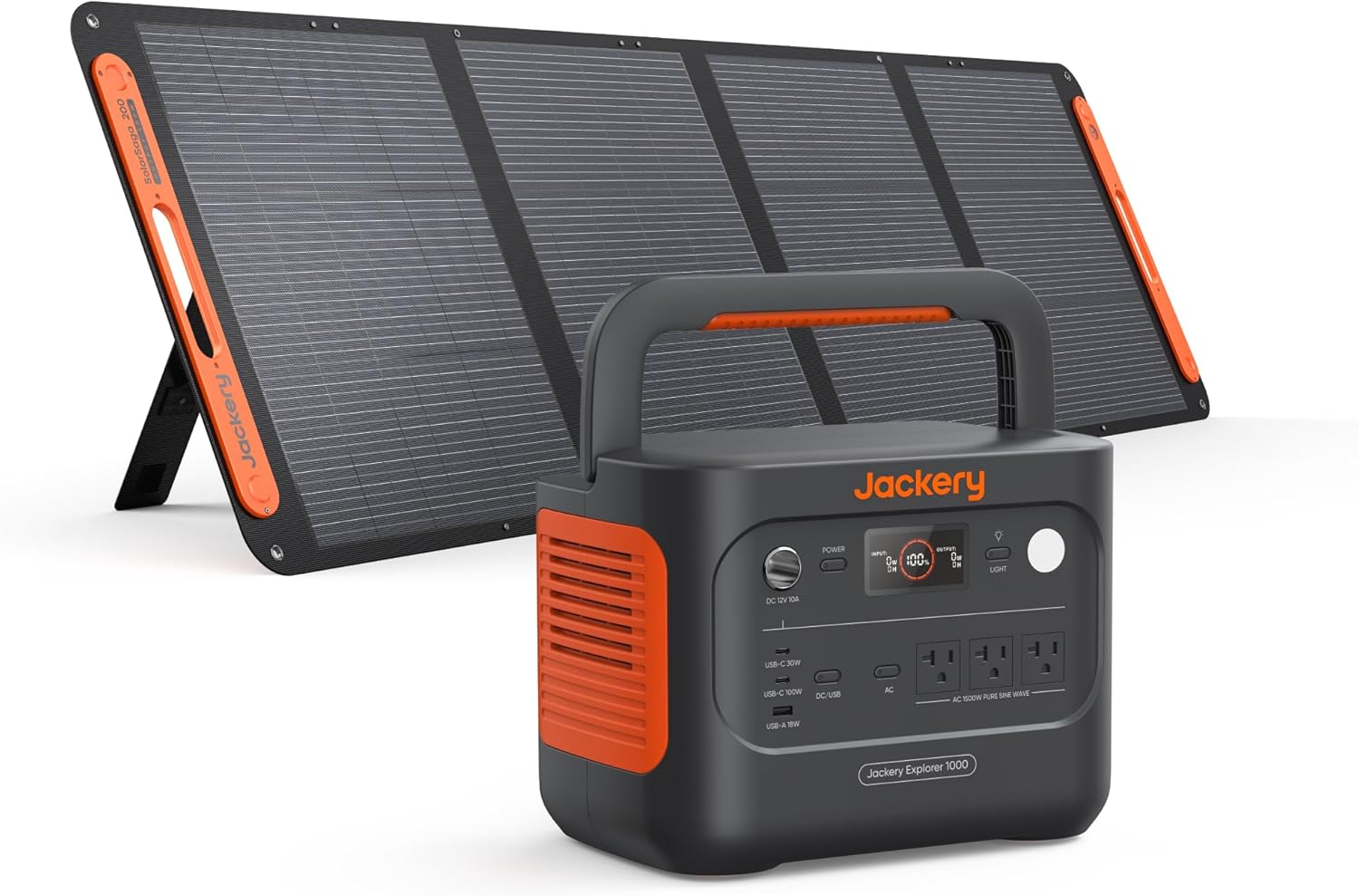
Figure 1: Jackery Solar Generator 1000 v2 with included 200W Solar Panel.
2. Product Components (What's in the Box)
Upon receiving your Jackery Solar Generator 1000 v2, please ensure all the following components are present:
- 1 x Explorer 1000 v2 Portable Power Station
- 1 x 200W Solar Panel
- 1 x User Manual
- 1 x AC Charging Cable
- 5 Years of Coverage (Warranty)
Note: The Explorer 1000 v2 Generator and the 200W Solar Panel are shipped separately. Please contact customer support for shipment updates if needed.
3. Setup
Before initial use, it is recommended to fully charge your Jackery Explorer 1000 v2. The unit can be charged via the included AC charging cable or by connecting the 200W solar panel.
3.1 Initial Charging (AC Outlet)
- Connect the AC Charging Cable to the AC Input port on the power station.
- Plug the other end of the AC Charging Cable into a standard wall outlet.
- The LCD display will show the charging status. A full charge typically takes 1.7 hours to optimize battery health.
3.2 Solar Panel Setup
- Unfold the 200W Solar Panel and position it in direct sunlight.
- Connect the solar panel's output cable to the DC Input port on the Explorer 1000 v2.
- The LCD display will indicate solar charging. Optimal charging is achieved with direct, unobstructed sunlight.

Figure 2: The compact design and foldable handle enhance portability.
Video 1: Overview of the Jackery E1000v2 Portable Power Station, including unboxing and basic setup.
4. Operating Instructions
4.1 Powering On/Off
- To power on the unit, press and hold the main Power button until the LCD screen illuminates.
- To power off, press and hold the main Power button until the LCD screen turns off.
4.2 Charging Devices
The Explorer 1000 v2 offers multiple output ports to charge various devices simultaneously:
- AC Ports (x3): Three pure sine wave AC ports (1500W total output) for standard household appliances.
- USB-C Ports (x2): One 30W USB-C port and one 100W PD (Power Delivery) USB-C port for fast charging compatible devices like laptops and smartphones.
- USB-A Port (x1): One 18W USB-A port for standard USB charging.
- DC Car Port (x1): A 12V 10A DC car port for car-powered devices.
To use an output port, ensure the corresponding section (AC, DC/USB) is activated by pressing its power button. A green indicator light will confirm activation.

Figure 3: The power station can charge multiple devices simultaneously.

Figure 4: Example of appliances powered by the Jackery Solar Generator 1000 v2.
4.3 Smart App Control
The Jackery App allows for remote monitoring and control of your power station. Features include:
- Monitoring battery level, input/output wattage, and remaining runtime.
- Activating 1-hour emergency charging (from 0% to 100%).
- Enabling 30 dB quiet overnight charging mode.
- Adjusting energy efficiency mode.
- Controlling LED lights and screen timeout.

Figure 5: Activating emergency charging via the Jackery App.

Figure 6: The Jackery App provides comprehensive control and monitoring.
5. Maintenance
To ensure optimal performance and longevity of your Explorer 1000 v2, follow these maintenance guidelines:
- Regular Charging: For daily use, the power station defaults to a 1.7-hour charging mode to optimize battery health.
- Storage: Store the unit in a cool, dry place away from direct sunlight and extreme temperatures.
- Cleaning: Use a dry, soft cloth to clean the exterior of the unit. Avoid using harsh chemicals or abrasive materials.
- Battery Lifespan: The LFP battery is designed to maintain over 70% of its original capacity after 4,000 charge cycles, offering longevity exceeding 10 years.

Figure 7: The durable LFP battery ensures a long product lifespan.
6. Troubleshooting
If you encounter any issues with your Jackery Solar Generator 1000 v2, please refer to the detailed troubleshooting section in the included User Manual. For further assistance, contact Jackery customer support.
7. Specifications
| Feature | Specification |
|---|---|
| Brand | Jackery |
| Model Name | JE-1000D (Explorer 1000 v2) |
| Capacity | 1070Wh |
| Battery Type | LiFePO4 |
| AC Output | 1500W (3000W Surge Peak) |
| USB-C Output | 1x 30W, 1x 100W PD |
| USB-A Output | 1x 18W |
| DC Car Port | 12V 10A |
| Weight | 23.8 lbs (10.8 kg) |
| Dimensions | 12.87"L x 8.82"W x 9.72"H |
| Special Feature | Fast Charging, Smart App Control |
| UPC | 810105523041 |
8. Warranty and Support
The Jackery Solar Generator 1000 v2 comes with 5 years of coverage. For any questions, technical support, or warranty claims, please refer to the contact information in your User Manual or reach out to Jackery customer support directly.


