
Square Golf B0D2KRM9VJ
SQUARE GOLF Golf Simulator Indoor Practice Machine User Manual
Brand: Square Golf | Model: B0D2KRM9VJ
1. Introduction
The SQUARE GOLF Golf Simulator is an advanced indoor practice machine designed to provide a realistic and comprehensive golf training experience. Utilizing ultra-high-speed cameras and machine vision technology, it offers precise analysis of golf shots, ball flight data, and swing mechanics. This manual provides essential information for setting up, operating, maintaining, and troubleshooting your device to ensure optimal performance and an enjoyable practice session.

Image 1.1: The SQUARE GOLF Golf Simulator system, including the main unit, a tablet displaying a golf course, a smartphone showing swing data, and three marking golf balls.
2. Safety Information
Please read and understand all safety instructions before using the SQUARE GOLF Golf Simulator. Failure to follow these instructions may result in injury or damage to the product.
- Indoor Use Only: This device is designed for indoor use. Avoid direct sunlight exposure, as it can interfere with sensor accuracy and potentially damage the unit.
- Clearance: Ensure ample space around the hitting area to prevent accidental impact with walls, furniture, or other objects during swings.
- Power Supply: Use only the specified DC 5V/1A power adapter.
- Temperature: Operate the device within the recommended temperature range of 0℃ to 40℃ (32°F to 104°F).
- Children and Pets: Keep the device out of reach of children and pets.
- Maintenance: Do not attempt to disassemble or repair the device yourself. Contact customer support for assistance.
3. Package Contents
Verify that all items listed below are included in your package:
- Square Golf Launch Monitor Sensor (Main Unit)
- Swing Stick
- Battery (6000mAh Li-ion)
- Remote Control
- Square Golf Marking Golf Balls (3 pcs)
- Power Adapter (DC 5V/1A)

Image 3.1: All components of the Square Golf Simulator package.
4. Setup Instructions
Follow these steps to set up your Square Golf Simulator:
4.1. Device Placement
- Place the Square Golf Launch Monitor Sensor on a stable, flat surface directly in front of your hitting area.
- Ensure there are no obstructions between the sensor and the ball/club.
- The environment should have consistent, indirect lighting. Avoid direct sunlight or strong spotlights that could interfere with the camera sensors.
4.2. Power Connection
- Connect the provided power adapter to the main unit and plug it into a power outlet.
- The internal 6000mAh battery allows for portable use once charged.
4.3. Software Installation & Bluetooth Connection
The Square Golf Simulator is compatible with Android, iOS, and Windows PC devices.
- Download the official Square Golf application from your device's app store (for Android/iOS) or the official website (for Windows PC).
- Turn on the Square Golf Launch Monitor Sensor.
- Enable Bluetooth on your mobile device or PC.
- Open the Square Golf application and follow the on-screen prompts to pair with the simulator via Bluetooth v4.0 (Bluetooth Low Energy).
- Perform any necessary firmware updates for the device as prompted by the application.

Image 4.1: The Square Golf Simulator is compatible with various devices and offers easy Bluetooth installation.
5. Operating Instructions
Once set up and connected, you can begin your golf practice.
5.1. Accurate Feedback and Smart Practice
The simulator provides precise feedback on your golf shots through its advanced camera and machine vision technology.
- Ball Speed and Direction: Accurately measures the speed and trajectory of your golf ball.
- Ball Spin: Provides precise ball spin data when using the dedicated marking golf balls.
- Swing Path: Measures your swing path (requires attachment of a club marker).
- Virtual Swing Support: Utilize the included swing stick for virtual swing practice and analysis.
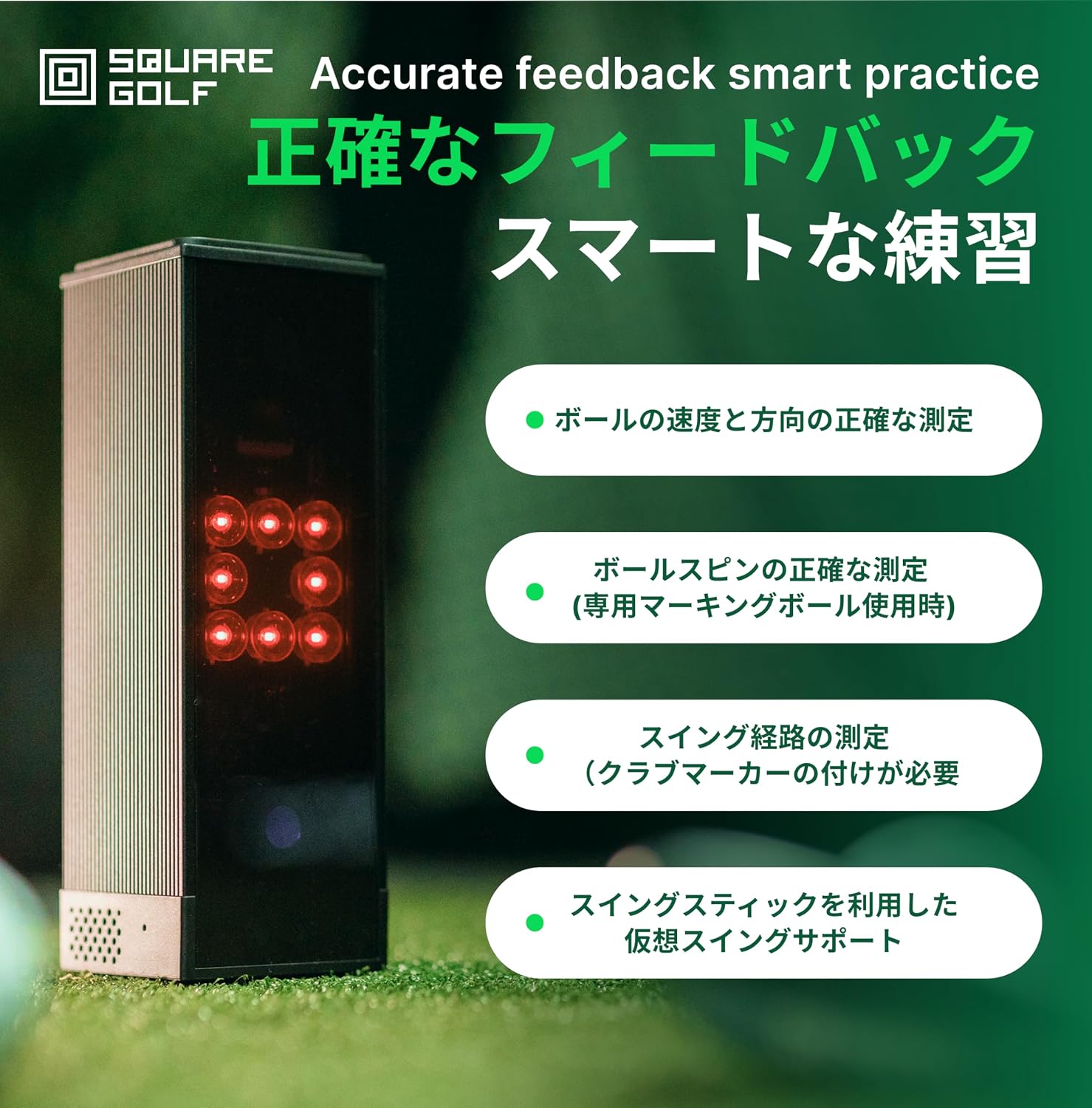
Image 5.1: Key features for accurate feedback and smart practice.
5.2. Practice Modes
The application offers diverse practice modes to enhance your training:
- Driving Range: Practice on beautiful 300-yard virtual courses.
- Near-Pin: A dedicated approach practice course to refine your short game.
- Putting Green: A dedicated putting practice green to improve your putting accuracy.
- Each practice course supports both graphic and data modes for comprehensive analysis.

Image 5.2: Driving range mode with detailed data and realistic graphics.
5.3. Using the Swing Stick
The swing stick provides virtual swing support and helps in understanding your release point.
- Hold the swing stick as you would a golf club.
- Practice your swing, focusing on the sound feedback to identify your release point.
- The virtual swing support helps in analyzing your swing mechanics without hitting a ball.
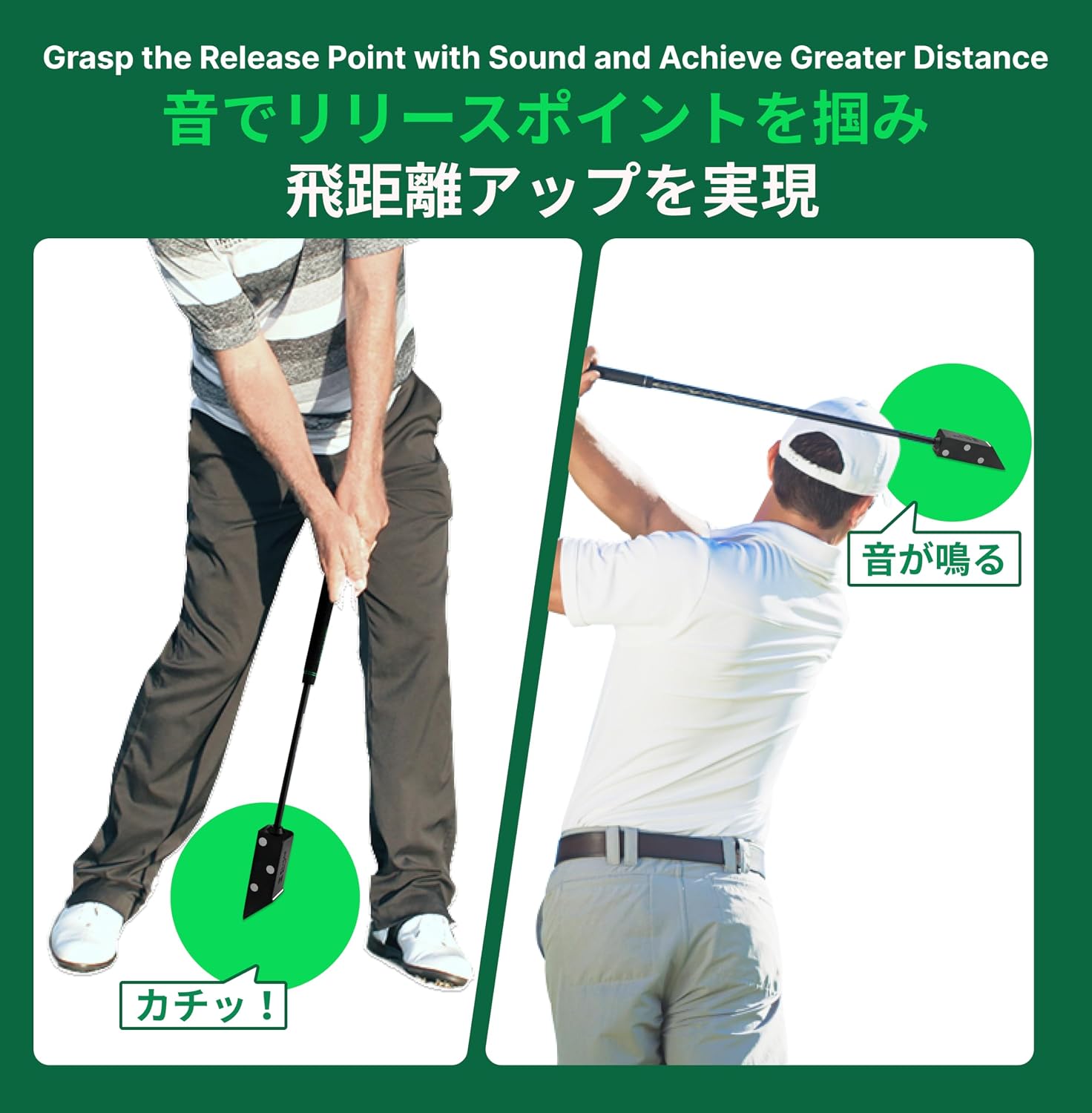
Image 5.3: Demonstrating the use of the swing stick to grasp the release point with sound.
5.4. Data Interpretation
The simulator provides comprehensive data to help you analyze and improve your game.
- Ball Data: Includes ball speed, direction, launch angle, spin rate, spin axis, apex height, carry distance, roll, and total distance.
- Club Data: Provides insights into club path (e.g., in-to-out), face angle (e.g., face opened), dynamic loft, and attack angle.

Image 5.4: Example of ball flight data displayed.
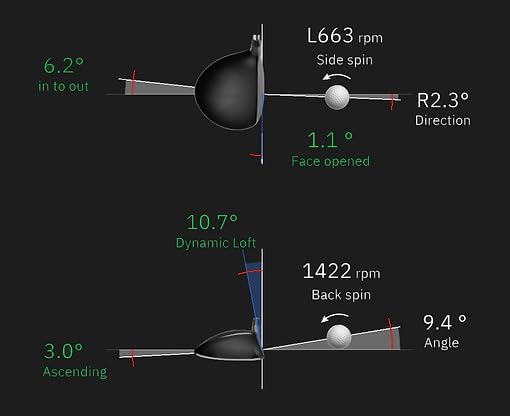
Image 5.5: Detailed club and ball interaction data.
6. Maintenance
Proper maintenance ensures the longevity and optimal performance of your Square Golf Simulator.
- Cleaning: Use a soft, dry cloth to clean the exterior of the main unit and accessories. Do not use abrasive cleaners or solvents.
- Storage: Store the device in a cool, dry place away from direct sunlight and extreme temperatures.
- Battery Care: For extended storage, ensure the battery is partially charged (around 50%) and recharge it every few months to prevent deep discharge.
- Software Updates: Regularly check for and install software and firmware updates through the application to ensure you have the latest features and improvements.
7. Troubleshooting
If you encounter issues with your Square Golf Simulator, refer to the following common problems and solutions:
| Problem | Possible Cause | Solution |
|---|---|---|
| Device does not power on. | Low battery or power connection issue. | Ensure the device is charged or connected to the power adapter. Check the power outlet. |
| Cannot connect via Bluetooth. | Bluetooth is off, device not in pairing mode, or firmware outdated. | Ensure Bluetooth is enabled on your device. Restart both the simulator and your device. Check for and install any pending firmware updates via the app. |
| Inaccurate ball flight or swing data. | Improper device placement, lighting interference, or non-marking balls used. | Verify the simulator is correctly positioned. Ensure consistent, indirect lighting and avoid direct sunlight. Use the dedicated marking golf balls for accurate spin data. Ensure club markers are attached for swing path data. |
| Device not working outdoors. | Direct sunlight interferes with infrared sensors. | The device is designed for indoor use. Outdoor use, especially in direct sunlight, is not supported due to sensor interference. If used outdoors, ensure it is in a shaded area with no direct sunlight. |
| Difficulty with initial setup or stick usage. | Lack of clear instructions or user familiarity. | Refer to the detailed setup and operating instructions in this manual. Contact customer support if issues persist. |
If the problem persists after trying these solutions, please contact customer support.
8. Specifications
8.1. Main Unit (Launch Monitor Sensor)
- Input Power: DC 5V/1A
- Average Current Consumption: 600mA
- Network: Bluetooth v4.0 (Bluetooth Low Energy)
- Operating Temperature: 0℃ - 40℃ (32°F - 104°F)
- Dimensions (W x D x H): 65mm x 63mm x 188mm
- Color: Black
- Material: Aluminum
8.2. Battery
- Material: Lithium-ion (Li-ion)
- Output Voltage & Capacity: 3.6V / 6000mAh
8.3. Swing Stick
- Weight: 480g
- Length: 60cm
8.4. Package Information
- Package Size: 65 x 14.5 x 10 cm
- Package Weight: 2.02 kg
9. Warranty Information
The SQUARE GOLF Golf Simulator comes with a standard manufacturer's warranty. Please refer to the warranty card included in your package or visit the official Square Golf website for detailed terms and conditions, including warranty period and coverage.
10. Customer Support
For technical assistance, troubleshooting, or any questions regarding your SQUARE GOLF Golf Simulator, please contact our customer support team. Contact details can typically be found on the official Square Golf website or on the product packaging.
Related documentsB0D2KRM9VJ


Ask a question about this manual
Ask about setup, troubleshooting, compatibility, parts, safety, or missing instructions. Manuals+ will review the question and use this page’s manual context to help answer it.