
1. Introduction
This manual provides detailed instructions for the installation, setup, operation, and maintenance of your SIXTOP 10.1-inch 8-Core Android Car Stereo. Please read this manual thoroughly before using the product to ensure proper function and safety. This unit is designed for Mitsubishi Lancer EX models from 2010 to 2017. Basic versions are compatible; high-end versions may require additional wiring harnesses and CANbus.
2. Product Overview and Key Features
The SIXTOP Android Car Stereo is an advanced in-car entertainment and navigation system featuring a high-definition touchscreen and an 8-core processor for a smooth user experience. Key features include:
- 8-Core Chip & 4+64GB Memory: Ensures fast and responsive performance.
- 10.1-inch HD Touch Screen: Provides clear visuals and intuitive control.
- Wireless CarPlay & Android Auto: Seamless smartphone integration for navigation, music, and calls.
- Bluetooth 5.0: Faster and more stable wireless connectivity.
- DSP 32EQ: Advanced audio processing with 32-band equalizer for customizable sound.
- FM/RDS & Network Radio: Access to local and global radio stations.
- Built-in WiFi: Allows downloading apps and online content.
- GPS/Galileo/Glonass: Supports multiple satellite positioning systems for accurate navigation.
- AI Intelligent Voice Control: Hands-free operation for various functions.
- Mirror Link: Project your phone screen onto the stereo display.
- 59 Radio Themes: Personalize your interface with various visual themes.
- Split Screen Function: Run two applications simultaneously.
- Global Weather Display: Real-time weather information.
- Steering Wheel Control: Compatible with original steering wheel buttons.
- AHD Backup Camera Included: Provides clear reversing images (720P 25fps).
Package Contents & Dimensions
The package includes the car stereo with frame, AHD backup camera, microphone, and necessary cables. Refer to the image below for dimensions and included accessories.

3. Installation Guide
Professional installation is recommended. Ensure the vehicle's power is disconnected before beginning installation. The following video demonstrates the general installation process for a central control unit in a Mitsubishi Lancer EX.
Installation Steps Overview:
- Preparation: Ensure the vehicle is off and the parking brake is engaged. Gather necessary tools (screwdrivers, trim removal tools).
- Remove Trim Panels: Carefully pry off the dashboard trim panels surrounding the original radio. Start from the passenger side glove compartment area as shown in the video.
- Unscrew Original Radio: Locate and remove the screws securing the original car stereo.
- Disconnect Wiring: Gently pull out the original radio and disconnect all electrical connectors and antenna cables.
- Transfer Components: Transfer air vents, hazard light switch, and passenger airbag indicator from the original panel to the new stereo's frame.
- Connect New Stereo: Connect the provided wiring harness to the new Android stereo and the vehicle's existing wiring. Connect the GPS antenna, WiFi antenna, and any other accessories like the backup camera.
- Test Functionality: Before fully reassembling, turn on the vehicle and test the stereo's basic functions (power, audio, touchscreen, radio, Bluetooth).
- Reassemble: Carefully place the new stereo into the dashboard opening and secure it with screws. Reattach all trim panels.
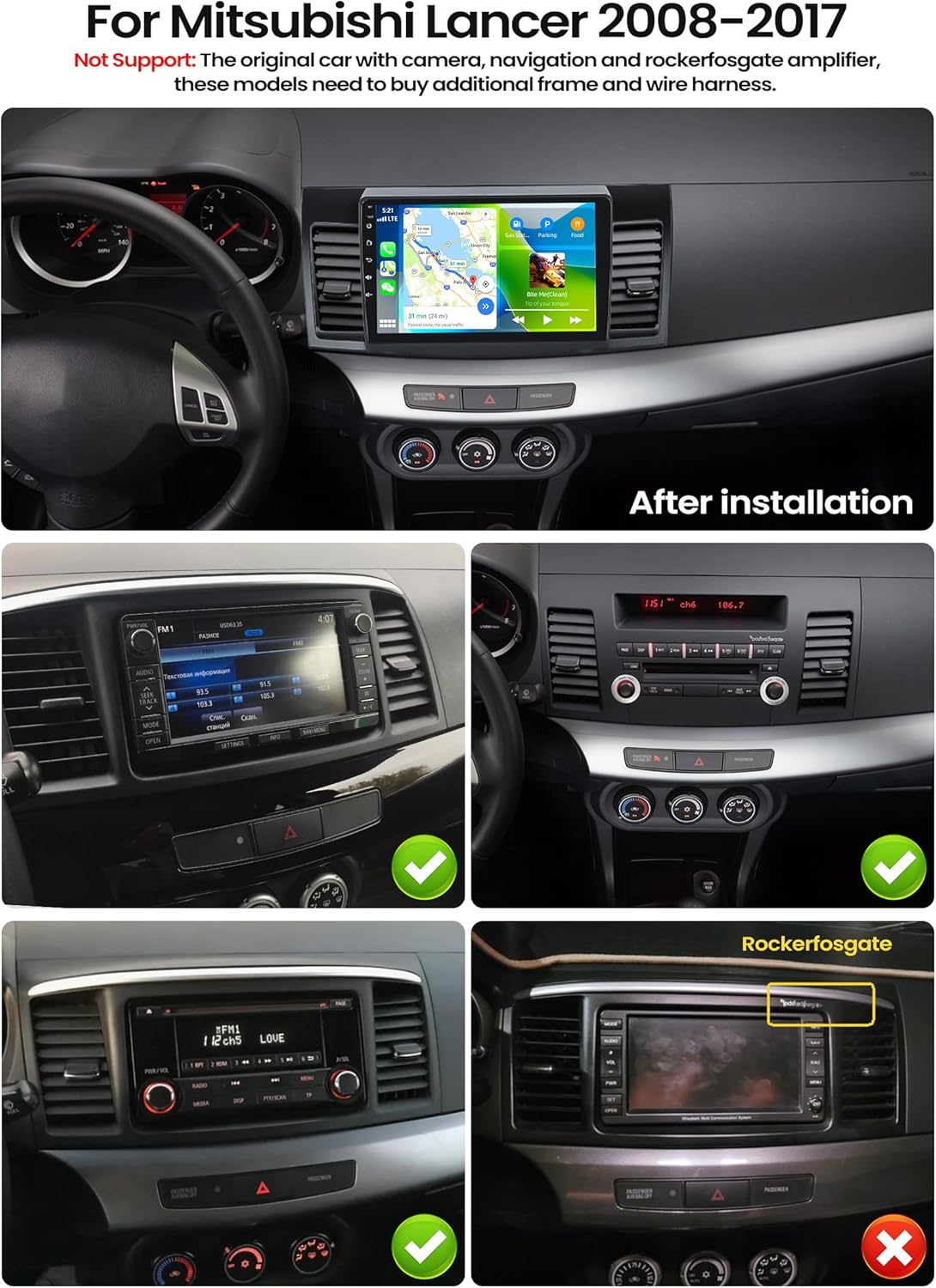
4. Initial Setup and Connectivity
4.1. Wireless CarPlay and Android Auto Connection
The stereo supports wireless CarPlay for iPhones and wireless Android Auto for Android devices. Follow these steps to connect your smartphone:
- Open Application: On the car stereo, open the 'ApplePlay' app for iPhones or 'Android Auto' app for Android phones.
- Enable Bluetooth on Stereo: Ensure Bluetooth is turned on in the car stereo's settings.
- Enable Bluetooth on Phone: On your smartphone, go to Bluetooth settings and turn on Bluetooth.
- Pair Devices: Search for the car stereo's Bluetooth name (e.g., RK3326S99) on your phone and pair. Complete any authorization prompts on both devices.
- Automatic Connection: Once paired, the CarPlay or Android Auto interface should automatically launch on the stereo screen.

4.2. WiFi and GPS/Galileo/Glonass
Connect to a WiFi network to download applications, stream online music, and use online maps. The stereo supports GPS, Galileo, and Glonass for accurate satellite positioning. Offline navigation maps can be downloaded from the Play Store.

5. Operating Instructions
5.1. DSP 32EQ Audio Settings
Enhance your audio experience with the Digital Sound Processor (DSP) and 32-band equalizer. Access the DSP settings to adjust sound effects, optimize for 3D audio, panorama, HiFi scenes, and more. This allows for fine-tuning the audio output to compensate for original car speaker limitations and achieve high-quality sound.

5.2. FM/RDS & Network Radio
Tune into your favorite local FM radio stations with RDS support for station information. Additionally, the Network Radio feature allows access to mainstream radio stations from over 20 countries and regions globally when connected to the internet.

5.3. AI Intelligent Voice Control
Activate the AI Voice Assistant by clicking the Voice APP icon. You can then issue voice commands for various tasks, such as making calls, playing music, tuning the radio, searching for destinations, or opening installed applications. For example, say "Play Michael Jackson's song" to play music.

5.4. Split Screen Function
The split-screen feature allows you to display two applications simultaneously on the screen. To activate, click the rectangle icon at the top of the screen, select a desired application, and drag it to either the left or right side of the display.
5.5. Global Weather Display
When connected to the internet, the stereo can display real-time weather information for global cities, including temperature (Celsius and Fahrenheit), humidity, and wind conditions.
5.6. 59 Radio Themes
Personalize the visual appearance of your car stereo by choosing from 59 different desktop themes. Long-press on a blank space on the homepage to access and change themes.
5.7. Steering Wheel Control
The stereo supports the use of your car's original steering wheel buttons for controlling audio functions, enhancing convenience and driving safety. Ensure to configure the steering wheel buttons in the car settings menu.
5.8. Mirror Link
Use the CarbitLink app to mirror your smartphone's screen onto the car stereo display via WiFi. This is useful for viewing videos or other content from your phone on the larger screen.
5.9. Reversing Display with AHD Camera
The included waterproof night vision AHD camera provides a clear reversing image. The stereo automatically switches to the reverse camera view when the vehicle is put into reverse gear. Ensure the camera resolution is set correctly in the factory settings (AHD: 720P 25fps).

6. Maintenance
To ensure the longevity and optimal performance of your SIXTOP Android Car Stereo, follow these maintenance guidelines:
- Screen Cleaning: Use a soft, lint-free cloth to gently wipe the touchscreen. For stubborn smudges, slightly dampen the cloth with a screen cleaner solution. Avoid harsh chemicals or abrasive materials.
- Software Updates: Periodically check for software updates through the system settings or the manufacturer's website to ensure you have the latest features and bug fixes.
- Environmental Conditions: Avoid exposing the unit to extreme temperatures, direct sunlight for prolonged periods, or excessive moisture.
- Cable Connections: Ensure all cables are securely connected. Loose connections can lead to intermittent issues.
- Ventilation: Keep the ventilation areas of the unit clear to prevent overheating.
7. Troubleshooting
If you encounter issues with your car stereo, refer to the following common troubleshooting steps:
| Problem | Possible Cause | Solution |
|---|---|---|
| No Power | Loose power cable, blown fuse, incorrect wiring. | Check all power connections. Inspect vehicle fuses and the stereo's fuse. Verify wiring according to the installation diagram. |
| No Sound | Volume too low, mute activated, incorrect audio source, speaker wiring issues. | Increase volume. Check if mute is on. Select the correct audio source. Verify speaker connections. |
| Touchscreen Unresponsive | Software glitch, screen protector interference. | Restart the stereo. Remove and reapply any screen protector if present. |
| CarPlay/Android Auto Not Connecting | Bluetooth not enabled, incorrect pairing, phone software issue. | Ensure Bluetooth is on for both devices. Delete previous pairings and re-pair. Restart phone and stereo. |
| GPS Signal Lost | GPS antenna obstruction, poor signal area, antenna not connected. | Ensure GPS antenna has a clear view of the sky. Check antenna connection. Move to an open area. |
| Backup Camera Not Displaying | Camera not connected, reverse trigger wire issue, camera fault. | Check camera and video input connections. Verify the reverse trigger wire is correctly connected. |
If the problem persists after attempting these solutions, please contact customer support.
8. Specifications
| Feature | Detail |
|---|---|
| Brand | SIXTOP |
| Model Number | d473b6c7-c983-4e0b-b483-8bae521fef86 |
| Processor | 8-Core Chip |
| Memory (RAM+ROM) | 4GB RAM + 64GB Storage |
| Screen Size | 10.1 inch |
| Display Resolution | 1280*720 HD Touch Screen |
| Operating System | Android |
| Connectivity | Bluetooth 5.0, Wi-Fi |
| Navigation | GPS, Galileo, Glonass |
| Audio Output Mode | Stereo |
| Output Power | 180 Watts (Max), 45 Watts (RMS) |
| Surround Sound Channels | 4.0 |
| Video Encoding | H.264, H.265 (HEVC) |
| Compatible Devices | Smartphone |
| Connector Type | RCA, USB Type A |
| Country of Origin | China |
| Parcel Dimensions | 42.4 x 26.9 x 14.8 cm; 1.85 kg |
9. Warranty and Support
Your SIXTOP Android Car Stereo comes with a 1-Year Warranty. For any technical assistance, product inquiries, or warranty claims, please contact our customer support team.
Manufacturer Contact Information: sixtop123@163.com
We are committed to providing 24/7 quick response and lifetime technical support to ensure your satisfaction.


