
1. Introduction to Nex Playground
The Nex Playground is an innovative active play system designed to bring interactive physical activity into your home. It connects to your television, transforming your living room into a dynamic play space where family members can engage in a variety of motion-controlled games. Utilizing advanced AI and a built-in wide-angle camera, the system tracks natural body movements, eliminating the need for controllers or wearable trackers. This manual provides essential information for setting up, operating, maintaining, and troubleshooting your Nex Playground.

Image: The Nex Playground device, a compact cube featuring a camera lens on its yellow face, with teal and white sections. This is the core unit of the active play system.
2. What's in the Box
Upon unboxing your Nex Playground, please verify that all the following components are included:
- Nex Playground Console
- Remote Control
- Power Supply Unit
- HDMI Cable
- 5 Pre-installed Starter Games

Image: An illustration detailing the contents of the Nex Playground package, including the main console, HDMI and power cables, and a camera cover.
3. Setup Guide
Setting up your Nex Playground is a straightforward process. Follow these steps to get started:
- Placement: Place the Nex Playground console on a stable, flat surface near your television or projector. Ensure there is clear space in front of the device for motion tracking, free from obstructions.
- Connect HDMI: Connect one end of the provided HDMI cable to the HDMI port on the Nex Playground console and the other end to an available HDMI input on your television or projector.
- Connect Power: Plug the power supply unit into the power input port on the Nex Playground console, then plug the power adapter into a standard electrical outlet.
- Power On: Press the power button on the Nex Playground console or use the remote control to turn on the device.
- Select Input: On your television or projector, select the corresponding HDMI input source to display the Nex Playground interface.
- Initial Setup: Follow the on-screen prompts for initial setup, which may include connecting to Wi-Fi and system updates.
4. Operating Instructions
The Nex Playground is designed for intuitive, controller-free play. Your body is the controller.
Navigating the Interface
- Use the provided remote control to navigate menus, select games, and adjust settings.
- The on-screen cursor responds to the remote's directional pad or motion controls, if applicable.
Playing Games
- Select a game from the main menu.
- Stand in the designated play area, ensuring your full body is visible to the Nex Playground's camera.
- Follow the on-screen instructions for each game. Movements such as jumping, waving, or stepping will be tracked by the system.
- Up to 4 players can participate simultaneously in supported games, encouraging group physical activity.
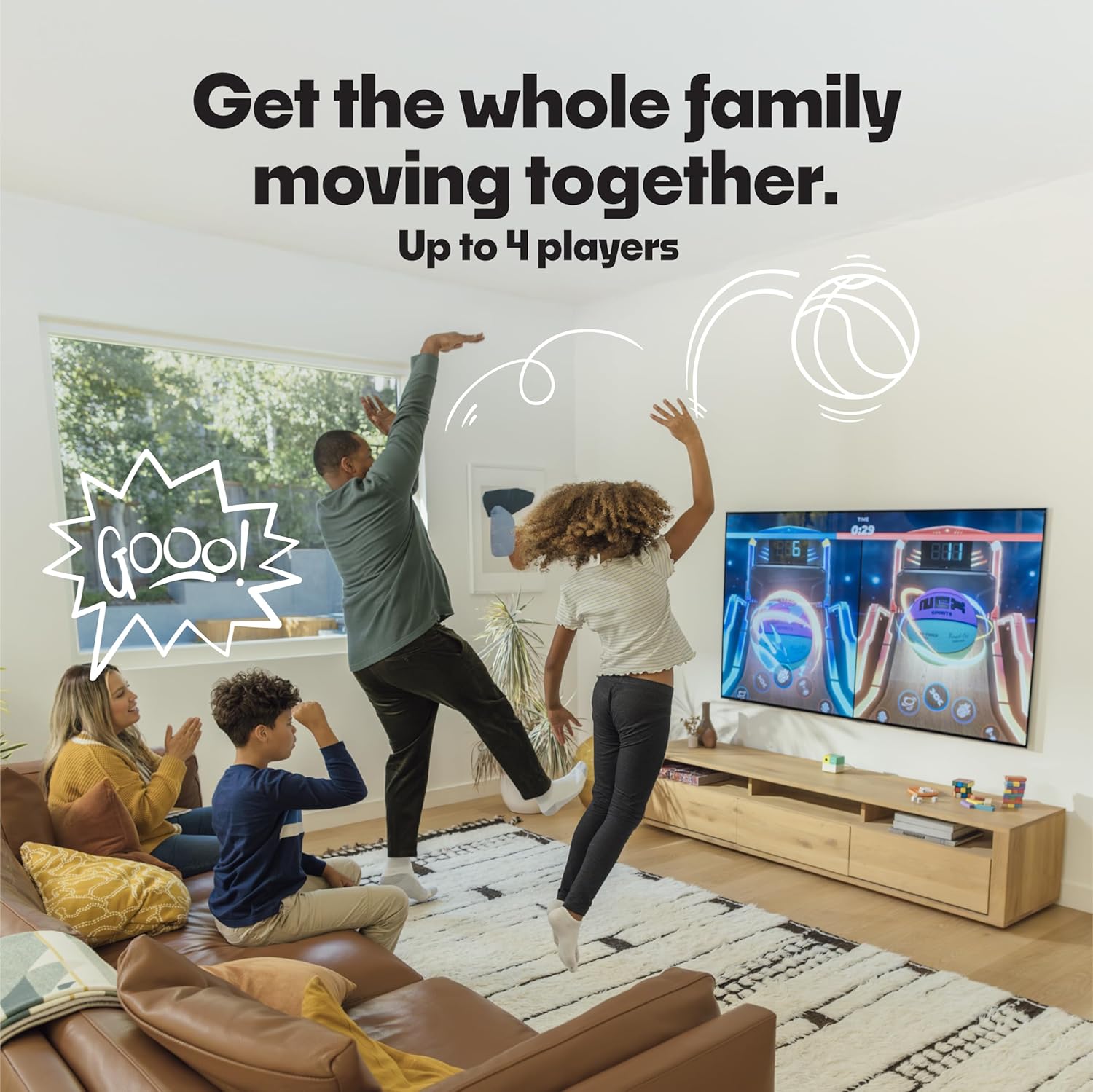
Image: A family actively engaging with the Nex Playground, demonstrating how body movements are used to play games displayed on a large television screen.
5. Games and Play Pass Information
Your Nex Playground comes with a selection of pre-installed games to get you started immediately. For an expanded library of content, a Play Pass subscription is available.
Included Starter Games
The following 5 games are included with your Nex Playground purchase:
- Fruit Ninja
- Starri
- Whac-a-Mole
- Go Keeper
- Party Fowl
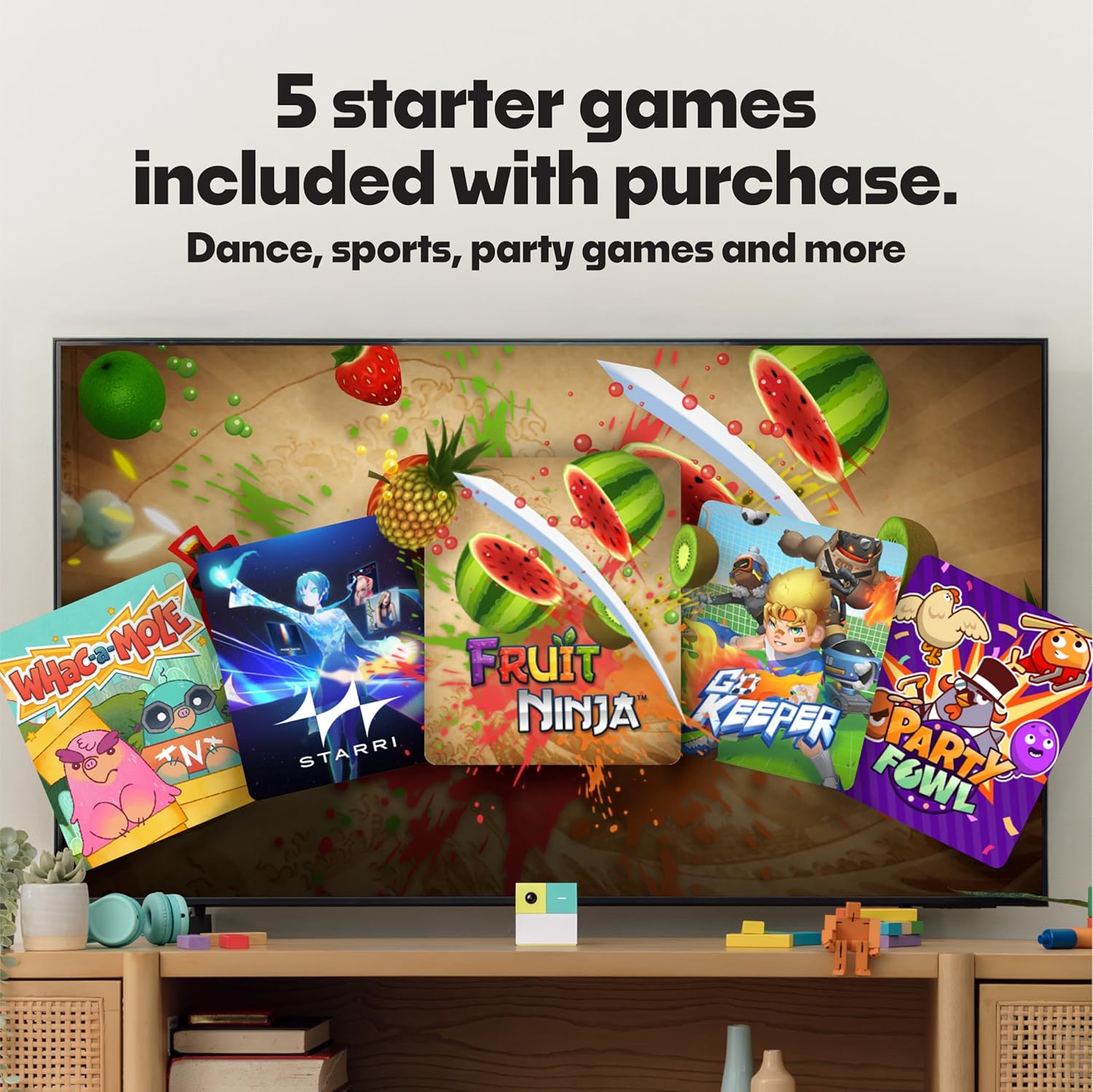
Image: A visual representation of the five initial games that come bundled with the Nex Playground system, shown on a television screen.
Nex Play Pass
To access the full catalog of games and receive new game releases each month, a separate purchase of a Nex Play Pass is required. The Play Pass unlocks a wider variety of interactive motion games, including popular titles and educational content.

Image: A compilation of diverse game titles accessible with a Nex Play Pass subscription, showcasing the breadth of content available.
6. Safety Information
The Nex Playground is designed with safety in mind for all users. Please observe the following guidelines:
- Clear Play Area: Ensure the play area is clear of furniture, obstacles, and other hazards to prevent accidental collisions during active play.
- Supervision: Adult supervision is recommended, especially for younger children, to ensure safe play and proper use of the system.
- Content Appropriateness: All content on the Nex Playground is curated to be safe and appropriate for all ages. There are no ads, in-app purchases, or mature content.
- Data Privacy: The Nex Playground is kidSAFE+ COPPA certified. Motion tracking data is processed locally and is never stored or processed in the cloud, ensuring user privacy.
- Electrical Safety: Use only the provided power supply. Do not expose the device to water or extreme temperatures.
7. Maintenance
Proper care and maintenance will ensure the longevity of your Nex Playground:
- Cleaning: Gently wipe the exterior of the console with a soft, dry, lint-free cloth. Do not use liquid cleaners, aerosols, or abrasive materials.
- Ventilation: Ensure the ventilation openings on the device are not blocked to prevent overheating.
- Storage: When not in use for extended periods, store the device in a cool, dry place, away from direct sunlight and extreme temperatures.
- Software Updates: Periodically check for and install software updates to ensure optimal performance and access to new features.
8. Troubleshooting
If you encounter issues with your Nex Playground, refer to the following common problems and solutions:
| Problem | Possible Cause | Solution |
|---|---|---|
| No picture on TV | HDMI cable loose or incorrect input selected. | Ensure HDMI cable is securely connected to both the Playground and TV. Select the correct HDMI input on your TV. |
| Device not powering on | Power cable not connected or power outlet issue. | Check power cable connection to device and outlet. Try a different outlet. |
| Motion tracking issues | Obstructions in play area, poor lighting, or player too far/close. | Clear the play area. Ensure adequate, even lighting. Adjust player distance from the device (typically 6-10 feet). |
| Remote control not responding | Low batteries or signal obstruction. | Replace AAA batteries in the remote. Ensure no objects are blocking the line of sight between the remote and the console. |
| Games freezing or slow performance | System overload or outdated software. | Restart the Nex Playground. Check for and install any available software updates. |
9. Specifications
Detailed technical specifications for the Nex Playground:
- Model Number: NPG-001
- Dimensions: 3 x 3 x 3 inches (7.62 x 7.62 x 7.62 cm)
- Item Weight: Approximately 13.76 ounces (390 grams)
- Power Source: Corded Electric
- Batteries: 2 AAA batteries required for remote (included)
- Material: Plastic
- Memory Storage Capacity: 64 GB
- Age Range (Description): Kid (Ages 5 and up)
- UPC: 860003578117
- Release Date: April 23, 2024
10. Warranty and Support
For warranty information, technical support, or further assistance with your Nex Playground, please visit the official Nex website or contact their customer service. Keep your purchase receipt as proof of purchase for warranty claims.
Official Nex Store: Nex Playground Store on Amazon


