
Introduction
This manual provides essential information for the Acer Swift Go 16 laptop. It covers initial setup, basic operation, maintenance guidelines, troubleshooting tips, and detailed product specifications. Please read this manual thoroughly to ensure proper use and care of your device.
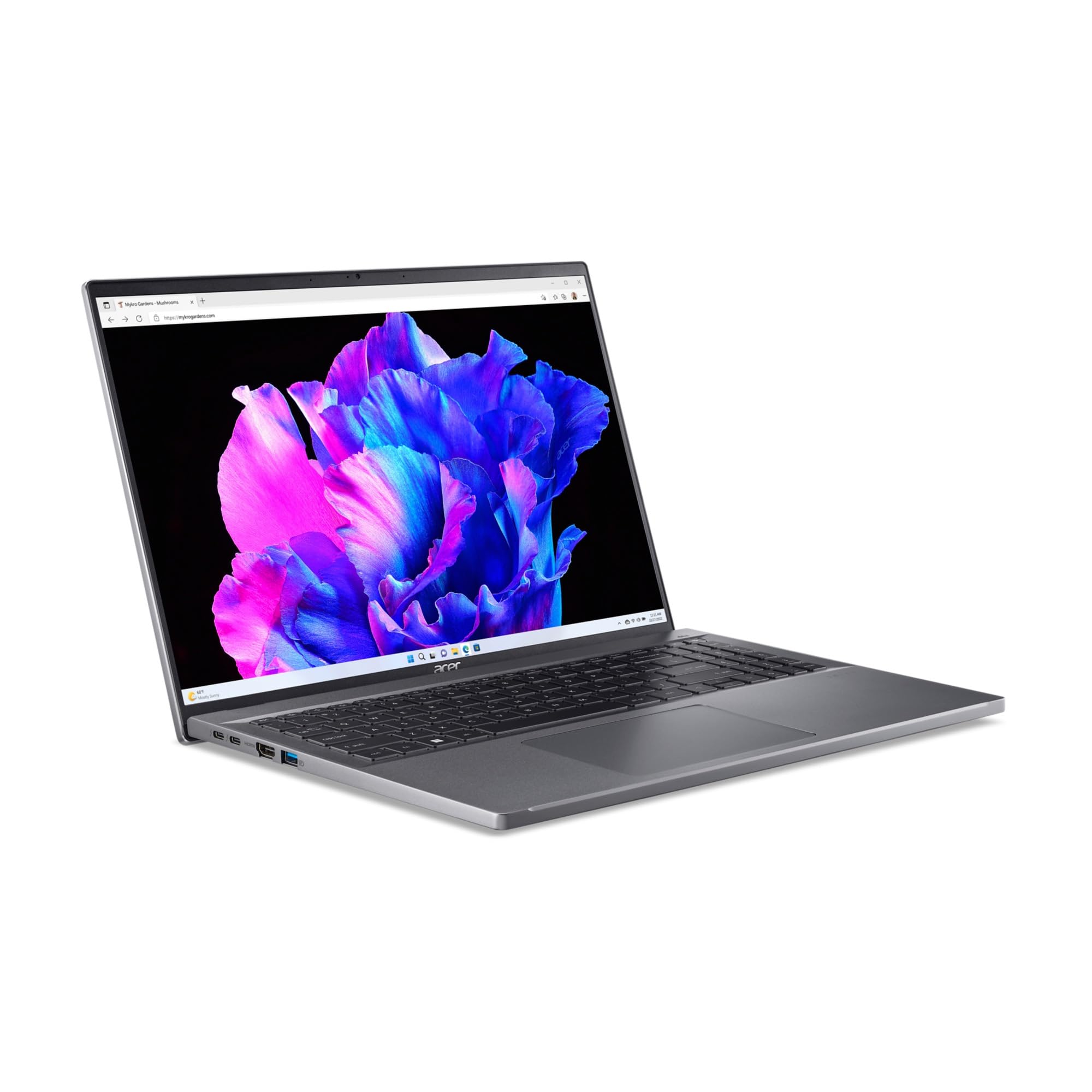
Figure 1: Acer Swift Go 16 Laptop Overview
1. Setup
1.1 Unpacking and Initial Inspection
Carefully remove all components from the packaging. Ensure the following items are present:
- Acer Swift Go 16 Laptop
- AC Adapter
- Documentation (this manual and other guides)
Inspect the laptop for any physical damage. If any damage is found or components are missing, contact your retailer immediately.
1.2 Connecting to Power
- Connect the AC adapter cable to the power port on the side of the laptop.
- Plug the AC adapter into a grounded electrical outlet.
- The battery indicator light will illuminate, indicating the laptop is charging. It is recommended to fully charge the battery before initial use.

Figure 2: Laptop Side View with Ports
1.3 Initial Power On and Windows Setup
- Open the laptop lid.
- Press the power button, typically located on the keyboard or side of the laptop.
- Follow the on-screen instructions to complete the Windows 11 Home setup process. This includes selecting your region, connecting to a Wi-Fi network, and creating a user account.
2. Operating the Laptop
2.1 Power Management
- Power On: Press the power button.
- Sleep Mode: Close the lid or press the power button briefly.
- Shut Down: Click the Start button, then Power, and select "Shut down".
- Restart: Click the Start button, then Power, and select "Restart".
2.2 Keyboard and Touchpad
The Acer Swift Go 16 features a full-sized keyboard and a precision touchpad for navigation.

Figure 3: Keyboard and Touchpad Layout
- Typing: Use the keyboard for text input.
- Touchpad Gestures:
- Single Tap: Left-click.
- Two-finger Tap: Right-click.
- Two-finger Scroll: Scroll up or down.
- Pinch-to-Zoom: Zoom in or out.
2.3 Connecting Peripherals
The laptop includes various ports for connecting external devices:
- USB Ports: For connecting USB drives, mice, keyboards, and other compatible devices.
- Wireless Connectivity: The laptop supports 802.11n wireless standards for Wi-Fi and Bluetooth for connecting wireless accessories.
2.4 Display and Graphics
The 16-inch display offers a resolution of 1920 x 1200 pixels with a 60Hz refresh rate. Graphics are handled by integrated Intel Iris Xe Graphics.

Figure 4: Laptop Display
- Adjusting Brightness: Use the function keys (Fn + F3/F4, or similar) or Windows display settings.
- External Display: Connect an external monitor via available video output ports (if present, not explicitly listed but common).
2.5 Webcam and Microphone
The integrated webcam and microphone are suitable for video calls and online meetings. Ensure privacy settings in Windows 11 are configured correctly for camera and microphone access.
3. Maintenance
3.1 Cleaning the Laptop
- Screen: Use a soft, lint-free cloth lightly dampened with water or a screen cleaner. Avoid harsh chemicals.
- Keyboard and Chassis: Use a soft cloth. A can of compressed air can help remove dust from between keys.
- Ports: Gently remove dust from ports using compressed air.
Always power off the laptop and disconnect the AC adapter before cleaning.
3.2 Battery Care
- Avoid extreme temperatures.
- Do not fully discharge the battery frequently.
- If storing the laptop for an extended period, ensure the battery is charged to approximately 50-70%.
3.3 Software Updates
Regularly check for and install Windows updates and driver updates to ensure optimal performance and security. Access Windows Update via Settings > Windows Update.
3.4 Storage Management
The laptop is equipped with a 512GB SSD. To maintain performance:
- Regularly delete unnecessary files.
- Utilize cloud storage for large files to free up local disk space.
- Avoid filling the SSD to its maximum capacity.
4. Troubleshooting
This section addresses common issues you might encounter with your Acer Swift Go 16 laptop.
4.1 Laptop Does Not Power On
- Ensure the AC adapter is securely connected to both the laptop and a working power outlet.
- Verify the power outlet is functional by plugging in another device.
- If the battery is completely drained, allow it to charge for at least 30 minutes before attempting to power on.
4.2 Display Issues
- No Display: Ensure the laptop is powered on. Try connecting an external monitor to check if the issue is with the laptop's internal display.
- Dim Display: Adjust screen brightness using function keys or Windows display settings.
- Incorrect Resolution: Adjust display resolution in Windows Settings > System > Display.
4.3 Connectivity Problems (Wi-Fi/Bluetooth)
- Wi-Fi:
- Ensure Wi-Fi is enabled in Windows Settings.
- Restart your router and modem.
- Forget the network and reconnect.
- Bluetooth:
- Ensure Bluetooth is enabled in Windows Settings.
- Check if the device you are trying to connect is in pairing mode.
- Remove and re-pair the Bluetooth device.
4.4 System Performance Issues
- Close unnecessary applications running in the background.
- Check Task Manager for processes consuming high CPU or RAM.
- Ensure Windows and drivers are up to date.
- Run a disk cleanup to free up storage space.
5. Specifications
Detailed technical specifications for the Acer Swift Go 16 laptop.
| Feature | Specification |
|---|---|
| Model Name | Swift Go |
| Screen Size | 16 Inches |
| Screen Resolution | 1920 x 1200 pixels |
| Processor | Intel Core i5-1335U (1.3 GHz) |
| RAM | 8 GB DDR4 SDRAM |
| Hard Drive | 512 GB SSD |
| Graphics Card | Integrated Intel Iris Xe Graphics |
| Operating System | Windows 11 Home |
| Wireless Type | 802.11n |
| Color | Steel Gray |
| Item Weight | 3.64 pounds |
| Product Dimensions (LxWxH) | 271 x 14.02 x 0.59 inches |
6. Warranty and Support
6.1 Product Condition and Warranty
This Acer Swift Go 16 laptop is a renewed unit. Renewed products are professionally inspected and tested to work and look like new. Please refer to your purchase documentation for specific warranty details provided by the seller. Typically, renewed products come with a limited warranty or return policy, such as a 90-day refund/replacement policy.
6.2 Technical Support
For technical assistance, driver downloads, or further support, please visit the official Acer support website or contact your retailer. Have your product model and serial number ready when seeking support.
Note: As this is a renewed product, support may be provided by the refurbisher or reseller rather than directly by Acer for certain issues.


