
1. Product Overview
The ELECTROPRIME Ezcap 288P is a versatile HDMI video capture box designed for direct recording to a USB flash drive or portable hard drive without the need for a computer. It supports HDMI and AV inputs, allowing you to capture video from various sources at up to 1080P/30fps resolution. This device is ideal for recording gameplay, presentations, or any HDMI/AV source with ease.

Figure 1.1: The Ezcap 288P HDMI Video Capture Box shown with its accompanying cables, including HDMI and AV cables.
2. Key Features
- Direct Storage: Records directly to USB flash drives or portable hard drives (exFAT format not supported).
- Plug and Play: No driver installation required.
- One-Click Recording: Simple operation for instant video capture.
- Multiple Inputs: Supports digital HDMI and analog RCA AV video inputs.
- Audio Options: Digital HDMI, analog RCA L/R, and 3.5mm line input for audio.
- High Resolution: Captures video at up to 1080P/30fps.
- Microphone Input: Includes a microphone input for recording narration or commentary.
- Video Editing Software: Equipped with professional video editing software for post-capture processing.
3. Specifications
| Feature | Description |
|---|---|
| Interface | USB2.0 host |
| Video Input | Digital HDMI, Analog RCA AV video |
| Audio Input | Digital HDMI, Analog RCA audio L/R, 3.5mm line input |
| Video Output | Digital HDMI |
| Audio Output | Digital HDMI, Analog RCA audio L/R pass-through, Analog 3.5mm stereo |
| Storage Media | USB flash drive, Portable hard drive (exFAT format not supported) |
| Recording Format | Video: AVI/MPEG4, Audio: ACC stereo |
| Resolution | 1080P/30fps |
| Max Record File Size | 2GB |
| Power Supply | 5V/2A |
| Dimensions (Package) | 12cm * 8cm * 3cm / 4.72inch * 3.15inch * 1.18inch |
| Weight (Package) | 0.27kgs / 0.60lb |
4. Package Contents
Upon opening the package, please verify that all the following items are included:
- ELECTROPRIME Ezcap 288P HDMI Video Capture Box
- HDMI Cable
- AV 3.5mm Cable
- USB Power Cable
- Professional Video Editing Software (likely via download link or included media)
5. Setup Guide
Follow these steps to set up your Ezcap 288P video capture box:
- Connect Video Source:
- For HDMI sources (e.g., game console, set-top box): Connect an HDMI cable from your video source's HDMI OUT port to the HDMI IN port on the Ezcap 288P.
- For AV sources (e.g., VCR, older camcorder): Connect the AV 3.5mm cable from your video source's AV OUT ports to the AV IN port on the Ezcap 288P.
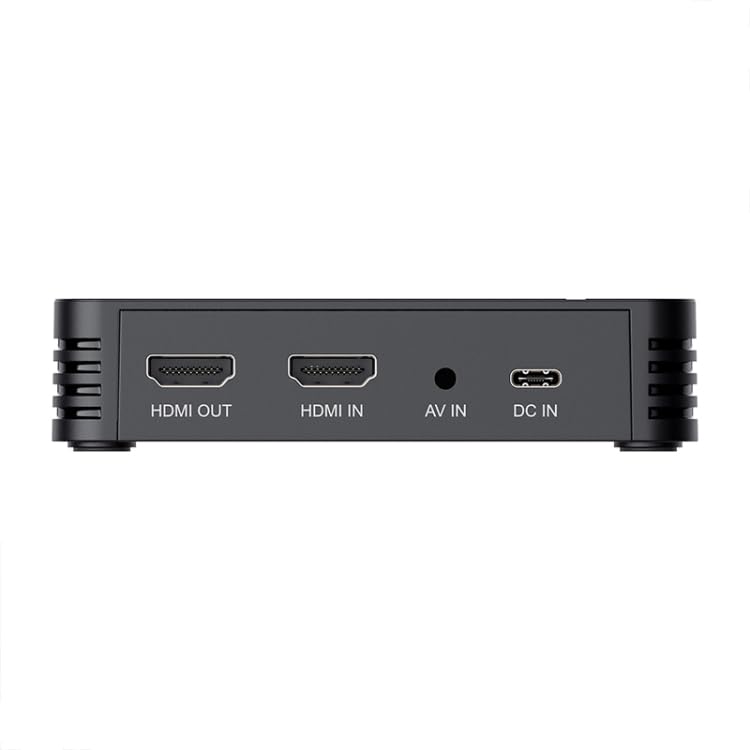
Figure 5.1: Rear ports of the Ezcap 288P, including HDMI IN, HDMI OUT, AV IN, and DC IN for power.
- Connect Display (Optional): If you wish to view the video on a monitor or TV while recording, connect an HDMI cable from the HDMI OUT port on the Ezcap 288P to your display's HDMI IN port.
- Connect Storage Device: Insert a USB flash drive or portable hard drive (formatted as FAT32 or NTFS, exFAT is not supported) into the USB HOST port on the Ezcap 288P. Ensure sufficient free space for your recordings.
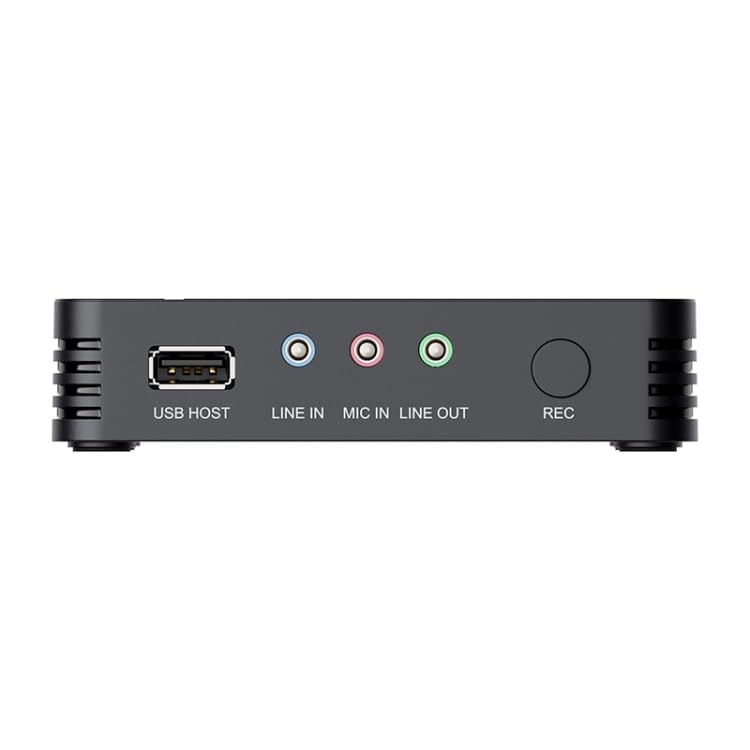
Figure 5.2: Front/Side ports of the Ezcap 288P, showing the USB HOST port, audio inputs/outputs, and the REC button.
- Connect Audio (Optional):
- For external audio input (e.g., from a mixer): Connect to the LINE IN port.
- For microphone input: Connect your microphone to the MIC IN port.
- For audio monitoring: Connect headphones or speakers to the LINE OUT port.
- Power On: Connect the 5V/2A power adapter (not explicitly listed as included, but required) to the DC IN port on the Ezcap 288P and plug it into a power outlet. The device will power on automatically.
6. Operating Instructions
Operating the Ezcap 288P is straightforward:
- Prepare Source: Ensure your video source (game console, camera, etc.) is powered on and outputting video.
- Start Recording: Once the video signal is detected (and displayed on your monitor if connected), press the large REC button on the device. The indicator light will change to show that recording has started.
- Add Commentary (Optional): If a microphone is connected to the MIC IN port, your voice will be recorded along with the video and game audio.
- Stop Recording: Press the REC button again to stop the recording. The indicator light will change back, and the recorded file will be saved to your USB storage device.
- Access Recorded Files: Safely remove the USB storage device from the Ezcap 288P and connect it to a computer to access your recorded AVI/MPEG4 video files.
- Edit Videos: Use the included professional video editing software (refer to its separate instructions for installation and usage) to edit, trim, and enhance your captured videos.
7. Maintenance
To ensure the longevity and optimal performance of your Ezcap 288P, follow these maintenance guidelines:
- Cleaning: Use a soft, dry cloth to clean the exterior of the device. Do not use liquid cleaners or abrasive materials.
- Storage: Store the device in a cool, dry place away from direct sunlight and extreme temperatures.
- Handling: Avoid dropping or subjecting the device to strong impacts.
- Ventilation: Ensure the ventilation slots are not blocked during operation to prevent overheating.
8. Troubleshooting
If you encounter issues with your Ezcap 288P, refer to the following common problems and solutions:
- No Signal/Black Screen:
- Ensure all HDMI/AV cables are securely connected to both the source and the Ezcap 288P.
- Verify that your video source is powered on and outputting a signal.
- Check if the input resolution from your source is supported (up to 1080P).
- Try a different HDMI/AV cable.
- Recording Not Starting:
- Ensure a compatible USB storage device is inserted into the USB HOST port.
- Check if the USB storage device has sufficient free space.
- Verify the USB storage device is formatted as FAT32 or NTFS (exFAT is not supported).
- Ensure the device is receiving power (5V/2A).
- Poor Video Quality:
- Ensure your source is outputting the highest possible resolution.
- Check cable quality; use high-quality HDMI/AV cables.
- No Audio in Recording:
- Verify audio settings on your video source.
- Ensure audio cables (if using AV or external audio) are correctly connected.
- Check microphone connection if using MIC IN.
9. Warranty and Support
This product is covered by a warranty policy. For details regarding the warranty period, terms, and conditions, please refer to the official ELECTROPRIME warranty information provided at the time of purchase or visit the ELECTROPRIME official website.
For technical support, troubleshooting assistance beyond this manual, or warranty claims, please contact ELECTROPRIME customer service through the contact information provided with your product or on the official brand website. Please have your product model number (Ezcap 288P) and purchase details ready when contacting support.
Secure Transaction: Your purchase is backed by a secure transaction process.
Returns Policy: For information on returns, please refer to the retailer's specific returns policy where the product was purchased.