
1. Introduction
The ELECTROPRIME Hishell M9 Translator is a portable, intelligent device designed for multi-language simultaneous translation, facilitating communication across language barriers. It supports both online and offline translation modes, along with photo and recording translation functionalities. This manual provides essential information for the proper setup, operation, and maintenance of your device.
2. Safety Information
- Do not expose the device to extreme temperatures, direct sunlight, or high humidity.
- Avoid dropping or subjecting the device to strong impacts.
- Keep the device away from water and other liquids. If it gets wet, power it off immediately and allow it to dry completely before use.
- Use only the provided or approved charging cable and adapter.
- Do not attempt to disassemble, repair, or modify the device yourself. Contact customer support for assistance.
- Dispose of the device and its battery according to local regulations.
3. Package Contents
Please check the package for the following items:
- ELECTROPRIME Hishell M9 Translator Device
- USB Charging Cable
- User Manual (this document)
4. Device Overview
Familiarize yourself with the physical components of your Hishell M9 Translator.
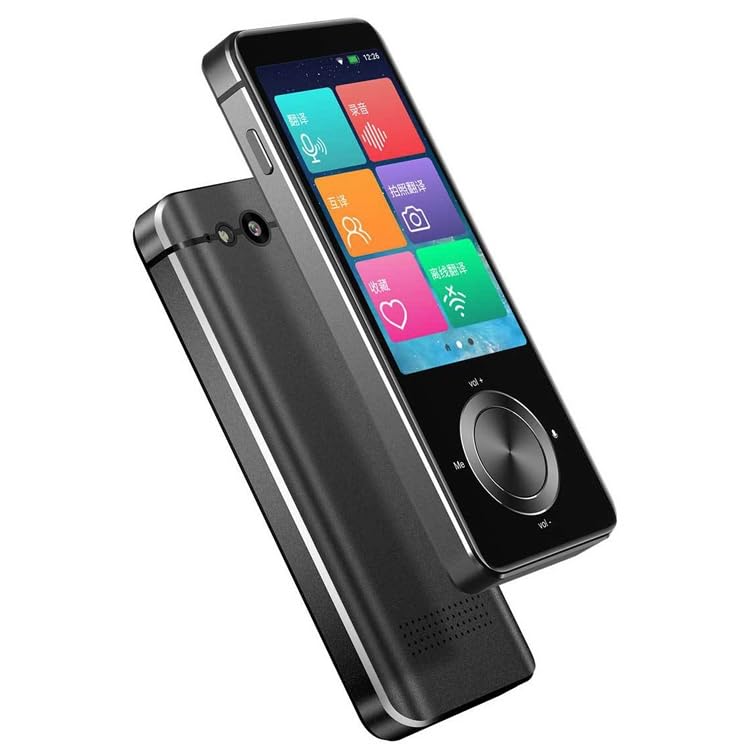
Image 1: Front and side view of the ELECTROPRIME Hishell M9 Translator. This image shows the device's screen, volume buttons, and power button on the side, along with the speaker grille at the bottom.
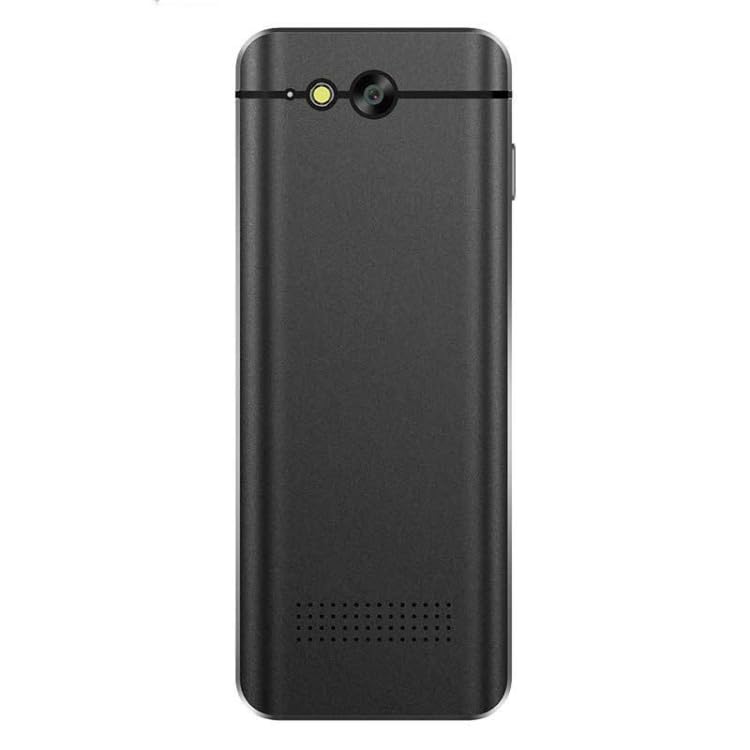
Image 2: Back view of the ELECTROPRIME Hishell M9 Translator. This image highlights the rear camera and flash, along with the microphone and speaker perforations.
- Touchscreen Display: Main interface for interaction.
- Power Button: Located on the side, used for powering on/off and screen lock.
- Volume Buttons: Adjust audio output level.
- Microphone: Captures spoken language for translation.
- Speaker: Outputs translated audio.
- Camera: Used for photo translation.
- USB Port: For charging the device.
5. Setup
5.1. Charging the Device
- Connect the USB charging cable to the device's USB port.
- Plug the other end of the cable into a compatible USB power adapter (not included) or a computer's USB port.
- The device will indicate charging status on the screen. Allow the device to fully charge before first use.
5.2. Power On/Off
- To Power On: Press and hold the Power button on the side of the device until the screen lights up.
- To Power Off: Press and hold the Power button until a power-off menu appears on the screen. Select 'Power Off'.
- To Lock/Unlock Screen: Briefly press the Power button.
5.3. Initial Language Settings
Upon first power-on, you may be prompted to select the device's system language and your preferred translation languages. Follow the on-screen instructions.
5.4. Network Connection (Wi-Fi)
For online translation features, a Wi-Fi connection is required.
- From the main screen, navigate to 'Settings'.
- Select 'Wi-Fi' and turn it on.
- Choose your desired Wi-Fi network from the list.
- Enter the password if prompted and connect.
6. Operating Instructions
6.1. Real-time Online Translation
This mode requires an active Wi-Fi connection.
- From the main menu, select the 'Real-time Translation' or 'Voice Translation' icon.
- Select the source language (the language you will speak) and the target language (the language you want to translate to).
- Press and hold the designated button (often marked 'Me' or a microphone icon) and speak clearly into the device's microphone.
- Release the button. The device will process your speech and display/speak the translation in the target language.
6.2. Offline Translation
The Hishell M9 supports offline translation for certain language pairs. Ensure necessary language packs are downloaded in advance via Wi-Fi in the 'Settings' menu.
- Select 'Offline Translation' from the main menu.
- Choose the downloaded source and target language packs.
- Proceed with voice input as described in section 6.1.
6.3. Photo Translation
This feature translates text from images using the device's camera.
- Select 'Photo Translation' from the main menu.
- Point the camera at the text you wish to translate. Ensure good lighting and clear focus.
- Tap the screen to capture the image.
- The device will analyze the text and display the translation.
6.4. Recording Translation
This function allows you to record longer conversations and translate them.
- Select 'Recording Translation' from the main menu.
- Tap the 'Record' button to start recording.
- Tap 'Stop' when finished.
- Select the recorded audio file and choose the desired translation language. The device will process and display the translated text.
6.5. Settings
Access the 'Settings' menu to adjust various device parameters:
- Wi-Fi: Manage network connections.
- Brightness: Adjust screen brightness.
- Volume: Control speaker volume.
- Language Settings: Change system language and download offline language packs.
- System Update: Check for and install software updates.
- About Device: View device information.
7. Maintenance
7.1. Cleaning
- Use a soft, dry, lint-free cloth to clean the device's screen and body.
- Do not use abrasive cleaners, alcohol, or chemical solvents.
7.2. Storage
- Store the device in a cool, dry place away from direct sunlight and extreme temperatures.
- If storing for an extended period, ensure the battery is charged to approximately 50% to prolong its lifespan.
7.3. Battery Care
- Avoid fully discharging the battery frequently.
- Do not leave the device connected to a charger for excessively long periods after it is fully charged.
8. Troubleshooting
| Problem | Possible Cause | Solution |
|---|---|---|
| Device does not power on. | Low battery; device frozen. | Charge the device for at least 30 minutes. If still unresponsive, perform a hard reset (refer to device-specific instructions if available, usually holding power button for 10-15 seconds). |
| Translation is inaccurate or not working. | Poor internet connection; incorrect language selection; unclear speech. | Ensure stable Wi-Fi connection. Verify source and target languages. Speak clearly and at a moderate pace. For offline mode, ensure language packs are downloaded. |
| Wi-Fi connection issues. | Incorrect password; out of range; router issue. | Re-enter Wi-Fi password. Move closer to the Wi-Fi router. Restart the device and the router. |
| Screen is unresponsive. | Software glitch; device frozen. | Restart the device. If unresponsive, perform a hard reset. |
9. Specifications
- Model: Hishell M9
- Brand: ELECTROPRIME
- Connectivity: Wireless
- Package Weight: 0.23 kgs / 0.51 lb
- Package Dimensions: 18 cm x 12 cm x 3 cm / 7.09 inches x 4.72 inches x 1.18 inches
- Manufacturer: ELECTROPRIME
10. Warranty and Support
For warranty information and customer support, please refer to the warranty card included with your purchase or contact ELECTROPRIME customer service directly. Keep your proof of purchase for any warranty claims.
For further assistance, visit the official ELECTROPRIME website or contact their support channels.