
1. Product Overview
The ELECTROPRIME CF-WU785AC is a high-performance dual-band WiFi USB network adapter designed to provide fast and reliable wireless connectivity for your desktop computer. Featuring advanced 802.11AC protocol and four high-gain omni-directional antennas, it delivers wireless speeds up to 1300Mbps, significantly enhancing signal coverage and stability. Its plug-and-play, driver-free design ensures easy installation, and the USB 3.0 interface offers superior data transfer speeds while maintaining backward compatibility with USB 2.0.
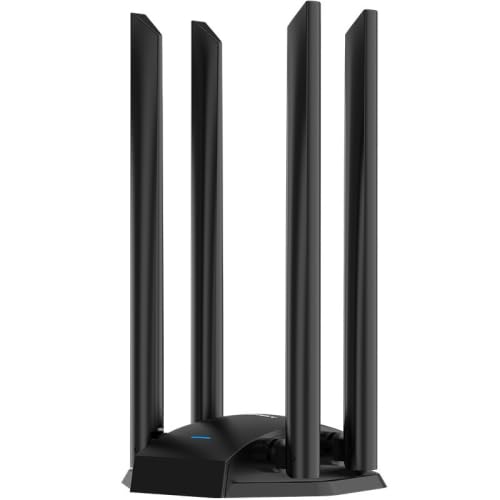
Image 1.1: Front view of the ELECTROPRIME CF-WU785AC WiFi USB Network Adapter, showcasing its four prominent antennas and sleek design.
2. Key Features
- High-Speed Wireless: Supports 802.11AC protocol with dual-band transmission (2.4GHz and 5GHz) for wireless rates up to 1300Mbps.
- Enhanced Signal Coverage: Equipped with 4 high-gain omni-directional antennas to maximize signal reception and transmission range.
- USB 3.0 Interface: Provides faster data transfer speeds, backward compatible with USB 2.0 ports.
- Driver-Free & Plug-and-Play: Simplifies installation, requiring no manual driver installation on supported operating systems.
- Wide Compatibility: Supports Windows 7, Windows 8, Windows 8.1, and Windows 10 operating systems.
- Compact Design: Product dimensions are approximately 101mm x 98mm x 175mm.
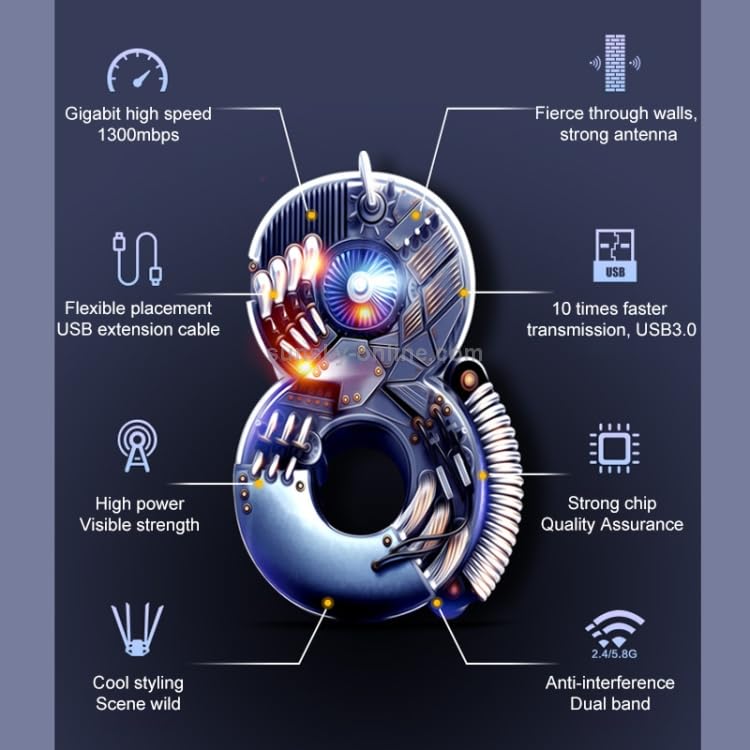
Image 2.1: Visual representation of the adapter's key features, including its high-speed capability, robust antenna performance, USB 3.0 advantage, and dual-band functionality.
3. Setup Guide
Setting up your ELECTROPRIME CF-WU785AC WiFi USB Network Adapter is straightforward due to its driver-free design.
- Unpack the Adapter: Carefully remove the WiFi adapter from its packaging.
- Connect to USB Port: Insert the USB connector of the adapter into an available USB 3.0 port on your desktop computer. For optimal performance, a USB 3.0 port is recommended, but it is also compatible with USB 2.0 ports.
- Automatic Installation: The operating system (Windows 7/8/8.1/10) should automatically detect and install the necessary drivers. This process may take a few moments.
- Verify Installation: Once installed, a new wireless network adapter should appear in your computer's Network Connections or Device Manager. The blue LED indicator on the adapter will illuminate when it is powered on and functioning correctly.
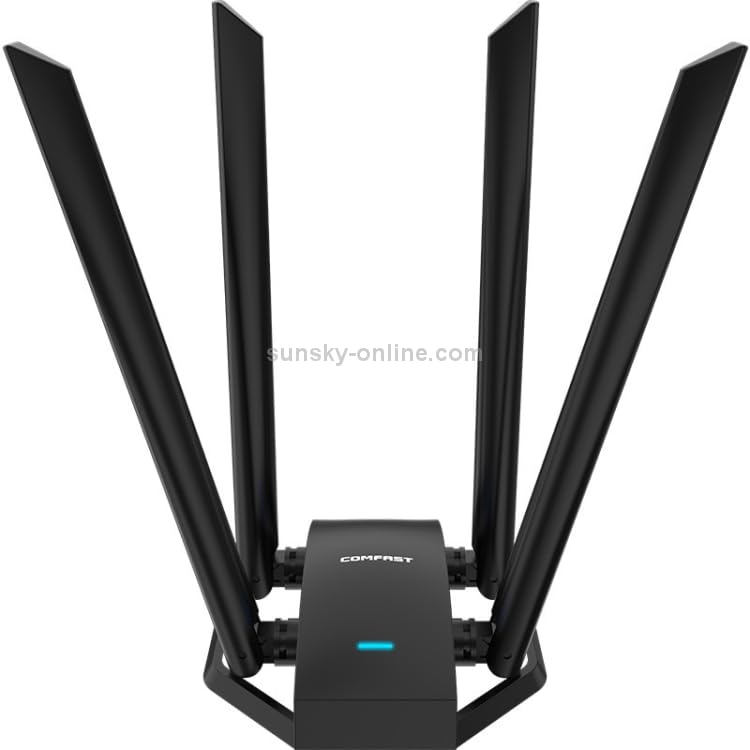
Image 3.1: Top view of the adapter, illustrating the arrangement of the four antennas and the central unit where the USB connection is made.
4. Operating Instructions
After successful installation, you can connect to wireless networks.
- Access Network Settings: On your Windows computer, click on the network icon in the system tray (usually located in the bottom-right corner of the screen).
- Select a Network: A list of available Wi-Fi networks will appear. Select your desired network (SSID).
- Connect: Click 'Connect' and enter the network security key (Wi-Fi password) if prompted.
- Dual-Band Usage: The adapter supports both 2.4GHz and 5GHz bands. For higher speeds and less interference, connect to a 5GHz network if your router supports it and is within range. The 2.4GHz band offers wider coverage.
- Verify Connection: Once connected, the network icon will change to indicate a successful Wi-Fi connection, and you should be able to access the internet.
5. Maintenance
To ensure the longevity and optimal performance of your WiFi USB Network Adapter, follow these simple maintenance guidelines:
- Keep Clean: Regularly wipe the adapter with a soft, dry cloth to remove dust and debris. Avoid using liquid cleaners.
- Proper Ventilation: Ensure the adapter is not obstructed and has adequate airflow, especially if it's in a confined space, to prevent overheating.
- Handle with Care: Avoid dropping the adapter or subjecting it to physical shocks. Do not bend or forcefully twist the antennas.
- Unplug When Not in Use: If you won't be using the adapter for an extended period, it's advisable to safely remove it from the USB port.
6. Troubleshooting
If you encounter issues with your adapter, refer to the following common troubleshooting steps:
Adapter Not Detected or Not Working:
- Check USB Port: Try plugging the adapter into a different USB port on your computer. Ensure the port is functioning correctly.
- Restart Computer: A simple restart can often resolve detection issues.
- Verify Device Manager: Open Device Manager (search for it in Windows) and check under 'Network adapters' to see if the device is listed without any error symbols (like a yellow exclamation mark).
- Operating System Compatibility: Ensure your operating system is Windows 7, 8, 8.1, or 10.
Slow Connection Speed or Frequent Disconnections:
- Signal Strength: Move closer to your wireless router or ensure there are no major obstructions (thick walls, metal objects) between the adapter and the router.
- Antenna Orientation: Adjust the orientation of the adapter's antennas for better signal reception.
- Router Settings: Check your router's settings. Ensure it's broadcasting on both 2.4GHz and 5GHz bands if you intend to use 5GHz. Try changing Wi-Fi channels on your router to avoid interference.
- Interference: Other electronic devices (cordless phones, microwaves) can cause interference. Try to minimize their proximity to the adapter or router.
- USB 3.0 Port: Ensure the adapter is connected to a USB 3.0 port for maximum speed.
7. Specifications
| Attribute | Detail |
|---|---|
| Brand | ELECTROPRIME |
| Model | CF-WU785AC |
| Wireless Standard | 802.11AC |
| Wireless Speed | Up to 1300Mbps |
| Frequency Bands | 2.4GHz, 5GHz |
| Antennas | 4 x High-gain Omni-directional Antennas |
| Interface | USB 3.0 (Backward compatible with USB 2.0) |
| Operating System Support | Windows 7, Windows 8, Windows 8.1, Windows 10 |
| Compatible Devices | Desktop Computers |
| Dimensions (L x W x H) | 101mm x 98mm x 175mm (approx.) |
| Package Weight | 0.36 kgs / 0.79 lb |
| Package Size | 28cm x 12.7cm x 6cm / 11.02inch x 5inch x 2.36inch |
8. Warranty and Support
For warranty information and technical support, please refer to the documentation provided with your purchase or contact ELECTROPRIME customer service through their official channels. Keep your purchase receipt as proof of purchase for warranty claims.