
ZIYOU LANG M96
ZIYOU LANG M96 Wireless Gaming Keyboard User Manual
Model: M96
Brand: ZIYOU LANG
1. Introduction
This manual provides detailed instructions for the ZIYOU LANG M96 Wireless Gaming Silent Membrane Keyboard. Please read this manual thoroughly before using the product to ensure proper operation and to maximize its features. The M96 keyboard offers a blend of modern design, silent typing, and versatile connectivity for various operating systems and devices.

Image 1.1: Top-down view of the ZIYOU LANG M96 Wireless Gaming Keyboard, showcasing its 94-key layout, multimedia knob, and display screen.
2. Package Contents
Please verify that all items are present in the package:
- ZIYOU LANG M96 Wireless Gaming Keyboard
- USB Cable (Type-C)
- 2.4GHz USB Receiver (typically stored in the keyboard's battery compartment or a dedicated slot)
- User Manual (this document)
3. Product Overview
The ZIYOU LANG M96 keyboard is designed for both gaming and general use, featuring a compact 94-key layout, silent membrane switches, and PBT keycaps. It includes a built-in display screen and a multi-function knob for enhanced control.
Key Features:
- 94-Key Layout: A compact design that saves desk space while retaining essential keys.
- Silent Membrane Switches: Provides a quiet and responsive typing experience.
- PBT Keycaps: Durable and resistant to wear, offering a comfortable tactile feel.
- Dual-Mode Connectivity: Supports 2.4GHz wireless and Bluetooth (BT1/BT2) connections.
- Integrated Display Screen: Shows keyboard status, battery level, connection mode, and more.
- Multi-function Knob: Controls volume and backlight settings.
- Rainbow Backlight: Enhances aesthetics with various lighting modes.
- Rechargeable Battery: Built-in 2000mAh battery for extended use.
- Ergonomic Design: Adjustable feet for comfortable typing angles.

Image 3.1: The ZIYOU LANG M96 keyboard on a desk, highlighting its membrane switches and durable PBT keycaps.
4. Setup
4.1 Charging the Keyboard
Before first use, fully charge the keyboard. Connect the provided USB Type-C cable to the keyboard's charging port and the other end to a USB power source (e.g., computer USB port, USB wall adapter).
- The display screen will show a charging indicator.
- A full charge typically takes a few hours.
- The 2000mAh battery provides approximately 200 hours of use with the backlight off, and 60 hours with the backlight on.

Image 4.1: Illustration of the ZIYOU LANG M96 keyboard's battery life, showing 200 hours with backlight off and 60 hours with backlight on.
4.2 Connection Modes
The M96 keyboard supports three connection modes: 2.4GHz wireless, Bluetooth 1 (BT1), and Bluetooth 2 (BT2).

Image 4.2: Diagram illustrating multi-device connection options for the ZIYOU LANG M96 keyboard, including 2.4GHz USB receiver and two Bluetooth channels.
Switching Connection Modes:
Use the switch located on the side of the keyboard to select your desired connection mode.

Image 4.3: Side view of the ZIYOU LANG M96 keyboard, indicating the power switch, 2.4G/Bluetooth mode switch, and Type-C charging port.
4.2.1 2.4GHz Wireless Connection
- Locate the 2.4GHz USB receiver, usually stored in a compartment on the keyboard.
- Plug the USB receiver into an available USB port on your computer or device.
- Set the keyboard's mode switch to '2.4G'.
- The keyboard should automatically connect. The display screen will show '2.4G' when connected.
4.2.2 Bluetooth Connection (BT1 / BT2)
- Set the keyboard's mode switch to 'BT1' or 'BT2'.
- For first-time pairing, press and hold the FN + Q keys simultaneously for BT1, or FN + W keys for BT2, until the Bluetooth indicator on the display screen flashes rapidly. This indicates pairing mode.
- On your device (computer, tablet, smartphone), open Bluetooth settings and search for new devices.
- Select 'M96 BT1' or 'M96 BT2' from the list of available devices.
- Follow any on-screen prompts to complete the pairing process.
- Once connected, the display screen will show 'BT1' or 'BT2' steadily.
Note: To switch between paired Bluetooth devices, simply set the mode switch to the corresponding BT1 or BT2 channel. For the BT2 channel, you may need to press ESC+Q keys at the same time to trigger the connection if it doesn't connect automatically.
5. Operating Instructions
5.1 Display Screen Functions
The integrated LED display screen provides real-time information about the keyboard's status.

Image 5.1: Close-up of the ZIYOU LANG M96 keyboard's display screen, showing battery percentage (96%), active connection (2.4G), and indicators for Caps Lock, Num Lock, and Win/Mac mode.
- Battery Level: Displays the current battery percentage.
- Connection Mode: Indicates the active connection (2.4G, BT1, or BT2).
- Caps Lock Indicator: Shows when Caps Lock is active.
- Num Lock Indicator: Shows when Num Lock is active.
- WIN/MAC Mode: Indicates the currently selected operating system layout.
- Charging Indicator: Appears when the keyboard is connected for charging.
5.2 Multimedia Knob Control
The knob located on the top right of the keyboard offers dual functionality for multimedia and backlight control.

Image 5.2: Detailed view of the ZIYOU LANG M96 keyboard's multimedia knob, explaining its functions for volume control (turn left/right, press to mute) and backlight control (press and hold for 5 seconds to adjust brightness or switch effects).
Multimedia Mode (Default):
- Turn Left: Decrease volume.
- Turn Right: Increase volume.
- Press: Mute/unmute audio.
Backlight Mode:
- Press and hold the knob for 5 seconds to switch to backlight control mode.
- Turn Left: Decrease backlight brightness.
- Turn Right: Increase backlight brightness.
- Press: Switch between different backlight effects (static, breathing, off).
- To exit backlight mode and return to multimedia mode, press and hold the knob for 5 seconds again, or it will revert automatically after a period of inactivity.
5.3 Multimedia Hot Keys (FN Combinations)
The keyboard features 12 multimedia keys accessible via the FN key for quick access to common functions.
- FN + F1: Media Player
- FN + F2: Volume Down
- FN + F3: Volume Up
- FN + F4: Mute
- FN + F5: Stop
- FN + F6: Previous Track
- FN + F7: Play/Pause
- FN + F8: Next Track
- FN + F9: Email
- FN + F10: Web Browser
- FN + F11: My Computer
- FN + F12: Calculator
- FN + WIN: Lock/Unlock Windows Key
- FN + A: Switch to Mac OS layout
- FN + S: Switch to Windows OS layout
5.4 Backlight Control
In addition to the knob, specific key combinations can control the rainbow backlight.

Image 5.3: Diagram showing backlight control functions for the ZIYOU LANG M96 keyboard, including brightness adjustment and mode switching using FN key combinations.
- FN + Up Arrow: Increase backlight brightness.
- FN + Down Arrow: Decrease backlight brightness.
- FN + Left Arrow: Decrease backlight speed (for dynamic modes).
- FN + Right Arrow: Increase backlight speed (for dynamic modes).
- FN + DEL: Cycle through backlight modes (static, breathing, off).
Note: The colors of the rainbow backlight are not customizable.
6. Maintenance
Proper maintenance ensures the longevity and optimal performance of your keyboard.
- Cleaning: Use a soft, dry cloth to wipe the keyboard surface. For deeper cleaning, use a can of compressed air to remove dust and debris from between the keycaps. Avoid using harsh chemicals or abrasive materials.
- Storage: Store the keyboard in a cool, dry place away from direct sunlight and extreme temperatures.
- Battery Care: To preserve battery life, avoid fully discharging the keyboard frequently. Charge it when the low battery indicator appears. If storing for an extended period, charge the battery to about 50% and turn off the keyboard.
- Liquid Exposure: In case of liquid spills, immediately disconnect the keyboard, turn it off, and allow it to dry completely before attempting to use it again.
7. Troubleshooting
If you encounter any issues with your ZIYOU LANG M96 keyboard, please refer to the following common solutions:
| Problem | Possible Solution |
|---|---|
| Keyboard not responding |
|
| Lag or missed keystrokes in wireless mode |
|
| Backlight not working or stuck |
|
| Cannot pair via Bluetooth |
|
| Multimedia keys not functioning |
|
8. Specifications
| Feature | Detail |
|---|---|
| Model | M96 |
| Brand | ZIYOU LANG |
| Connectivity | 2.4GHz Wireless, Bluetooth (BT1, BT2) |
| Keyboard Type | Membrane |
| Keycaps Material | PBT |
| Number of Keys | 94 |
| Backlight | Rainbow LED (non-customizable colors) |
| Battery Capacity | 2000mAh |
| Charging Port | USB Type-C |
| Compatible Devices | Gaming Console, Laptop, PC, Smartphone, Tablet |
| Operating Systems | Windows, Mac, Linux, iOS, Android |
| Product Dimensions | 15.75 x 6.5 x 1.77 inches (385mm L x 145mm W x 40mm H) |
| Item Weight | 1.83 pounds |
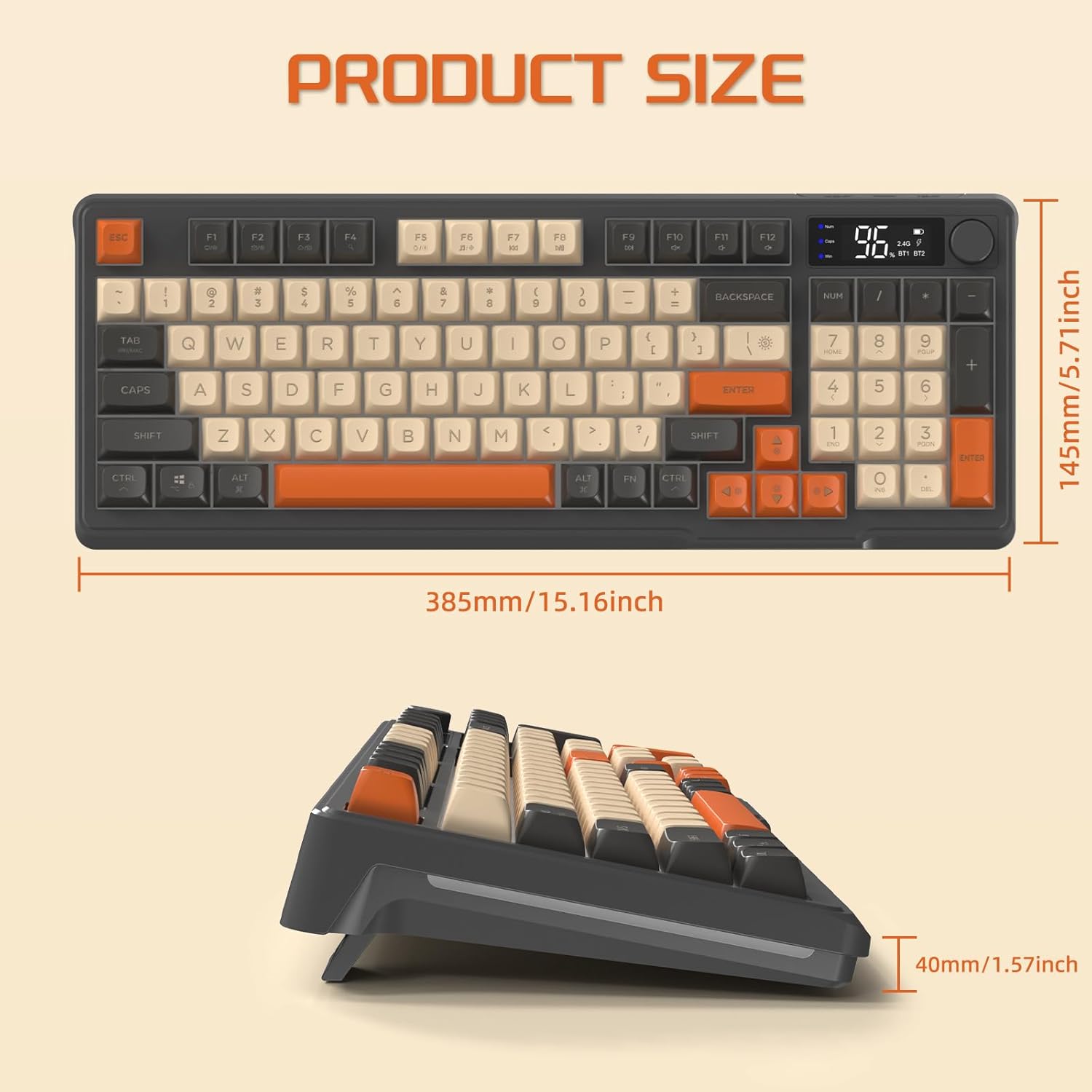
Image 8.1: Diagram showing the physical dimensions of the ZIYOU LANG M96 keyboard.
9. Warranty and Support
ZIYOU LANG products are designed and manufactured to the highest quality standards. For specific warranty information, please refer to the warranty card included with your product or visit the official ZIYOU LANG website.
If you require technical assistance or have questions not covered in this manual, please contact ZIYOU LANG customer support through their official channels or the retailer where the product was purchased.
Online Support: Visit the ZIYOU LANG Store on Amazon
Ask a question about this manual
Ask about setup, troubleshooting, compatibility, parts, safety, or missing instructions. Manuals+ will review the question and use this page’s manual context to help answer it.