Introduction
Thank you for choosing the ELECTROPRIME Soulbytes S9 Gaming Headset. This manual provides essential information for setting up, operating, maintaining, and troubleshooting your new headset. Please read it carefully to ensure optimal performance and longevity of your device.
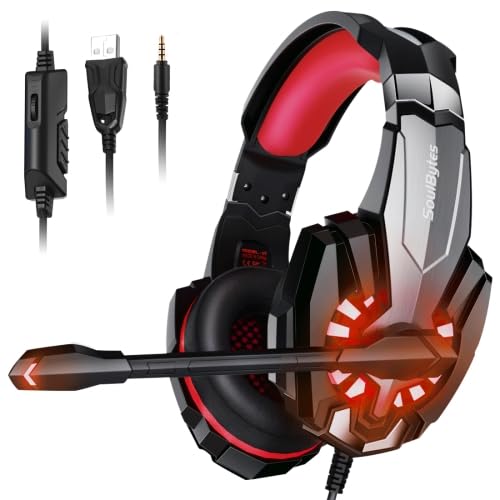
Image: ELECTROPRIME Soulbytes S9 Gaming Headset with its retail packaging.
Package Contents
Before proceeding with the setup, please verify that all items listed below are present in your package:
- ELECTROPRIME Soulbytes S9 Gaming Headset
- USB Cable (integrated)
- 3.5mm 4-Pin Audio Cable (integrated)
- Ear Cushions (pre-installed)
- Headband (integrated)
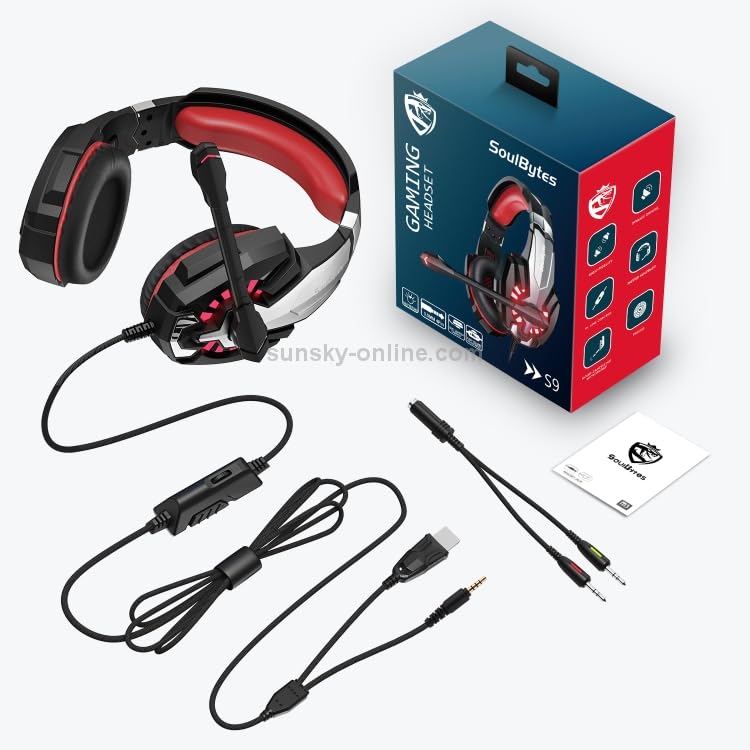
Image: All components included with the ELECTROPRIME Soulbytes S9 Gaming Headset, laid out for inspection.
Setup
Connecting the Headset
The Soulbytes S9 headset features both USB and 3.5mm 4-Pin connectors for versatile compatibility.
- For Audio and Microphone (3.5mm): Plug the 3.5mm 4-Pin connector into the corresponding audio jack on your computer, console controller, or mobile device. Ensure it is fully inserted.
- For LED Lighting (USB): Plug the USB connector into an available USB port on your computer or a USB power adapter. The USB connection is solely for powering the LED lights on the headset and does not transmit audio or microphone data.
- Combined Use: For full functionality (audio, microphone, and LED lights), connect both the 3.5mm and USB cables to your device.
Initial Configuration (PC)
After connecting the headset to a PC, you may need to configure sound settings:
- Windows: Right-click the speaker icon in the taskbar, select 'Sound Settings' or 'Playback devices'. Ensure the headset is selected as the default playback and recording device.
- Mac: Go to 'System Preferences' > 'Sound'. Select the headset under both 'Output' and 'Input' tabs.
Operating Instructions
Adjusting the Headset Fit
For optimal comfort and sound isolation, adjust the headband to fit your head. The earcups should fully cover your ears without excessive pressure.
Microphone Usage
The headset features an adjustable microphone. Position the microphone approximately 2-3 cm from your mouth for clear voice capture. The microphone angle can be adjusted for personal preference.
Volume Control
The headset includes an in-line volume control wheel on the cable. Rotate the wheel to increase or decrease the audio volume. Ensure your device's volume is also set appropriately.
LED Lighting
The LED lights on the earcups will illuminate automatically when the USB connector is plugged into a powered USB port. There is no separate switch for the LED lights.
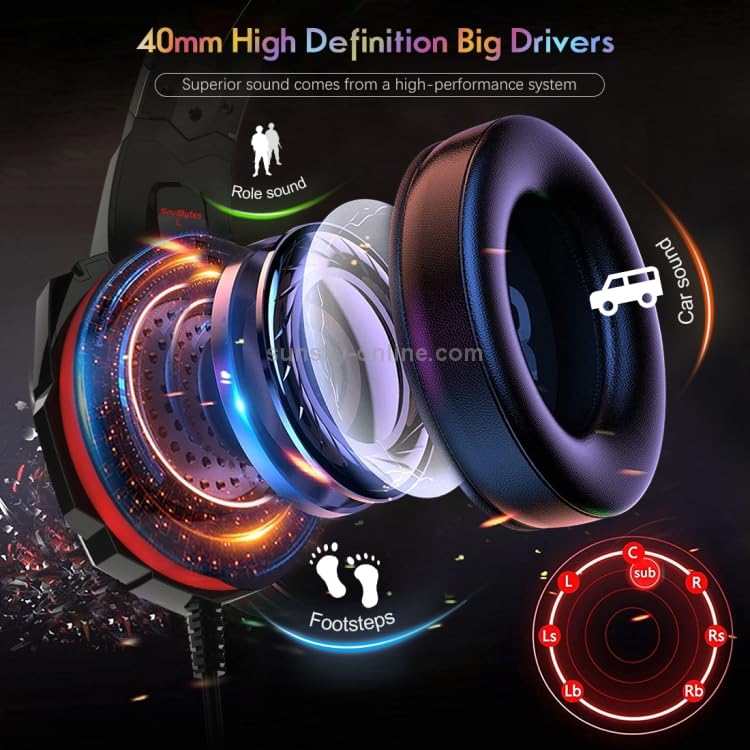
Image: Close-up view illustrating the 40mm high-definition drivers within the headset's earcups, designed for superior sound.
Maintenance
Cleaning
- Use a soft, dry cloth to wipe the surfaces of the headset.
- For ear cushions, gently wipe with a slightly damp cloth and allow to air dry completely before use.
- Do not use harsh chemicals, solvents, or abrasive cleaners.
Storage
Store the headset in a clean, dry place away from extreme temperatures and direct sunlight. Avoid placing heavy objects on top of the headset.
Cable Care
Avoid sharp bends or excessive pulling on the cables to prevent damage. Do not wrap the cables too tightly around the headset.
Troubleshooting
No Sound from Headset
- Ensure the 3.5mm audio jack is fully inserted into the device.
- Check the in-line volume control on the headset cable and increase it.
- Verify that the headset is selected as the default playback device in your device's sound settings.
- Test the headset with another device to rule out a device-specific issue.
Microphone Not Working
- Ensure the 3.5mm audio jack is fully inserted into the device.
- Verify that the headset is selected as the default recording device in your device's sound settings.
- Check if any software (e.g., communication apps) has muted the microphone.
- Test the microphone with another device.
LED Lights Not Illuminating
- Ensure the USB connector is securely plugged into a powered USB port.
- Try a different USB port or a different USB power source.
Specifications
| Speaker Size | 40mm |
| Impedance | 20 ohm +/-10% |
| Sensitivity | 100dB+/-3dB |
| Frequency Response | 20Hz-20KHz |
| Microphone Size | 6.0x2.7mm |
| Microphone Sensitivity | -42dB+/-2dB |
| Microphone Impedance | less than or equal to 2.2k ohm |
| Directionality | Omnidirectional |
| LED Working Voltage | DC5V+/-5% |
| Working Current | less than or equal to 200mA |
| Headphone Jack | USB + 3.5mm 4-Pin |
| Cable Length | Approximately 1.9M |
| Material | Faux Leather (ear cushions) |
| Connector Type | Wired |
Warranty and Support
This product is covered by a standard manufacturer's warranty. Please refer to your purchase documentation or contact your retailer for specific warranty terms and conditions. For technical support or further assistance, please contact ELECTROPRIME customer service through the details provided at the point of purchase or on the official ELECTROPRIME website.


