
1. Introduction
Thank you for choosing the ELECTROPRIME LANGTU GK65 65-Key Mechanical Keyboard. This manual provides detailed instructions for setting up, operating, and maintaining your keyboard to ensure optimal performance and longevity. Please read this manual carefully before using the product.
2. Product Overview
The ELECTROPRIME LANGTU GK65 is a compact 65-key mechanical keyboard designed for versatility and performance. It supports three connection modes: 2.4G wireless, Bluetooth 5.0, and wired USB, making it suitable for various computing environments and gaming needs. Its ergonomic design and durable construction ensure a comfortable and responsive typing experience.
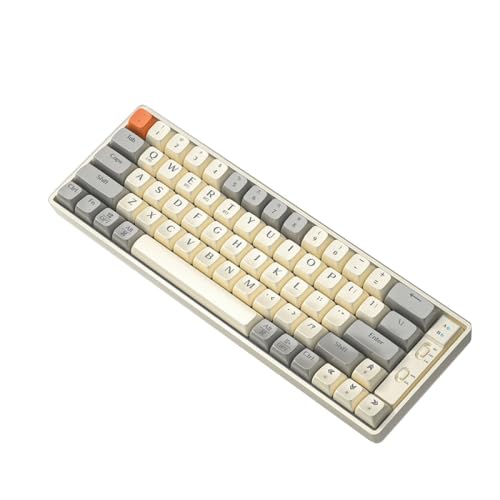
Image 1: Top-down view of the ELECTROPRIME LANGTU GK65 65-Key Mechanical Keyboard in Milk White.
3. Key Features
- Triple Mode Connectivity: Supports 2.4G wireless, Bluetooth 5.0, and wired USB connection for flexible usage.
- Structural Shock Absorption: Features a unique gasket structural shock absorption design for improved typing feel and sound.
- Customized Mechanical Linear Gold Shaft: Offers low pressure, fast trigger, and zero delay for responsive input.
- Compact 65-Key Layout: Optimizes desktop space while retaining essential keys.
- High-Performance Gaming Chip: Ensures lossless rapid response trigger for competitive gaming.
- Long Battery Life: Equipped with a 3200mA terpolymer lithium battery, providing up to 10 days of normal use and 100 days of standby.
- Full Key Rollover (N-Key Rollover): Guarantees all key presses are registered accurately, even during simultaneous inputs.
- Dual System Compatibility: Supports both WIN (Windows) and IOS operating systems.
- Dynamic Backlighting: Features 19 mixed-color backlight effects with 5 levels of brightness adjustment.
- Ergonomic Design: Provides a comfortable typing experience for extended use.
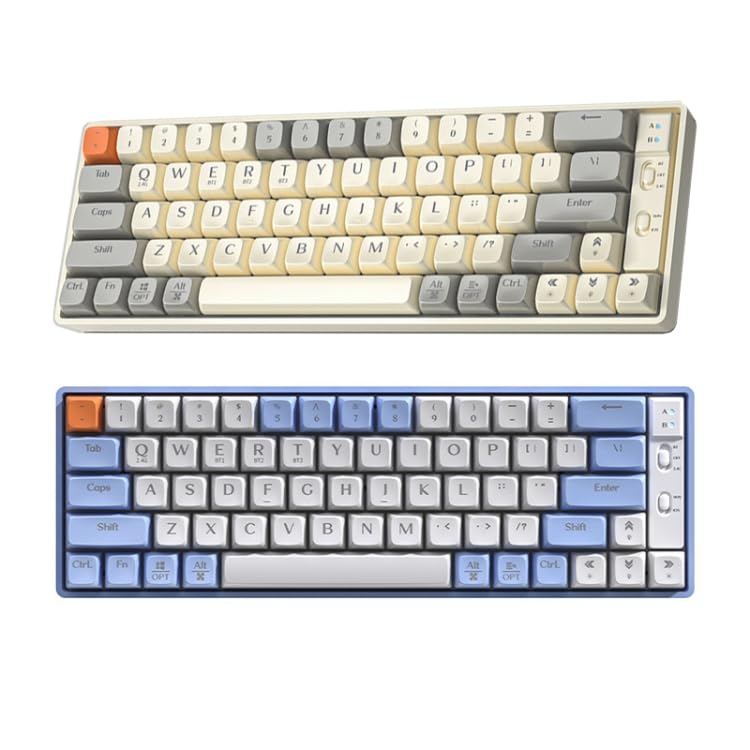
Image 2: Close-up view of the ELECTROPRIME LANGTU GK65 keyboard, highlighting keycap and switch details.
4. Setup and Connection
The GK65 keyboard offers three ways to connect to your device:
4.1. Wired Connection
- Locate the USB-C port on the keyboard and the USB-A port on your computer.
- Connect the provided USB cable to the keyboard and then to your computer.
- The keyboard will automatically switch to wired mode and be ready for use.
4.2. 2.4G Wireless Connection
- Ensure the keyboard is charged or has sufficient battery.
- Locate the 2.4G USB receiver (dongle) in the keyboard's packaging.
- Plug the 2.4G USB receiver into an available USB port on your computer.
- Switch the keyboard to 2.4G wireless mode (refer to the keyboard's physical switch or key combination for mode selection, typically Fn + a specific key).
- The keyboard should automatically connect to the receiver.
4.3. Bluetooth 5.0 Connection
- Ensure the keyboard is charged or has sufficient battery.
- Switch the keyboard to Bluetooth mode (refer to the keyboard's physical switch or key combination for mode selection, typically Fn + a specific key for Bluetooth pairing).
- On your device (computer, tablet, smartphone), go to Bluetooth settings and enable Bluetooth.
- Search for new devices. The keyboard should appear as "GK65" or similar.
- Select the keyboard to pair. If prompted, enter a pairing code.
- Once paired, the keyboard is ready for use.
5. Operating Instructions
5.1. Switching Between Modes
The keyboard allows seamless switching between its three connection modes. Use the designated switch or key combination (e.g., Fn + 1 for 2.4G, Fn + 2 for Bluetooth, Fn + 3 for Wired) to select your desired connection type. Refer to the specific keycap legends for exact combinations.
5.2. Battery and Charging
The keyboard is equipped with a 3200mA terpolymer lithium battery. To charge, connect the keyboard to a USB power source using the provided USB cable. The charging indicator will illuminate during charging and turn off when fully charged. A full charge can provide approximately 10 days of normal use or 100 days of standby time.
- Automatic Sleep Mode: The keyboard lights will automatically turn off after 3 minutes of no operation. After 10 minutes of no operation, the keyboard will enter waiting mode to conserve battery.
5.3. Backlight Control
The GK65 features 19 dynamic mixed-color backlight effects. You can adjust the brightness and cycle through effects using specific key combinations:
- Brightness Adjustment: Use Fn + ↑ to increase brightness and Fn + ↓ to decrease brightness (5 levels).
- Effect Cycling: Use Fn + \ | to cycle through the 19 different backlight effects.
5.4. Dual System Compatibility (WIN/IOS)
The keyboard supports both Windows and iOS operating systems. Use the designated key combination (e.g., Fn + W for Windows, Fn + I for iOS) to switch between system layouts, ensuring proper function key mapping.
6. Maintenance
To ensure the longevity and optimal performance of your keyboard, follow these maintenance guidelines:
- Cleaning: Use a soft, dry cloth to wipe the keyboard surface. For deeper cleaning, you may use a can of compressed air to remove dust and debris from between the keycaps. Avoid using harsh chemicals or abrasive materials.
- Keycap Removal: If necessary, keycaps can be carefully removed using a keycap puller for thorough cleaning. Reinstall them by aligning and gently pressing down until they click into place.
- Storage: Store the keyboard in a cool, dry place away from direct sunlight and extreme temperatures.
- Liquid Exposure: Avoid spilling liquids on the keyboard. In case of accidental spills, immediately disconnect the keyboard, turn it upside down to drain, and allow it to dry completely before reconnecting.
7. Troubleshooting
If you encounter issues with your ELECTROPRIME LANGTU GK65 keyboard, refer to the following common solutions:
- Keyboard Not Responding (Wired):
- Ensure the USB cable is securely connected to both the keyboard and the computer.
- Try a different USB port on your computer.
- Test the keyboard on another computer to rule out a system-specific issue.
- Keyboard Not Responding (2.4G Wireless):
- Ensure the 2.4G receiver is properly plugged into a USB port.
- Verify the keyboard is switched to 2.4G mode.
- Check the keyboard's battery level.
- Try re-pairing the keyboard with the receiver (consult specific key combinations if available).
- Keyboard Not Responding (Bluetooth):
- Ensure Bluetooth is enabled on your device and the keyboard is in Bluetooth mode.
- Check the keyboard's battery level.
- Unpair and re-pair the keyboard from your device's Bluetooth settings.
- Ensure no other Bluetooth devices are causing interference.
- Keys Not Registering or Double Typing:
- Clean under the affected keycaps to remove any debris.
- Ensure the keycaps are properly seated.
- If the issue persists, it may indicate a switch malfunction.
- Backlight Not Working:
- Ensure the keyboard is powered on and not in sleep mode.
- Adjust brightness using Fn + ↑.
- Cycle through effects using Fn + \ |.
- Check battery level, as low battery might disable backlighting.
8. Specifications
| Feature | Detail |
|---|---|
| Model | LANGTU GK65 |
| Connectivity | 2.4G Wireless, Bluetooth 5.0, Wired (USB-C) |
| Number of Keys | 65 |
| Switch Type | Customized Mechanical Linear Gold Shaft |
| Button Life | 70 million times |
| Battery Capacity | 3200mA Terpolymer Lithium Battery |
| Standby Time | Up to 100 days |
| Normal Use Time | Up to 10 days |
| Backlight | Mixed Color, 19 Dynamic Effects, 5 Brightness Levels |
| Operating System Compatibility | Windows, iOS |
| Cable Length | 1.5m (USB Cable) |
| Dimensions (L x W x H) | 310mm x 103mm x 40mm |
| Trigger Stroke | 2 mm |
| Downforce | 45g |
| Rebound | 68g |

Image 3: View of the ELECTROPRIME LANGTU GK65 keyboard, illustrating its compact dimensions.
9. What's in the Box
The ELECTROPRIME LANGTU GK65 Mechanical Keyboard package includes:
- ELECTROPRIME LANGTU GK65 65-Key Mechanical Keyboard
- USB Cable (1.5m)
- 2.4G USB Receiver (dongle)
- User Manual (this document)
10. Warranty and Support
ELECTROPRIME products are designed for quality and reliability. For specific warranty information, please refer to the warranty card included with your product or contact ELECTROPRIME customer support. Keep your purchase receipt as proof of purchase.
For technical support or inquiries, please visit the official ELECTROPRIME website or contact their customer service department through the details provided on the product packaging or official website.