
ELECTROPRIME AC067
ELECTROPRIME Compatiable for Ajazz AC067 67 Keys Bluetooth Wireless Mechanical Keyboard User Manual
Model: AC067
1. Introduction
Thank you for choosing the ELECTROPRIME Compatiable for Ajazz AC067 Mechanical Keyboard. This 67-key keyboard features Bluetooth wireless connectivity, three operating modes, hot-plug switch sockets, and RGB backlighting, providing a versatile and customizable typing experience. This manual will guide you through the setup, operation, maintenance, and troubleshooting of your new keyboard.
2. Package Contents
- ELECTROPRIME Compatiable for Ajazz AC067 Mechanical Keyboard
- USB Cable
3. Setup Guide
3.1 Unboxing and Initial Inspection
Carefully remove the keyboard and all accessories from the packaging. Inspect the keyboard for any visible damage. If any components are missing or damaged, please contact customer support.
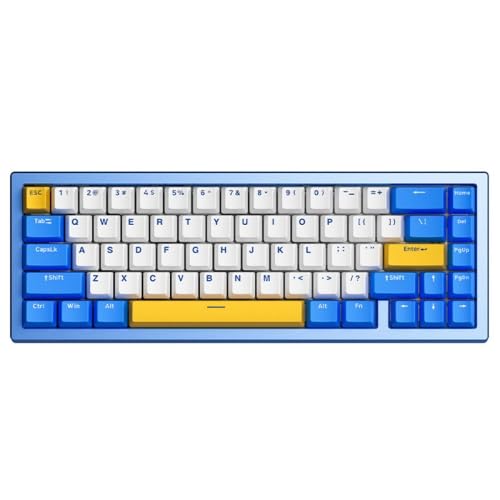
Figure 1: ELECTROPRIME Compatiable for Ajazz AC067 Keyboard Layout
3.2 Connecting the Keyboard
The AC067 keyboard supports three connection modes: wired (USB), Bluetooth, and 2.4GHz wireless (if applicable, though not explicitly stated for 2.4GHz in product details, 'Three Mode' often implies it).
3.2.1 Wired Connection
- Locate the USB-C port on the keyboard.
- Connect one end of the provided USB cable to the keyboard and the other end to an available USB port on your computer.
- The keyboard will be automatically recognized by your operating system (e.g., Windows 10).
3.2.2 Bluetooth Connection
- Ensure the keyboard is in Bluetooth mode (refer to keyboard's specific switch or key combination for mode selection, typically a switch on the back or a function key combination).
- On your computer or device, navigate to Bluetooth settings.
- Enable Bluetooth and search for new devices.
- Select 'AC067' or a similar name from the list of available devices to pair.
- Follow any on-screen prompts to complete the pairing process.
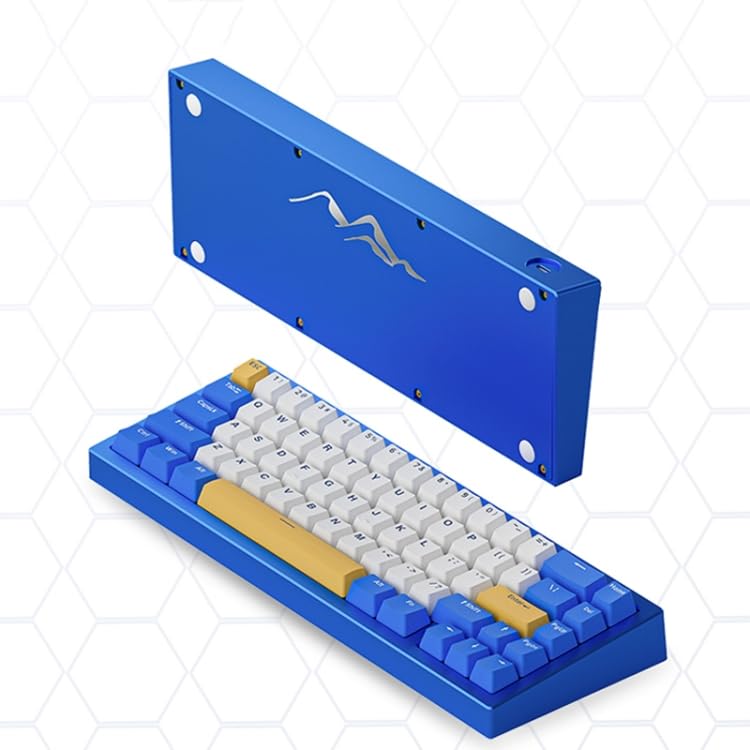
Figure 2: Keyboard with Detached Underside, Showing USB Port
4. Operating Instructions
4.1 Basic Keyboard Functions
The AC067 functions as a standard 67-key mechanical keyboard. Simply type as you would on any other keyboard. The compact layout may require using the 'Fn' key for certain functions typically found on a full-sized keyboard.
4.2 Special Features
4.2.1 RGB Backlighting
The keyboard features customizable RGB backlighting. Specific key combinations (e.g., Fn + certain keys) are used to cycle through lighting modes, adjust brightness, and change colors. Refer to the manufacturer's official documentation or software for detailed instructions on RGB customization.
4.2.2 Hot-Plug Switches
The hot-plug feature allows you to change mechanical switches without soldering. To replace a switch:
- Gently remove the keycap using a keycap puller.
- Use a switch puller to carefully extract the switch from the PCB.
- Align the pins of the new switch with the holes on the PCB and press firmly until it clicks into place.
- Replace the keycap.
Ensure the new switches are compatible with the keyboard's sockets.
4.2.3 Three Mode Connectivity
The keyboard supports multiple connection modes (wired, Bluetooth, and potentially 2.4GHz wireless). Use the designated switch or key combination on the keyboard to toggle between these modes as needed for different devices or preferences.
5. Maintenance and Care
5.1 Cleaning the Keyboard
To maintain optimal performance and appearance:
- Disconnect the keyboard from your computer before cleaning.
- Use a can of compressed air to remove dust and debris from between the keycaps.
- Wipe the keycaps and keyboard surface with a soft, slightly damp, lint-free cloth. Avoid excessive moisture.
- Do not use harsh chemicals, abrasive cleaners, or solvents.
5.2 Storage
When not in use, store the keyboard in a cool, dry place away from direct sunlight and extreme temperatures.
5.3 Battery Care (for Wireless Use)
If using the keyboard wirelessly, ensure regular charging. Avoid completely draining the battery frequently to prolong its lifespan. Use only the provided USB cable for charging.
6. Troubleshooting
6.1 Keyboard Not Responding
- Wired Mode: Ensure the USB cable is securely connected to both the keyboard and the computer. Try a different USB port or cable.
- Wireless Mode: Check if the keyboard is powered on and in the correct wireless mode (Bluetooth/2.4GHz). Ensure the battery is charged. Re-pair the keyboard with your device.
6.2 Bluetooth Connection Issues
- Ensure Bluetooth is enabled on your device and the keyboard is in pairing mode.
- Remove the keyboard from your device's paired Bluetooth list and attempt to re-pair.
- Move the keyboard closer to your device to rule out range issues.
- Restart both the keyboard and your device.
6.3 Backlighting Not Working
- Check if the backlighting is turned off or set to the lowest brightness using the keyboard's function keys.
- Ensure the keyboard has sufficient power, especially in wireless mode.
7. Specifications
| Feature | Description |
|---|---|
| Model | AC067 |
| Brand | ELECTROPRIME |
| Connectivity | Bluetooth, Wired (USB) |
| Key Count | 67 Keys |
| Switch Type | Mechanical (Blueberry Shaft) |
| Hot-Plug Support | Yes |
| Backlighting | RGB |
| Special Features | Waterproof, Backlit |
| Operating System Compatibility | Windows 10 |
| Dimensions (L x W x H) | 323mm x 116.8mm x 34mm (approx. 12.72in x 4.59in x 1.34in) |
| Weight | 1.50 kgs / 3.32 lbs (package weight) |
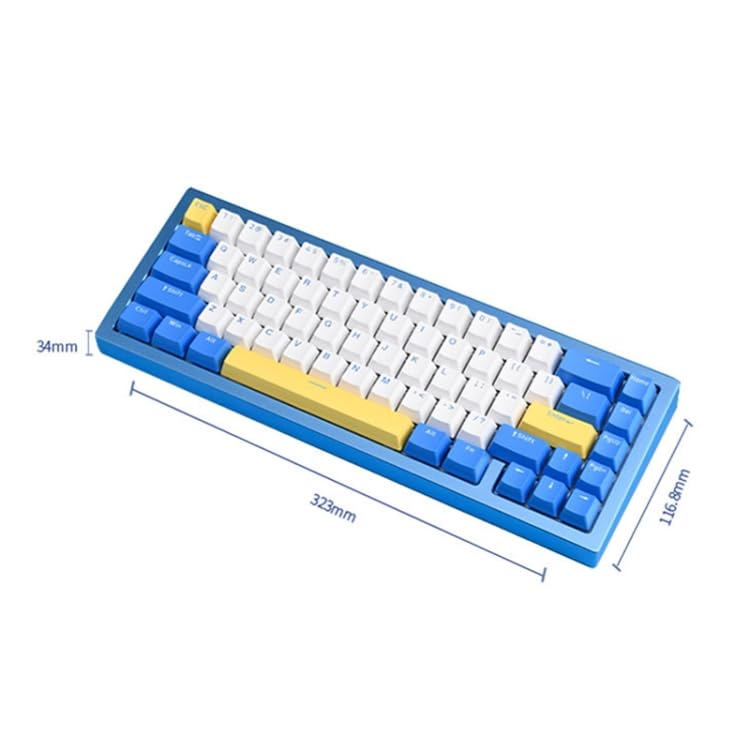
Figure 3: Keyboard Dimensions
8. Warranty and Support
For specific warranty information, please refer to the documentation provided with your purchase or contact ELECTROPRIME directly through their official website or customer service channels. Warranty terms and conditions may vary.
If you encounter issues not covered in this manual or require further assistance, please contact ELECTROPRIME customer support. Have your product model (AC067) and purchase details ready when contacting support.
Ask a question about this manual
Ask about setup, troubleshooting, compatibility, parts, safety, or missing instructions. Manuals+ will review the question and use this page’s manual context to help answer it.