
ELECTROPRIME ONIKUMA B60
User Manual: ELECTROPRIME ONIKUMA B60 Bluetooth Gaming Headset
Model: ONIKUMA B60
1. Introduction
Thank you for purchasing the ELECTROPRIME ONIKUMA B60 Bluetooth Gaming Headset. This headset is designed to provide a high-quality audio experience for gaming and general use, featuring Bluetooth 5.0 connectivity, strong bass, and an integrated microphone. Please read this manual carefully before using the product to ensure proper operation and to maximize its lifespan.
2. Safety Information
- Do not expose the headset to extreme temperatures, humidity, or corrosive substances.
- Avoid dropping or subjecting the headset to strong impacts.
- Do not disassemble or modify the headset. This will void the warranty.
- Clean the headset with a soft, dry cloth. Do not use liquid cleaners.
- Prolonged listening at high volume levels may cause hearing damage. Adjust volume to a safe level.
- Keep out of reach of children.
3. Package Contents
Please check the package contents upon opening:
- ELECTROPRIME ONIKUMA B60 Bluetooth Gaming Headset
- USB Charging Cable (Type-C)
- Audio Cable (3.5mm)
- User Manual (this document)
4. Product Overview
Familiarize yourself with the components and controls of your headset.
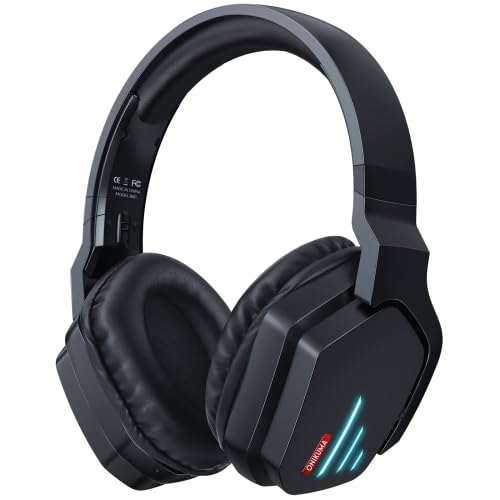
Figure 4.1: Front view of the ELECTROPRIME ONIKUMA B60 Bluetooth Gaming Headset. This image shows the overall design of the black over-ear headset with blue LED accents on the earcups.
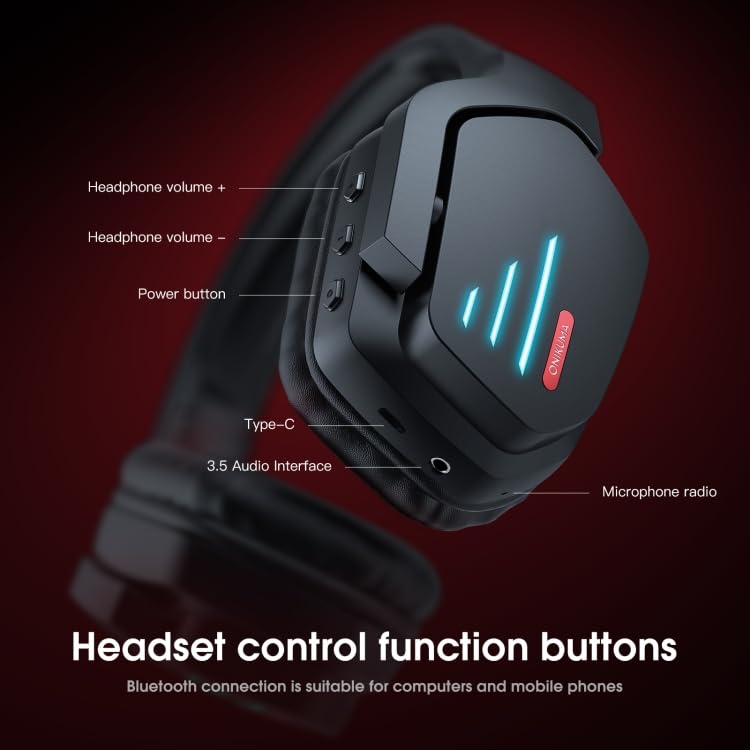
Figure 4.2: Detailed view of the headset's control buttons and ports. This image highlights the headphone volume controls (+ and -), power button, Type-C charging port, 3.5mm audio interface, and microphone radio.
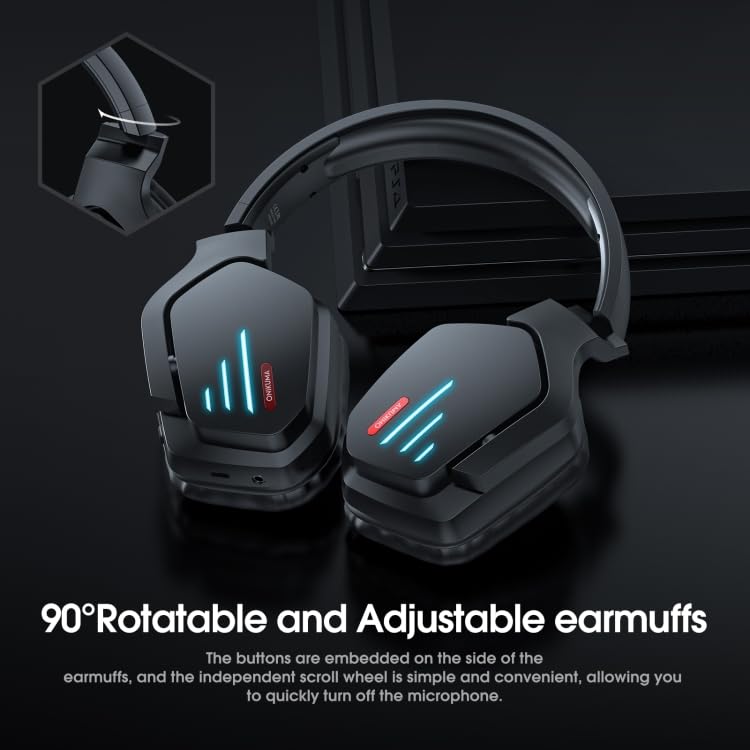
Figure 4.3: Illustration of the 90-degree rotatable and adjustable earmuffs. This image demonstrates the flexibility of the earcups for comfortable fit and storage, along with the location of embedded buttons and the independent scroll wheel for microphone control.
Controls and Ports:
- Power Button: Used to power the headset on/off and for Bluetooth pairing.
- Volume Up (+): Increases headphone volume.
- Volume Down (-): Decreases headphone volume.
- Type-C Port: For charging the headset.
- 3.5mm Audio Interface: For wired connection to devices.
- Microphone: Integrated microphone for communication.
- Microphone Scroll Wheel: Independent scroll wheel for quick microphone mute/unmute (as indicated in Figure 4.3).
5. Setup
5.1 Charging the Headset
Before first use, fully charge the headset.
- Connect the provided USB Type-C charging cable to the headset's Type-C port.
- Connect the other end of the USB cable to a USB power adapter (not included) or a computer's USB port.
- The LED indicator on the headset will show charging status (e.g., red light for charging, blue light for fully charged).
- Charging time is approximately 3 hours for a full charge.
5.2 Bluetooth Pairing
To connect the headset wirelessly to your device:
- Ensure the headset is charged.
- Press and hold the Power Button on the headset for approximately 3-5 seconds until the LED indicator flashes rapidly (usually blue and red alternately), indicating pairing mode.
- On your device (smartphone, tablet, computer), enable Bluetooth and search for new devices.
- Select "ONIKUMA B60" from the list of available devices.
- Once connected, the LED indicator on the headset will typically show a solid blue light or flash slowly.
- If prompted for a password, enter "0000" (four zeros).
5.3 Wired Connection
For devices without Bluetooth or when battery is low:
- Connect one end of the 3.5mm audio cable to the 3.5mm audio interface on the headset.
- Connect the other end of the 3.5mm audio cable to the audio output jack of your device.
- The headset will function as a wired headphone. Bluetooth functionality will be disabled when connected via 3.5mm audio cable.
6. Operating Instructions
6.1 Power On/Off
- Power On: Press and hold the Power Button for approximately 2 seconds until the LED indicator lights up.
- Power Off: Press and hold the Power Button for approximately 3 seconds until the LED indicator turns off.
6.2 Volume Control
- Increase Volume: Press the Volume Up (+) button.
- Decrease Volume: Press the Volume Down (-) button.
6.3 Call Management (Bluetooth Mode)
- Answer Call: Short press the Power Button.
- End Call: Short press the Power Button during a call.
- Reject Call: Press and hold the Power Button for 2 seconds.
- Redial Last Number: Double-press the Power Button.
6.4 Music Playback (Bluetooth Mode)
- Play/Pause: Short press the Power Button.
- Next Track: Press and hold the Volume Up (+) button.
- Previous Track: Press and hold the Volume Down (-) button.
6.5 Microphone Control
- The headset features an integrated microphone.
- Use the independent scroll wheel (as shown in Figure 4.3) to quickly mute or unmute the microphone during gaming or calls.
7. Maintenance
- Cleaning: Wipe the headset with a soft, dry, lint-free cloth. Do not use abrasive cleaners, alcohol, or chemical solvents.
- Storage: Store the headset in a cool, dry place away from direct sunlight and extreme temperatures.
- Battery Care: To prolong battery life, avoid fully discharging the battery frequently. Charge the headset regularly, even if not in use for extended periods.
8. Troubleshooting
| Problem | Possible Cause | Solution |
|---|---|---|
| Headset does not power on. | Low battery. | Charge the headset fully. |
| Cannot pair via Bluetooth. | Headset not in pairing mode; Device Bluetooth off; Too far from device. | Ensure headset is in pairing mode (flashing LED). Turn on device Bluetooth. Move headset closer to device (within 10 meters). |
| No sound or low volume. | Volume too low on headset or device; Headset not connected properly. | Increase volume on both headset and connected device. Re-pair Bluetooth or re-connect 3.5mm cable. |
| Microphone not working. | Microphone muted; Incorrect audio input selected on device. | Check microphone scroll wheel to ensure it's not muted. Verify headset is selected as the input device in your computer/device settings. |
| Sound distortion or static. | Interference; Out of Bluetooth range; Low battery. | Move away from other wireless devices. Move closer to the connected device. Charge the headset. |
9. Specifications
| Feature | Detail |
|---|---|
| Bluetooth Version | 5.0 (Chipset: ATS3015) |
| Bluetooth Distance | Up to 10 meters |
| Frequency Range | 2.402GHz - 2.480GHz |
| Microphone Sensitivity | -42+/-3DB |
| Headphone Sensitivity | 94+/-3DB |
| Impedance | 32 ohms |
| Frequency Response | 20-15KHZ |
| Battery Capacity | 800mA |
| Game Time | 15-22 hours |
| Audio Delay | 40-60mS |
| Charging Time | Approximately 3 hours |
| Driver Diameter | 40 mm |
| Supported Protocols | AVRCP1.4, A2DP1.2, HFP1.6, HSP1.2 |
| Audio Decoding | WMA, APE, FLAC, AAC, M4A, WAV, AIF, AIFC |
| Material | Plastic |
| Form Factor | Over ear |
| Special Features | Noise Cancellation, Microphone Included |
10. Warranty and Support
ELECTROPRIME products are designed and manufactured to the highest quality standards. For warranty information and technical support, please refer to the warranty card included with your purchase or visit the official ELECTROPRIME website. Please retain your proof of purchase for any warranty claims.
For further assistance, you may contact ELECTROPRIME customer service through the contact information provided on their official website or the retailer from whom you purchased the product.
Ask a question about this manual
Ask about setup, troubleshooting, compatibility, parts, safety, or missing instructions. Manuals+ will review the question and use this page’s manual context to help answer it.