
Groview T6
Groview T6 Projector User Manual
Model: T6 | Brand: Groview
Introduction
Thank you for purchasing the Groview T6 Projector. This compact and high-performance projector is designed to provide an immersive visual experience for various applications, from home entertainment to business presentations. Featuring 1080p support, a built-in HiFi speaker, and user-friendly keystone correction, the T6 offers convenience and quality. This manual provides essential information for safe operation, setup, maintenance, and troubleshooting to ensure you get the most out of your device.

Image: Front view of the Groview T6 Projector, a compact white device with a prominent lens, designed for home and business use.
Safety Information
Please read all safety instructions carefully before using the projector. Improper use can result in electric shock, fire, or damage to the device.
- Do not block ventilation openings. Ensure adequate space around the projector for proper airflow.
- Do not expose the projector to rain or moisture to prevent fire or electric shock.
- Use only attachments/accessories specified by the manufacturer.
- Unplug the projector during lightning storms or when unused for long periods.
- Do not open the projector casing. Refer all servicing to qualified service personnel.
- Avoid direct eye exposure to the projector lens when the lamp is on.
Package Contents
Verify that all items are included in your package:
- Groview T6 Projector
- Power Cable (x1)
- Remote Control (x1)
- HDMI Cable (x1)
- AV Cable (x1)
- Instruction Manual (English and Japanese) (x1)
- Warranty Card (x1)
- 100-inch Projection Screen (x1)

Image: A visual representation of the Groview T6 Projector package contents, including the projector, remote, various cables, and a projection screen.
Product Overview
Familiarize yourself with the main components of your Groview T6 Projector.

Image: The Groview T6 Projector shown with its compact dimensions (22 x 16 x 9.4 cm) and a visual comparison highlighting its 1080p resolution and 9500L brightness against a 720p projector.
Key Components:
- Projection Lens: The primary component for projecting images.
- Focus Ring: Adjusts image sharpness.
- Keystone Correction Dial: Corrects trapezoidal image distortion.
- Control Panel: Buttons for basic operation on top of the projector.
- Ventilation Openings: For heat dissipation. Do not block.
- Input Ports: HDMI, USB, AV, SD, Earphone (3.5mm audio out).
- Built-in Speaker: Provides audio output.
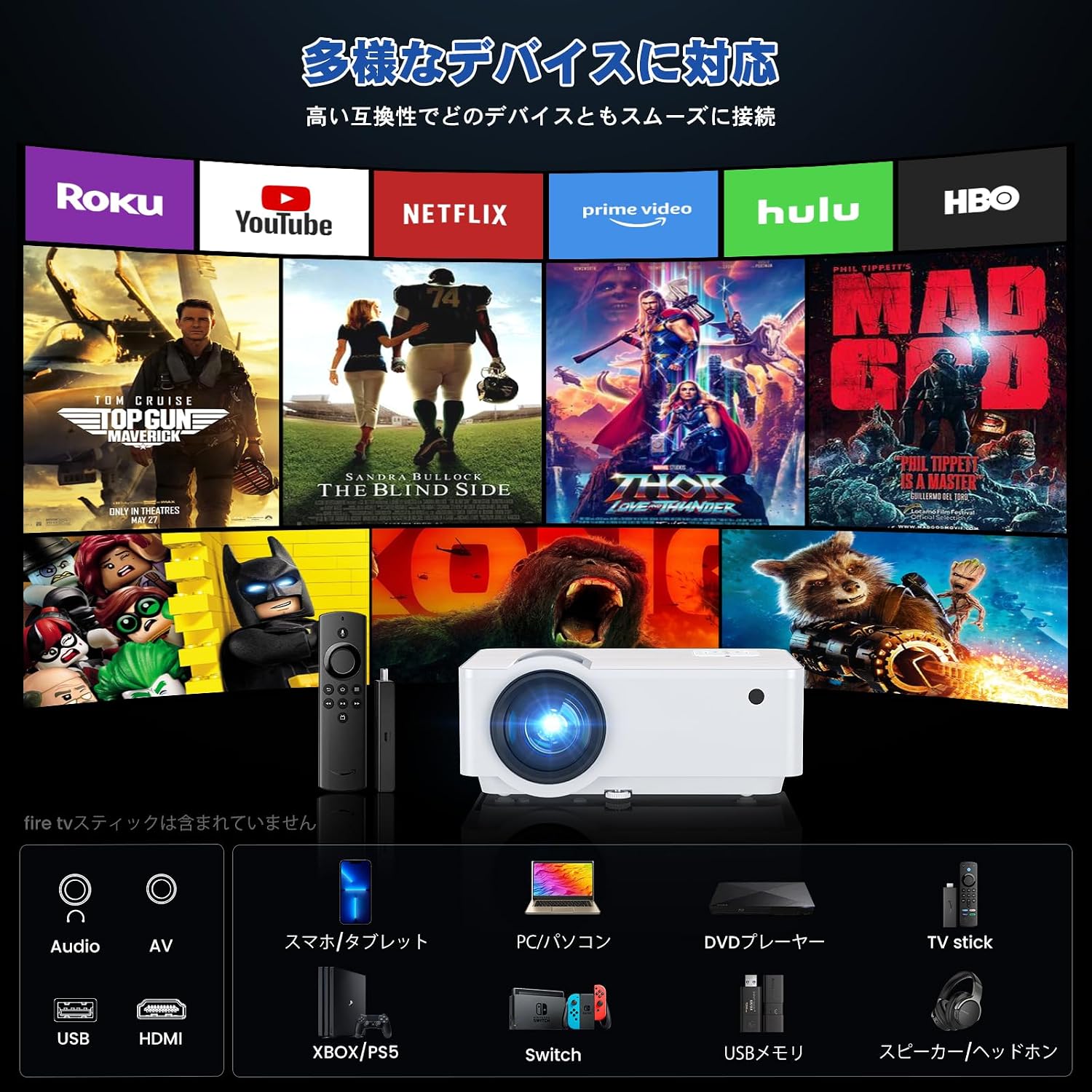
Image: An illustration of the Groview T6 Projector's diverse connectivity options, including ports for Audio, AV, USB, HDMI, and compatibility with smartphones, PCs, TV sticks, game consoles (Xbox/PS5, Switch), USB memory, and external speakers/headphones.
Setup
1. Placement
Choose a flat, stable surface for the projector. Ensure the projection surface (wall or screen) is clean and smooth. The optimal projection distance varies with desired screen size.

Image: A diagram illustrating various projection distances and corresponding screen sizes for the Groview T6 Projector, ranging from 40 inches at 1.3m to 200 inches at 5.4m, along with visual representations of keystone and focus adjustments.
2. Power Connection
Connect the provided power cable to the projector's power input and then to a power outlet. The power indicator light will illuminate.
3. Initial Adjustments
- Focus Adjustment: Rotate the focus ring on the projector lens until the image appears sharp and clear.
- Keystone Correction: If the projected image appears trapezoidal (wider at the top or bottom), use the keystone correction dial to adjust it until the image is rectangular. The T6 supports ±15 degrees of keystone correction.

Image: A visual guide demonstrating the focus function of the Groview T6 Projector, showing how to adjust the lens for a clear image.

Image: A series of images illustrating the keystone correction function of the Groview T6 Projector, showing how to correct distorted images to achieve a perfectly rectangular display.
Operating Instructions
1. Connecting Devices
The Groview T6 Projector offers multiple input options for various devices:
- HDMI: Connect laptops, game consoles (PS5, Xbox, Switch), TV sticks (e.g., Amazon Fire TV Stick), and set-top boxes using the provided HDMI cable.
- USB: Insert USB memory sticks to play media files directly.
- AV: Use the AV cable to connect DVD players or older video devices.
- SD Card: Insert a Micro SD card to play media files.
- Earphone (3.5mm Audio Out): Connect external speakers or headphones for enhanced audio.

Image: A comprehensive overview of the Groview T6 Projector's diverse connection options, including AV, Audio, HDMI, USB, VGA, and SD, demonstrating compatibility with desktops, laptops, USB memory, PS5, smartphones, SD cards, cameras, and external speakers.
2. Remote Control Usage
The infrared remote control allows for convenient operation from up to 10 meters away. Use it to power on/off, select input sources, navigate menus, adjust volume, and control media playback.
3. Menu Navigation
Use the remote control or the control panel buttons to access the projector's menu. Here you can adjust settings such as:
- Picture Mode (Standard, Vivid, Soft, User)
- Aspect Ratio (16:9, 4:3)
- Sound Mode (Standard, Music, Movie, User)
- Sleep Timer
- Language Settings
4. Audio Output
The T6 Projector features a built-in HiFi speaker for clear and immersive sound. For a more powerful audio experience, connect external speakers via the 3.5mm audio output port.
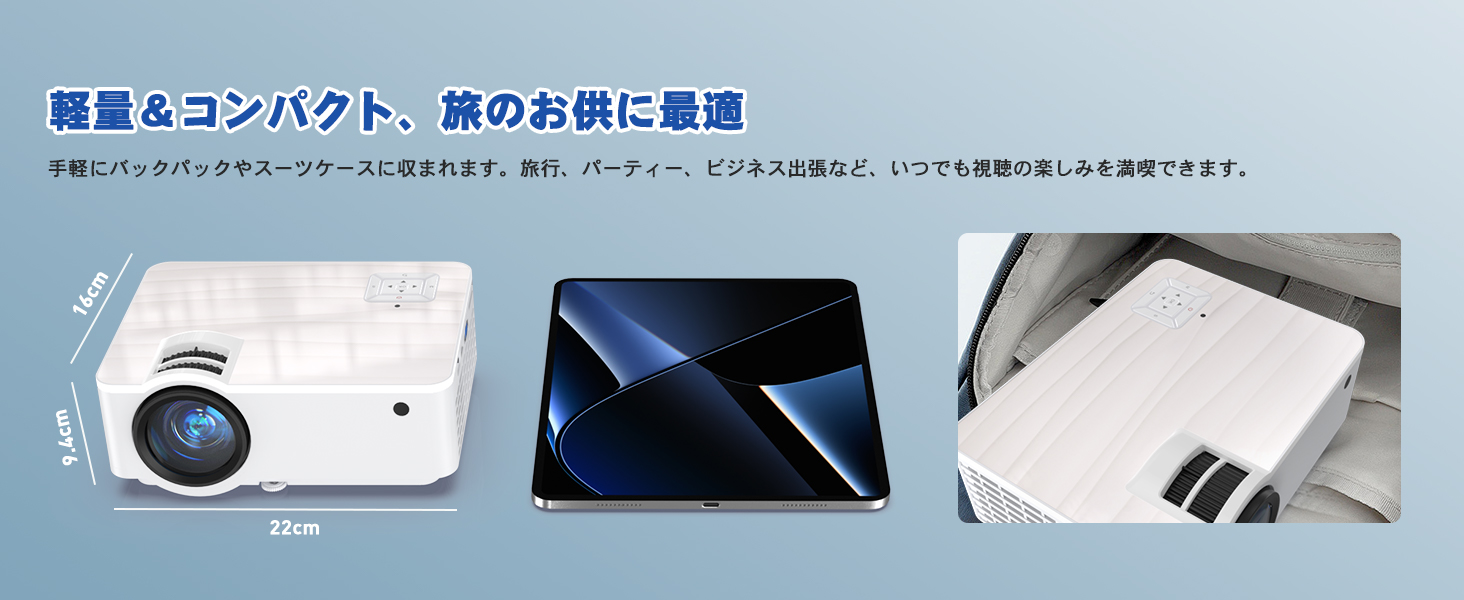
Image: A living room setup showing the Groview T6 Projector projecting onto a large screen, emphasizing its built-in HiFi speaker and the immersive audio experience it provides without the need for external speakers.
5. Usage Scenarios
The Groview T6 is versatile for various settings:
- Home Theater: Enjoy movies, TV shows, and sports on a large screen.
- Outdoor Entertainment: Perfect for backyard movie nights or camping.
- Business & Education: Ideal for presentations in meeting rooms or classrooms.
- Gaming: Connect your game console for an immersive gaming experience.
- Fitness & Hobbies: Project workout videos or creative content.

Image: A family enjoying a home theater experience, with the Groview T6 Projector casting a movie onto a large screen in a living room setting.

Image: A couple enjoying an outdoor movie night, with the Groview T6 Projector projecting onto a screen set up in a tent under the night sky.

Image: A business meeting in progress, with the Groview T6 Projector displaying a statistics chart on a large screen, enhancing productivity.

Image: A woman performing fitness exercises at home, with the Groview T6 Projector displaying a large image on the wall, making home workouts more engaging.
Maintenance
Proper maintenance ensures the longevity and optimal performance of your projector.
- Lens Cleaning: Use a soft, lint-free cloth specifically designed for optical lenses to gently wipe the projector lens. Do not use abrasive cleaners or excessive force.
- Dust Removal: Regularly clean the ventilation openings to prevent dust buildup, which can affect cooling and performance. Use a soft brush or compressed air.
- Storage: When not in use, store the projector in a cool, dry place, away from direct sunlight and extreme temperatures. Use the original packaging or a protective case to prevent dust and damage.
Troubleshooting
Here are solutions to common issues you might encounter:
| Problem | Possible Cause | Solution |
|---|---|---|
| No image displayed | Power cable disconnected, incorrect input source, device not connected properly. | Check power connection, select correct input source (HDMI, USB, etc.), ensure device cables are securely connected. |
| Image is blurry | Focus not adjusted, projector too close/far from screen. | Adjust the focus ring. Ensure the projector is within the recommended projection distance. |
| Image is distorted (trapezoid) | Projector not perpendicular to the screen. | Adjust the keystone correction dial until the image is rectangular. |
| No sound | Volume too low, external speakers not connected, audio format not supported. | Increase volume. Check external speaker connection. Ensure audio format is compatible. |
| Remote control not working | Batteries low/dead, remote not pointed at IR receiver, obstruction. | Replace batteries. Point remote directly at the projector's IR receiver. Remove any obstructions. |
Specifications
| Feature | Detail |
|---|---|
| Brand | Groview |
| Model | T6 |
| Product Dimensions | 22 x 16 x 9.4 cm |
| Item Weight | 1.3 Kilograms |
| Display Resolution (Native) | 1280 x 720 pixels |
| Display Resolution (Supported) | 1920 x 1080 pixels (1080P) |
| Connectivity Technology | VGA, USB, HDMI, AV, SD, Earphone |
| Light Source | LED White Module |
| Light Source Lifespan | Over 30,000 hours |
| Keystone Correction | ±15 degrees |
| Built-in Speaker | HiFi Speaker |
| Recommended Use | Home Cinema |
Warranty and Support
Groview is committed to providing high-quality products and excellent customer service. Your Groview T6 Projector comes with a warranty as detailed in the included warranty card.
For any technical assistance, product inquiries, or support needs, please contact our professional customer service and technical support team. We are dedicated to ensuring your satisfaction and providing a seamless projection experience.
Please refer to the contact information provided on your warranty card or visit the official Groview website for support details.

Image: A visual representation of Groview's commitment to customer service, showing professional technical support and a focus function, ensuring a high-quality viewing experience.
Related documentsT6


Ask a question about this manual
Ask about setup, troubleshooting, compatibility, parts, safety, or missing instructions. Manuals+ will review the question and use this page’s manual context to help answer it.