
Introduction
Thank you for choosing the Vieta Pro #GROOVE Portable Bluetooth Speaker. This manual provides essential information for setting up, operating, and maintaining your speaker to ensure optimal performance and longevity. Please read this manual thoroughly before using the product.
Package Contents
Ensure all items are present in the box:
- Vieta Pro #GROOVE Portable Bluetooth Speaker
- USB-C Charging Cable
- User Manual (this document)
Product Overview
Familiarize yourself with the speaker's components and controls.

Image: Front view of the Vieta Pro #GROOVE speaker, showing the control buttons (+, -, Play/Pause, M) and an LED indicator.
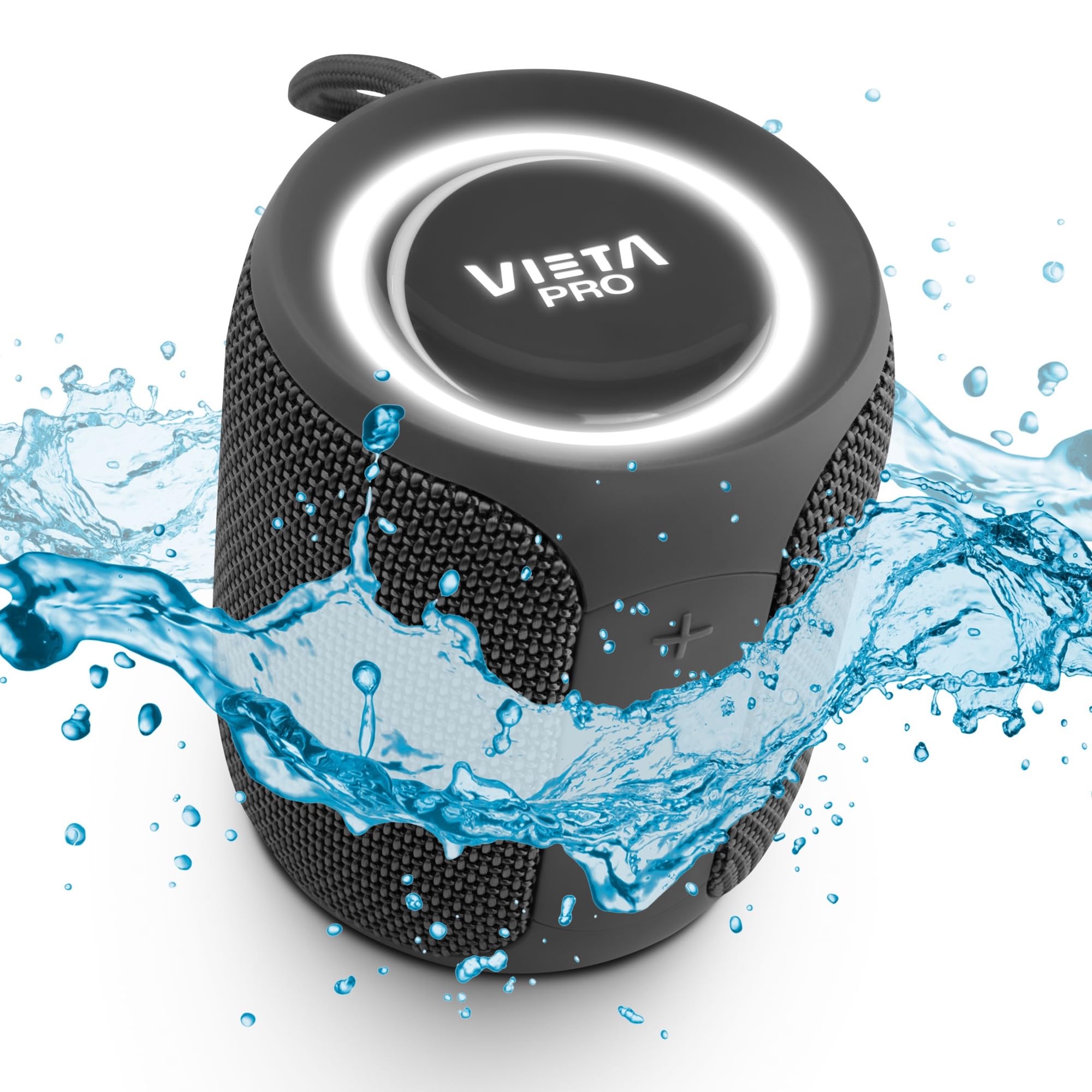
Image: Side view of the Vieta Pro #GROOVE speaker, highlighting the integrated carry loop and power button with an indicator light.

Image: Top view of the Vieta Pro #GROOVE speaker, displaying the Vieta Pro logo and an illuminated LED ring.
Setup
1. Charging the Speaker
Before first use, fully charge the speaker. A full charge provides up to 12 hours of playback.
- Connect the supplied USB-C charging cable to the speaker's USB-C port.
- Connect the other end of the cable to a USB power adapter (not included) or a computer's USB port.
- The charging indicator light will illuminate during charging and turn off when fully charged.
2. Powering On/Off
- To power on, press and hold the Power button until the indicator light illuminates.
- To power off, press and hold the Power button until the indicator light turns off.
Operating Instructions
Bluetooth Pairing
- Ensure the speaker is powered on and in Bluetooth pairing mode (the indicator light will flash).
- On your device (smartphone, tablet, laptop), enable Bluetooth and search for available devices.
- Select "Vieta Pro #GROOVE" from the list of devices.
- Once paired, the speaker will emit a confirmation sound, and the indicator light will remain solid.
Note: The speaker supports Dual Pairing, allowing connection to two devices simultaneously.
True Wireless Stereo (TWS) Mode
TWS mode allows you to connect two Vieta Pro #GROOVE speakers for a stereo sound experience.
- Ensure both speakers are powered on and not connected to any Bluetooth device.
- On one speaker, press and hold the 'M' button (Mode button) for a few seconds until you hear a pairing tone. This speaker will become the primary speaker.
- The two speakers will automatically connect to each other. A confirmation tone will sound once connected.
- Now, connect your device to the primary speaker via Bluetooth as described in the "Bluetooth Pairing" section.
Controlling Playback and Volume
| Button | Function |
|---|---|
| Power Button | Press and hold to Power On/Off |
| + Button | Short press for Volume Up; Long press for Next Track |
| - Button | Short press for Volume Down; Long press for Previous Track |
| Play/Pause Button | Play/Pause music; Answer/End calls |
| M Button (Mode) | Switch between Bluetooth, Aux-In, and USB modes; Long press for TWS pairing |
Aux-In Mode
Connect an external audio device using a 3.5mm audio cable (not included).
- Connect one end of the 3.5mm audio cable to the speaker's Aux-In port.
- Connect the other end to the audio output of your device.
- Press the 'M' button to switch to Aux-In mode.
USB Playback
Play music directly from a USB flash drive.
- Insert a USB flash drive containing audio files into the speaker's USB port.
- Press the 'M' button to switch to USB mode.
Hands-Free Calling
When connected via Bluetooth, the speaker's built-in microphone allows for hands-free calls.
- To answer an incoming call, short press the Play/Pause button.
- To end a call, short press the Play/Pause button.
- To reject an incoming call, press and hold the Play/Pause button.
Voice Assistant Compatibility
The speaker is compatible with voice assistants like Alexa, Google Assistant, and Siri.
- Ensure your device is connected via Bluetooth and its voice assistant is enabled.
- Press the dedicated voice assistant button (if available, otherwise use the Play/Pause button for some devices) to activate the voice assistant.
- Speak your command clearly into the speaker's microphone.
Maintenance
- Cleaning: Use a soft, dry cloth to clean the speaker. Do not use abrasive cleaners or solvents.
- Water Resistance: The speaker is IPX7 waterproof. This means it can be submerged in up to 1 meter of water for up to 30 minutes. Ensure all port covers are securely closed before exposure to water. Do not expose to saltwater or other chemicals.
- Storage: Store the speaker in a cool, dry place away from direct sunlight and extreme temperatures.
- Battery Care: To prolong battery life, fully charge the speaker before long periods of inactivity and recharge it at least once every three months.
Troubleshooting
| Problem | Possible Cause | Solution |
|---|---|---|
| Speaker does not power on. | Low battery. | Charge the speaker fully. |
| Cannot pair via Bluetooth. | Speaker not in pairing mode; Device Bluetooth off; Too far from device. | Ensure speaker is in pairing mode (flashing indicator). Turn device Bluetooth on/off. Move speaker closer to device (within 10 meters). |
| No sound. | Volume too low; Incorrect input mode; Device not playing. | Increase speaker and device volume. Press 'M' button to select correct input mode (Bluetooth, Aux, USB). Ensure device is playing audio. |
| TWS pairing fails. | Speakers already paired to a device; Too far apart. | Disconnect both speakers from any Bluetooth devices. Ensure speakers are within close proximity for TWS pairing. |
Specifications
| Feature | Detail |
|---|---|
| Model Name | VAQ-BS22BK |
| Output Power | 20W |
| Connectivity | Bluetooth, Aux-In (3.5mm), USB |
| Bluetooth Range | Up to 10 meters (33 feet) |
| Battery Life | Up to 12 hours |
| Charging Port | USB-C |
| Water Resistance | IPX7 (Water Resistant) |
| Microphone | Built-in for hands-free calls |
| Voice Assistant | Compatible with Alexa, Google Assistant, Siri |
| Dimensions (D x W x H) | 8.4D x 9.5W x 8.4H Centimeters |
Warranty and Support
For warranty information and technical support, please refer to the official Vieta Pro website or contact their customer service. Keep your purchase receipt as proof of purchase.
Manufacturer: FRAMASON AUDIO S.A.
For further assistance, visit: www.vietapro.com


