
1. Introduction
This manual provides detailed instructions for the installation, operation, and maintenance of the HCSTVCON NDI PTZ Controller, model HC-KBD500N. This device is designed for controlling PTZ (Pan-Tilt-Zoom) cameras in various professional environments, including video conferencing, broadcast studios, and live streaming applications. It supports multiple control protocols and offers both network and analog control modes.

Figure 1: HCSTVCON NDI PTZ Controller HC-KBD500N, showing top panel with joystick and buttons, and side view with various ports.
2. Key Features
- Dual Control Modes: Supports both network and analog control modes, each with independent IP addresses in network mode.
- Power over Ethernet (PoE): Compatible with standard PoE power supply for simplified installation.
- Multi-Protocol Support: Supports VISCA, VISCA over IP, Onvif, PELCO-P, and PELCO-D protocols, ensuring broad compatibility with PTZ cameras. VISCA protocol is fully compatible.
- Software Function Control: Enables control of conference camera software functions.
- 4D Joystick: Features a high-quality variable speed 4D joystick for omnidirectional camera movement control.
- Zoom Control: Includes an adjustable seesaw for precise camera focus and zoom adjustments.
- Web Browser Configuration: Supports configuration of camera parameters via IE browser.
- Camera Shortcut Buttons: Provides up to 7 shortcut buttons for quick and easy camera selection and control.
3. Setup
3.1 Unpacking
Carefully unpack the HCSTVCON NDI PTZ Controller HC-KBD500N. Verify that all components are present, including the controller unit and the charger.
3.2 Connections
Identify the various interfaces on the rear panel of the controller for proper connection to your PTZ cameras and network.
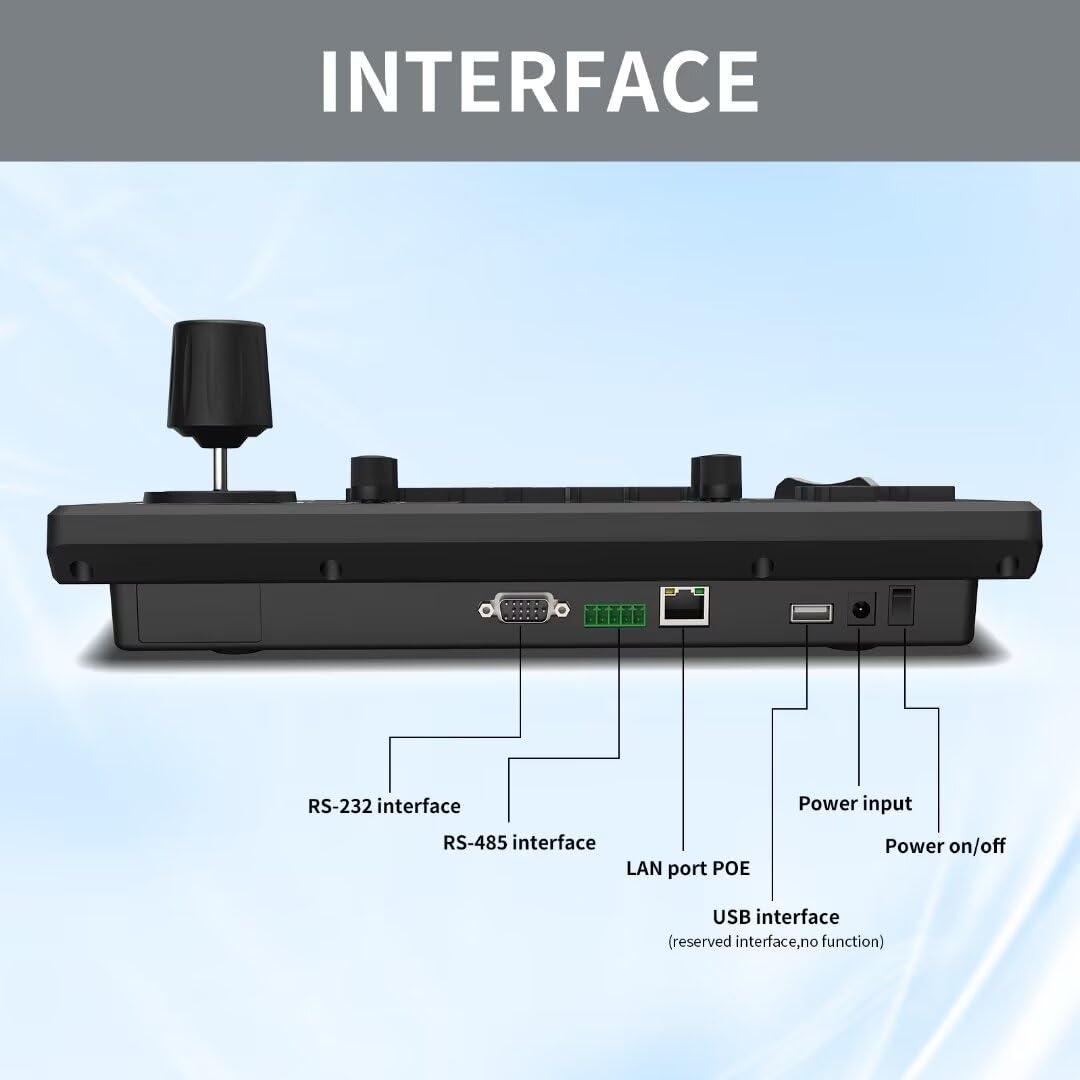
Figure 2: Rear Interface Panel
- RS-232 Interface: Connect to cameras supporting RS-232 serial control.
- RS-485 Interface: Connect to cameras supporting RS-485 serial control.
- LAN Port POE: Connect to your network switch. This port supports Power over Ethernet (PoE) for power supply and network communication.
- Power Input: If not using PoE, connect the provided charger to this port for power.
- Power On/Off: Use this switch to power the device on or off.
- USB Interface: This interface is reserved and currently has no function.
3.3 Powering On
The controller can be powered via PoE through the LAN port or by connecting the external power adapter to the Power Input port. Once connected, switch the Power On/Off button to the 'On' position.

Figure 3: Power over Ethernet (PoE) Connection
3.4 Network Configuration
In network mode, the controller and connected cameras will have independent IP addresses. You can configure camera parameters and network settings using an IE browser. Refer to your camera's manual for specific network setup instructions.

Figure 4: NDI IP Address Display on Controller Screen
4. Operating Instructions
4.1 Basic Camera Control
- 4D Joystick: Use the joystick to control the pan, tilt, and zoom functions of the connected PTZ camera. Pushing the joystick forward/backward controls tilt, left/right controls pan. Rotating the joystick controls zoom.

Figure 5: 4D Joystick for Camera Movement
- Zoom Seesaw: The seesaw switch located on the left side of the controller allows for fine adjustment of camera zoom. Push left for wide, push right for telephoto.
- PT Speed Knob: Adjust the rotation speed of the pan and tilt movements using the 'PT SPEED' knob. Rotate clockwise to increase speed, counter-clockwise to decrease.

Figure 6: PT Speed Adjustment Knob
4.2 Camera Selection
The controller supports up to 7 cameras via dedicated shortcut buttons (CAM 1 to CAM 7). Press the corresponding button to select the camera you wish to control.

Figure 7: Control up to 255 PTZ Cameras
4.3 Exposure and White Balance Controls
Utilize the dedicated buttons for image adjustments:
- AUTO WHITE BALANCE / WHITE BALANCE CYCLE: Adjusts color balance.
- EXPOSURE CYCLE / AUTO EXPOSURE: Manages image brightness.
- BRIGHT UP / BRIGHT DOWN: Manual brightness adjustment.
- EXPOSURE COMP ON / OFF: Enables or disables exposure compensation.
- BACKLIGHT ON / OFF: Controls backlight compensation.
- AUTO FOCUS / NEAR / FAR: Controls camera focus.
4.4 Menu Navigation
The controller features a small display screen and navigation buttons for accessing and adjusting advanced settings:
- MENU: Enters the main menu.
- SETUP: Accesses setup options.
- HOME: Returns to the home screen or sets a home position for the camera.
- ENTER: Confirms selections.
- ESC: Exits current menu or cancels an action.
5. Maintenance
To ensure the longevity and optimal performance of your HCSTVCON NDI PTZ Controller, follow these maintenance guidelines:
- Cleaning: Use a soft, dry cloth to clean the exterior of the controller. Avoid using liquid cleaners or solvents, as they may damage the surface or internal components.
- Storage: When not in use for extended periods, store the controller in a cool, dry place away from direct sunlight and extreme temperatures.
- Handling: Handle the joystick and buttons with care to prevent mechanical damage.
6. Troubleshooting
This section addresses common issues you might encounter with the HCSTVCON NDI PTZ Controller.
| Problem | Possible Cause | Solution |
|---|---|---|
| Controller does not power on. | No power supply or power switch is off. | Ensure the power adapter is securely connected or PoE is active. Check the Power On/Off switch. |
| Camera not responding to control. | Incorrect camera selection, wrong protocol, or loose connection. | Verify the correct camera (CAM 1-7) is selected. Confirm the camera and controller are using compatible protocols (VISCA, PELCO, Onvif). Check all serial and network cable connections. |
| Joystick or zoom control is unresponsive. | Temporary software glitch or mechanical issue. | Power cycle the controller. Ensure the camera is selected and responsive to other commands. If the issue persists, contact support. |
| Difficulty with network setup. | Incorrect IP settings or network configuration. | Refer to the network configuration section (3.4) and your network's IT administrator. Ensure the controller and cameras are on the same network segment or properly routed. |
7. Specifications
| Feature | Detail |
|---|---|
| Model Number | HC-KBD500N |
| Control Modes | Network, Analog |
| Supported Protocols | VISCA, VISCA over IP, Onvif, PELCO-P, PELCO-D |
| Joystick | 4D Variable Speed |
| Camera Shortcuts | Up to 7 |
| Power Supply | Standard PoE, External Power Adapter |
| Package Dimensions | 14 x 8.66 x 5.5 inches |
| Item Weight | 4.8 pounds |
| Manufacturer | HCSTVCON |
8. Warranty and Support
For warranty information and technical support, please refer to the documentation provided with your purchase or contact the seller directly. Keep your purchase receipt as proof of purchase for any warranty claims.
For further assistance, you may visit the HCSTVCON store on Amazon: HCSTVCON Store