
Strong MESH1200ADD-ON
User Manual
STRONG ATRIA Wi-Fi Mesh Extender 1200 Add-on (MESH1200ADD-ON)
Introduction
The STRONG ATRIA Mesh Extender 1200 is designed to enhance your existing Wi-Fi network. It can be used as an additional component to the ATRIA Wi-Fi Mesh Home Kit 1200, significantly extending coverage by up to 150 m² with seamless, super-fast roaming. This device supports Wi-Fi speeds up to 1200 Mbit/s. You can connect up to six ATRIA Mesh Extender 1200 units to achieve coverage of up to 900 m² across multiple floors, ensuring a robust and uninterrupted Wi-Fi experience. Featuring integrated Mesh technology and the powerful Wi-Fi 802.11ac standard, it delivers maximum speed, coverage, and connectivity to your home network.
Alternatively, the ATRIA Mesh Extender 1200 can function as a standalone device in two distinct modes:
- Access Point Mode: Operates as a Dual Band 802.11ac Access Point, providing speeds up to 1200 Mbit/s. This mode offers an immediate upgrade to your current single-band modem's Wi-Fi network without requiring its replacement.
- Repeater Mode: Functions as a universal dual-band Repeater, doubling the coverage of your 802.11ac modem or router within minutes, also at 1200 Mbit/s.
The device is equipped with three Gigabit Ethernet ports, allowing you to connect various network-compatible devices such as Smart TVs, desktop game consoles, media players, Android TV boxes, Apple TV, and more, directly to the internet.
Package Contents
- 1 x ATRIA Mesh Extender 1200 unit
- 1 x Power Adapter (12V/1A DC)
- 1 x CAT5E Ethernet Cable
- 1 x Installation Instructions
- 1 x Warranty Certificate
Product Overview
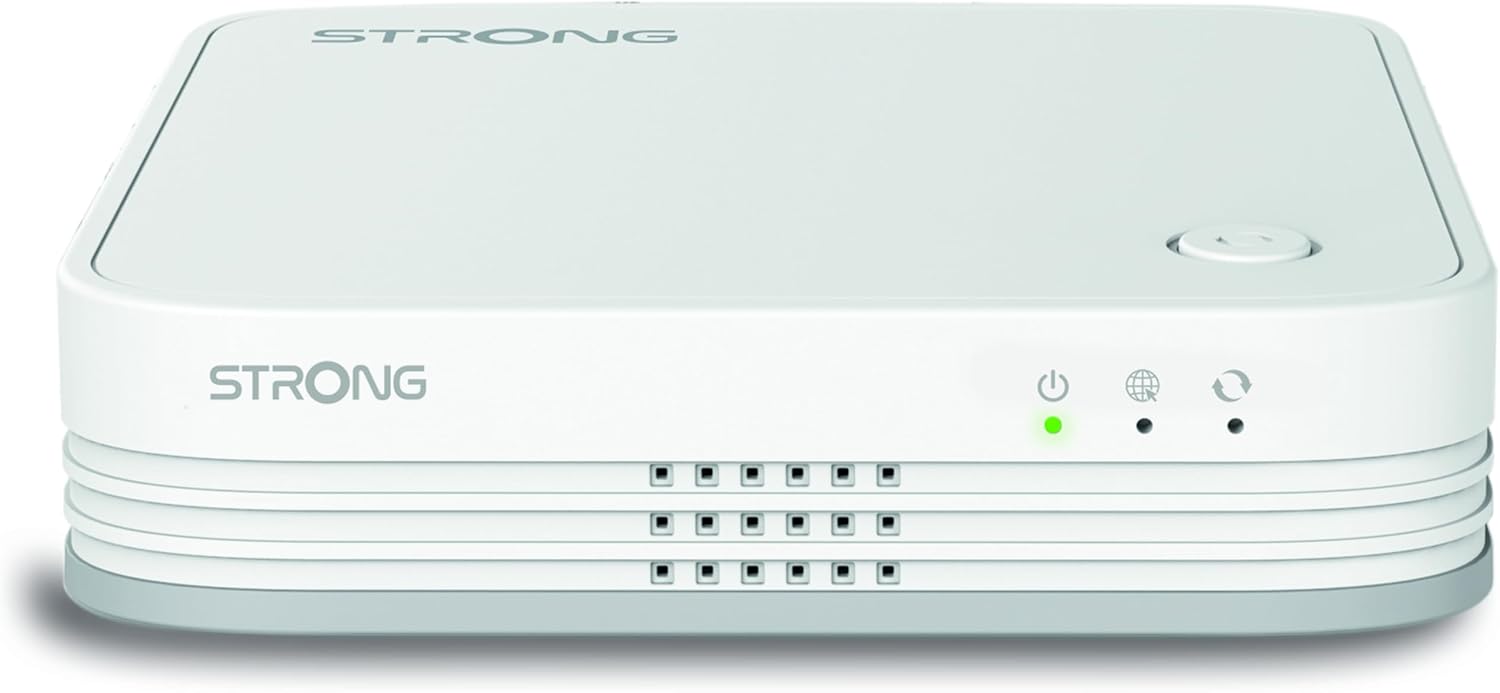
Figure 1: Top view of the ATRIA Mesh Extender 1200. Shows the device's sleek white design with the STRONG logo and front-facing indicator lights for power, internet, and mesh status.

Figure 2: Angled view of the ATRIA Mesh Extender 1200. Highlights the compact form factor and ventilation grilles on the sides.

Figure 3: Rear panel of the ATRIA Mesh Extender 1200. Displays the three Gigabit Ethernet ports (LAN 1, LAN 2, WAN/LAN 3), the recessed reset button, and the 12V power input.
Setup
1. Initial Placement
Place the ATRIA Mesh Extender 1200 in a central location within your desired coverage area, ideally between your existing router/modem and the area where you need improved Wi-Fi. Avoid placing it near large metal objects, concrete walls, or other devices that may cause interference (e.g., microwaves, cordless phones).
2. Power Connection
- Connect the provided power adapter to the 12V DC input port on the rear of the ATRIA Mesh Extender 1200 (refer to Figure 3).
- Plug the power adapter into a standard electrical outlet. The Power LED on the front of the device should illuminate.
3. Connection Modes
The ATRIA Mesh Extender 1200 supports three main operation modes: Mesh, Access Point, and Repeater.
3.1. Mesh Mode (Add-on to ATRIA Wi-Fi Mesh Home Kit 1200)
If you are adding this extender to an existing ATRIA Wi-Fi Mesh Home Kit 1200, follow these steps:
- Ensure your existing ATRIA Mesh Home Kit is powered on and functioning correctly.
- Power on the new ATRIA Mesh Extender 1200 as described in "2. Power Connection".
- Wait for the Power LED to become solid green.
- Press the "Pair" button on your existing ATRIA Mesh Home Kit main unit.
- Within two minutes, press the "Pair" button on the new ATRIA Mesh Extender 1200 (located on the top surface, refer to Figure 1).
- The Mesh LED on both devices will blink during the pairing process and turn solid green once successfully connected.
Once paired, the extender will automatically adopt the Wi-Fi settings of your existing Mesh network, providing seamless roaming.
3.2. Access Point Mode
To use the device as a standalone Access Point:
- Connect one end of the provided Ethernet cable to the WAN/LAN 3 port on the rear of the ATRIA Mesh Extender 1200 (refer to Figure 3).
- Connect the other end of the Ethernet cable to a LAN port on your existing modem or router.
- Power on the ATRIA Mesh Extender 1200.
- Access the device's web interface (usually via a default IP address like 192.168.1.1 or 192.168.0.1, check the label on the device or the full manual for exact details) from a computer connected to the extender's Wi-Fi or via another LAN port.
- Configure the Access Point settings, including Wi-Fi name (SSID) and password, through the web interface.
3.3. Repeater Mode
To use the device as a standalone Repeater:
- Power on the ATRIA Mesh Extender 1200.
- Place the extender within range of your existing Wi-Fi network.
- Access the device's web interface from a computer or mobile device connected to the extender's default Wi-Fi network (SSID and password usually printed on the device label).
- Navigate to the Repeater setup section.
- Scan for available Wi-Fi networks and select your existing network.
- Enter the password for your existing Wi-Fi network to establish the connection. The extender will then broadcast an extended Wi-Fi signal.
Operating
Indicator Lights
| Indicator | Status | Description |
|---|---|---|
| Power (●) | Solid Green | Device is powered on and operating normally. |
| Internet (●) | Solid Green | Internet connection is active. |
| Off | No internet connection. | |
| Mesh/Pair (●) | Solid Green | Successfully connected to the Mesh network or paired. |
| Blinking Green | Pairing in progress. | |
| Off | Not connected to a Mesh network or pairing failed. |
Connecting Devices
Once the ATRIA Mesh Extender 1200 is set up in your desired mode, you can connect your devices:
- Wi-Fi Devices: Search for the Wi-Fi network name (SSID) broadcast by the extender (either your existing Mesh SSID or the new SSID if in AP/Repeater mode) and connect using the appropriate password.
- Wired Devices: Use standard Ethernet cables to connect devices like Smart TVs, game consoles, or PCs to the LAN 1 or LAN 2 ports on the rear of the extender (refer to Figure 3).
Maintenance
Cleaning
Wipe the device with a soft, dry cloth. Do not use liquid cleaners or aerosol sprays. Ensure the ventilation grilles are free from dust buildup to prevent overheating.
Firmware Updates
Periodically check the official STRONG website (www.strong.tv) for firmware updates. Keeping your device's firmware up-to-date ensures optimal performance, security, and access to new features. Firmware updates are typically performed via the device's web management interface.
Resetting the Device
If you encounter persistent issues or wish to revert to factory default settings, you can perform a factory reset:
- With the device powered on, use a paperclip or a thin object to press and hold the recessed "Reset" button on the rear panel (refer to Figure 3) for approximately 10 seconds.
- Release the button when the indicator lights flash or the device reboots.
- The device will restart with factory default settings. You will need to reconfigure it as per the "Setup" section.
Troubleshooting
No Power
- Ensure the power adapter is securely connected to the device and the electrical outlet.
- Verify the electrical outlet is functional by plugging in another device.
No Internet Connection (Internet LED Off)
- In Access Point mode, check the Ethernet cable connection between the extender and your modem/router.
- In Repeater mode, ensure the extender is within range of your main Wi-Fi network and has the correct Wi-Fi password.
- Verify that your main modem/router has an active internet connection.
- Restart both the extender and your main modem/router.
Poor Wi-Fi Signal or Slow Speed
- Relocate the extender to a more optimal position, closer to your main router/modem but still within the area needing coverage.
- Avoid physical obstructions (thick walls, metal objects) and sources of interference (microwaves, cordless phones).
- Ensure your devices are connecting to the extender's Wi-Fi network.
- Check for firmware updates for the extender.
Cannot Pair in Mesh Mode
- Ensure both the main Mesh unit and the extender are powered on and within close proximity during the initial pairing process.
- Press the "Pair" buttons on both devices within the specified two-minute window.
- If issues persist, try resetting both devices to factory defaults and attempt pairing again.
Specifications
| Feature | Detail |
|---|---|
| Brand | Strong |
| Model Number | MESH1200ADD-ON |
| Color | White |
| Wireless Communication Standard | 802.11ac (Wi-Fi 5) |
| Data Transfer Rate | Up to 1200 Mbps (300 Mbps @ 2.4 GHz + 867 Mbps @ 5 GHz) |
| Frequency Band Class | Dual Band |
| Special Feature | Access Point Mode, Repeater Mode, Mesh Mode |
| Connector Type | RJ45 (Ethernet) |
| Compatible Devices | Any device that supports Wi-Fi 5 |
| Included Components | 1 x Extender 1200, 1 x Power Adapter (12V/1A DC), 1 x CAT5E Ethernet Cable, 1 x Installation Instructions, Warranty Certificate |
| Product Dimensions | 14P x 14.4W x 7H centimeters |
Warranty and Support
This product comes with a 4-year warranty. For detailed warranty terms and conditions, please refer to the included Warranty Certificate.
For technical support, frequently asked questions, and the latest firmware updates, please visit the official STRONG website:
Related documentsMESH1200ADD-ON


Ask a question about this manual
Ask about setup, troubleshooting, compatibility, parts, safety, or missing instructions. Manuals+ will review the question and use this page’s manual context to help answer it.