
zealtron Z35
Z35 Endoscope Inspection Camera User Manual
Model: Z35
Introduction
Thank you for choosing the Zealtron Z35 Endoscope Inspection Camera. This device is designed for visual inspection in hard-to-reach areas, featuring a 2.8-inch IPS screen, 1080P HD resolution, 8 adjustable LED lights, and an IP67 waterproof semi-rigid cable. It is an ideal tool for automotive inspection, plumbing, industrial maintenance, and more. Please read this manual thoroughly before operation to ensure proper use and extend the product's lifespan.
Important Safety Information
To ensure safe operation and prevent damage, please observe the following precautions:
- Not a Toy: Keep this product away from babies and children. Do not use in cribs, beds, carriages, or playpens. This product is not a toy.
- Do not attempt to disassemble or modify the device. Unauthorized modifications can lead to malfunction or injury.
- Avoid exposing the device to extreme temperatures, direct sunlight, or corrosive liquids.
- Ensure the camera probe is clean and dry before and after use, especially when inspecting wet environments.
- Use only the provided charging cable and adapter to prevent battery damage or fire hazards.
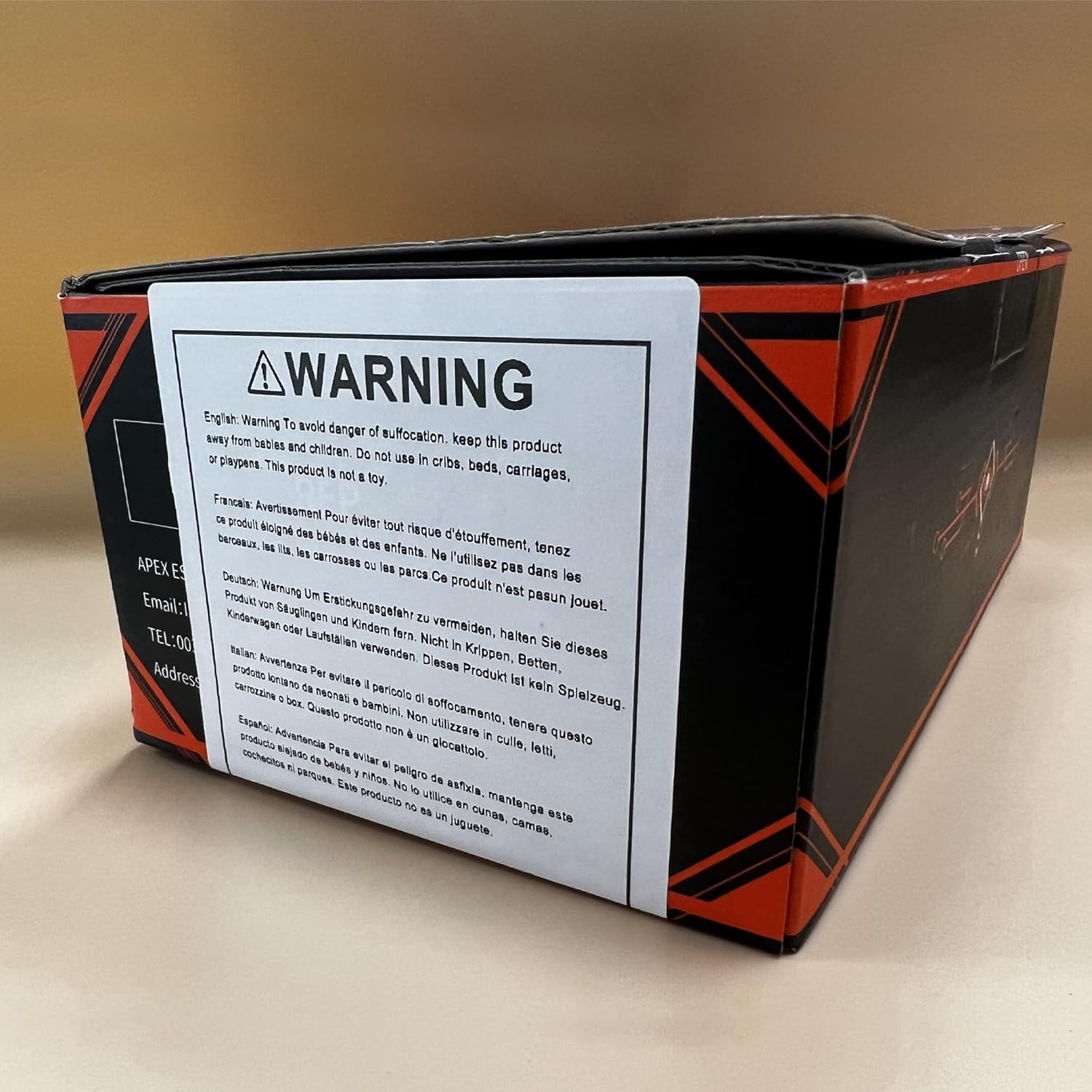
Image: Warning label on the product packaging, emphasizing that the product is not a toy and should be kept away from children.
Package Contents
Verify that all items are present in your package:
- Z35 Endoscope Inspection Camera Unit
- Semi-Rigid Inspection Cable with Camera Probe (32.8ft / 10 meters)
- USB Charging Cable (Type-C)
- User Manual
- Accessory Kit (e.g., hook, magnet, side mirror - specific accessories may vary)
Product Overview
Familiarize yourself with the components of your Z35 Endoscope Inspection Camera:

Image: The Z35 Endoscope Inspection Camera, showing the main handheld unit with its integrated screen and control buttons, connected to the semi-rigid inspection cable with the camera probe at its end.
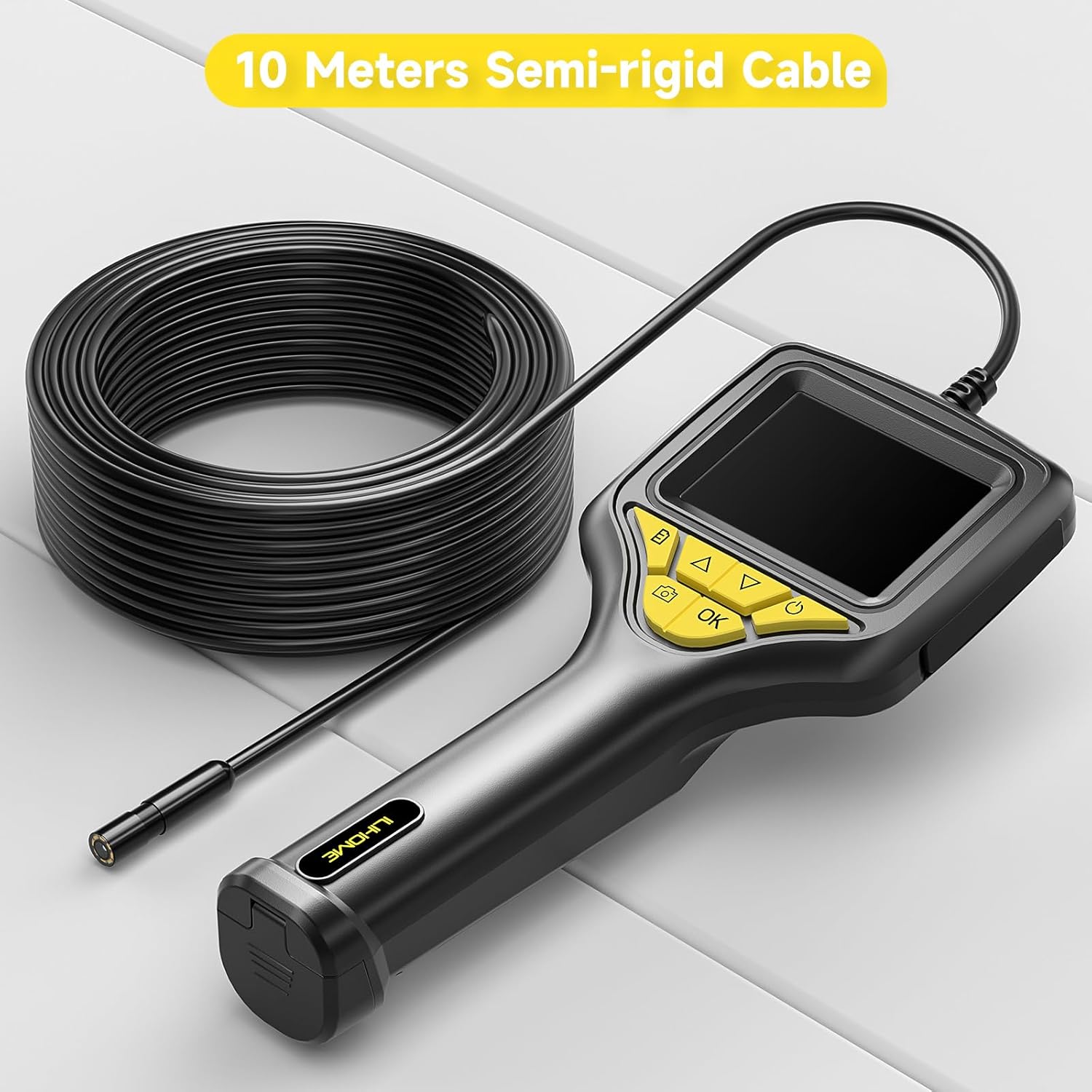
Image: The Z35 Endoscope Inspection Camera unit alongside its 10-meter (32.8ft) semi-rigid cable, coiled for storage, highlighting the extensive reach of the probe.

Image: A detailed diagram illustrating the internal components of the 8mm 1080P HD lens and the optimal focal distance range of 4-10cm for clear imaging.
- 2.8-inch IPS Screen: Displays real-time inspection footage.
- Control Buttons: Power, OK/Capture, Up/Down for navigation and LED brightness adjustment.
- Semi-Rigid Cable: Flexible yet firm, allowing the probe to be maneuvered into tight spaces.
- Camera Probe: Equipped with an 8mm 1080P HD lens and 8 adjustable LED lights for illumination.
- IP67 Waterproof: The camera probe is designed to withstand immersion in water.
Setup Guide
Charging the Battery
The Z35 Endoscope Inspection Camera is powered by a rechargeable Lithium Polymer battery. Before first use, fully charge the device.
- Locate the Type-C charging port on the side or bottom of the main unit.
- Connect the provided USB Type-C cable to the device and the other end to a standard USB power adapter (not included) or a computer USB port.
- The charging indicator light will illuminate, typically red, during charging and turn green or off when fully charged.
- A full charge can last up to 4 hours of continuous use.

Image: Illustration of the Z35 endoscope's removable battery design, showing a 2600mAh battery being inserted, capable of providing up to 4 hours of operation on a full charge.
Powering On/Off
- To Power On: Press and hold the Power button (usually marked with a power symbol) for a few seconds until the screen illuminates.
- To Power Off: Press and hold the Power button again until the screen turns off.
Operating Instructions
Basic Operation
Once powered on, the device will display the live feed from the camera probe.

Image: A hand holding the Z35 endoscope unit, demonstrating its ergonomic handheld design for comfortable operation during inspections.
- Adjusting LED Lights: Use the Up and Down arrow buttons to increase or decrease the brightness of the 8 LED lights on the camera probe. This helps illuminate dark inspection areas.
- Menu Navigation: If your device has a menu, use the arrow buttons to navigate and the OK button to select options.
Capturing Images and Videos
The Z35 allows you to capture still images and record video footage of your inspections.
- To Capture an Image: Press the Camera/OK button briefly. A capture icon or sound may indicate a successful capture.
- To Record Video: Press and hold the Video/OK button (or a dedicated video button if available) to start recording. Press again to stop.
- Captured media is typically saved to an internal memory or an inserted microSD card (if supported and included).
Using the Probe
Carefully insert the semi-rigid cable and camera probe into the area you wish to inspect.

Image: Close-up of the IP67 waterproof camera probe, showing its robust construction and the array of adjustable LED lights surrounding the lens for optimal illumination in various environments.
- Gently guide the cable, bending it as needed to navigate obstacles. The semi-rigid design allows it to hold its shape.
- For optimal image clarity, maintain a focal distance of 4-10 cm from the object being viewed.
- The IP67 rating means the probe is protected against dust and can withstand immersion in water up to 1 meter for 30 minutes. Do not submerge the main unit.
Maintenance and Care
Proper maintenance ensures the longevity and performance of your endoscope camera:
- Cleaning: After each use, especially in dirty or wet environments, wipe the camera probe and cable with a soft, damp cloth. For stubborn dirt, a mild detergent can be used. Ensure the probe is completely dry before storage. Do not use abrasive cleaners or solvents.
- Storage: Store the device in a cool, dry place, away from direct sunlight and extreme temperatures. Coil the cable loosely; avoid sharp bends or kinks.
- Battery Care: If storing for an extended period, charge the battery to approximately 50% every 3-6 months to maintain battery health.
- Lens Protection: Avoid scratching the camera lens. If necessary, clean it gently with a lens cleaning cloth.
Troubleshooting
If you encounter issues with your Z35 Endoscope Inspection Camera, refer to the table below for common problems and solutions:
| Problem | Possible Cause | Solution |
|---|---|---|
| Device does not power on. | Low battery; Power button not pressed long enough. | Charge the battery fully. Press and hold the Power button for 3-5 seconds. |
| No image on screen. | Cable not properly connected; Camera lens obstructed. | Ensure the cable is securely connected to the main unit. Clean the camera lens. |
| Image is blurry or unclear. | Incorrect focal distance; Lens dirty; Insufficient lighting. | Adjust the distance to the object (optimal 4-10cm). Clean the lens. Increase LED brightness. |
| LED lights are not working. | Brightness set to minimum; Malfunction. | Press the Up arrow button to increase brightness. If still not working, contact customer support. |
| Cannot capture images/videos. | Memory full; Incorrect mode. | Delete unnecessary files. Ensure you are in the correct capture mode. |
Technical Specifications
- Model: Z35
- Screen: 2.8-inch IPS Display
- Video Capture Resolution: 720p
- Camera Lens Diameter: 8mm
- LED Lights: 8 adjustable LEDs
- Focal Range: 1-10 cm (optimal 4-10 cm)
- Cable Length: 32.8ft (10 meters) Semi-Rigid Cable
- Waterproof Rating: IP67 (for probe only)
- Battery: 1 Lithium Polymer battery (included)
- Battery Life: Up to 4 hours (approx.)
- Color: Black
- Item Weight: 1.59 pounds
- Package Dimensions: 10.16 x 5.75 x 3.86 inches
Warranty and Customer Support
Zealtron products are designed and manufactured to the highest quality standards. This product comes with a standard manufacturer's warranty. For detailed warranty information, please refer to the warranty card included in your package or visit the official Zealtron website.
If you have any questions, require technical assistance, or experience issues not covered in this manual, please contact our customer support team. Contact information can typically be found on our website or on the product packaging.
Ask a question about this manual
Ask about setup, troubleshooting, compatibility, parts, safety, or missing instructions. Manuals+ will review the question and use this page’s manual context to help answer it.