
1. Introduction
Thank you for choosing the HOWENS 15.6 Inch Portable Touchscreen Monitor. This device is designed to enhance your productivity and entertainment with its Full HD 1920x1080 IPS display, 10-point multi-touch functionality, and versatile connectivity options. Its compact and lightweight design makes it ideal for various applications, from extending your laptop's display to serving as an industrial control interface.

Image 1.1: Front view of the HOWENS 15.6 Inch Portable Touchscreen Monitor.
2. Safety Information
Please read all safety instructions carefully before using this product. Failure to follow these instructions may result in electric shock, fire, or damage to the device.
- Do not expose the monitor to rain, moisture, or extreme temperatures.
- Avoid placing the monitor near heat sources or in direct sunlight.
- Use only the power adapter provided with the device.
- Do not attempt to disassemble or repair the monitor yourself. Contact qualified service personnel for assistance.
- Keep the monitor away from strong magnetic fields.
- Ensure proper ventilation around the monitor to prevent overheating.
3. What's in the Box
The package includes the following items:
- Portable Touchscreen Monitor 15.6 inch
- HDMI cable
- USB cable (for touch functionality)
- DC Power Adapter
- Remote control
- Operation Manual
4. Product Overview
4.1 Key Features
- FHD 1080P Display: Features a 1920x1080 resolution with a 60Hz refresh rate and IPS panel for 178° wide viewing angles. Brightness of 300 cd/m² and 72% NTSC color gamut ensure vibrant and accurate colors.
- 10-Point Touch Screen: Advanced multi-touch functionality for intuitive interaction. Connect via a Type-A to Type-B USB cable for touch support.
- Wide Compatibility: Supports Laptops, PCs, Mini PCs, Raspberry Pi, PS5/4, Xbox, and various industrial devices via HDMI, DVI, and VGA connections.
- Multi-Function Display Modes: Supports expansion, mirror, second-screen-only, horizontal, and vertical display modes.
- Standard VESA Mount: Equipped with a 75x75mm VESA hole for wall or desktop mounting (stand not included).
- Built-in Dual Speakers: Enjoy stereo audio directly from the monitor.
4.2 Port Parameters
The monitor features a variety of ports for diverse connectivity:
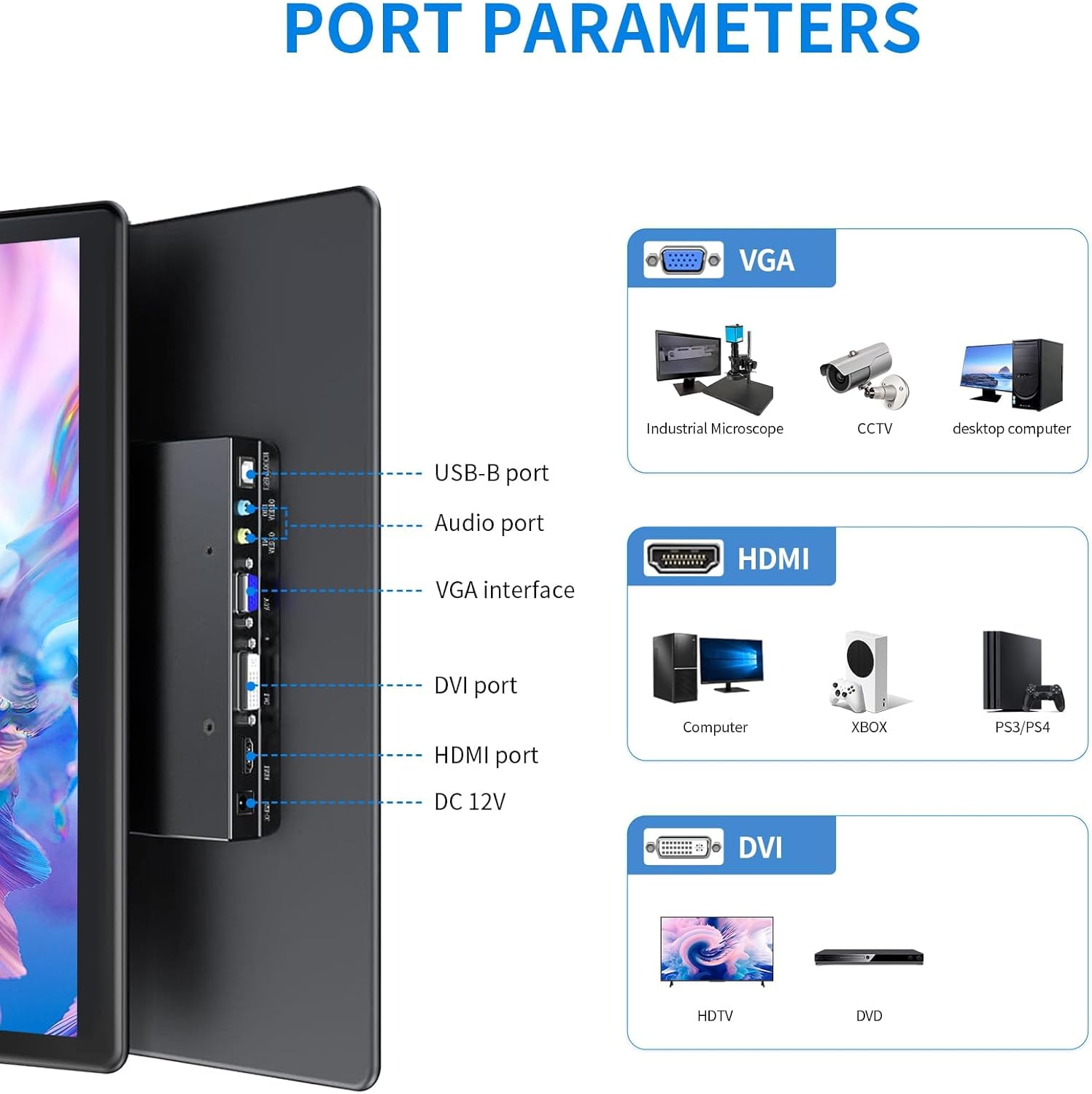
Image 4.1: Detailed view of the monitor's input/output ports.
- USB-B Port: For touch functionality connection to a host device.
- Audio Port: For audio input/output.
- VGA Interface: For video input from devices like industrial microscopes, CCTV, and desktop computers.
- DVI Port: For video input from devices such as HDTVs and DVD players.
- HDMI Port: For high-definition video and audio input from computers, Xbox, PS5/4, and other compatible devices.
- DC 12V: Power input port.
4.3 Display Characteristics

Image 4.2: Visual representation of key display features.
The monitor's IPS panel provides a 178° wide viewing angle, ensuring consistent image quality from various perspectives. The 1920x1080 resolution delivers sharp and clear visuals, while the 72% NTSC color gamut offers rich and accurate color reproduction.
4.4 Dimensions and VESA Mount

Image 4.3: Product dimensions and VESA mounting details.
The monitor features a standard 75x75mm VESA mounting pattern, allowing for flexible installation on compatible wall mounts or desktop stands (sold separately).
5. Setup and Connection
Follow these steps to connect your HOWENS portable touchscreen monitor to your device:
- Connect Video Signal: Use the provided HDMI cable to connect the monitor's HDMI port to your laptop, PC, or gaming console's HDMI output. Alternatively, use a DVI or VGA cable if your device supports those interfaces.
- Connect Touch Functionality (Optional): For touchscreen features, connect the provided USB-A to USB-B cable from your host device's USB-A port to the monitor's USB-B port.
Note: Touch input is not enabled on devices with strict security protocols, such as Nintendo Switch, iPhones, or iPads.
- Connect Power: Plug the DC power adapter into the monitor's DC 12V port and then into a power outlet.
- Power On: Press the power button on the monitor or use the remote control to turn on the device.
Video 5.1: Demonstration of connecting the monitor to a laptop, including HDMI, USB for touch, and power connections, and showcasing touch functionality and remote control use.
5.1 VESA Mounting
The monitor is compatible with 75x75mm VESA mounts. To mount the monitor, attach a compatible VESA arm or bracket to the four screw holes on the back of the monitor. Ensure the mount can support the weight of the monitor.
6. Operating the Monitor
6.1 Touchscreen Functionality
Once the USB-A to USB-B cable is connected to a compatible device, the 10-point multi-touch feature will be active. You can use gestures such as tapping, swiping, pinching, and zooming directly on the monitor screen for intuitive control.
6.2 Remote Control
The included remote control allows you to navigate the monitor's On-Screen Display (OSD) menu to adjust settings such as brightness, contrast, color temperature, and input source. Point the remote control towards the infrared receiver on the monitor.
6.3 Display Modes
The monitor supports various display modes to suit your needs:

Image 6.1: Visual examples of multiple display modes.
- Extended Mode: Extends your desktop across both screens, providing more workspace.
- Mirror Mode: Duplicates your primary display onto the portable monitor.
- Second Screen Only Mode: Displays content only on the portable monitor, turning off the primary display.
- Horizontal/Vertical Mode: Adjust the display orientation to landscape or portrait as required. This can usually be configured in your operating system's display settings.
6.4 Audio

Image 6.2: Location of built-in dual speakers.
The monitor includes built-in dual speakers for stereo audio output. You can adjust the volume using the remote control or through your connected device's audio settings.
7. Maintenance
- Cleaning the Screen: Gently wipe the screen with a soft, lint-free cloth. For stubborn marks, dampen the cloth slightly with water or a screen-cleaning solution. Avoid using harsh chemicals or abrasive materials.
- Cleaning the Casing: Use a soft, dry cloth to clean the monitor's casing.
- Storage: When not in use for extended periods, store the monitor in a cool, dry place, preferably in its original packaging or a protective sleeve.
8. Troubleshooting
If you encounter issues with your monitor, please refer to the following common solutions:
- No Power:
- Ensure the DC power adapter is securely connected to the monitor and a working power outlet.
- Verify the power outlet is functional by plugging in another device.
- No Display/Signal:
- Check that the HDMI, DVI, or VGA cable is securely connected to both the monitor and the source device.
- Ensure the correct input source is selected on the monitor using the remote control or OSD menu.
- Try connecting the monitor to a different source device to rule out issues with the original source.
- Touchscreen Not Responding:
- Confirm the USB-A to USB-B cable is properly connected between the monitor and the host device.
- Restart both the monitor and the host device.
- Ensure your operating system supports touchscreen functionality and that drivers are up to date.
- Remember that some devices (e.g., Switch, iPhones, iPads) do not support touch input with this monitor due to security protocols.
- Poor Image Quality:
- Adjust brightness, contrast, and color settings via the OSD menu.
- Ensure the display resolution on your source device is set to 1920x1080 for optimal clarity.
9. Specifications
| Feature | Specification |
|---|---|
| Brand | HOWENS |
| Model Number | CXTP-BB |
| Screen Size | 15.6 Inches |
| Resolution | FHD 1920 x 1080p |
| Aspect Ratio | 16:9 |
| Display Type | LCD |
| Display Technology | IPS |
| Refresh Rate | 60 Hz |
| Brightness | 300 Candela |
| Contrast Ratio | 1000:1 |
| Viewing Angle | 178 Degrees |
| Color Gamut | 72% NTSC |
| Connectivity Technology | DVI, HDMI, VGA |
| Additional Features | Built-In Speakers, Energy Efficient, Eye Care, Portable, Touchscreen |
| Item Weight | 2.33 Pounds |
| Mounting Type | Wall Mount (75x75mm VESA) |
10. Warranty and Support
This HOWENS monitor comes with a 1-year manufacturer warranty against defects. For any product issues or technical support, please contact HOWENS customer service. We are committed to resolving any concerns promptly.
For further assistance, please refer to the contact information provided on the HOWENS official website or your purchase documentation.


