
1. Introduction
Welcome to the Fullware LCD Writing Tablet 10 Inch Green Giant Power Hero user manual. This device is designed to provide a fun, mess-free, and eye-friendly platform for drawing, doodling, and learning. Its portable and durable design makes it ideal for use at home or on the go.
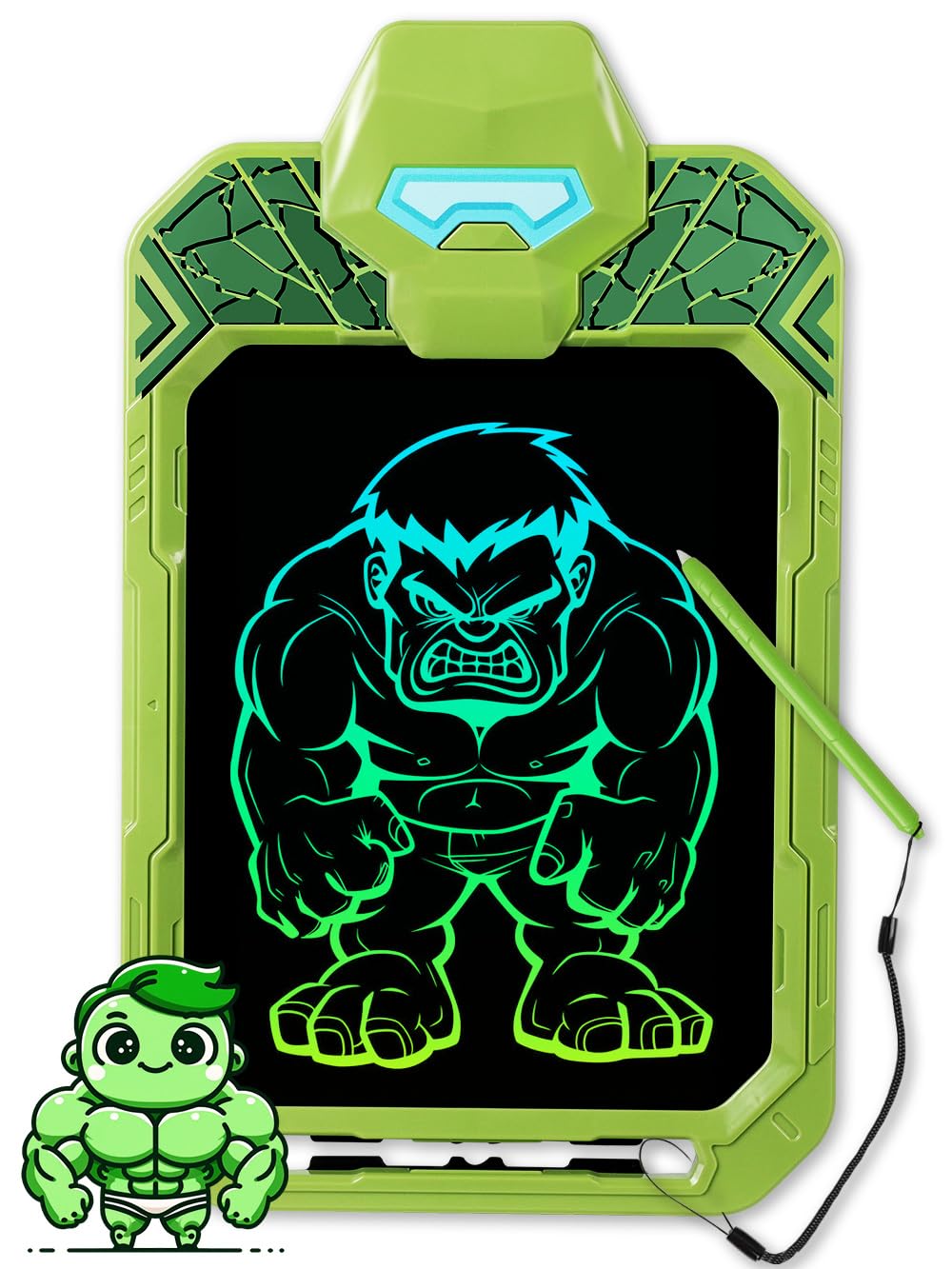
The Fullware LCD Writing Tablet in its Green Giant Power Hero design.
2. What's in the Box
Please check the package contents to ensure all items are present:
- LCD Writing Board
- Stylus Pen
- Lanyard
- User Manual
3. Setup
3.1. Attaching the Lanyard
To prevent losing the stylus pen, you can attach the included lanyard to both the pen and the tablet. The tablet features a dedicated slot for the lanyard.

Image showing the built-in pen holder slot and lanyard attachment point.
3.2. Battery Information
The tablet comes with a pre-installed CR2025 button battery. This battery provides long-lasting use and is replaceable for extended durability. The battery compartment is located on the back of the tablet.

Detailed view of the tablet's back, highlighting the battery compartment, lock switch, and erase button.
4. Operating Instructions
4.1. Drawing and Writing
Use the provided stylus pen to draw or write directly on the LCD screen. The screen is pressure-sensitive, allowing for varying line thicknesses based on the pressure applied. The display features high-definition, multi-colored strokes for a vibrant visual experience.

Illustration of the pressure sensitivity feature, showing different line thicknesses.
4.2. One-Key Erase
To clear the screen, press the button located on the hero's head at the top of the tablet. This instantly erases all content, allowing for immediate reuse.

Image demonstrating the one-touch erase function by pressing the button on the tablet's top.
4.3. Screen Lock Function
The tablet features a lock switch on the back. Slide this switch to the 'lock' position to prevent accidental erasure of your drawings. When locked, pressing the erase button will not clear the screen. To enable erasing again, slide the switch back to the 'unlock' position.
4.4. Standable Design
The stylus can be inserted into a dedicated slot on the tablet, allowing it to stand upright. This feature is useful for displaying artwork or for hands-free use.

The tablet shown in its stand-up position, ideal for displaying creations.
4.5. Versatile Use
The LCD writing tablet supports various activities including drawing, doodling, practicing writing letters and numbers, and playing simple games. Its lightweight and portable nature makes it an excellent companion for travel, road trips, or quiet time at home.

Examples of children engaging in various activities like drawing, doodling, spelling, and counting on the tablet.
5. Maintenance
5.1. Cleaning
To clean the tablet, use a soft, dry cloth. Avoid using liquid cleaners or abrasive materials, as these may damage the screen or casing.
5.2. Battery Replacement
When the display becomes dim or unresponsive, it may be time to replace the CR2025 button battery. Locate the battery compartment on the back of the tablet, open it, and replace the old battery with a new CR2025 battery, ensuring correct polarity.
6. Troubleshooting
6.1. Screen Not Erasing
If the screen does not clear when the erase button is pressed, check the lock switch on the back of the tablet. Ensure it is in the 'unlock' position. If the issue persists, the battery may need replacement.
6.2. No Display When Drawing
If no lines appear when drawing, ensure the stylus is making proper contact with the screen. If the screen remains blank, the battery might be depleted and require replacement.
7. Specifications
| Feature | Detail |
|---|---|
| Brand | Fullware |
| Model Number | DW1105-4 (Manufacturer Part Number: TA07-P) |
| Screen Size | 10 Inch (A4 equivalent) |
| Material | Acrylonitrile Butadiene Styrene (ABS) |
| Power Source | 1 x CR2025 Lithium Ion battery (included) |
| Special Feature | Portable, Eye-Protective, Pressure-Sensitive, One-Key Erase, Screen Lock, Standable Design |
| Item Weight | 10.5 ounces |
| Package Dimensions | 12.48 x 7.68 x 0.79 inches |
8. Warranty and Support
For warranty information, technical support, or any inquiries regarding your Fullware LCD Writing Tablet, please refer to the contact information provided on the product packaging or visit the official Fullware website. Keep your purchase receipt for warranty claims.