
TMEZON G2
TMEZON Smart Lock Wi-Fi Gateway User Manual
Model: G2
1. Introduction
The TMEZON Smart Lock Wi-Fi Gateway (Model G2) is designed to enhance the functionality of your TMEZON smart door locks, enabling remote control and smart home integration. By connecting your Bluetooth-enabled smart locks to your home Wi-Fi network, this gateway allows you to manage your locks from anywhere via the TUYA APP, and integrate with voice assistants like Amazon Alexa.
This manual provides detailed instructions for setting up, operating, and maintaining your Wi-Fi Gateway to ensure optimal performance and convenience.

Image 1.1: TMEZON Smart Lock Wi-Fi Gateway with companion app interface.

Image 1.2: Universal Compatibility of the TMEZON Wi-Fi Gateway with various smart locks.
2. Safety Information
- Read all instructions carefully before using the gateway.
- Do not expose the device to water or excessive humidity.
- Use only the provided power cable or a certified equivalent.
- Keep the device away from direct sunlight and heat sources.
- Ensure the gateway is placed within the recommended range of your smart lock (typically within 35 feet or 10 meters) for stable connection.
3. Packing List
Please check the contents of your package to ensure all items are present and in good condition.
- Smart Gateway x1
- User Manual x1
- Power USB Cable x1
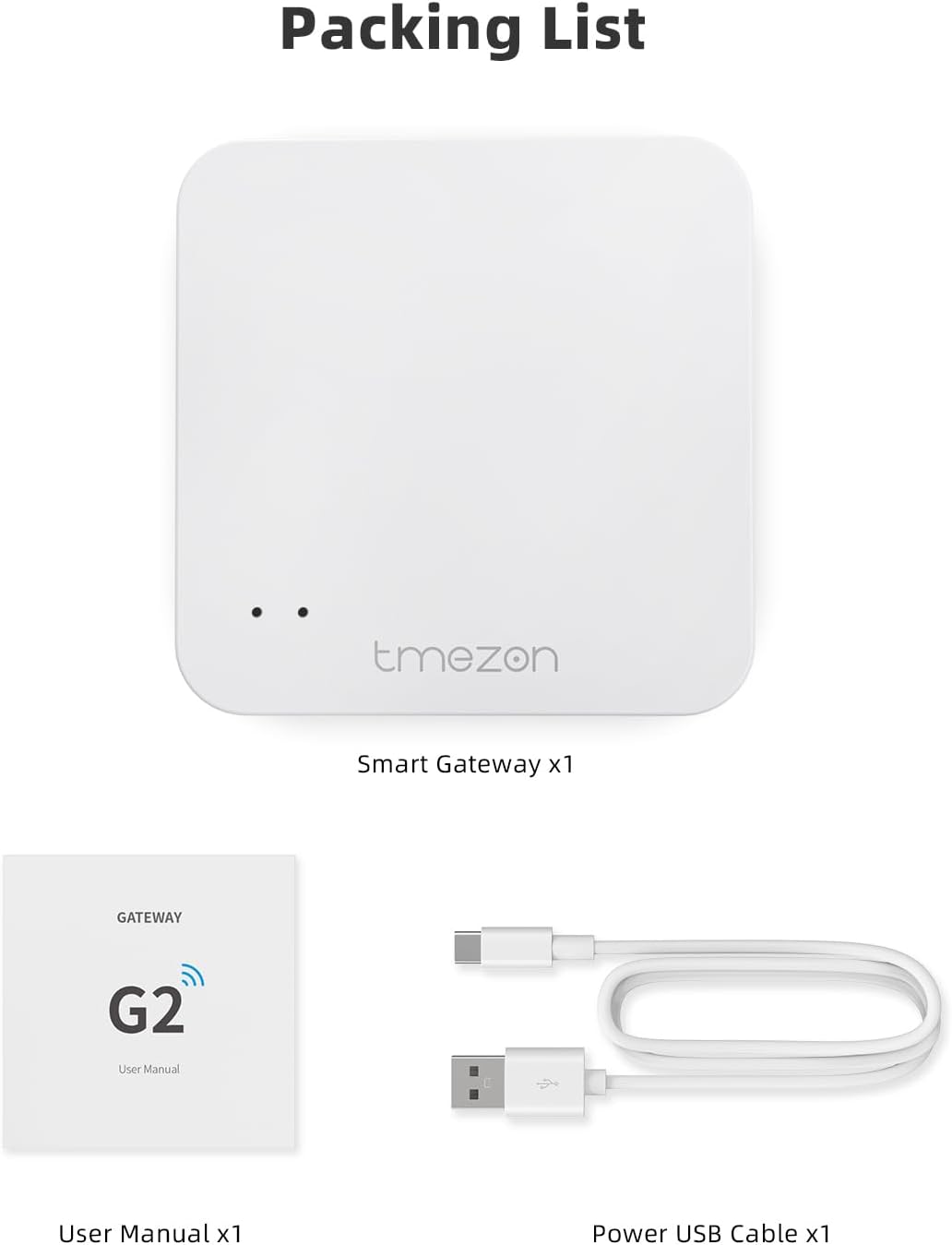
Image 3.1: Contents of the TMEZON Smart Lock Wi-Fi Gateway package.
4. Setup
4.1 Physical Installation
- Choose a suitable location for the gateway. It should be within 35 feet (10 meters) of your smart lock(s) and have a stable Wi-Fi signal.
- Connect the provided USB power cable to the gateway and plug it into a standard USB power adapter (not included) or a USB port.
- The indicator light on the gateway will illuminate, indicating it is powered on.

Image 4.1: Recommended placement distance for the gateway relative to the smart lock.
4.2 App Installation and Pairing
- Download the TUYA APP from your smartphone's app store (iOS or Android).
- Register or log in to your TUYA account.
- In the app, tap 'Add Device' or the '+' icon.
- Select 'Gateway' or 'Other' and follow the on-screen instructions to add the TMEZON Smart Lock Wi-Fi Gateway. Ensure your phone is connected to a 2.4GHz Wi-Fi network during setup.
- Once the gateway is added, you can then link your TMEZON smart locks to the gateway within the app. This typically involves selecting the lock and assigning it to the newly added gateway.
5. Operating Instructions
5.1 Remote APP Control
With the gateway connected, you can now control your smart locks remotely from anywhere with an internet connection via the TUYA APP.
- Remote Access: Lock or unlock your door from anywhere.
- Monitor Lock Status: Check the real-time status of your lock (locked/unlocked).
- Message Push: Receive notifications for lock activity (e.g., unlock events, low battery alerts).
- Records Log: View a history of lock and unlock events.

Image 5.1: Remote APP Control features enabled by the gateway.
5.2 Voice Control (Alexa Compatible)
The TMEZON Smart Lock Wi-Fi Gateway supports integration with Amazon Alexa, allowing for convenient voice control of your smart locks.
- Ensure your gateway is successfully paired with the TUYA APP.
- Open the Amazon Alexa app.
- Go to 'Skills & Games' and search for the 'Tuya Smart' skill.
- Enable the skill and link your Tuya account.
- Discover devices. Your smart locks connected to the gateway should now appear in Alexa.
- You can now use voice commands such as: "Alexa, lock my [door name]" or "Alexa, unlock my [door name]" (you may need to enable a voice code for unlocking for security).

Image 5.2: Hands-free voice control via Alexa.
6. Maintenance
- Keep the gateway clean and free from dust. Use a soft, dry cloth for cleaning.
- Ensure the power connection is secure and stable.
- Regularly check the TUYA APP for firmware updates for the gateway and your connected smart locks to ensure optimal performance and security.
- Monitor the battery status of your smart locks through the app, as low lock battery can affect gateway communication.
7. Troubleshooting
| Problem | Possible Cause | Solution |
|---|---|---|
| Gateway not connecting to Wi-Fi | Incorrect Wi-Fi password; 5GHz network; Weak signal | Ensure correct 2.4GHz Wi-Fi password. Move gateway closer to router. Restart gateway and router. |
| Cannot control lock remotely | Gateway offline; Lock not paired with gateway; Lock out of range | Check gateway's internet connection. Re-pair lock with gateway in app. Move gateway closer to lock. |
| Alexa voice control not working | Tuya Smart skill not enabled/linked; Device not discovered by Alexa | Ensure 'Tuya Smart' skill is enabled and linked in Alexa app. Ask Alexa to 'Discover devices'. |
| Gateway indicator light is off | No power | Check USB power cable connection and power source. Try a different USB adapter. |
8. Specifications
- Brand: TMEZON
- Model Name: G2
- Connectivity Protocol: Wi-Fi
- Controller Type: Smartphone App (TUYA), Voice Control (Amazon Alexa)
- Item Dimensions (L x W x H): 2.76 x 2.76 x 2.76 inches
- Item Weight: 1.13 ounces
- Material: Stainless Steel (referring to general product line, gateway is plastic)
- Color: Gateway (White)
- Power Source: USB (Batteries not required)
- Country of Origin: China
9. Warranty and Support
9.1 Warranty Information
The TMEZON Smart Lock Wi-Fi Gateway comes with a 2-year warranty from the date of purchase. This warranty covers manufacturing defects and malfunctions under normal use. It does not cover damage caused by misuse, accidents, unauthorized modifications, or improper installation.
9.2 Customer Support
For technical assistance, troubleshooting, or warranty claims, please contact TMEZON customer support through the following channels:
- Visit the official TMEZON website for support resources and contact information.
- Refer to the TUYA APP's help section for common questions and solutions.
Please have your product model number (G2) and purchase details ready when contacting support.
Related documentsG2


Ask a question about this manual
Ask about setup, troubleshooting, compatibility, parts, safety, or missing instructions. Manuals+ will review the question and use this page’s manual context to help answer it.