
1. Overview
The BOSGAME P4 Mini PC is a compact yet powerful desktop computer designed for a wide range of applications, from daily computing and office tasks to light gaming and multimedia. Featuring an AMD Ryzen 7 5700U processor, ample memory, and versatile connectivity options, it offers a robust computing experience in a small form factor.

Figure 1: Front and rear view of the BOSGAME P4 Mini PC, showcasing its compact design and various ports.
2. What's in the Box
Upon unboxing your BOSGAME P4 Mini PC, please ensure all the following components are present:
- MIni PC 5700U (1 unit)
- User Manual (1 unit)
- HDMI 2.0 Cable (1 unit)
- 19V 3.42A, 65W, Power Adapter (1 unit)
- VESA Mount & Screws (1 set)

Figure 2: All items included in the BOSGAME P4 Mini PC package.
3. Product Features
The BOSGAME P4 Mini PC is equipped with advanced hardware to deliver high performance:
- Processor: AMD Ryzen 7 5700U (8-core, 16-thread, up to 4.3GHz)
- Graphics: Integrated AMD Radeon Graphics (8Cores 1900MHz)
- Memory: 16GB DDR4 RAM (expandable up to 64GB)
- Storage: 512GB M.2 2280 PCIe SSD (scalable up to 4TB, features dual M.2 SSD slots)
- Display Output: Supports triple 4K@60Hz displays via 1x HDMI 2.0, 1x DisplayPort (DP), and 1x Type-C port.
- Network: Dual 2.5Gbps LAN ports, Intel AX210 WiFi 6E (2.4Ghz, 5Ghz, 6Ghz), Bluetooth 5.2
- Power Delivery: Type-C port supports PD 3.0 (up to 100W)
- Operating System Compatibility: Supports Windows 11 Pro, Windows 10, various Linux systems (e.g., Ubuntu), and Plex.
- Gaming Support: Capable of handling light design tasks and gaming titles like PUBG, LOL, and supports PS3 emulator (RCPS3).

Figure 3: Visual summary of the BOSGAME P4's core features.

Figure 4: Detailed specifications of the AMD Ryzen 7 5700U processor.

Figure 5: Information on the 16GB DDR4 RAM and 512GB PCIe SSD storage.

Figure 6: Highlighting the advanced Wi-Fi 6E and Bluetooth 5.2 wireless connectivity.
4. Setup Guide
Follow these steps to set up your BOSGAME P4 Mini PC:
- Connect Power: Plug the provided 19V 3.42A, 65W power adapter into the DC input port on the rear of the Mini PC, then connect it to a wall outlet.
- Connect Display: Use the included HDMI 2.0 cable to connect your monitor to one of the HDMI ports on the rear of the Mini PC. Alternatively, use a DisplayPort cable or a compatible USB-C to display cable for other display options.
- Connect Peripherals: Plug in your keyboard and mouse into the available USB ports (USB 3.0 on the front, USB 2.0 on the rear).
- Power On: Press the red power button located on the front of the Mini PC. The system will boot up.
- Initial Setup: If this is the first time using the Mini PC, you will be guided through the Windows 11 Pro (or other pre-installed OS) initial setup process. Follow the on-screen instructions to configure your language, region, network, and user account.
5. Operating Instructions
Operating your BOSGAME P4 Mini PC is similar to any standard desktop computer:
- Power On: Press the red power button on the front panel.
- Power Off: To shut down the system, click the Start button (Windows icon) on the taskbar, then select the Power icon, and choose 'Shut down'. Do not unplug the power adapter directly without proper shutdown to prevent data loss.
- Restart: To restart, follow the same steps as power off, but choose 'Restart'.
- Sleep Mode: To put the system into sleep mode, follow the same steps as power off, but choose 'Sleep'.
6. Connectivity
The BOSGAME P4 offers a comprehensive set of ports for various connectivity needs:
Front Ports:
- 2x USB 3.2 Gen 2: For high-speed data transfer with compatible devices.
- 1x Full-function Type-C: Supports PD 3.0 power supply, 4K@60Hz video output, and 10Gbps data transmission.
- 1x 3.5mm Combo Jack: For headphones or headsets.
- Power Button: To turn the device on/off.
Rear Ports:
- 2x USB 2.0: For connecting standard USB devices like keyboards and mice.
- 1x HDMI 2.0: For connecting to a display.
- 1x DisplayPort (DP): For connecting to a display.
- 2x RJ45 LAN: Dual 2.5Gbps Ethernet ports for wired network connections, supporting advanced network configurations.
- DC Power Input: For connecting the power adapter.
Wireless Connectivity:
- Wi-Fi 6E (Intel AX210): Supports 2.4GHz, 5GHz, and 6GHz bands for high-speed wireless internet.
- Bluetooth 5.2: For connecting wireless peripherals such as keyboards, mice, and audio devices.
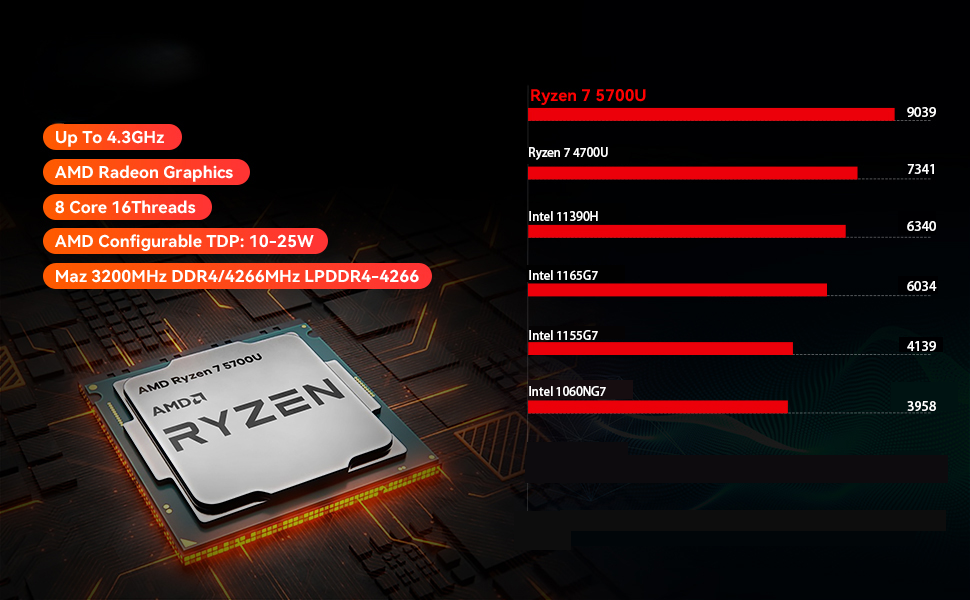
Figure 7: Overview of front and rear ports and their compatibility with various office, home, and entertainment equipment.

Figure 8: The full-featured USB-C port supports power delivery, 4K video output, and high-speed data transfer.
7. Storage and Memory Expansion
The BOSGAME P4 Mini PC offers flexible options for upgrading its memory and storage:
- RAM Upgrade: The Mini PC comes with 16GB DDR4 RAM and can be expanded up to 64GB. It features two SODIMM slots for memory modules.
- SSD Expansion: It includes a 512GB M.2 2280 PCIe SSD. The device offers dual M.2 SSD slots (PCIe 3.0 x 4), allowing for storage expansion up to 4TB.
For detailed instructions on how to access and upgrade these components, please refer to the technical support section on the BOSGAME website or consult a qualified technician.
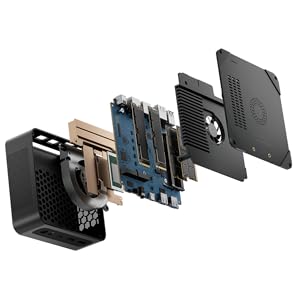
Figure 9: An internal view of the Mini PC, highlighting the accessible RAM and dual M.2 SSD slots for easy upgrades.
8. Display Configuration
The BOSGAME P4 Mini PC supports up to three independent 4K displays simultaneously, enhancing productivity and multimedia experiences:
- Connect displays using the HDMI 2.0, DisplayPort (DP), and full-function Type-C ports.
- Ensure your monitors support 4K resolution at 60Hz for optimal performance.
- Adjust display settings (resolution, orientation, arrangement) through your operating system's display settings.

Figure 10: The BOSGAME P4 Mini PC supporting a triple monitor setup, ideal for multitasking and immersive viewing.
9. System Compatibility
The BOSGAME P4 Mini PC offers broad operating system compatibility, allowing users to choose their preferred environment:
- Windows: Fully compatible with Windows 11 Pro and Windows 10.
- Linux: Supports various Linux distributions, including Ubuntu.
- Other: Compatible with systems like Plex.

Figure 11: The Mini PC demonstrating its compatibility with multiple operating systems, including Windows and various Linux distributions.
10. Maintenance
To ensure the longevity and optimal performance of your BOSGAME P4 Mini PC, regular maintenance is recommended:
- Cleaning: Regularly clean the exterior of the Mini PC with a soft, dry cloth. Use compressed air to gently clear dust from the ventilation grilles to maintain proper airflow and prevent overheating.
- Software Updates: Keep your operating system and drivers updated to the latest versions to ensure stability, security, and performance.
- Ventilation: Ensure the Mini PC is placed in a well-ventilated area, away from direct sunlight or heat sources. Do not block the air vents.
- Safe Shutdown: Always shut down the system properly through the operating system before unplugging it.
11. Troubleshooting
If you encounter issues with your BOSGAME P4 Mini PC, try the following basic troubleshooting steps:
- No Power: Ensure the power adapter is securely connected to both the Mini PC and a working electrical outlet. Try a different outlet if necessary.
- No Display: Verify that the display cable (HDMI, DP, or USB-C) is securely connected to both the Mini PC and the monitor. Ensure the monitor is powered on and set to the correct input source.
- No Internet Connection: For wired connections, check the Ethernet cable and router. For Wi-Fi, ensure Wi-Fi is enabled in the operating system and you are connected to the correct network with the correct password.
- Slow Performance: Close unnecessary applications, check for background processes, ensure sufficient free storage space, and consider updating drivers.
- Peripherals Not Working: Try connecting the peripheral to a different USB port. Ensure drivers for the peripheral are installed if required.
For more complex issues, please refer to the official BOSGAME support resources.
12. Specifications
| Feature | Specification |
|---|---|
| Processor | AMD Ryzen 7 5700U (up to 4.3GHz, 8 Cores, 16 Threads) |
| Graphics Coprocessor | AMD Radeon Graphics 8Cores 1900MHZ (Integrated) |
| RAM | 16GB DDR4 (SODIMM, 2 slots available) |
| Hard Drive | 512GB SSD (M.2 2280 PCIe 3.0 x 4, dual M.2 slots) |
| Max Screen Resolution | 3840x2160 Pixels (4K@60Hz) |
| Display Output | 1x HDMI 2.0, 1x DisplayPort, 1x Full-function Type-C |
| LAN Ports | 2x RJ45 2.5GbE |
| Wireless Type | Wi-Fi 6E (2.4 GHz, 5 GHz, 6 GHz), Bluetooth 5.2 |
| USB Ports | 3x USB 3.0, 1x USB 2.0 (Note: Product images show 2x USB 3.2 Gen 2 front, 2x USB 2.0 rear) |
| Operating System | Support Windows and Linux (Windows 11 Pro pre-installed) |
| Item Weight | 2.33 pounds |
| Dimensions | 9.09 x 5.59 x 2.64 inches |
13. Warranty and Support
BOSGAME is committed to providing excellent customer service and product support:
- Warranty: All products come with a 3-year professional factory support.
- Customer Service: We offer 24/7 online customer service to assist with any inquiries or issues.
- Certifications: All products have FCC, ROHS, and CE certifications, ensuring compliance with safety and quality standards.
- Lifetime After-Sales Service: We provide free and reliable lifetime after-sales service.
For support, please visit the official BOSGAME website or contact our customer service team directly.