
Vixic P780BT
Vixic P780BT Label Maker Machine User Manual
Model: P780BT | Brand: Vixic
1. Introduction
This manual provides detailed instructions for the Vixic P780BT Label Maker Machine. Please read this manual thoroughly before using the device to ensure proper operation and to maximize its lifespan. The Vixic P780BT is a versatile label maker designed for various applications, including office organization, small business labeling, and home use, offering wireless connectivity via Bluetooth to smartphones, tablets, and computers.
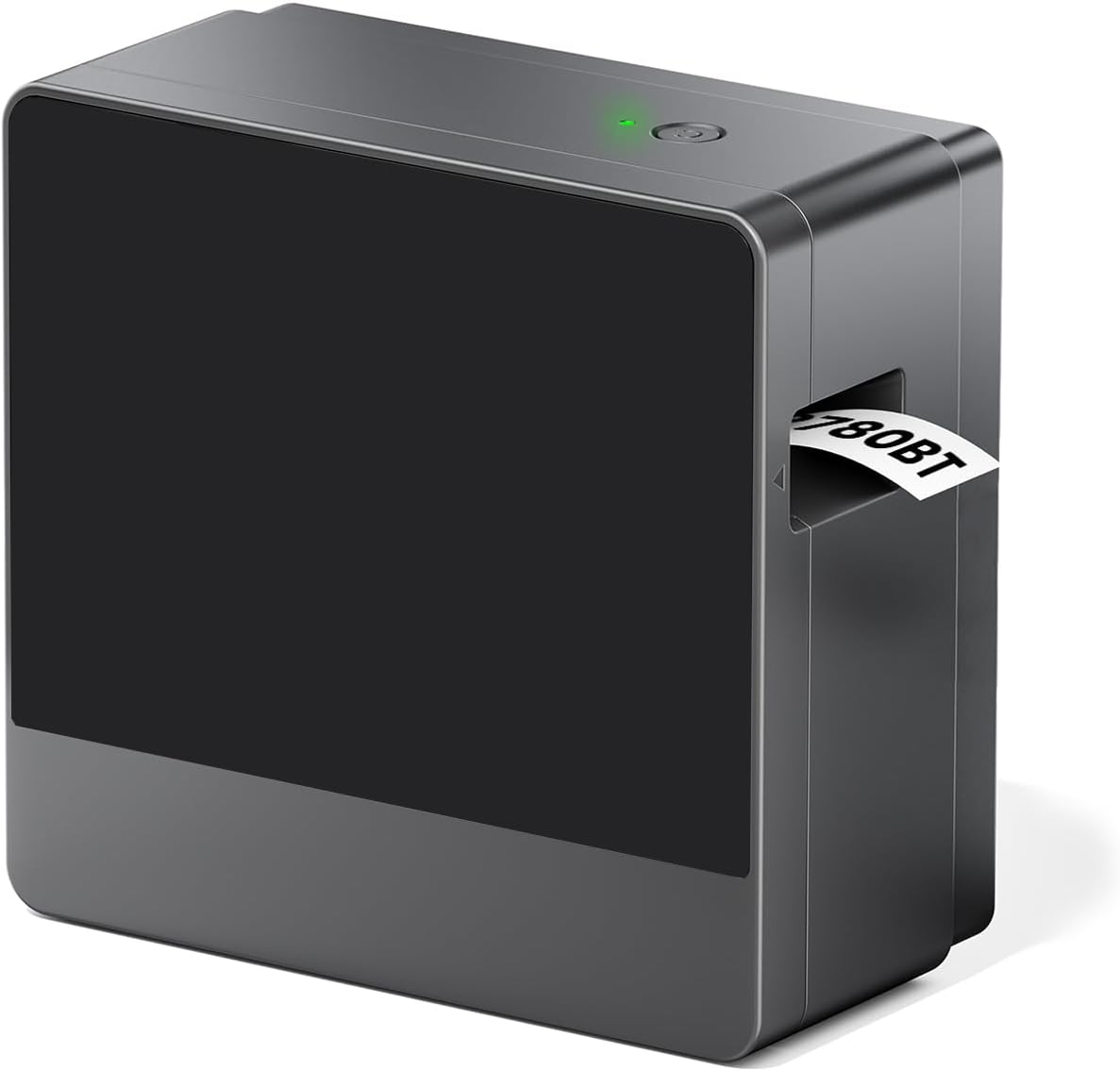
Image 1.1: The Vixic P780BT Label Maker Machine, a compact gray device with a label emerging from its output slot.
2. What's in the Box
Upon unpacking your Vixic P780BT Label Maker Machine, please verify that all the following components are included:
- 1 x Vixic P780BT Label Maker Machine (Gray)
- 1 x Sample Black Print on White Laminated Tape (1" x 13.1')
- 1 x USB Type-C Cable
- 1 x User Manual

Image 2.1: A visual representation of the Vixic P780BT label maker and its included accessories: the label maker, a sample tape, a USB-C cable, and the user manual.
3. Product Features and Overview
The Vixic P780BT Label Maker is designed for efficiency and versatility, incorporating several key features:
- Seamless Wireless Connectivity: Connects effortlessly via Bluetooth to Android/iOS smartphones, tablets, macOS computers, and Windows PCs.
- Extensive Customization Options: Offers over 1500 symbols, 250 borders, and professional fonts. Supports printing of barcodes, QR codes, and tables.
- Durable Laminated Labels: Utilizes 24mm label tape with quick-release backing, featuring lamination for resistance against water, chemicals, abrasion, UV, and temperature.
- Portable and Rechargeable: Equipped with a 1200mAh battery, rechargeable via USB-C. A full charge (2.5 hours) supports printing up to 15 label tapes (387 feet).
- Automatic Label Cutting: Enhances efficiency by automatically cutting labels with precision.
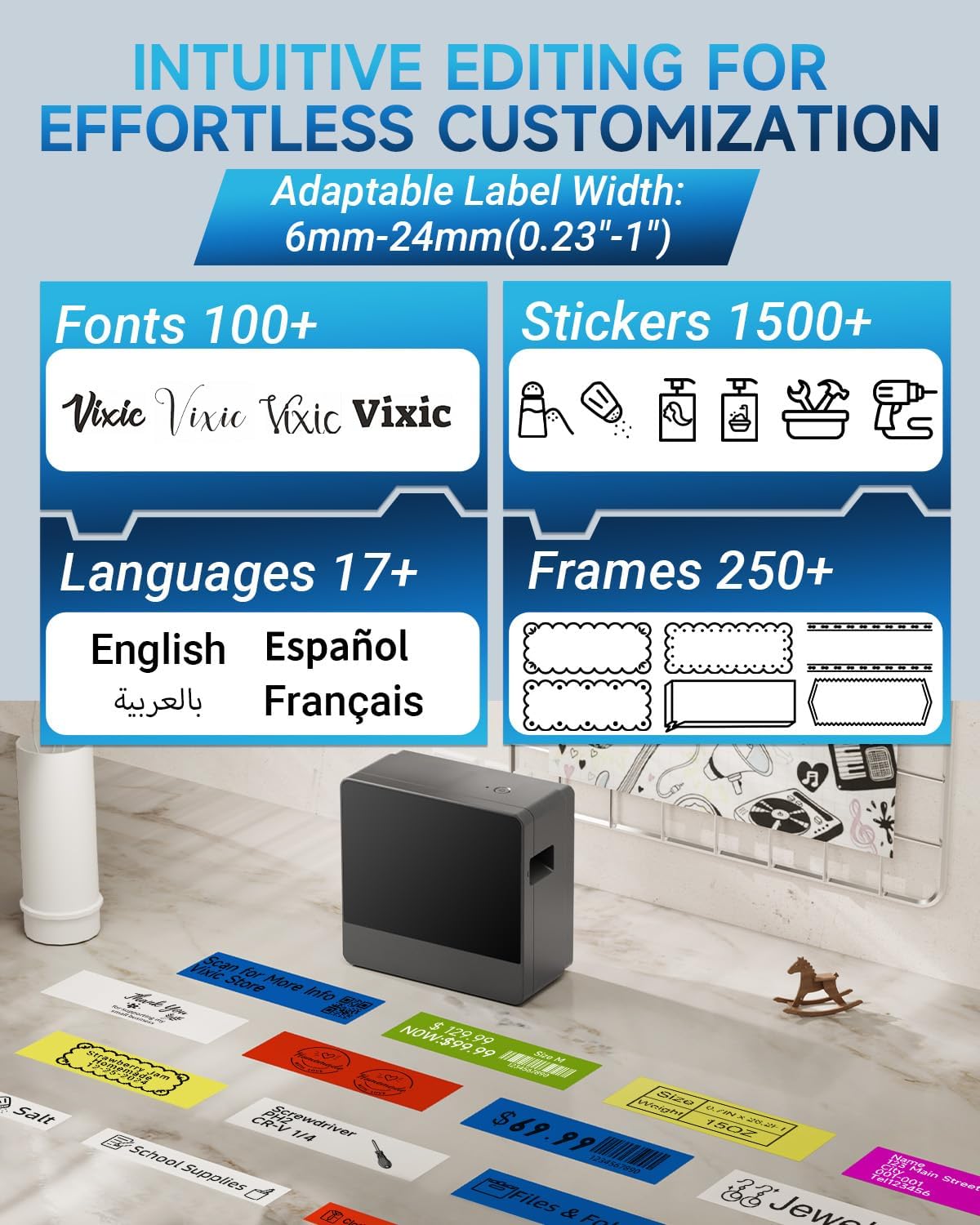
Image 3.1: An illustration of the Vixic P780BT's customization capabilities, highlighting over 100 fonts, 1500+ stickers, 17+ languages, and 250+ frames available for label design.

Image 3.2: A diagram illustrating the durability features of the laminated label tape, including water, oil, abrasion, fade, corrosion, and temperature resistance, strong adhesive, easy peeling, and no sticky residue.
4. Setup Instructions
4.1 Charging the Device
The Vixic P780BT comes with a built-in rechargeable 1200mAh battery. Before first use, or when the battery is low, charge the device using the provided USB Type-C cable.
- Connect the USB Type-C cable to the charging port on the label maker.
- Plug the other end of the cable into a compatible USB power adapter (not included) or a computer's USB port.
- The charging indicator light will illuminate. A full charge typically takes approximately 2.5 hours.

Image 4.1: A visual guide to charging the Vixic P780BT, showing the 1200mAh battery, USB-C charging, and 2.5-hour full charge time.
4.2 Installing Label Tape
Follow these steps to correctly install the label tape into your P780BT label maker:
- Open the cover at the tape exit of the labeler.
- Ensure the end of the tape is correctly threaded through both tape guides. Extend approximately 1.5 to 3 cm (3-4 cm) of label tape.
- Turn the green gear on the tape cartridge in the direction of the arrow until the tape is taut.
- Insert the tape cartridge into the label maker, ensuring the extended label tape passes through the tape exit slot. Close the cover securely.

Image 4.2: A four-step visual guide demonstrating how to open the cover, prepare the tape, turn the green gear, and install the label tape cartridge into the Vixic P780BT.
4.3 Connecting to Mobile Devices (Print Master App)
To connect your label maker to a smartphone or tablet:
- Install the "Print Master" application from the App Store (iOS) or Google Play Store (Android).
- Turn on the P780BT label maker by pressing the power button.
- Enable Bluetooth on your mobile device.
- Open the "Print Master" app.
- In the app, click "Tap to connect" and select your P780BT device (e.g., P780BT_xxxx).
- Once connected, you can choose to create a "New Label" or use existing "Templates."
- Select the desired label width (e.g., 12mm, 18mm, 24mm).
- Tap "Text" to input text and begin designing your label.

Image 4.3: An eight-step visual guide detailing how to install the Print Master app, turn on the label maker, enable Bluetooth, open the app, connect to the printer, choose a label, select label width, and start editing.
4.4 Connecting to Computers (Labelife Software)
To connect your label maker to a Windows PC or macOS computer:
- Visit labelife.cc in your web browser.
- Click "Download" and select the appropriate driver for your operating system (Windows 64-bit, Windows 32-bit, or macOS). If using Windows, confirm your system type (64-bit or 32-bit) via system settings.
- Install the "Labelife" software on your computer.
- Turn on the P780BT label maker. Connect it to your computer via the USB-C cable or Bluetooth.
- Open the Labelife software. It should automatically detect and connect to the P780BT.
- Choose "New" to create a new label.
- Click the "Tt" icon to add text and begin designing your label.

Image 4.4: A six-step visual guide demonstrating how to visit labelife.cc, download and install the software, connect the label maker via USB-C or Bluetooth, open the software, create a new label, and add text.
5. Operating Instructions
5.1 Creating and Printing Labels
Once connected to your mobile device via the "Print Master" app or computer via "Labelife" software, you can design and print labels:
- Design Your Label: Use the app/software interface to input text, add symbols, borders, barcodes, QR codes, and adjust fonts and sizes.
- Preview: Always preview your label design before printing to ensure accuracy.
- Print: Select the print option within the app/software. The label maker will automatically print and cut the label.

Image 5.1: The Vixic P780BT label maker demonstrating its automatic label cutting feature, with several cut labels scattered around the device.
5.2 Manual Label Cutting (Optional)
For specific applications or if printing multiple labels in a continuous strip, you may choose to manually cut labels.
- When printing a long strip of labels, the automatic cutter can be bypassed or used to cut the entire strip.
- Use scissors to carefully cut individual labels from the printed strip as needed.

Image 5.2: A visual showing a long label strip being printed from the Vixic P780BT, followed by a demonstration of manually cutting individual labels with scissors.
6. Maintenance
To ensure optimal performance and longevity of your Vixic P780BT Label Maker, follow these maintenance guidelines:
- Cleaning: Regularly wipe the exterior of the device with a soft, dry cloth. Do not use abrasive cleaners or solvents.
- Print Head Cleaning: If print quality degrades, refer to the app/software settings for any integrated print head cleaning functions, or gently clean the print head with a cotton swab lightly dampened with isopropyl alcohol. Ensure the device is off and dry before use.
- Storage: Store the label maker in a cool, dry place away from direct sunlight and extreme temperatures.
- Battery Care: For long-term storage, charge the battery to approximately 50% every few months to prevent deep discharge.
7. Troubleshooting
If you encounter issues with your Vixic P780BT, try the following solutions:
| Problem | Possible Cause | Solution |
|---|---|---|
| Device does not turn on | Low battery; Power button not pressed correctly | Charge the device; Press and hold the power button for a few seconds |
| Cannot connect via Bluetooth | Bluetooth off on device/phone; Device out of range; App not open | Ensure Bluetooth is enabled; Move device closer; Open "Print Master" or "Labelife" app |
| Poor print quality | Print head dirty; Incorrect tape installation; Low battery | Clean print head; Reinstall tape correctly; Charge device |
| Label jam | Tape not installed correctly; Foreign object in tape path | Open cover, remove tape, clear any obstructions, reinstall tape |
| Automatic cutting not working | Cutter blade obstructed; Software setting disabled | Check for obstructions; Verify cutter setting in app/software |
8. Specifications
| Feature | Detail |
|---|---|
| Model Name | P780BT label maker |
| Brand | Vixic |
| Product Dimensions | 5.3"D x 5.1"W x 2.6"H |
| Item Weight | 1.3 pounds |
| Connectivity Technology | Bluetooth, USB Type C |
| Printing Technology | Thermal |
| Printer Output | Monochrome |
| Maximum Print Speed (Monochrome) | 20 ppm |
| Maximum Black and White Print Resolution | 180 dpi |
| Maximum Media Size | 24mm / 1 Inch |
| Compatible Devices | PC, Smartphones |
| Control Method | App |
| Special Features | Automatic Label Cutting, Bluetooth, Portable, Rechargeable, Wireless Connectable |
| Ink Color | Black |
| Compatible Cartridge | Vixic BZ Tapes (6mm, 9mm, 12mm, 18mm, 24mm) |
| Battery | 1200mAh (included) |
9. Warranty and Support
The Vixic P780BT Label Maker Machine comes with a limited warranty. For specific warranty terms and conditions, please refer to the documentation included with your product or contact Vixic customer support.
Customer Support
For technical assistance, troubleshooting not covered in this manual, or warranty inquiries, please contact Vixic customer support through the following methods:
- Visit the official Vixic website for support resources.
- Contact the seller directly through the platform where the product was purchased.
Related documentsP780BT


Ask a question about this manual
Ask about setup, troubleshooting, compatibility, parts, safety, or missing instructions. Manuals+ will review the question and use this page’s manual context to help answer it.