
Vtopek T309S
Vtopek T309S 10.26-inch Wireless Carplay Android Auto Display User Manual
Model: T309S
Introduction
This manual provides detailed instructions for the installation, operation, and maintenance of your Vtopek T309S 10.26-inch Wireless Carplay Android Auto Display. This device integrates wireless Carplay and Android Auto, a 2.5K front dash camera, and a 1080P rear camera, offering enhanced connectivity and safety features for your vehicle.
Setup and Installation
Follow these steps to properly install your Vtopek T309S display.
1. Mounting the Display
The display comes with two adjustable monitor brackets for flexible installation. Choose the bracket suitable for your vehicle's dashboard or windshield.
- Adhesive Mount: For dashboard installation, ensure the surface is clean and dry before applying the adhesive base.
- Suction Cup Mount: For windshield installation, press the suction cup firmly against the glass and engage the locking mechanism.
- Adjust the display angle using the 360° rotatable support for optimal viewing without obstructing your line of sight.

Figure 1: Adjustable Monitor Brackets for flexible installation.
2. Power Connection
The device is powered via a Type-C port and connects to your vehicle's cigarette lighter (7-32V compatible).
- Important: Always use the original power adapter provided. Using other brands or phone data cables may cause the device to restart repeatedly or malfunction.
- Plug the power supply into the car charger. The Type-C port ensures stable and fast power delivery.
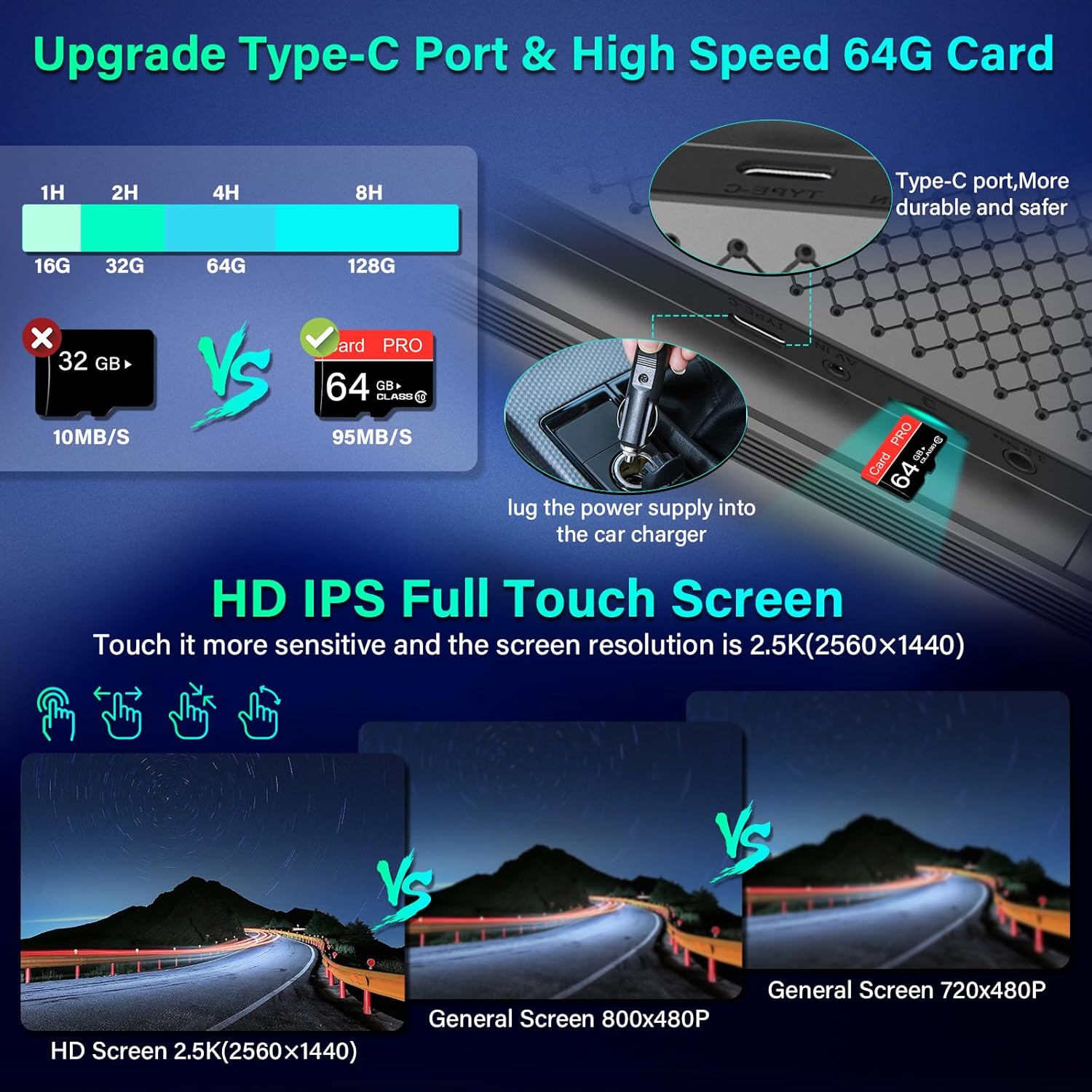
Figure 2: Type-C Port and 64GB SD Card Slot.
3. Camera Installation
The system includes a 2.5K front dash camera and a 1080P rear camera.
- Front Camera: Integrated into the main display unit. It supports rotation and can be used as an interior camera.
- Rear Camera: Install the 1080P rear camera at the back of your vehicle. It is IP69 waterproof.
- Reversing Light Connection: To enable the automatic display of the rear view when reversing, connect the red wire from the rear camera to your vehicle's reversing lights.
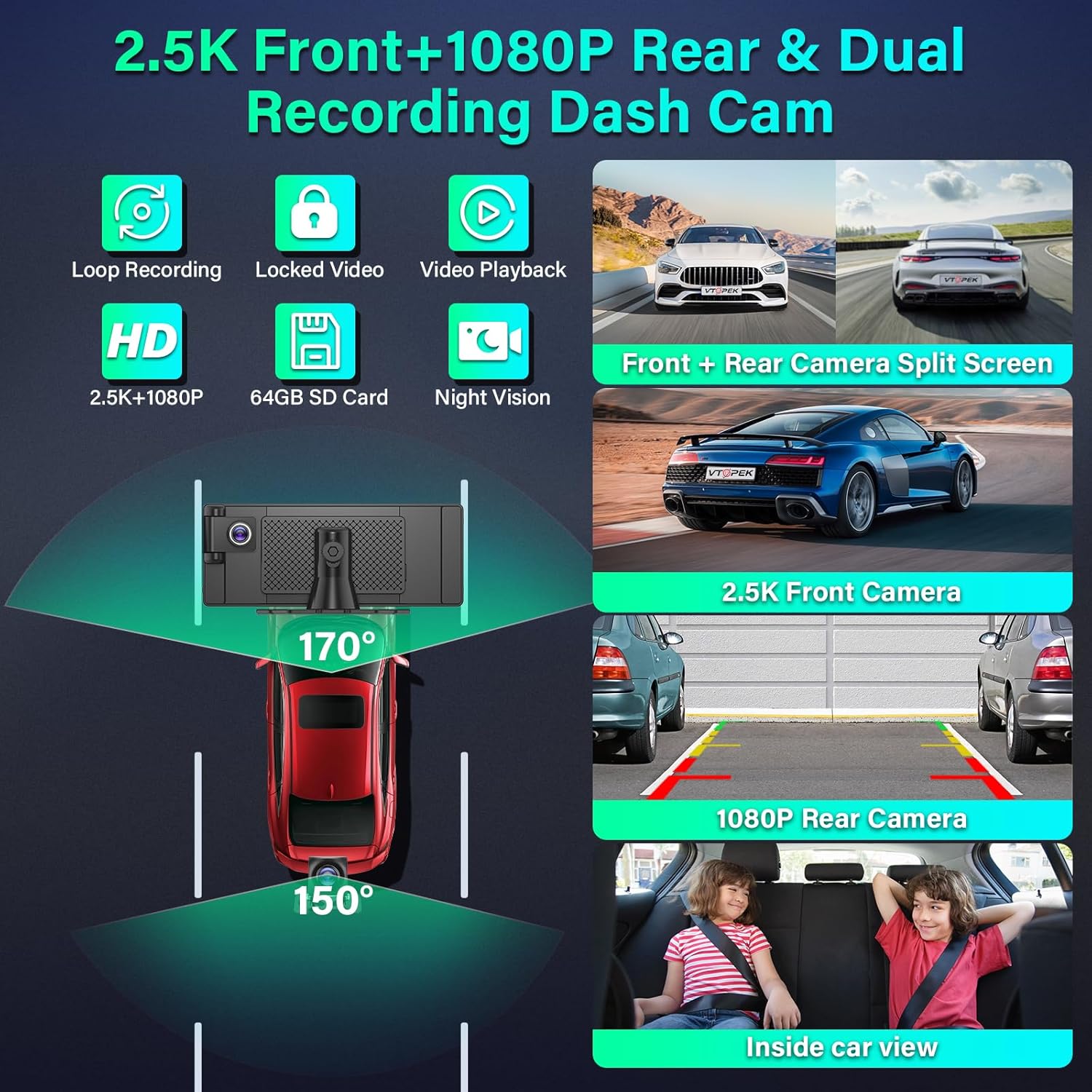
Figure 3: Dual Recording Dash Cam System Overview.

Figure 4: Adjustable Reversing Line and Waterproof Rear Camera.
Operating Instructions
Learn how to use the various features of your Vtopek T309S display.
1. Wireless Carplay and Android Auto
Connect your smartphone wirelessly for seamless integration of navigation, music, calls, and messages.
- Turn on Wi-Fi and Bluetooth on your smartphone.
- The 10.26-inch display will automatically connect to Carplay (for iPhone) or Android Auto (for Android phones).
- Access map navigation, make calls, play music, and send text messages directly from the display.

Figure 5: Wireless Carplay, Android Auto, and Mirror Link Interfaces.
2. Mirror Link (AirPlay / Android Cast)
Project your smartphone screen onto the display.
- Connect your smartphone to the Carplay display via AirPlay (for iPhone) or Android Cast (for Android phones).
- This allows you to view videos from apps like YouTube or TikTok on the display.
- Note: Compatibility may vary with certain phone models.
3. Voice Assistant (Siri & Google Assistant)
Control the device hands-free using voice commands.
- Activate Siri or Google Assistant to navigate, make calls, play music, and more.
- This feature enhances driving safety by allowing you to keep your hands on the wheel.

Figure 6: Voice Assistant and Hands-free Calling.
4. Dual Bluetooth 5.0
The display features dual Bluetooth technology for enhanced audio and connectivity.
- Connect your phone's Bluetooth to the Carplay screen.
- Simultaneously connect the Carplay screen to your car's original speakers for high-quality audio output.

Figure 7: Dual Bluetooth Mode for Audio Streaming.
5. Audio Output Options
The Vtopek T309S offers multiple ways to output audio to your car's sound system:
- Bluetooth to Car Speaker: Connect the display to your car's Bluetooth for wireless audio.
- FM Transmitter: Tune the display and your car radio to the same FM frequency to transmit audio.
- AUX Connection: Use an AUX cable to connect the display to your car's AUX input.
- Built-in Speaker: The display has integrated stereo speakers for direct audio output.

Figure 8: Multiple Audio Output Options.
6. Dash Cam Features
The integrated dash cam provides comprehensive recording capabilities.
- Loop Recording: Records continuously, overwriting the oldest files when the 64GB SD card is full.
- Locked Video: Critical events (e.g., collisions detected by G-sensor) are automatically locked and protected from being overwritten.
- Video Playback: Review recorded footage directly on the display.
- Night Vision: Equipped with F1.6 aperture and WDR technology for clear recordings in low-light conditions.
- Split Screen: The Android Carplay screen supports split-screen mode, allowing you to view front camera footage alongside navigation or music.
7. Reversing Assistance
The rear camera provides assistance for safe parking.
- When reversing, the system automatically displays the rear camera view in full screen.
- Adjustable Reversing Lines: Parking guidelines are displayed and can be adjusted to suit various vehicle types.
- The 170° front and 150° rear wide-angle lenses reduce blind spots.
Maintenance
Proper maintenance ensures the longevity and optimal performance of your device.
- SD Card Management: The device supports loop recording. When the included 64GB SD card is full, the oldest recordings will be automatically overwritten. Regularly back up important footage.
- Cleaning: Use a soft, dry cloth to clean the display screen. Avoid abrasive cleaners or solvents.
- Rear Camera: The IP69 waterproof rating protects the rear camera from water and dust. Periodically check for any obstructions or dirt on the lens and clean gently if necessary.
- Power Adapter: Always use the original power adapter to prevent damage and ensure stable operation.
Troubleshooting
If you encounter issues, refer to the following common problems and solutions.
| Problem | Possible Cause | Solution |
|---|---|---|
| Device repeatedly restarts or does not power on. | Incorrect power adapter used. Insufficient power supply. | Ensure you are using the original power adapter provided with the device. Verify the car's cigarette lighter socket is functioning correctly. |
| Wireless Carplay/Android Auto fails to connect. | Bluetooth/Wi-Fi off on phone. Phone not paired. | Ensure your phone's Bluetooth and Wi-Fi are enabled. Go to the device's settings to initiate pairing. Restart both the display and your phone. |
| No audio or poor audio quality. | Incorrect audio output setting. Volume too low. | Check the audio output settings on the display (Bluetooth, FM, AUX, Built-in Speaker). Adjust the volume on both the display and your car stereo. Ensure FM frequency matches if using FM transmitter. |
| Rear camera image not displayed when reversing. | Red wire not connected to reversing lights. Camera cable loose. | Verify that the red wire from the rear camera is correctly connected to your vehicle's reversing light power supply. Check all camera cable connections. |
| Screen shows abnormal colors (e.g., pink/green screen). | Internal hardware issue. | Attempt a factory reset if available in settings. If the problem persists, contact customer support. |
Specifications
| Feature | Detail |
|---|---|
| Brand | Vtopek |
| Model Number | T309S |
| Screen Size | 10.26 Inches |
| Display Type | HD IPS Full Touch Screen, LED |
| Max Display Resolution | 1600 x 900 Pixels (QHD wide 1440p) |
| Front Camera Resolution | 2.5K |
| Rear Camera Resolution | 1080P |
| Connectivity Technology | Bluetooth 5.0, Wi-Fi |
| Special Features | Wireless Android Auto, Built-in Bluetooth, Wireless Carplay, FM Tuner, Touch Screen, Loop Recording, 24H Parking Monitor, Night Vision, IP69 Waterproof Rear Camera |
| Compatible Devices | Smartphone |
| Power Input | 7-32V (Cigarette Lighter) |
| Storage | 64GB SD Card (included) |
| Image Aspect Ratio | 16:9 |
| Image Contrast Ratio | 1000:1 |
Warranty and Support
Your Vtopek T309S display comes with comprehensive support and warranty.
- Warranty: The product is covered by a 1-year manufacturer's warranty from the date of purchase.
- Technical Support: Vtopek offers lifetime technical support.
- Customer Service: For any issues or inquiries, please contact our professional customer service team.

Figure 9: Warranty and Support Information.
Contact Email: jenny@jansite.cn
Related documentsT309S


Ask a question about this manual
Ask about setup, troubleshooting, compatibility, parts, safety, or missing instructions. Manuals+ will review the question and use this page’s manual context to help answer it.