
1. Introduction
This user manual provides essential information for the installation, operation, and maintenance of your APC Back-UPS Series uninterruptible power supply (UPS). This series includes two models: the BE900G3 (900VA/540W) and the BE500G3 (500VA/300W). Both models are designed to protect your electronic equipment from power outages, surges, and spikes, ensuring continuous operation and safe shutdown of connected devices.
Please read this manual thoroughly before installing or operating your Back-UPS unit. Keep this manual for future reference.
2. Safety Information
Observe the following safety precautions during installation and operation of your UPS unit:
- Electrical Safety: Connect the UPS to a grounded outlet only. Do not remove the grounding prong from the power cord.
- Indoor Use Only: This UPS is intended for indoor use in a controlled environment. Avoid exposure to excessive moisture, direct sunlight, or extreme temperatures.
- Battery Safety: The battery contains hazardous chemicals. Refer to the Maintenance section for battery replacement instructions. Do not dispose of batteries in a fire; they may explode.
- Ventilation: Ensure adequate airflow around the UPS. Do not block ventilation openings.
- Overload: Do not overload the UPS. Refer to the Specifications section for maximum load capacity.
3. Product Overview
The APC Back-UPS Series provides reliable power protection for your home or small office electronics. Both models feature battery backup outlets, surge-only outlets, and USB charging ports.
3.1. Model BE900G3 (900VA / 540W)
This higher-capacity model is suitable for multiple PCs, networking equipment, and home entertainment systems. It offers extended runtime for critical devices.
- Total Outlets: 8 (NEMA 5-15R)
- Battery Backup & Surge Protection Outlets: 6
- Surge Protection Only Outlets: 2
- USB Charging Ports: 1 USB-C, 1 USB-A (5V/3A Shared)
- User Replaceable Battery: Yes (RBC17)
- Data Port: For PowerChute UPS management software (Windows 10, 11 Pro; Mac OS uses native Energy Saver settings)

Image: Front view of the APC Back-UPS BE900G3, illustrating the arrangement of battery backup outlets, surge-only outlets, and the USB-C and USB-A charging ports on the side panel.
3.2. Model BE500G3 (500VA / 300W)
This compact model is ideal for essential devices such as routers, modems, and internet phones, ensuring connectivity during brief power interruptions.
- Total Outlets: 6 (NEMA 5-15R)
- Battery Backup & Surge Protection Outlets: 4
- Surge Protection Only Outlets: 2
- USB Charging Ports: 1 USB-C, 1 USB-A (5V/3A Shared)
- User Replaceable Battery: Yes (RBC17)
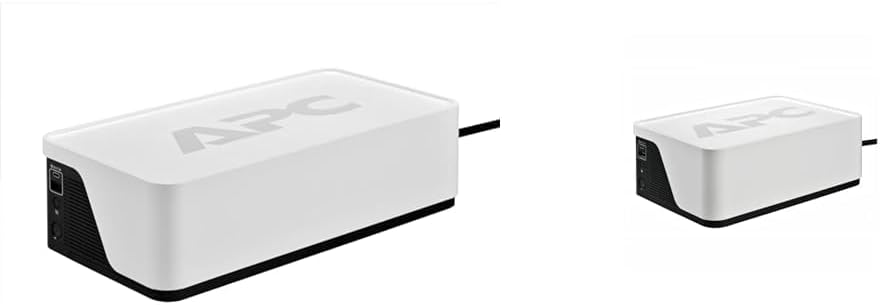
Image: A compact APC Back-UPS BE500G3 unit, showcasing its smaller form factor compared to the BE900G3.
3.3. Common Features
- Automatic Voltage Regulation (AVR): Corrects minor voltage fluctuations without using battery power, extending battery life.
- Surge Protection: Protects connected equipment from damaging power surges and spikes.
- Circuit Breaker: Resettable circuit breaker for overload protection.
- Building Wiring Fault Indicator: Alerts to potential wiring issues in the wall outlet.

Image: Rear view of an APC Back-UPS unit, highlighting the data port for communication with a computer and the resettable circuit breaker button.
4. Setup
Follow these steps to set up your APC Back-UPS unit:
- Unpack the UPS: Carefully remove the UPS and all accessories from its packaging. Inspect for any shipping damage.
- Connect the Battery: The battery may be disconnected for shipping. Refer to the Maintenance section for instructions on connecting the internal battery.
- Initial Charge: Plug the UPS power cord into a grounded wall outlet. Allow the unit to charge for at least 24 hours before connecting any equipment to ensure maximum battery runtime. The UPS will charge whether it is turned on or off.
- Connect Equipment:
- Battery Backup & Surge Protection Outlets: Connect critical equipment such as computers, monitors, routers, and modems to these outlets. These devices will receive power from the battery during an outage.
- Surge Protection Only Outlets: Connect non-critical equipment like printers, scanners, or lamps to these outlets. These outlets provide surge protection but no battery backup.
- Connect USB Charging Ports: Use the USB-C and USB-A ports to charge compatible mobile devices.
- (BE900G3 Only) Connect Data Port: For advanced power management and automatic shutdown features, connect the supplied USB cable from the UPS data port to your computer. Install APC PowerChute software (available for Windows) or configure native energy saver settings (for Mac OS).
- Turn On the UPS: Press the power button on the front of the unit. The power indicator will illuminate.

Image: An APC Back-UPS unit positioned within a home entertainment system, demonstrating how various devices like a TV and media players can be connected for power protection.
5. Operating Instructions
5.1. Power Button and Indicators
The front panel features a power button and LED indicators that provide status information:
- Power Button: Press to turn the UPS on or off.
- Power On Indicator: Illuminates when the UPS is on and receiving utility power.
- On Battery Indicator: Flashes or illuminates when the UPS is operating on battery power during an outage.
- Overload Indicator: Illuminates if the connected load exceeds the UPS capacity.
- Building Wiring Fault Indicator: Illuminates if there is a wiring problem in the wall outlet (e.g., missing ground).

Image: A detailed view of the APC Back-UPS control panel, showing the power button, LED indicators, and the USB charging ports.
5.2. Automatic Voltage Regulation (AVR)
Your Back-UPS unit includes AVR, which automatically corrects minor voltage fluctuations (sags and surges) without switching to battery power. This feature helps to preserve battery life and ensures a stable power supply to your connected devices.
5.3. Power Outage Operation
During a power outage, the UPS will automatically switch to battery power. An audible alarm will sound, and the 'On Battery' indicator will illuminate. The alarm will typically sound every 30 seconds. When utility power returns, the UPS will automatically switch back to utility power and recharge its battery.
If the power outage is prolonged, save your work and shut down your computer and other connected devices gracefully before the UPS battery is depleted. The BE900G3, when connected via its data port, can initiate an automatic shutdown of your computer.
6. Maintenance
6.1. Battery Replacement
The batteries in your APC Back-UPS are user-replaceable. The typical battery life is 3-5 years, depending on usage and environmental conditions. When the battery needs replacement, the UPS will typically indicate this with an audible alarm and/or an LED indicator.
Replacement Battery Model: RBC17 (sold separately)
Procedure:
- Turn off the UPS and disconnect it from the wall outlet.
- Disconnect all connected equipment from the UPS.
- Locate the battery compartment (usually on the bottom or side of the unit).
- Follow the instructions on the battery compartment cover to open it and disconnect the old battery.
- Insert the new RBC17 battery, ensuring correct polarity.
- Close the battery compartment and reconnect the UPS to the wall outlet. Allow it to charge for 24 hours.
Warning: Only use genuine APC replacement batteries. Using non-APC batteries may void your warranty and could be unsafe.
6.2. Cleaning
Clean the exterior of the UPS with a soft, dry cloth. Do not use liquid or aerosol cleaners. Ensure ventilation openings are free from dust and debris.
6.3. Storage
If storing the UPS for an extended period, charge the battery for 24 hours every 3-6 months to prevent battery degradation.
7. Troubleshooting
Refer to the table below for common issues and their solutions:
| Problem | Possible Cause | Solution |
|---|---|---|
| UPS does not turn on | Battery not connected or discharged | Ensure battery is connected. Plug UPS into wall outlet and charge for 24 hours. |
| UPS beeps continuously or 'Overload' LED is on | Overload condition | Disconnect non-essential equipment from battery backup outlets. Reduce the total load. |
| UPS does not provide expected runtime | Battery is old or not fully charged | Replace battery if old. Ensure UPS is charged for 24 hours. |
| 'Building Wiring Fault' LED is on | Wiring problem in wall outlet | Consult a qualified electrician to inspect the building wiring. |
| UPS is on but connected devices are not powered | Circuit breaker tripped | Press the circuit breaker button on the rear of the UPS to reset it. |
8. Specifications
| Feature | BE900G3 | BE500G3 |
|---|---|---|
| Capacity (VA/Watts) | 900VA / 540W | 500VA / 300W |
| Input Voltage | 120V AC | 120V AC |
| Output Voltage (On Battery) | 120V AC | 120V AC |
| Total Outlets | 8 (NEMA 5-15R) | 6 (NEMA 5-15R) |
| Battery Backup Outlets | 6 | 4 |
| Surge Only Outlets | 2 | 2 |
| USB Charging Ports | 1 USB-C, 1 USB-A (5V/3A Shared) | 1 USB-C, 1 USB-A (5V/3A Shared) |
| User Replaceable Battery | Yes (RBC17) | Yes (RBC17) |
| Data Port | USB (for PowerChute) | No |
| Form Factor | Compact | Compact |
| Color | White | White |
| Power Plug Type | Type B - 3 pin (North American) | Type B - 3 pin (North American) |
9. Warranty and Support
APC provides a standard warranty for its Back-UPS products. For specific warranty terms and conditions, please refer to the warranty card included with your product or visit the official APC website. Keep your proof of purchase for warranty claims.
For technical support, troubleshooting assistance, or to inquire about replacement parts, please contact APC Customer Support through their official website or the contact information provided in your product packaging.


