
1. Introduction
This manual provides essential instructions for the setup, operation, and maintenance of your Generico Amiko Mira X HiS-4300 DVB-S2X DVB-T2 Receiver. This device is designed to receive both satellite (DVB-S2X) and terrestrial (DVB-T2) digital television broadcasts, offering versatile entertainment options. It features USB 2.0 ports, Ethernet connectivity, Wi-Fi support, HDMI output, and multi-stream capabilities for enhanced viewing.
Please read this manual thoroughly before using the receiver to ensure proper functionality and to prevent damage.
2. Safety Information
- Power Supply: Use only the provided power adapter. Ensure the voltage matches the specifications (12V DC).
- Ventilation: Do not block ventilation openings. Place the receiver in a well-ventilated area to prevent overheating.
- Water and Moisture: Keep the receiver away from water, rain, and excessive humidity. Do not operate with wet hands.
- Cleaning: Disconnect the power before cleaning. Use a soft, dry cloth. Do not use liquid or aerosol cleaners.
- Location: Avoid placing the receiver near heat sources, direct sunlight, or in dusty environments.
- Servicing: Do not attempt to open or repair the receiver yourself. Refer all servicing to qualified personnel.
3. Package Contents
Verify that all items are present in the package:
- Amiko Mira X HiS-4300 Receiver Unit
- Remote Control
- Power Adapter (12V DC)
- User Manual (this document)
4. Product Overview
4.1. Receiver Unit
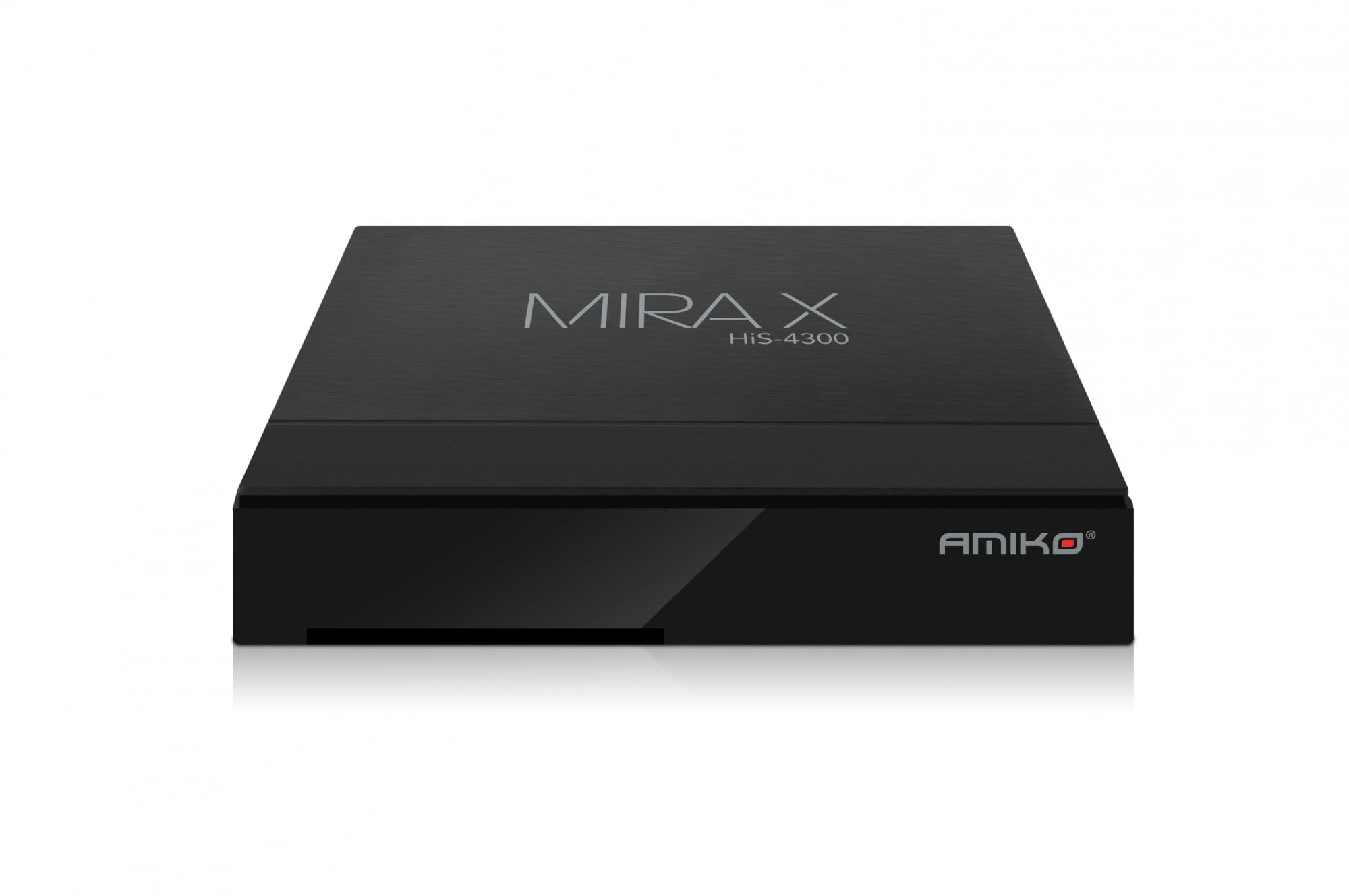
Image: Top view of the Amiko Mira X HiS-4300 DVB-S2X DVB-T2 Receiver, showing the sleek black casing with the 'MIRA X HiS-4300' logo.
The receiver unit features a compact design. The top panel displays the model name 'MIRA X HiS-4300'. The front panel typically includes an IR sensor for the remote control and possibly a power indicator LED.
4.2. Rear Panel Connections

Image: Rear panel of the Amiko Mira X HiS-4300 DVB-S2X DVB-T2 Receiver, showing various input and output ports.
- DC 12V: Power input for the external power adapter.
- LNB IN: Input for satellite dish connection (DVB-S2X).
- ANT IN: Input for terrestrial antenna connection (DVB-T2).
- IR IN: Port for connecting an external IR receiver (if included or purchased separately).
- S/PDIF: Optical digital audio output for connecting to an audio amplifier or sound system.
- HD OUT: HDMI output for connecting to your television.
- ETHERNET: RJ45 port for wired network connection.
- USB 2.0 (x2): Ports for connecting USB storage devices for media playback or software updates.
4.3. Remote Control

Image: Black remote control for the Amiko Mira X HiS-4300 DVB-S2X DVB-T2 Receiver, featuring various function buttons.
The remote control allows you to operate all functions of the receiver. Key buttons include:
- Power: Turns the receiver on or off.
- Menu: Accesses the main menu.
- OK: Confirms selections.
- Navigation (Up/Down/Left/Right): Moves through menus and adjusts settings.
- CH+/CH-: Changes channels.
- VOL+/VOL-: Adjusts volume.
- EPG: Displays the Electronic Program Guide.
- INFO: Shows program information.
- Numeric Buttons (0-9): Direct channel selection.
- Color Buttons (Red, Green, Yellow, Blue): Functionality varies by menu or application.
5. Setup
5.1. Connecting to Your TV
- Ensure both the receiver and your TV are powered off.
- Connect one end of an HDMI cable to the HD OUT port on the receiver.
- Connect the other end of the HDMI cable to an available HDMI input on your TV. Note the HDMI input number (e.g., HDMI 1, HDMI 2).
5.2. Connecting Antennas
- For satellite reception (DVB-S2X), connect your satellite dish cable to the LNB IN port on the receiver.
- For terrestrial reception (DVB-T2), connect your terrestrial antenna cable to the ANT IN port on the receiver.
5.3. Power Connection
- Connect the provided power adapter to the DC 12V input on the receiver.
- Plug the power adapter into a wall outlet.
5.4. Network Connection (Optional)
- Wired Connection: Connect an Ethernet cable from your router to the ETHERNET port on the receiver.
- Wireless Connection: The receiver supports Wi-Fi. You will configure this in the system settings after initial power-on.
6. Operating Instructions
6.1. Initial Power-On and Setup Wizard
- Turn on your TV and select the correct HDMI input.
- Press the Power button on the remote control or the receiver.
- The receiver will display an initial setup wizard. Follow the on-screen prompts to select your language, region, and perform a channel scan.
6.2. Channel Scanning
- Satellite Scan (DVB-S2X): In the setup menu, navigate to 'Channel Search' or 'Installation'. Select 'Satellite Scan', choose your satellite(s), and initiate the scan.
- Terrestrial Scan (DVB-T2): In the setup menu, select 'Terrestrial Scan' or 'Antenna Scan'. The receiver will search for available DVB-T2 channels.
6.3. Menu Navigation
Use the MENU button on the remote to access the main menu. Use the Navigation buttons (Up/Down/Left/Right) to move through options and the OK button to confirm selections. The EXIT or BACK button will return you to the previous screen or live TV.
6.4. USB Media Playback
Connect a USB storage device (e.g., USB flash drive, external hard drive) to one of the USB 2.0 ports. The receiver will typically detect the device and prompt you to access its media player, or you can navigate to the 'Media' or 'USB' section in the main menu. Supported audio formats include Dolby Digital, DTS, AAC, MP3, PCM.
6.5. Multi-Stream Functionality
The receiver supports multi-stream reception, allowing it to decode multiple transport streams within a single satellite transponder. This feature is useful for receiving specific regional or specialized broadcasts that utilize multi-stream technology. Consult your service provider or satellite information for details on available multi-stream channels.
7. Maintenance
7.1. Cleaning
To clean the receiver, first disconnect it from the power outlet. Use a soft, dry, lint-free cloth to wipe the exterior surfaces. Do not use abrasive cleaners, solvents, or chemical sprays, as these can damage the finish.
7.2. Software Updates
Periodically check for software updates to ensure optimal performance and access to the latest features. Updates can typically be performed via USB or over the internet (if connected). Refer to the system settings menu for 'Software Update' options. Information regarding guaranteed software updates is currently unknown.
8. Troubleshooting
| Problem | Possible Cause | Solution |
|---|---|---|
| No power | Power adapter not connected; power outlet faulty. | Check power adapter connection; try a different outlet. |
| No signal / "No Signal" message | Antenna/LNB cable disconnected; incorrect input selected; poor signal strength. | Check antenna/LNB connections; ensure correct input (DVB-S2X/DVB-T2) is selected; check antenna alignment. |
| No picture / No sound | HDMI cable loose; incorrect TV input selected; TV volume muted. | Check HDMI cable connection; select correct HDMI input on TV; unmute TV or increase volume. |
| Remote control not working | Batteries depleted; IR sensor blocked; remote out of range. | Replace batteries; ensure clear line of sight to receiver's IR sensor; operate within range. |
9. Specifications
| Feature | Specification |
|---|---|
| Brand | Generico |
| Model | Mira X HiS-4300 |
| Compatible Devices | Television |
| Included Components | Receiver Wally (Amiko Mira X HiS-4300) |
| Aspect Ratio | 16:9 |
| Audio Output Mode | Stereo |
| Supported Audio Formats | Dolby Digital, DTS, AAC, MP3, PCM |
| Voltage | 12 Volt (DC) |
| Total USB Ports | 2 (USB 2.0) |
| Connector Types | Ethernet, HDMI |
| Supported Standards | DVB-S2X, Multi Stream, DVB-T2 |
| Connectivity Technology | Ethernet, HDMI, Wi-Fi |
| Color | Black |
10. Warranty and Support
For warranty information and technical support, please refer to the documentation provided with your purchase or contact your retailer. Keep your proof of purchase for any warranty claims.