
1. Introduction
The MaxiViz CA45 2K Indoor Security Camera is designed to provide comprehensive surveillance for your home, pets, or children. With its advanced features including 2K resolution, 360° pan and tilt capabilities, AI-powered motion detection, infrared night vision, and a convenient one-touch call function, this camera ensures you stay connected and aware of what's happening in your indoor environment. This manual provides detailed instructions for setup, operation, maintenance, and troubleshooting to help you maximize your camera's performance.
2. What's in the Box
Carefully unpack your MaxiViz CA45 camera and ensure all items are present:
- 1 x Camera Body
- 1 x Cute Silicone Cover (Pink)
- 1 x Power Cable
- 1 x Power Adapter
- 1 x Operation Instruction Manual
- Mounting Accessories (Screws, Wall Anchors, Mounting Base)

Image: All components included with the MaxiViz CA45 2K Indoor Security Camera.
3. Setup
Follow these steps to set up your MaxiViz CA45 camera:
- Download the Vicohome App: Scan the QR code provided in the manual or search for "Vicohome" in your smartphone's app store (https://www.vicohome.io/download/).
- Power On the Camera: Connect the power cable to the camera's charging port and plug the power adapter into a wall outlet. The camera will power on automatically.
- Add Device in App: Open the Vicohome App, select "CA45" from the device list, and follow the on-screen prompts to connect your camera. Ensure your Wi-Fi network is 2.4GHz, as the camera only supports this frequency.
- Scan QR Code: The app will display a QR code. Position your camera to scan this code. Once scanned, the camera will connect to your Wi-Fi network.
- Mounting (Optional): If desired, use the included mounting accessories to install the camera on a wall or ceiling. Ensure the camera has a clear line of sight to the area you wish to monitor.
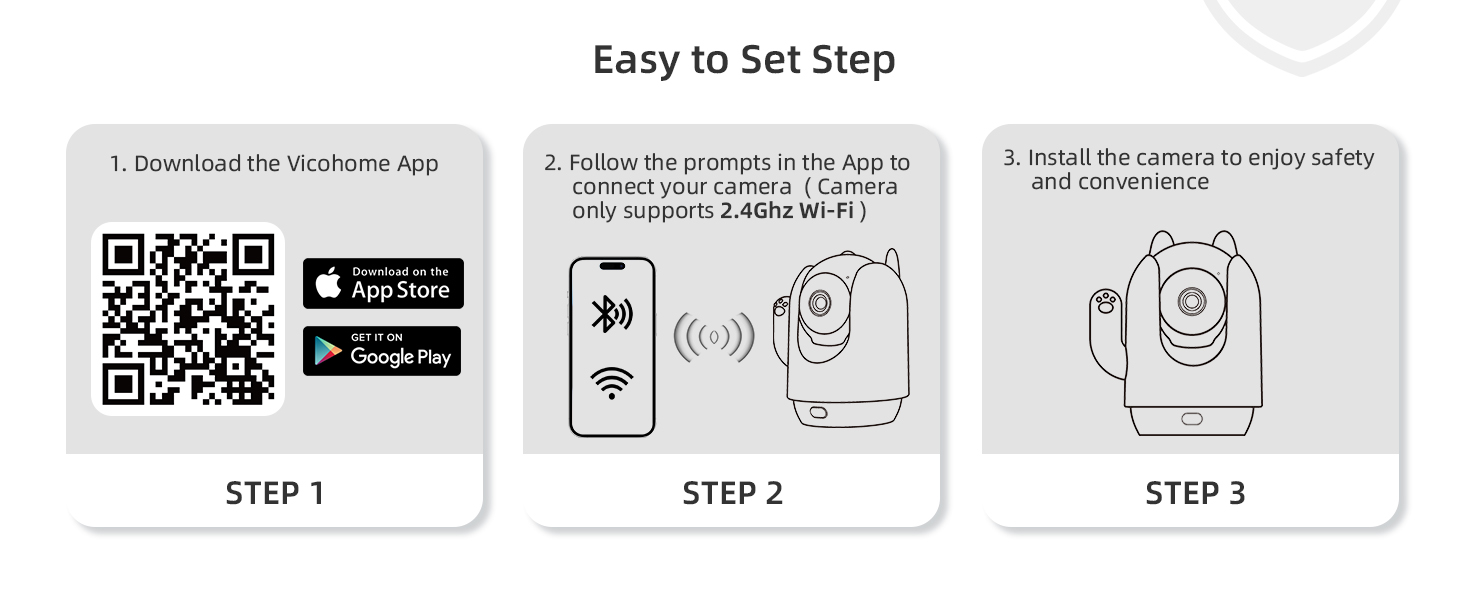
Image: Easy 3-step setup process for the MaxiViz CA45 camera.
4. Operating Instructions
4.1. 2K Resolution & 360° Coverage
The MaxiViz CA45 camera offers crystal-clear 2K resolution and a wide 360° panoramic view. Use the Vicohome App to remotely rotate the camera (pan and tilt) to cover every corner of your room, eliminating blind spots. Built-in infrared LED beads ensure clear 2K images even in low-light conditions, providing vigilant surveillance day or night.

Image: The MaxiViz CA45 camera offering 360° panoramic view without blind spots.

Image: Demonstrating 2K clarity for detailed monitoring.

Image: Clear night vision for monitoring in darkness.
4.2. One-Touch Call & Two-way Talk
The camera features a convenient one-touch call button and two-way audio. Simply press the call button on the camera for an instant connection to your smartphone via the Vicohome App. This allows for real-time interaction with family members or pets, reducing loneliness and providing immediate communication when needed.

Image: One-touch call feature for instant connection.

Image: Know when your family needs you with the one-touch calling button.
4.3. Smart AI Detection & Instant Notification
The camera's smart AI detection accurately identifies humans, pets, and sounds. Upon detection, the camera records the event and sends instant notifications with a picture to your Vicohome App, reducing false alarms. This feature helps you stay informed about important activities in your home.

Image: Smart AI detection reduces false alerts by distinguishing between humans and pets.

Image: AI human motion and sound detection for instant notifications.
4.4. Flexible Recording Options
The MaxiViz CA45 supports both local and cloud storage options. You can insert a micro SD card (up to 128GB, not included) for continuous local footage storage. Additionally, it offers cloud storage with a 3-day loop of event recordings for 2 years without a subscription, ensuring your videos are safe and secure on US-based servers.

Image: Flexible recording options with Micro SD card and cloud storage.
4.5. App Control
The Vicohome App provides full control over your camera. You can manually control the pan/tilt rotation, enable motion tracking, set specific positions, and activate sleep mode for privacy. The app also allows you to view live feeds, access recorded events, and manage settings.

Image: Vicohome App interface for smart AI control.
4.6. Smart Home Compatibility
The MaxiViz CA45 camera is compatible with Amazon Alexa, allowing for seamless integration into your smart home ecosystem. Use voice commands to control your camera and enhance your smart life experience.

Image: The camera works with Amazon Alexa for smart home integration.
5. Maintenance
To ensure optimal performance and longevity of your MaxiViz CA45 camera, follow these maintenance guidelines:
- Cleaning: Gently wipe the camera lens and body with a soft, dry cloth. Avoid using harsh chemicals or abrasive materials that could scratch the lens or damage the device.
- Firmware Updates: Regularly check the Vicohome App for available firmware updates. Keeping your camera's firmware up-to-date ensures you have the latest features, security patches, and performance improvements.
- Wi-Fi Connection: Ensure your camera maintains a stable 2.4GHz Wi-Fi connection. Poor signal strength can affect video quality and connectivity.
- SD Card Management: If using an SD card for local storage, periodically review and back up important footage. Consider formatting the SD card every few months to maintain optimal recording performance.
- Placement: Place the camera in a location where it is protected from extreme temperatures, direct sunlight, and moisture.
6. Troubleshooting
If you encounter issues with your MaxiViz CA45 camera, refer to the following common solutions:
- Camera Offline:
- Check if the camera is properly powered on and connected to a power source.
- Verify your Wi-Fi network is active and the camera is within range.
- Ensure your Wi-Fi is 2.4GHz. The camera does not support 5GHz networks.
- Restart the camera by unplugging and re-plugging the power cable.
- Poor Video Quality:
- Check your internet connection speed. A stable and fast connection is crucial for 2K streaming.
- Ensure the camera lens is clean and free from dust or smudges.
- Move the camera closer to your Wi-Fi router to improve signal strength.
- Motion Detection Not Working:
- Verify that motion detection is enabled in the Vicohome App settings.
- Adjust the motion detection sensitivity settings in the app.
- Ensure there are no obstructions blocking the camera's view.
- One-Touch Call Issues:
- Ensure the camera is online and connected to the app.
- Check your phone's notification settings to ensure the Vicohome App can send alerts.
- Resetting the Camera: If issues persist, locate the reset button (often a small pinhole) on the camera body. Use a pin or paperclip to press and hold the reset button for approximately 5-10 seconds until you hear a prompt or see an indicator light change. This will restore factory settings.
For further assistance, please refer to the Warranty and Support section.
7. Specifications
| Model Name | CA45 |
| Brand | MaxiViz |
| Indoor/Outdoor Usage | Indoor |
| Video Capture Resolution | 3 MP (2K HD) |
| Special Feature | 2K HD Resolution, 360° PTZ Technology, AI Motion Detection, Easy Installation, One-touch Call |
| Connectivity Protocol | Wi-Fi (2.4GHz) |
| Wireless Communication Technology | Wi-Fi |
| Power Source | Corded Electric |
| Compatible Devices | Smartphone |
| Controller Type | Amazon Alexa |
| Mounting Type | Wall Mount |
| Color | Pink |
| Night Vision Range | 33 Feet |
| Material | Acrylonitrile Butadiene Styrene (ABS) |
| Product Dimensions | 2 x 2 x 5 inches |
| Item Weight | 14.4 ounces |
| Water Resistance Level | Not Water Resistant |
| Alert Type | Audio and Motion |
| Recommended Uses | Baby Monitoring, Indoor Security, Pet Monitoring |
8. Warranty and Support
MaxiViz is committed to providing high-quality products and excellent customer service. Your MaxiViz CA45 camera comes with the following:
- Full 2-Year Warranty: Enjoy peace of mind with our comprehensive warranty covering manufacturing defects.
- 30-Day Returns: If you are not completely satisfied, you may return the product within 30 days of purchase.
- Lifetime Technical Help: Our dedicated support team is available to assist you with any technical questions or issues throughout the product's lifespan.
- Reply within 24 Hours: We strive to respond to all customer inquiries promptly, typically within 24 hours.
For support, please refer to the contact information provided in your product packaging or visit the official MaxiViz website.

Image: MaxiViz customer care and support team.