
Spigen AHP08353
Spigen Tag Me Bluetooth Tracker User Manual
Model: AHP08353
Introduction
The Spigen Tag Me Bluetooth Tracker is designed to help you easily locate your valuable items such as keys, luggage, wallets, and backpacks. Utilizing Apple's Find My network, this lightweight and compact device provides seamless tracking capabilities exclusively for iOS users. This manual provides essential information on setting up, operating, and maintaining your Tag Me trackers.

Image: Four Spigen Tag Me Bluetooth trackers, showcasing their compact design and integrated lanyard.
What's in the Box
Your Spigen Tag Me package includes the following items:
- 4 x Spigen Tag Me Trackers
- 4 x CR2032 Lithium Batteries (pre-installed, with protective film)
- Integrated Lanyards with Key Rings

Image: An illustration detailing the dimensions of the Tag Me tracker and confirming the inclusion of four trackers and CR2032 batteries in the package.
Product Features
- Apple Find My Integration: Seamlessly connects to your iPhone's Find My App for easy tracking.
- Audible Tracking: Built-in speaker (55.5dB ~ 87.6dB) for audible alerts when pinging or for low battery warnings.
- Compact Design: Lightweight and sleek form factor (3.15cm x 3.15cm x 9.76cm).
- Lanyard & Battery Included: Comes with a secure lanyard and a replaceable CR2032 lithium battery.
- Lost Mode: Activate Lost Mode to locate items and receive notifications when found.
Compatibility
The Spigen Tag Me Bluetooth Tracker is designed exclusively for use with Apple devices. It is compatible with:
- iOS devices (iPhone, iPad)
- MacBook
Note: Android devices are not supported.
Setup Guide
Initial Setup and Pairing
- Remove Protective Film: Before use, ensure you remove the protective film from the pre-installed CR2032 battery inside each Tag Me tracker.
- Activate Bluetooth: On your iOS device, go to Settings and ensure Bluetooth is turned on.
- Open Find My App: Launch the "Find My" application on your iPhone or iPad.
- Add New Item: In the Find My app, navigate to the "Items" tab. Tap the "+" icon, then select "Add Other Item" or "Other Supported Item."
- Connect Tag Me: Your device will begin searching for nearby compatible items. The Tag Me tracker should appear in the list. Select it to connect.
- Name Your Item: Follow the on-screen prompts to name your Tag Me tracker (e.g., "Keys," "Backpack," "Luggage"). You can also assign an emoji for easier identification.
- Agree to Protocol: Read and agree to the positioning protocol to complete the pairing process.

Image: Step-by-step visual guide on how to connect the Spigen Tag Me tracker to your Apple Find My app.
Operating Instructions
Tracking Your Items
Once paired, you can track your items using the Apple Find My app:
- Open the "Find My" app on your iOS device.
- Select the "Items" tab.
- Choose the specific Tag Me tracker you wish to locate from your list of items.
- The app will display the tracker's last known location on a map.
Playing a Sound to Locate
If your item is nearby, you can make the Tag Me tracker play a sound to help you find it:
- In the Find My app, select the desired Tag Me tracker.
- Tap the "Play Sound" option. The tracker will emit an audible sound (55.5dB to 87.6dB) to guide you to its location.
- Tap "Stop Sound" once you have found your item.

Image: The Spigen Tag Me tracker discreetly placed in a wallet, demonstrating its compact size for everyday use, alongside the Find My app interface.
Activating Lost Mode
If your item is lost or stolen, you can activate Lost Mode to enhance its discoverability and protect your privacy:
- In the Find My app, select the lost Tag Me tracker.
- Scroll down and tap "Activate" under the "Lost Mode" section.
- Follow the prompts to enter a phone number or email address where you can be contacted if someone finds your item.
- You can also choose to receive a notification when your item's location is updated.
- Once activated, anyone with an iOS device passing by your lost Tag Me will anonymously and securely update its location on the Find My network.

Image: Visual representation of activating Lost Mode on the Find My app and the Spigen Tag Me tracker used for luggage.
Maintenance
Battery Replacement
The Spigen Tag Me tracker uses a replaceable CR2032 lithium battery. You will be notified of a low battery via an audible warning sound from the tracker and a notification in the Find My app.
- Identify Battery Compartment: The battery compartment is located on the back of the tracker.
- Open Compartment: Gently push down on the back cover and turn it counter-clockwise to unlock and remove it.
- Replace Battery: Remove the old CR2032 battery and insert a new one, ensuring the positive (+) side faces upwards.
- Close Compartment: Align the cover with the guide dots and turn it clockwise until it clicks into place, securing the battery.

Image: Instructions for replacing the battery, showing how to open the compartment and insert a new CR2032 battery.
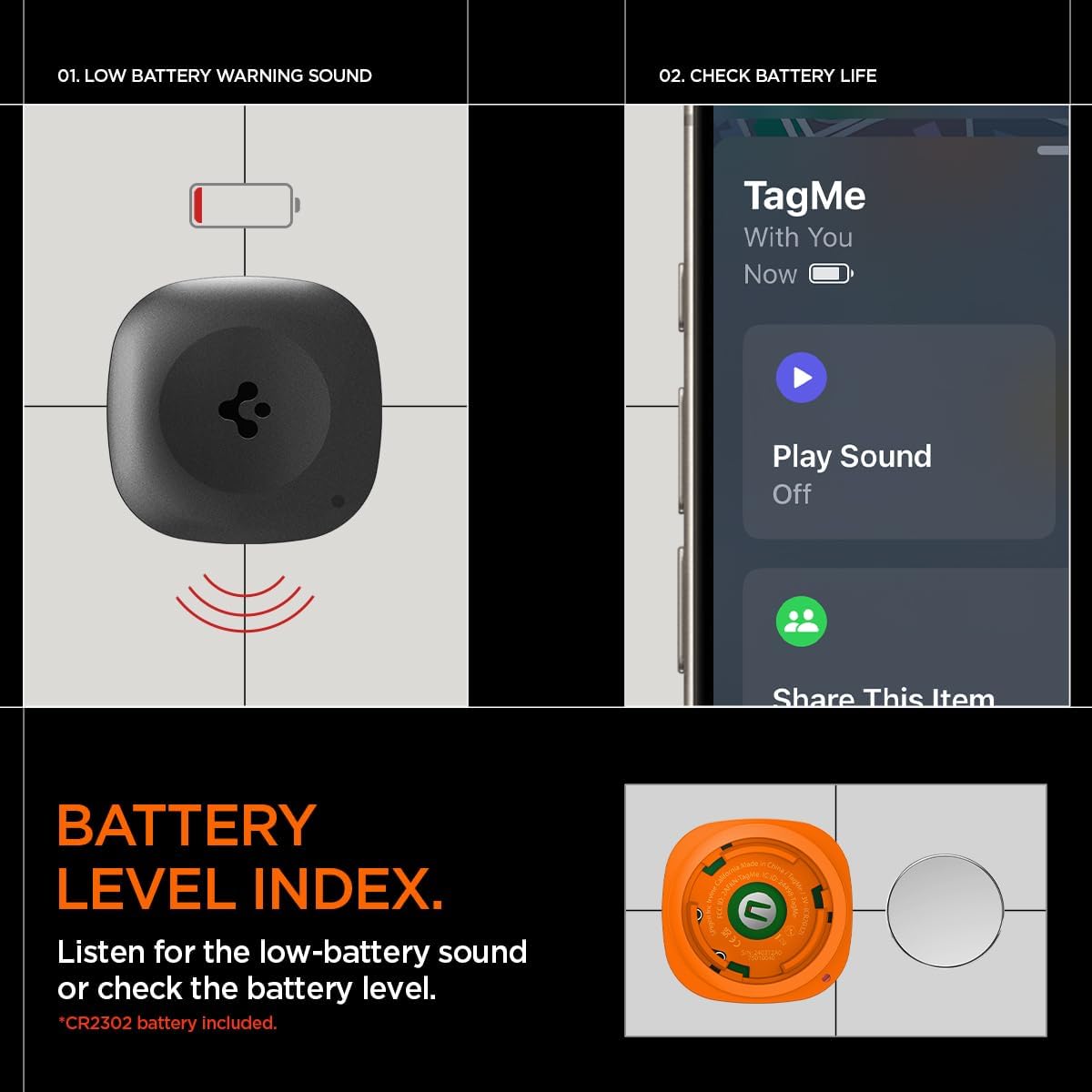
Image: Visuals indicating a low battery warning sound from the tracker and how to check the battery level in the Find My app.
Troubleshooting
Tracker Not Connecting/Pairing
- Check Battery: Ensure the protective film has been removed from the battery and that the battery is correctly inserted and has sufficient charge. Replace if necessary.
- Bluetooth On: Verify that Bluetooth is enabled on your iOS device.
- Find My App: Make sure you are using the official Apple "Find My" app and not a third-party application.
- Reset Tracker: To reset the product, quickly insert and remove the battery 5 times. This can help resolve pairing issues.
- Proximity: Ensure the tracker is within Bluetooth range of your iOS device during the pairing process.
No Sound from Tracker
- Check Battery: A low or dead battery can prevent the sound from playing. Replace the battery.
- Volume: While the tracker's sound volume is fixed, ensure your phone's volume is up to hear the confirmation sounds from the app.
- Obstructions: Ensure the speaker on the tracker is not blocked.
Inaccurate Location
- Network Coverage: The accuracy of the location depends on the Apple Find My network. In areas with fewer Apple devices, location updates might be less frequent or precise.
- Bluetooth Range: For real-time precise location (when playing sound), the tracker needs to be within Bluetooth range of your device.
Specifications
| Attribute | Detail |
|---|---|
| Model Number | AHP08353 |
| Product Dimensions | 3.84 x 1.24 x 3.84 inches (approx. 3.15cm x 3.15cm x 9.76cm) |
| Item Weight | 2.39 ounces |
| Connectivity Technology | Bluetooth |
| Compatible Devices | iPhone, MacBook (iOS only) |
| Battery Type | CR2032 Lithium (1 per tracker, included) |
| Speaker Output | 55.5dB ~ 87.6dB |
| Manufacturer | Spigen |
| Country of Origin | China |
Warranty and Support
For warranty information and customer support, please refer to the official Spigen website or contact their customer service directly. Details regarding product registration, warranty claims, and technical assistance can typically be found on the manufacturer's support pages.
Spigen Official Website: www.spigen.com
Ask a question about this manual
Ask about setup, troubleshooting, compatibility, parts, safety, or missing instructions. Manuals+ will review the question and use this page’s manual context to help answer it.