
Ultrbeka UBT001
Ultrbeka Air Tag Item Finder User Manual
Model: UBT001 | Brand: Ultrbeka
1. Introduction
The Ultrbeka Air Tag is a compact and versatile item finder designed to help you locate your belongings quickly and efficiently. Working seamlessly with Apple's Find My network (iOS only), this device offers global positioning, accuracy, and enhanced security for your valuables. Its durable, waterproof design ensures reliable performance in various conditions.

Image: The Ultrbeka Air Tag in black and white, showcasing its sleek design.
2. What's in the Box
Your Ultrbeka Air Tag package includes the following items:
- 2 x Ultrbeka Air Tags (one black, one white)
- 2 x Key Rings
- 2 x CR2 Batteries (pre-installed)
3. Setup Guide
Follow these steps to pair your Ultrbeka Air Tag with the Apple Find My app on your iOS device.
- Enable Find My and Bluetooth: On your iOS device, ensure that the "Find My" app is installed and both "Find My" and Bluetooth are enabled in your device settings.
- Open Find My App: Launch the "Find My" app on your iPhone or iPad.
- Add New Item: Navigate to the "Items" tab and tap the "+" icon. Select "Add Other Item" from the options.
- Activate Air Tag: Press and hold the function button on your Ultrbeka Air Tag until you hear a "beep" sound. The app should then detect the tag.
- Connect: Tap "Connect" on your device screen when the Ultrbeka tag appears.
- Name and Identify: Assign a name and an emoji to your Air Tag for easy identification within the app. Tap "Confirm" to complete the pairing process.

Image: The Ultrbeka Air Tag integrates with Apple Find My for global positioning and security.

Image: Step-by-step instructions for pairing your Ultrbeka Air Tag with the Find My app.
4. Operating Instructions
4.1. Finding Items Nearby
When your Ultrbeka Air Tag is within Bluetooth range, you can make it play a sound to help you locate it. Open the Find My app, select your Air Tag from the "Items" tab, and tap "Play Sound." The tag will emit a loud sound (up to 80-100 dB) to guide you to its location.

Image: Locate your item instantly by making the Ultrbeka Air Tag ring loudly.
4.2. Finding Items Far Away
If your item is outside of Bluetooth range, the Find My network can help you locate it. The Find My app will display the last known location of your Ultrbeka Air Tag on a map. You can then get directions to that location to retrieve your item.

Image: Use the Find My app to view your tag's location on a map and get directions.
4.3. Lost Mode
If your Ultrbeka Air Tag is lost, you can enable "Lost Mode" in the Find My app. This will allow you to display a message and contact information to anyone who finds your tag. When someone finds your tag and taps it with their NFC-enabled smartphone, they will see your contact details and can help return your item.

Image: Activate Lost Mode to display contact information for your lost Ultrbeka Air Tag.
4.4. Left Behind Remind
To prevent leaving your belongings behind, the Ultrbeka Air Tag can send you a "Left Behind Remind" notification. If your item moves out of range, the item locator will send you a reminder within 10 minutes (ensure notification settings are enabled in the Find My app) so you can return and retrieve it.
5. Key Features
- Compact and Lightweight Design: The Ultrbeka Air Tag is ultra-thin and weighs only 0.34oz (9.8g), making it easy to attach to various items without adding bulk.
- IP67 Waterproof and Dustproof: Designed to withstand splashes, rain, and dust, ensuring durability and reliability even in challenging environments.
- 360° Anti-Fall Protection: Constructed from durable materials to provide robust protection against accidental drops and impacts.
- Long-Lasting Battery: Equipped with a replaceable CR2 battery that can last up to 12 months, minimizing the need for frequent replacements. You can monitor the battery status directly within the Find My app.
- Apple MFI Certified: Ensures full compatibility and seamless integration with Apple's Find My network, providing reliable tracking and privacy protection.
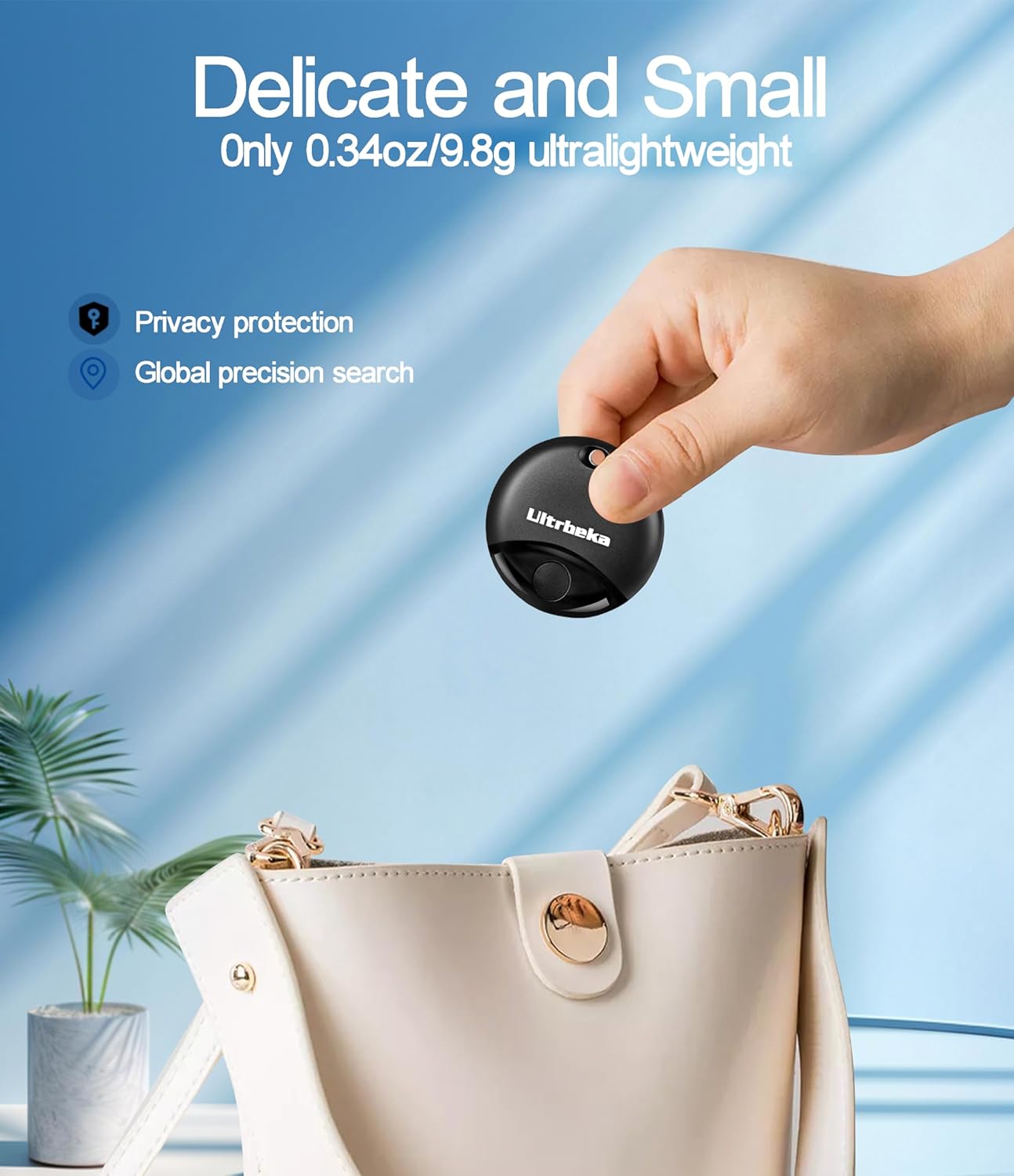
Image: The Ultrbeka Air Tag's compact size makes it easy to carry or attach to small items.

Image: The Ultrbeka Air Tag is IP67 rated for dust and water resistance, and features 360° anti-fall protection.

Image: The Ultrbeka Air Tag is Apple MFI Official Certified, ensuring compatibility and reliability.
6. Maintenance
6.1. Battery Replacement
The Ultrbeka Air Tag uses a standard CR2 battery, which is designed to last up to 12 months. When the battery level is low, you will receive a notification in the Find My app. To replace the battery:
- Locate the battery cover on the back of the Air Tag.
- Twist the cover counter-clockwise to unlock and remove it.
- Carefully remove the old CR2 battery.
- Insert a new CR2 battery with the positive (+) side facing up.
- Align the battery cover and twist it clockwise to secure it.
Note: Dispose of old batteries responsibly according to local regulations.
7. Troubleshooting
- Tag not connecting to Find My: Ensure Bluetooth is enabled on your iOS device. Make sure the Air Tag battery is not depleted. Try restarting your iOS device and the Find My app.
- Sound is too low or not playing: Check if the tag is obstructed. Ensure the battery is not low.
- Location not updating: Ensure your iOS device has an active internet connection. The Find My network relies on other Apple devices to anonymously relay location data.
- "Left Behind Remind" not working: Verify that notifications are enabled for the Find My app in your iOS device settings.
8. Specifications
| Model Number | UBT001 |
| Product Dimensions | 1.5 x 1.5 x 0.2 inches |
| Item Weight | 0.346 ounces |
| Battery Type | CR2 (included) |
| Battery Life | Up to 12 months |
| Water Resistance | IP67 Rated (Dustproof and Waterproof) |
| Connectivity | Bluetooth, Apple Find My Network |
| Compatibility | iOS devices only |
| Material | Metal, Plastic, Rubber |
| Manufacturer | JiangXi Kingtron Technology Co.,Ltd |
9. Warranty and Support
Ultrbeka provides high-quality products and dedicated after-sales service. Your Ultrbeka Air Tag comes with a 2-year product service warranty.
For any questions, technical assistance, or warranty claims, please contact our friendly customer support team. We are available 24 hours to ensure you receive prompt assistance when you need it.
Please refer to your purchase documentation for specific contact details or visit the official Ultrbeka store on Amazon for more information.
Related documentsUBT001


Ask a question about this manual
Ask about setup, troubleshooting, compatibility, parts, safety, or missing instructions. Manuals+ will review the question and use this page’s manual context to help answer it.