
1. Introduction
The MSI Forge GM100 is a wired optical gaming mouse designed for reliable performance and comfortable use. It features a high-precision optical sensor, customizable RGB LED lighting, and an ergonomic design suitable for both left and right-handed users. This manual provides essential information for setting up, operating, and maintaining your mouse.

Image 1.1: Top view of the MSI Forge GM100 Optical Gaming Mouse, showcasing its ergonomic shape and central scroll wheel.
2. Package Contents
- MSI Forge GM100 Optical Gaming Mouse
- User Manual (this document)
3. Setup Guide
3.1 System Requirements
- Operating System: Windows 10 or later
- Available USB 2.0 port
3.2 Connecting the Mouse
- Locate an available USB 2.0 port on your computer.
- Plug the USB connector of the MSI Forge GM100 mouse into the USB port.
- The operating system will automatically detect and install the necessary drivers. This process may take a few moments.
- Once installed, the mouse LED lights will illuminate, indicating it is ready for use.

Image 3.1: Front view of the mouse, illustrating the integrated USB cable for connection to a computer.
4. Operating Instructions
4.1 Button Functions
The MSI Forge GM100 mouse features 7 programmable buttons for enhanced control and customization.
- Left Click Button: Standard primary function.
- Right Click Button: Standard secondary function.
- Scroll Wheel: Scrolls up/down, and acts as a middle click button.
- DPI Up Button (+): Increases the mouse's DPI sensitivity.
- DPI Down Button (-): Decreases the mouse's DPI sensitivity.
- Side Buttons (Forward/Backward): Typically used for navigation in web browsers or in-game commands.
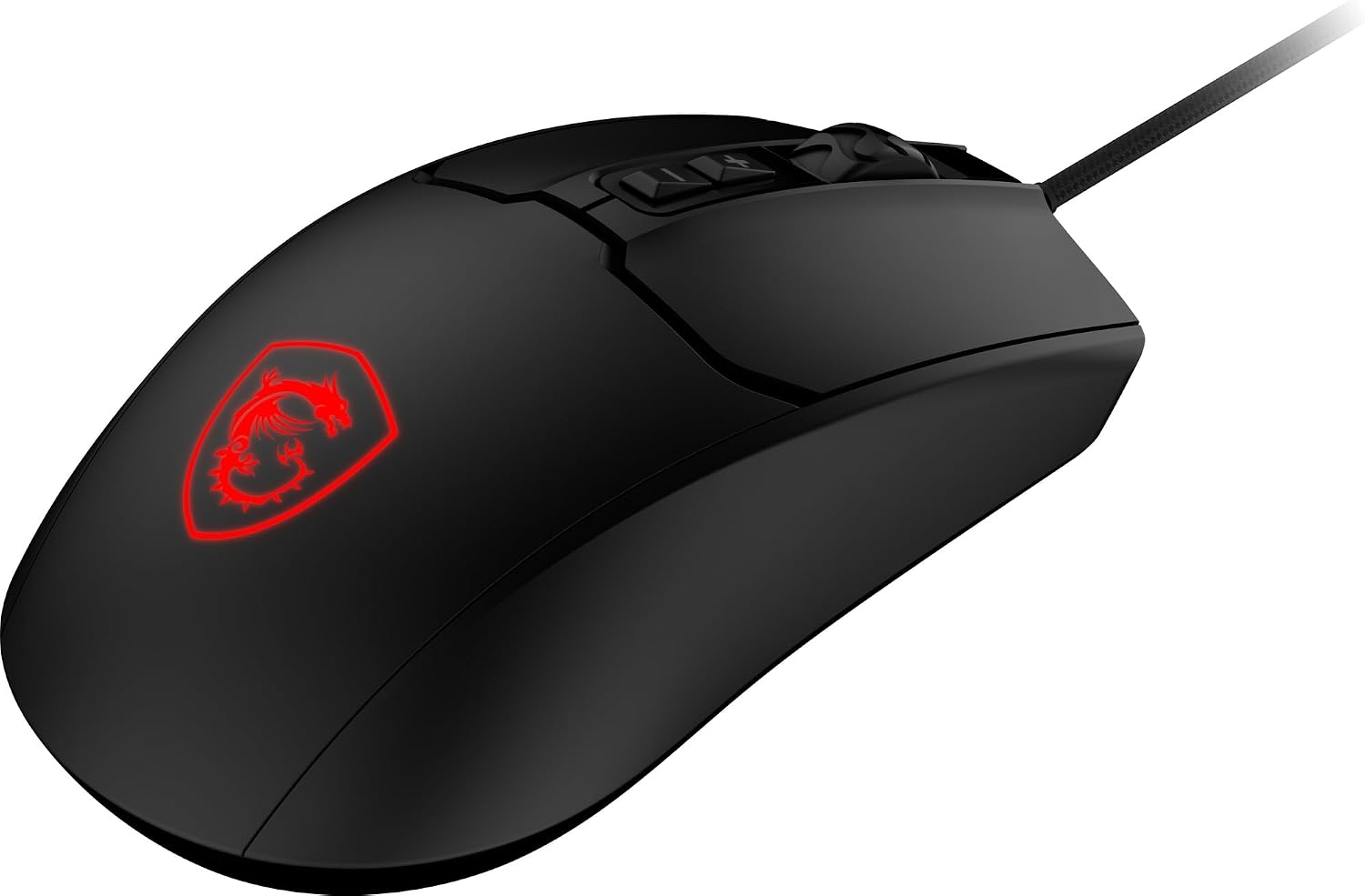
Image 4.1: Top-down view of the mouse, clearly showing the DPI adjustment buttons located below the scroll wheel.

Image 4.2: Angled view of the mouse, illustrating the placement of the two side buttons on the left side.
4.2 DPI Adjustment
The mouse features four preset DPI levels: 1000, 1600, 3200, and 6400. You can cycle through these levels by pressing the DPI Up (+) or DPI Down (-) buttons located below the scroll wheel. Each change in DPI will be indicated by a brief change in the LED lighting.
4.3 LED Lighting Modes
The MSI Forge GM100 includes 6 RGB LED lighting modes. These modes are software-free programmable. To cycle through the different lighting effects, refer to the specific button combination or dedicated button (if available) as described in the product's quick start guide or by pressing the DPI buttons simultaneously (if applicable, consult product packaging for exact method).

Image 4.3: Angled view of the mouse, highlighting the illuminated MSI logo on the palm rest, which changes with RGB lighting modes.
5. Maintenance
5.1 Cleaning the Mouse
- Disconnect the mouse from your computer before cleaning.
- Use a soft, lint-free cloth slightly dampened with water or a mild cleaning solution to wipe the surface of the mouse.
- Avoid using harsh chemicals, abrasive cleaners, or solvents, as these can damage the mouse's finish.
- For the optical sensor, use a cotton swab lightly dampened with isopropyl alcohol to gently clean the sensor opening on the bottom of the mouse.
- Ensure the mouse is completely dry before reconnecting it to your computer.
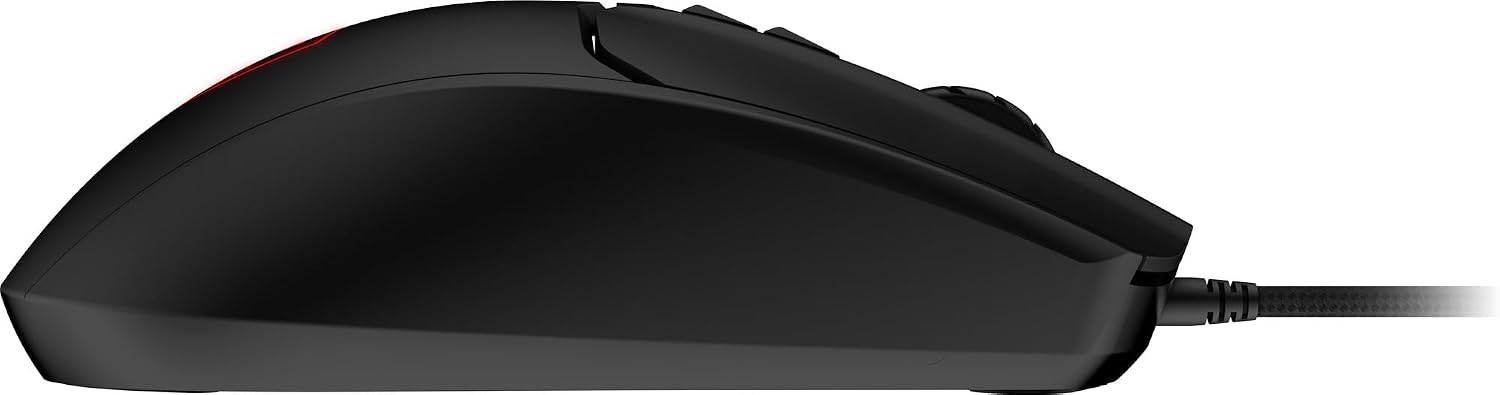
Image 5.1: Bottom view of the mouse, displaying the optical sensor and glide feet.
5.2 General Care
- Avoid dropping the mouse or subjecting it to strong impacts.
- Do not expose the mouse to extreme temperatures, humidity, or direct sunlight.
- Keep the mouse away from liquids and dust.
6. Troubleshooting
6.1 Mouse Not Responding
- Ensure the USB cable is securely plugged into a working USB port on your computer.
- Try plugging the mouse into a different USB port.
- Restart your computer.
- Check your computer's Device Manager (Windows) to see if the mouse is recognized and if there are any driver issues.
6.2 Cursor Movement is Erratic or Jumpy
- Clean the optical sensor on the bottom of the mouse (refer to Section 5.1).
- Ensure you are using the mouse on a clean, non-reflective, and uniform surface. Mouse pads are recommended.
- Adjust the DPI settings to a lower sensitivity if the cursor is too fast.
6.3 LED Lights Not Working or Incorrect Color
- Ensure the mouse is properly connected to your computer.
- Cycle through the LED lighting modes using the designated buttons or combinations (refer to Section 4.3).
- If the issue persists, try connecting the mouse to another computer to rule out a system-specific problem.
7. Specifications
| Feature | Description |
|---|---|
| Model Number | FORGE GM100 |
| Interface | USB 2.0 |
| Sensor Type | Optical |
| Preset DPI | 1000 / 1600 / 3200 / 6400 |
| Switch Type | Micro Switch |
| Switch Durability | 10 million clicks |
| Number of Buttons | 7 |
| LED Light | 6 modes RGB |
| Supported OS | Windows 10 or later |
| Cable Length | 4.9 ft (1.5 m) |
| Product Dimensions | 4.7 x 2.4 x 1.6 inches (120 x 60 x 40 mm) |
| Product Weight | 3.9 oz (108 g) |
8. Warranty and Support
8.1 Warranty Information
For detailed warranty information regarding your MSI Forge GM100 Optical Gaming Mouse, please refer to the warranty card included with your product or visit the official MSI website. Warranty terms and conditions may vary by region.
8.2 Technical Support
If you encounter any issues or have questions not covered in this manual, please visit the official MSI support website for assistance. You can find drivers, FAQs, and contact information for technical support there.
Official MSI Website: www.msi.com


