
1. Introduction
The INVCALL T10 Cell Signal Booster is designed to enhance cellular signals in homes located in areas with weak reception. This device improves voice, text, and data speeds across all major North American mobile carriers, including Verizon, AT&T, Sprint, and T-Mobile. It features advanced technology to amplify signals directly at the source, minimizing signal loss and extending indoor coverage.
Key features include:
- Integrated cell booster and antenna for optimal performance in weak signal environments.
- Advanced technology to amplify signals at the strongest outdoor point, reducing cable attenuation.
- Compatibility with the 'Signal Advisor' APP for real-time monitoring and optimization.
- Carrier-grade quality suitable for remote mountainous areas, suburbs, and other challenging signal locations.
- Upgraded PH400 cable for lower signal loss and faster transmission.
2. Package Contents
Verify that all items are present in your package:
- T10 Tower Booster Unit
- Inside Wall-mounted Antenna
- 2 x 20ft Coaxial Cables
- 1 x 30ft Coaxial Cable
- 1 x Window Entry Cable
- Power Supply Adapter
- Installation Screw Kit
- Other Installation Accessories

Image: All components included in the INVCALL T10 Cell Signal Booster package, including the booster unit, indoor antenna, various cables, power supply, and mounting hardware.
3. Product Overview
The INVCALL T10 system consists of several key components working together to enhance your cellular signal:
- Tower Booster Unit: The main processing unit that amplifies the cellular signal.
- Outdoor Antenna: A high-gain antenna designed to capture weak signals from cell towers.
- Indoor Antenna: A wall-mounted antenna that broadcasts the amplified signal throughout your home.
- Coaxial Cables: Connect the antennas to the booster unit. The upgraded PH400 cables ensure minimal signal loss.
- Window Entry Cable: A flat cable designed to pass through window frames without drilling.

Image: The INVCALL T10 Cell Signal Booster system, showing the outdoor tower antenna, indoor panel antenna, and connecting coaxial cables.

Image: Rear view of the INVCALL T10 Tower Booster unit, displaying regulatory information and product model details.

Image: A magnified view of the regulatory label on the INVCALL T10 Cell Signal Booster, detailing FCC and ISED compliance information, product model, power input, and serial number (S/N:2024030600085).

Image: A cross-section view of the upgraded PH400 coaxial cable, highlighting its construction for lower signal loss and faster data transfer, used with the INVCALL T10 Booster.
4. Specifications
| Feature | Specification |
|---|---|
| Max Gain | 70dB |
| Supported Bands | 2/4/5/12/13/17/25 (700A MHz, 700V MHz, 850 MHz, 1700 MHz, 1900 MHz) |
| Compatible Carriers | All US carriers: Verizon, AT&T, T-Mobile, Sprint, US Cellular, Straight Talks |
| Item Model Number | T10 |
| Item Weight | 8.56 pounds |
| Package Dimensions | 14.45 x 12.52 x 6.57 inches |
| Included Components | T10 Tower Booster, Inside Wall-mounted Antenna, 2*20ft Cables+1*30ft Cable+1*Window Entry Cable, Power Supply, Installation Screw Kit, Other Installation Accessories |

Image: Visual guide on how to check your phone's frequency band using the 'Network Cell Info Lite' app for Android or by dialing *3001#12345#* on iPhone, a crucial step before installation.
5. Installation Guide
Proper installation is crucial for optimal performance. Follow these steps carefully.
5.1 Pre-Installation Checklist
- FCC/ISED Registration: This is a CONSUMER device. Before use, you MUST REGISTER this device with your wireless provider and have your provider’s consent. Most wireless providers consent to the use of signal boosters. Some providers may not consent to the use of this device on their network. If you are unsure, contact your provider. In Canada, BEFORE USE you Must meet all requirements set out in ISED CPC-2-1-05.
- Check Frequency Bands: Ensure your carrier's frequency bands are supported by the T10 booster. Refer to Section 4. Specifications for supported bands.
- Identify Strongest Outdoor Signal: Use the 'Signal Advisor' APP or a field test mode on your phone to locate the strongest outdoor signal point. This will help determine the best placement for your outdoor antenna.
5.2 Outdoor Antenna Placement
Mount the outdoor antenna at the highest possible point on your building, such as a roof or pole, where the signal is strongest. Ensure it is pointed towards the nearest cell tower. The antenna MUST NOT be installed within 20 cm (8 inches) of any person.

Image: An outdoor tower antenna mounted on the side of a house, illustrating its placement for capturing signals from various compatible carriers like Sprint, Verizon, AT&T, T-Mobile, and U.S. Cellular.

Image: A close-up view of the outdoor tower antenna mounted on a pole, demonstrating its ability to work simultaneously with all major carriers on supported bands.
5.3 Indoor Antenna Placement
Install the indoor wall-mounted antenna in a central location within your home where you need improved signal coverage. Ensure there is adequate separation between the outdoor and indoor antennas (minimum 27 feet recommended) to prevent oscillation and maximize performance. The indoor antenna broadcasts the amplified signal in a 180-degree wide coverage pattern.

Image: A floor plan diagram illustrating the 180-degree wide coverage provided by the high transmission indoor antenna when mounted on a wall, showing signal distribution across multiple rooms.
5.4 Booster Unit Placement
Place the T10 Tower Booster unit in a secure, dry location, preferably near a power outlet and where it can be easily connected to both antennas. Avoid placing it in direct sunlight or areas with extreme temperatures.
5.5 Cable Connections
- Connect the outdoor antenna to the 'OUTDOOR' port on the T10 Booster unit using one of the provided coaxial cables.
- Connect the indoor antenna to the 'INDOOR' port on the T10 Booster unit using another coaxial cable. If routing through a window, use the flat window entry cable.
- Ensure all connections are finger-tight.
5.6 Powering On
Once all antennas are securely connected, plug the power supply into the T10 Booster unit and then into a wall outlet. The booster will power on and begin operation.

Image: A cutaway diagram of a house illustrating the operational flow of the cell signal booster: the outdoor antenna receives a signal, the booster amplifies it, and the indoor antenna spreads the signal throughout the room.
6. Operating Instructions
6.1 Using the 'Signal Advisor' APP
The 'Signal Advisor' APP provides real-time monitoring and optimization capabilities for your T10 booster. Connect to the app to:
- Query the strongest outdoor signal point using the signal compass feature.
- Detect the working status of the amplifier.
- Adjust settings in real-time for an improved network experience.
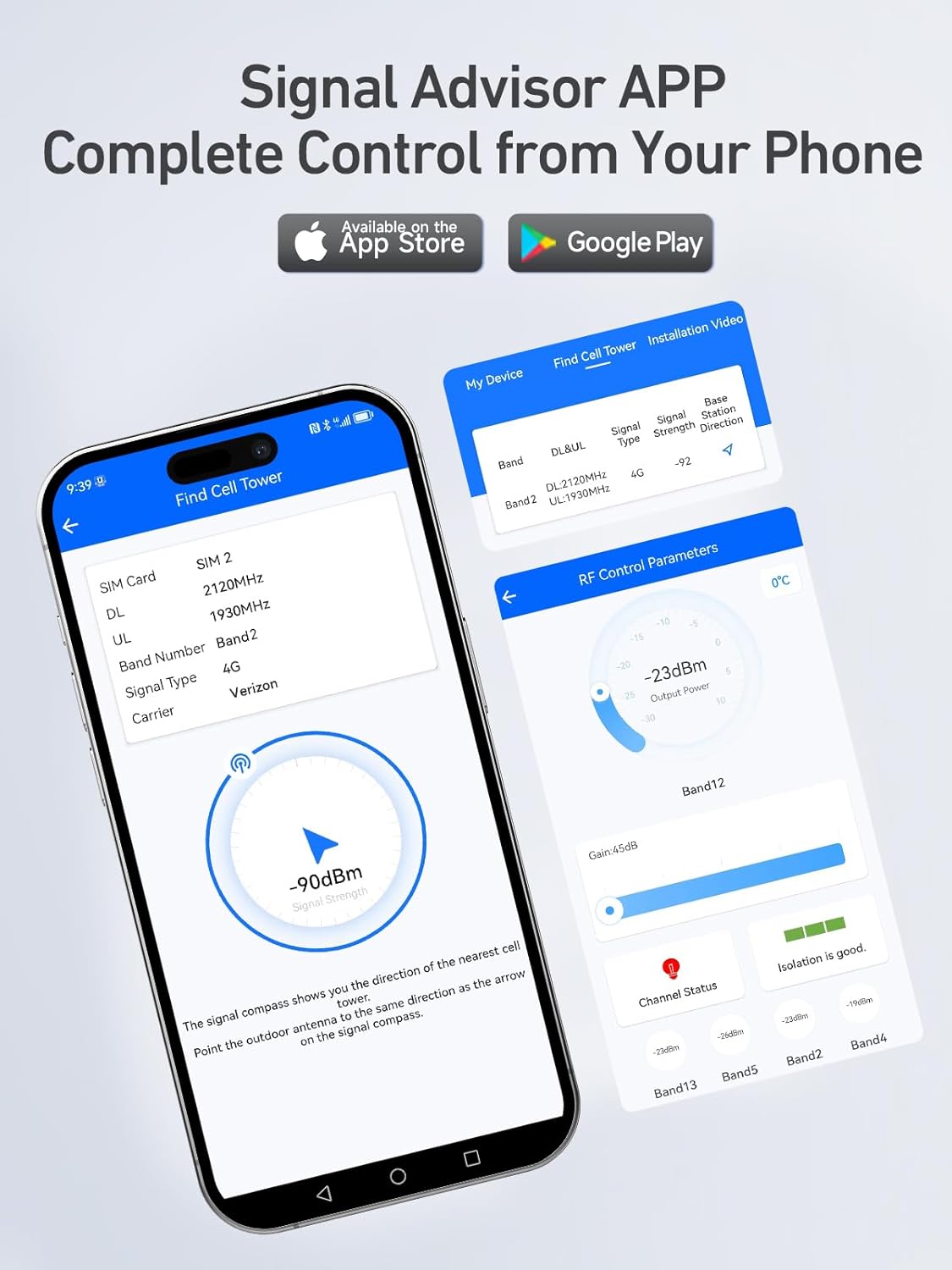
Image: Screenshot of the 'Signal Advisor' mobile application, showing its interface for finding cell towers and displaying signal strength, band information, and carrier details.
6.2 Intelligent Adjustment Gain
The T10 booster features intelligent gain adjustment. You can fine-tune the gain settings via the 'Signal Advisor' APP to optimize performance and prevent oscillation. The app provides visual feedback on channel status and isolation quality, aiding in quick troubleshooting.

Image: Screenshot of the 'Signal Advisor' mobile application demonstrating the intelligent gain adjustment feature, allowing users to control output power and view channel status and isolation quality for quick troubleshooting.
7. Troubleshooting
If you experience issues with your INVCALL T10 Cell Signal Booster, consider the following:
- No Signal Improvement: Ensure both outdoor and indoor antennas are correctly installed and connected. Verify sufficient separation between antennas (at least 27 feet). Check the outdoor antenna's direction using the 'Signal Advisor' APP to ensure it points to the strongest cell tower.
- Red Light Indicator: A red light typically indicates an oscillation issue (feedback loop between antennas). Increase the separation distance between the outdoor and indoor antennas, or adjust their orientation.
- Weak Signal Despite Booster: Confirm that the outdoor signal is not extremely weak (e.g., less than -100 dBm). Boosters amplify existing signals; they cannot create a signal where none exists. Check all cable connections for tightness.
- App Connectivity Issues: Ensure your phone's Bluetooth or Wi-Fi is enabled and correctly paired with the booster unit if required for app communication.
8. Maintenance
The INVCALL T10 Cell Signal Booster requires minimal maintenance:
- Keep the booster unit clean and free from dust.
- Ensure all cable connections remain secure and free from damage.
- Periodically check the outdoor antenna for any physical damage or obstruction.
- Avoid exposing the booster unit to extreme temperatures or moisture.
9. Warranty and Support
INVCALL provides comprehensive after-sales support for the T10 Cell Signal Booster:
- Warranty: Up to 3 years of warranty service.
- Returns/Replacements: 90-day replacement and 30-day return policy.
- Technical Support: Lifetime professional technical support is available.
For service or technical assistance, please contact INVCALL customer support.