
ELECTROPRIME IP7G1059W
User Manual
ELECTROPRIME Multi-Function Wireless Atmosphere Lamp Alarm Clock Bluetooth Speaker
Model: IP7G1059W
1. Introduction
Thank you for purchasing the ELECTROPRIME Multi-Function Wireless Atmosphere Lamp Alarm Clock Bluetooth Speaker. This device integrates six essential functions into one compact unit: wireless charging, alarm clock, mobile phone holder, wireless speaker, ambient night light, and temperature/humidity meter. This manual provides detailed instructions for setup, operation, and maintenance to ensure optimal performance and longevity of your device.
2. Safety Information
- Do not expose the device to extreme temperatures, direct sunlight, or high humidity.
- Avoid dropping or subjecting the device to strong impacts.
- Do not disassemble, repair, or modify the device yourself. Refer to qualified service personnel.
- Keep the device away from water or other liquids to prevent electric shock or damage.
- Use only the specified power adapter and cables to charge the device.
- Ensure proper ventilation when using the wireless charging function.
3. Package Contents
Please check the package for the following items:
- ELECTROPRIME Multi-Function Device (1 unit)
- USB-C Charging Cable (1 unit)
- User Manual (1 unit)
4. Product Overview
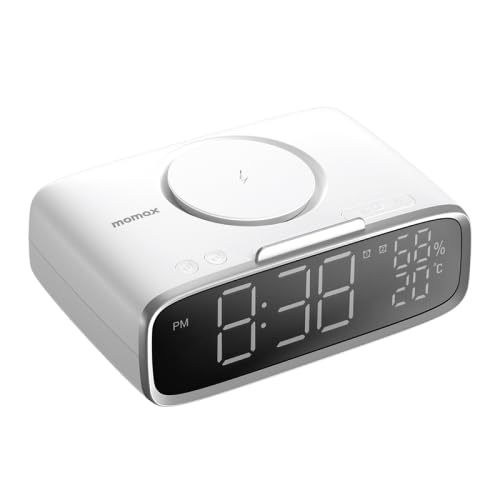
Figure 4.1: Angled view of the device, showing the wireless charging pad on top, the digital display on the front, and control buttons.
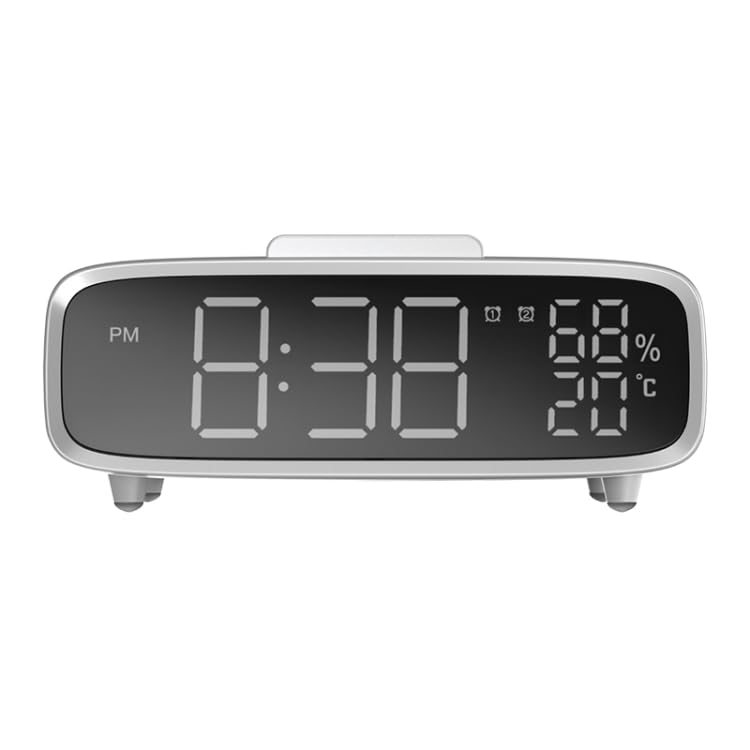
Figure 4.2: Front view of the device, highlighting the large digital display for time, temperature, and humidity readings.
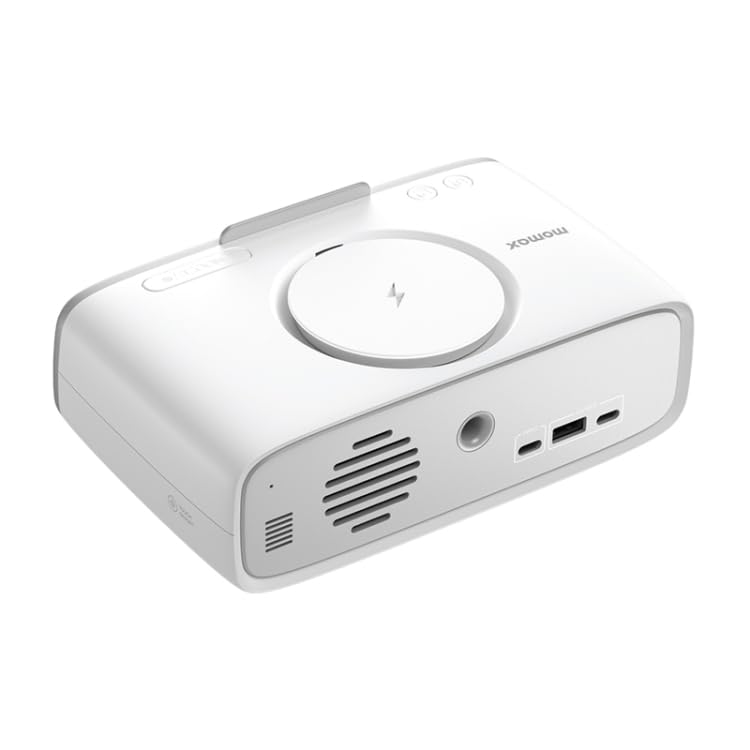
Figure 4.3: Rear view of the device, showing the USB-C input port, USB-A output port, and speaker grille.
Key Components:
- Wireless Charging Pad: Located on the top surface for compatible devices.
- Digital Display: Shows time, temperature, humidity, and alarm status.
- Control Buttons: For setting time, alarms, adjusting brightness, and controlling audio.
- Atmosphere Lamp: Integrated lighting for ambient illumination.
- Bluetooth Speaker: For audio playback.
- USB-C Input Port: For powering and charging the device.
- USB-A Output Port: For charging other devices.
- Mobile Phone Holder: Integrated stand for device placement.
5. Setup
5.1 Power Connection
- Connect the provided USB-C cable to the USB-C input port on the back of the device.
- Plug the other end of the USB-C cable into a compatible USB power adapter (not included).
- The device will power on automatically, and the display will illuminate.
5.2 Initial Setup (Time & Brightness)
Upon first power-on or after a reset, you may need to set the time and adjust display brightness.
- Refer to the 'Setting Time and Alarm' section for detailed time adjustment instructions.
- The display offers 3 levels of brightness adjustment. Use the dedicated brightness button (if available) or refer to the 'Operating the Device' section for specific controls.
6. Operating the Device
6.1 Setting Time and Alarm
Detailed instructions for setting the current time and configuring alarms will be provided in the full product manual. Typically, dedicated buttons (e.g., 'Time Set', 'Alarm Set', '+', '-') are used for these functions.
- Press the 'Time Set' button to enter time setting mode.
- Use the '+' and '-' buttons to adjust hours and minutes.
- Press 'Time Set' again to confirm.
- Follow a similar process for setting alarms using the 'Alarm Set' button.
6.2 Using Wireless Charging
The device supports 5W/7.5W/10W/15W wireless charging.
- Place your Qi-compatible smartphone or device centrally on the wireless charging pad located on top of the unit.
- Ensure the device is properly aligned with the charging coil.
- The charging indicator (if available) on the display will light up, and your device should show that it is charging.
- Remove your device once fully charged.
6.3 Bluetooth Speaker Functionality
Enjoy 360-degree surround sound with the built-in 40mm dynamic coil speaker.
- Press the Bluetooth button (usually indicated by a Bluetooth icon) to activate pairing mode. The device will emit an audible prompt or the Bluetooth indicator will flash.
- On your smartphone or audio device, enable Bluetooth and search for available devices.
- Select "ELECTROPRIME" or a similar name from the list to pair.
- Once paired, you can play audio from your device through the speaker.
- Use the device's volume controls or your connected device's volume controls to adjust audio levels.
6.4 Atmosphere Lamp Control
The ambient night light provides soft, warm illumination.
- Locate the dedicated light control button (often a touch-sensitive area or a button with a light bulb icon).
- Press once to turn the light on/off.
- Multiple presses may cycle through different brightness levels or light modes (if applicable).
6.5 Temperature and Humidity Display
The built-in smart sensor provides real-time ambient temperature and humidity readings.
- The temperature and humidity are continuously displayed on the main screen.
- No user interaction is typically required for this function.
6.6 Mobile Phone Holder Usage
The wireless charging stand doubles as a convenient mobile phone holder.
- Simply place your smartphone into the designated slot or against the backrest of the charging pad.
- This allows for hands-free viewing of videos or other content while charging.
7. Maintenance and Care
- Cleaning: Use a soft, dry cloth to wipe the surface of the device. Do not use abrasive cleaners, waxes, or solvents.
- Storage: When not in use for extended periods, store the device in a cool, dry place away from direct sunlight.
- Battery Care: To prolong battery life, avoid fully discharging the battery frequently. Charge the device regularly.
8. Troubleshooting
| Problem | Possible Cause | Solution |
|---|---|---|
| Device does not power on. | Low battery or no power connection. | Connect the device to a power source using the USB-C cable. Ensure the power adapter is working. |
| Wireless charging not working. | Phone not Qi-compatible, misaligned, or foreign object detected. | Ensure your phone supports Qi wireless charging. Realign the phone on the pad. Remove any metal objects between the phone and the pad. |
| Bluetooth speaker not pairing. | Device not in pairing mode, or too far from audio source. | Ensure the device is in Bluetooth pairing mode. Move the audio source closer to the speaker. Try unpairing and re-pairing. |
| Display is too dim/bright. | Brightness setting needs adjustment. | Press the brightness control button to cycle through brightness levels. |
9. Technical Specifications
| Feature | Specification |
|---|---|
| Model | IP7G1059W |
| Supported Protocols | HSP/HFP/A2DP/AVRCP |
| Battery Capacity | 2000mAh |
| Charging Time | Approximately 3 hours |
| USB-C Input | 5V/3A, 9V/2A |
| USB-C/USB-A Output | 5V/1A |
| Wireless Output | 5W/7.5W/10W/15W |
| Wireless Effective Distance | 10M |
| Material | ABS+Silicone |
| Dimensions | 185x117x62mm |
| Net Weight | 548g |
10. Warranty and Support
For warranty information and customer support, please refer to the warranty card included with your purchase or contact ELECTROPRIME customer service through the retailer where the product was purchased. Keep your purchase receipt as proof of purchase.
Ask a question about this manual
Ask about setup, troubleshooting, compatibility, parts, safety, or missing instructions. Manuals+ will review the question and use this page’s manual context to help answer it.