
ELECTROPRIME TG192
User Manual for ELECTROPRIME TG192 Portable Bluetooth Speaker
Model: TG192 | Item Number: SYA001548601D
1. Introduction
Thank you for purchasing the ELECTROPRIME TG192 Portable Wireless Bass 3D Stereo Bluetooth Speaker. This manual provides essential information for setting up, operating, and maintaining your speaker. Please read it carefully before use to ensure optimal performance and longevity of the product.
2. Safety Information
- Do not expose the speaker to extreme temperatures, direct sunlight, or high humidity.
- Avoid dropping or subjecting the speaker to strong impacts.
- Do not disassemble, repair, or modify the speaker yourself. Refer to qualified service personnel.
- Keep the speaker away from water and liquids. While it is rated IPX6 for water resistance, it is not designed for submersion.
- Use only the provided charging cable and a compatible power adapter (not included) for charging.
- Keep out of reach of children.
3. Package Contents
- Bluetooth Speaker x 1
- USB Cable x 1
- AUX Cable x 1
- User Manual x 1
- Rope x 1 (Shoulder Strap)
4. Product Overview
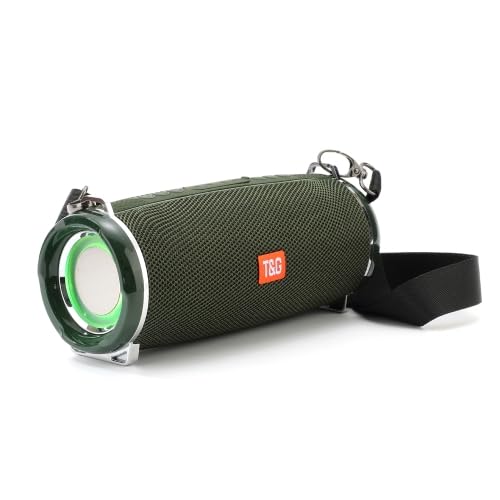
Image: Front view of the ELECTROPRIME TG192 speaker, showcasing its cylindrical design, mesh grille, and attached shoulder strap. The speaker is green with a prominent T&G logo.

Image: The ELECTROPRIME TG192 speaker with its LED lights illuminated, demonstrating the colorful lighting feature. The speaker appears to be in a dark setting, highlighting the light effects.
The TG192 speaker features a robust design with a mesh cover for protection against water, dust, and shock. It includes dual bass diaphragms for enhanced audio and multiple flashing LED light modes.
Component Identification:
- Power Button: For turning the speaker on/off.
- Mode Button: To switch between Bluetooth, FM, TF Card, USB, and AUX modes.
- Volume Up/Next Track Button: Short press for volume up, long press for next track.
- Volume Down/Previous Track Button: Short press for volume down, long press for previous track.
- Play/Pause/Call Button: To play/pause music, answer/end calls.
- TF Card Slot: For inserting a TF (Micro SD) card.
- USB Port: For inserting a USB disk.
- AUX Input: 3.5mm audio jack for wired connection.
- Charging Port: Micro USB port for charging.
- LED Indicator: Shows charging status and mode.
5. Setup
5.1 Charging the Speaker
- Connect the provided USB cable to the speaker's charging port.
- Connect the other end of the USB cable to a USB power adapter (5V/1A recommended) or a computer's USB port.
- The LED indicator will illuminate during charging and turn off when fully charged.
- Charging time is approximately 2-3 hours.
5.2 Powering On/Off
- To Power On: Press and hold the Power button for a few seconds until you hear an audible prompt and the LED lights activate.
- To Power Off: Press and hold the Power button again for a few seconds until you hear an audible prompt and the LED lights turn off.
6. Operating Instructions
6.1 Bluetooth Pairing
- Ensure the speaker is powered on and in Bluetooth mode (indicated by a flashing LED). If not, press the Mode button to switch to Bluetooth mode.
- Enable Bluetooth on your device (smartphone, tablet, etc.).
- Search for "TG192" in the list of available Bluetooth devices.
- Select "TG192" to connect. Once connected, you will hear a confirmation sound, and the LED indicator will stop flashing.
- The speaker will automatically reconnect to the last paired device if it is within range and Bluetooth is enabled.
6.2 Using FM Radio
- Press the Mode button to switch to FM radio mode.
- To auto-scan for stations, short press the Play/Pause button. The speaker will scan and save available stations.
- Use the Volume Up/Next Track and Volume Down/Previous Track buttons to navigate between saved stations.
6.3 Using TF Card (Micro SD Card)
- Insert a TF card (up to 32GB) with MP3 audio files into the TF card slot.
- The speaker will automatically switch to TF card mode and begin playing music. If not, press the Mode button to select TF card mode.
- Use the Play/Pause, Volume Up/Next Track, and Volume Down/Previous Track buttons to control playback.
6.4 Using USB Disk
- Insert a USB disk (USB 2.0) with MP3 audio files into the USB port.
- The speaker will automatically switch to USB disk mode and begin playing music. If not, press the Mode button to select USB mode.
- Use the Play/Pause, Volume Up/Next Track, and Volume Down/Previous Track buttons to control playback.
6.5 Using AUX Input
- Connect one end of the provided 3.5mm AUX cable to the speaker's AUX input port.
- Connect the other end to the audio output jack of your device (e.g., laptop, MP3 player).
- The speaker will automatically switch to AUX mode. If not, press the Mode button to select AUX mode.
- Control playback and volume from your connected device.
6.6 TWS Function (True Wireless Stereo)
The TWS function allows you to connect two TG192 speakers together for a true stereo sound experience.
- Ensure both TG192 speakers are powered on and not connected to any Bluetooth device.
- On one of the speakers (this will be the primary speaker), long press the Mode button until you hear a pairing sound.
- The two speakers will automatically connect to each other. Once connected, you will hear a confirmation sound.
- Now, connect your device to the primary speaker via Bluetooth as described in section 6.1. Both speakers will play audio simultaneously.
6.7 Call Function
When connected to a smartphone via Bluetooth:
- Answer Call: Short press the Play/Pause/Call button.
- End Call: Short press the Play/Pause/Call button during a call.
- Reject Call: Long press the Play/Pause/Call button.
- Redial Last Number: Double press the Play/Pause/Call button.
6.8 LED Flashing Lights
The speaker features multiple flashing LED light modes that can synchronize with music. To cycle through light modes or turn them off, short press the dedicated Light button (if available, otherwise it might be integrated with another button or automatic).
7. Maintenance
- Clean the speaker with a soft, dry cloth. Do not use abrasive cleaners or solvents.
- If the speaker gets wet, wipe it dry immediately. Do not charge it until it is completely dry.
- Store the speaker in a cool, dry place when not in use for extended periods.
- Charge the speaker at least once every three months to maintain battery health if not used regularly.
8. Troubleshooting
| Problem | Possible Cause | Solution |
|---|---|---|
| Speaker does not turn on. | Low battery. | Charge the speaker fully. |
| Cannot pair with Bluetooth device. | Speaker not in pairing mode; Device Bluetooth off; Speaker too far from device. | Ensure speaker is in Bluetooth pairing mode (flashing LED). Turn on device Bluetooth. Move speaker closer to device (within 10M). Forget "TG192" on your device and try pairing again. |
| No sound. | Volume too low; Incorrect mode; Device not connected. | Increase speaker and device volume. Ensure correct mode (Bluetooth, AUX, TF, USB). Verify successful connection. |
| Poor FM radio reception. | Weak signal. | Move the speaker to an open area. The AUX cable can sometimes act as an antenna, try plugging it in. |
| TWS pairing failed. | Speakers already paired to a device; Incorrect pairing procedure. | Ensure both speakers are disconnected from any Bluetooth devices. Follow TWS pairing instructions carefully. |
9. Specifications
| Bluetooth Version | 5.0 |
| Wireless Transmission Range | Up to 10 meters (33 feet) |
| Battery Capacity | 2400mAh |
| Charging Time | 2-3 hours |
| Playtime (Normal Volume) | Approximately 5 hours (up to 10 hours at 2/3 volume) |
| Horn Specification | 52mm x 2 |
| Horn Power | 4 Ω / 5W x 2 (Total 10W) |
| Frequency Response | 70Hz-20KHz |
| Signal to Noise Ratio | ≥90dB |
| Distortion Rate | <1% |
| Product Dimensions | 194.4 x 81 x 82mm |
| Product Net Weight | 720g |
| Supported Modes | FM, TF card input, U disk input, 3.5mm audio input |
| Special Features | LED Flashing Lights, TWS Function, Call Function, IPX6 Water Resistant |
10. Warranty and Support
ELECTROPRIME products are designed and manufactured to the highest quality standards. For warranty information and customer support, please refer to the warranty card included in your package or contact ELECTROPRIME customer service through the retailer where you purchased the product.
For further assistance, please visit the official ELECTROPRIME website or contact their customer support channels.
Ask a question about this manual
Ask about setup, troubleshooting, compatibility, parts, safety, or missing instructions. Manuals+ will review the question and use this page’s manual context to help answer it.