
1. Introduction
This manual provides essential information for the proper installation, configuration, and operation of your Xiaomi AX3000 NE Network System. Please read this guide thoroughly before using the device to ensure optimal performance and safety.
2. Safety Information
- Use only the power adapter provided with the device.
- Do not expose the device to water or high humidity.
- Keep the device away from heat sources and direct sunlight.
- Ensure proper ventilation around the device to prevent overheating.
- Do not attempt to disassemble or repair the device yourself. Contact authorized service personnel.
3. Package Contents
Verify that all items are present in your package:
- Xiaomi AX3000 NE Router Body
- Power Adapter
- Network Cable
- User Manual (this document)
- Warranty Card
4. Product Overview
The Xiaomi AX3000 NE is a high-performance network system designed to provide full home Wi-Fi coverage with high-speed Wi-Fi 7 capabilities. It supports seamless circulation for an optimized mesh network experience and features NFC Easy Share for quick device connections.
4.1 Front View

Figure 4.1: Front view of the Xiaomi AX3000 NE router, featuring a minimalist white design with an illuminated indicator strip on the right side.
4.2 Side View

Figure 4.2: Side view of the Xiaomi AX3000 NE router, showcasing its compact, upright form factor and subtle ventilation grooves.
4.3 Rear Panel and Ports

Figure 4.3: Rear panel of the Xiaomi AX3000 NE router, displaying the power input, four Ethernet ports (one WAN, three LAN), and a recessed Mesh/Reset button.
The rear panel includes:
- Power Input: Connects to the provided power adapter.
- Ethernet Ports (4): One port typically serves as the WAN (Wide Area Network) port for connecting to your modem, while the others are LAN (Local Area Network) ports for wired devices.
- Mesh/Reset Button: Used for initiating mesh pairing or performing a factory reset.
5. Setup Guide
5.1 Initial Setup (Main Router)
- Connect Power: Plug the power adapter into the router's power input and then into a power outlet. Wait for the indicator light to turn solid white or blue, indicating it's ready.
- Connect to Modem: Connect one end of the provided network cable to the WAN port (often labeled or distinguished) on the Xiaomi AX3000 NE router and the other end to your internet modem's LAN port.
- Connect to Computer (Optional): For initial configuration, you can connect a computer directly to one of the router's LAN ports using another Ethernet cable, or connect wirelessly to the default Wi-Fi network (SSID and password usually found on a sticker on the router).
- Access Configuration: Open a web browser on your connected computer or smartphone and navigate to the router's default IP address (e.g., 192.168.31.1 or miwifi.com). Follow the on-screen instructions to set up your internet connection (e.g., PPPoE, DHCP) and Wi-Fi network name (SSID) and password.
- Complete Setup: Once configured, the router will restart, and your Wi-Fi network will be active.
5.2 Setting Up a Mesh Network (Additional Units)
The Xiaomi AX3000 NE supports mesh networking for extended coverage. To add additional units:
- Power On: Place the additional AX3000 NE unit(s) in desired locations within range of the main router and plug them into power outlets.
- Wait for Startup: Allow each unit to power on and stabilize. The indicator light should typically be solid white or blue.
- Initiate Mesh Pairing: On the additional unit, press the Mesh/Reset button once. The indicator light may change to a blinking state, indicating it's searching for the main router.
- Automatic Configuration: The additional unit will automatically detect and pair with the main router, adopting its Wi-Fi settings. This process may take a few minutes.
- Verify Connection: Once paired, the indicator light on the additional unit should turn solid, indicating a successful mesh connection.

Figure 5.2: Illustration of a mesh network configuration, demonstrating how multiple Xiaomi AX3000 NE units work together to provide comprehensive Wi-Fi coverage across different rooms and devices.
6. Operating Instructions
6.1 Connecting Devices
- Wi-Fi Connection: On your wireless device (smartphone, laptop, tablet), search for available Wi-Fi networks. Select your network's SSID (the name you set during setup) and enter the password.
- Wired Connection: Connect devices like desktop computers, gaming consoles, or smart TVs to the router's LAN ports using Ethernet cables.
6.2 NFC Easy Share
The Xiaomi AX3000 NE features NFC Easy Share for quick and convenient connection of NFC-enabled devices to your Wi-Fi network.
- Enable NFC: Ensure NFC is enabled on your smartphone or other compatible device.
- Tap to Connect: Gently tap your NFC-enabled device against the NFC tag area on the Xiaomi AX3000 NE router.
- Confirm Connection: Your device will prompt you to connect to the Wi-Fi network. Confirm the connection.
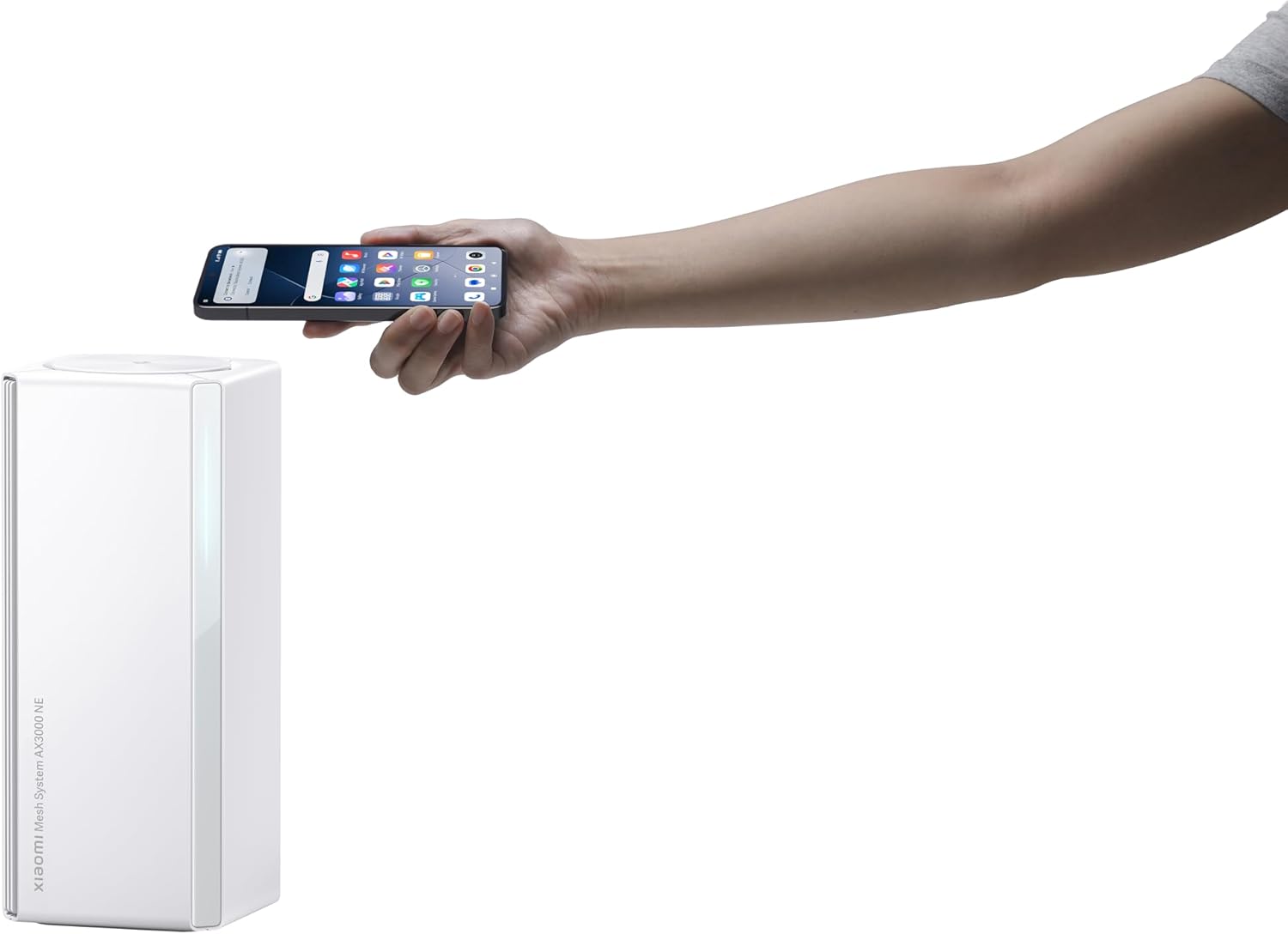
Figure 6.2: A user demonstrating NFC Easy Share by tapping a smartphone on the top surface of the Xiaomi AX3000 NE router for quick Wi-Fi connection.
6.3 Managing Your Network
You can manage your network settings, connected devices, and advanced features through the Xiaomi Wi-Fi app or the web interface (miwifi.com).
7. Maintenance
- Firmware Updates: Regularly check for and install firmware updates through the Xiaomi Wi-Fi app or web interface to ensure optimal performance, security, and access to new features.
- Cleaning: Use a soft, dry cloth to clean the exterior of the router. Do not use liquid cleaners or aerosols.
- Factory Reset: To restore the router to its factory default settings, press and hold the Mesh/Reset button on the rear panel for approximately 5-10 seconds until the indicator light changes, then release. Note: This will erase all your custom settings.
8. Troubleshooting
- No Internet Connection:
- Check if your modem is working correctly.
- Ensure the network cable is securely connected from the modem to the router's WAN port.
- Restart both your modem and router.
- Verify your internet connection settings in the router's configuration interface.
- Slow Wi-Fi Speed:
- Ensure your devices are within optimal range of the router or mesh units.
- Check for interference from other electronic devices.
- Consider updating your device's Wi-Fi drivers.
- Perform a speed test to confirm your internet service provider's speed.
- Cannot Connect to Wi-Fi:
- Verify you are entering the correct Wi-Fi password.
- Restart your router and the device you are trying to connect.
- Check if the Wi-Fi network is broadcasting (not hidden).
- Mesh Unit Not Connecting:
- Ensure the additional unit is powered on and within range of the main router.
- Press the Mesh/Reset button on the additional unit to re-initiate pairing.
- Try moving the mesh unit closer to the main router temporarily for pairing.
9. Specifications
| Feature | Detail |
|---|---|
| Brand | XIAOMI |
| Model Name | Mesh System AX3000NE |
| Model Number | RD28 |
| Special Feature | High-speed Wi-Fi 7, continuous circulation, easy sharing NFC |
| Frequency Band Class | Dual-Band |
| Wireless Communication Standard | 802.11ac, 802.11ax |
| Compatible Devices | Personal Computer |
| Recommended Uses | Business, Home |
| Connectivity Technology | Ethernet, Wi-Fi |
| Color | White |
| Antenna Type | Internal |
| Operating System | RouterOS, ZyNOS, Junos OS, or Cisco IOS (Note: This likely refers to compatible OS for management, not the router's internal OS) |
| Security Protocol | WPA2-PSK |
| Number of Ports | 4 (Ethernet) |
| Control Method | Touch, Push Button |
| Data Transfer Rate | 48 Gigabits Per Second (Note: This is likely an aggregate theoretical maximum, not per port) |
| LAN Port Bandwidth | 10/100/1000Mbps |
| Voltage | 230 Volts (AC) |
| Maximum Upstream Data Transfer Rate | 3000 Megabits Per Second |
| RAM Memory Installed | 256 MB |
| Number of Antennas | 3 (Internal) |
| Has Internet Connectivity | Yes |
| Router Network Type | LAN |
| Is Modem Compatible | No (Note: This indicates it is a router, not a modem/router combo) |
| Coverage | Full Apartment |
| Item Weight | 674 Grams |
| Item Dimensions (L x W x H) | 3.94"L x 11.42"W x 3.94"H |
| Has Security Updates | Yes |
10. Warranty and Support
Your Xiaomi AX3000 NE Network System comes with a warranty. Please refer to the included warranty card for detailed terms and conditions, including warranty period and coverage.
For technical support, frequently asked questions, or to download the latest firmware and user guides, please visit the official Xiaomi support website or contact their customer service.
Official Xiaomi Store: Xiaomi Store on Amazon


