
1. Introduction
This manual provides detailed instructions for the Inateck KB02028 Bluetooth Keyboard, designed for use with Microsoft Surface Go series devices. Please read this manual thoroughly before using the product to ensure proper operation and to maximize its features.
The Inateck KB02028 keyboard enhances your Surface Go experience by providing a full-function keyboard with a trackpad, multi-color backlighting, and robust Bluetooth connectivity.
2. Product Overview
The Inateck KB02028 is an ultra-slim and portable keyboard cover specifically designed for the Microsoft Surface Go series. It features a responsive trackpad and a 7-color adjustable backlight.
Key Features:
- Compatibility: Fully compatible with Surface Go 4 (2023), Surface Go 3 (2021), Surface Go 2 (2020), and Surface Go 1 (2018). Note: Not compatible with Surface Pro models.
- Connectivity: Bluetooth 5.3 for fast and stable wireless connection.
- Backlight: 7-color adjustable backlight to suit various lighting conditions.
- Portability: Lightweight at approximately 245g (0.5 lb) and slim design (9.65 x 7.35 x 0.27 inches).
- Shortcut Keys: Independent shortcut keys for common functions like screenshot, lock screen, and volume control.
- Battery Life: Built-in 500 mAh rechargeable lithium battery offers approximately 5 hours of continuous use with backlight on, and up to 180 days of standby time.
- Trackpad: Supports five-finger multitouch gestures and includes an anti-misoperation setting to prevent accidental touches while typing.

Image: Compatibility overview for Inateck KB02028 keyboard, showing support for Surface Go 4, 3, 2, and 1 generations.

Image: The Inateck KB02028 keyboard cover attached to a Microsoft Surface Go tablet, illustrating its use as a laptop setup.
3. Setup
3.1 Charging the Keyboard
Before initial use, fully charge the keyboard. Connect the provided USB-C charging cable to the keyboard's charging port and to a USB power source (e.g., computer, wall adapter). The charging indicator light will show the charging status.

Image: A close-up view of the keyboard's side, showing the USB-C charging port and the power switch.
3.2 Powering On/Off
- To Power On: Slide the power switch located on the side of the keyboard to the "ON" position.
- To Power Off: Slide the power switch to the "OFF" position.
3.3 Bluetooth Pairing
- Ensure the keyboard is powered on.
- On your Surface Go, go to Settings > Bluetooth & devices.
- Turn on Bluetooth.
- On the keyboard, press and hold the Fn + C keys simultaneously for 3-5 seconds. The Bluetooth indicator light on the keyboard will start blinking, indicating it is in pairing mode.
- On your Surface Go, select "Add device" and then "Bluetooth".
- From the list of available devices, select "Inateck KB02028" (or similar name).
- Follow any on-screen prompts to complete the pairing process. The Bluetooth indicator light on the keyboard will stop blinking once successfully paired.
Video: Demonstrates the setup and features of the Inateck Surface Go Keyboard with Trackpad, model KB02028, including compatibility and connectivity.
4. Operating Instructions
4.1 Using the Keyboard
The keyboard provides a standard QWERTY layout with a full row of function keys (F1-F12), arrow keys, and Windows shortcut keys. The keys offer a comfortable typing experience with 1.0 mm travel.

Image: A close-up of the keyboard keys, highlighting their layout and design.
4.2 Shortcut Keys
The top row of keys includes independent shortcut functions for quick access to various system controls without needing the Fn key. These include:
- Screenshot
- Lock Screen
- Volume Adjustment (Up, Down, Mute)
- Media Controls (Play/Pause, Previous, Next)
- Backlight Brightness Adjustment

Image: The Inateck KB02028 keyboard highlighting the independent shortcut keys at the top row.
4.3 Backlight Control
The keyboard features a 7-color adjustable backlight. Use the dedicated backlight key (often F2 or a similar icon) to cycle through colors or adjust brightness levels. The backlight can be turned off to conserve battery life.

Image: A user typing on the Inateck KB02028 keyboard with its green backlight illuminated, demonstrating its use in low-light conditions.
4.4 Using the Trackpad
The integrated trackpad supports various multitouch gestures for navigation and control. The anti-misoperation setting temporarily disables the trackpad's left and right buttons for 0.3 seconds when keys are pressed, preventing accidental cursor movements.

Image: A close-up view of the keyboard's trackpad, showing its smooth surface and integrated buttons.
4.5 Keyboard Modes
- Laptop Mode: Connect the keyboard to your Surface Go to use it as a traditional laptop, providing a comfortable typing and trackpad experience.
- Tablet Mode: Fold the keyboard cover back behind the Surface Go to use the device as a tablet. The keyboard will automatically disable in this mode.
- Case Mode: The keyboard can also serve as a protective cover for your Surface Go when not in use.

Image: A Microsoft Surface Go tablet with the Inateck KB02028 keyboard attached and set up in laptop mode on a desk.

Image: A Microsoft Surface Go tablet with the Inateck KB02028 keyboard folded back, illustrating its use in tablet mode.
5. Maintenance
- Cleaning: Use a soft, dry, lint-free cloth to clean the keyboard and trackpad. For stubborn dirt, slightly dampen the cloth with water. Avoid harsh chemicals or abrasive materials.
- Storage: When not in use, store the keyboard in a cool, dry place. Avoid extreme temperatures and direct sunlight.
- Battery Care: To prolong battery life, avoid fully discharging the battery frequently. Charge the keyboard regularly, even if not in constant use.
- Protection: The keyboard acts as a cover for your Surface Go. Ensure it is properly attached to protect the screen and device from scratches and minor impacts.
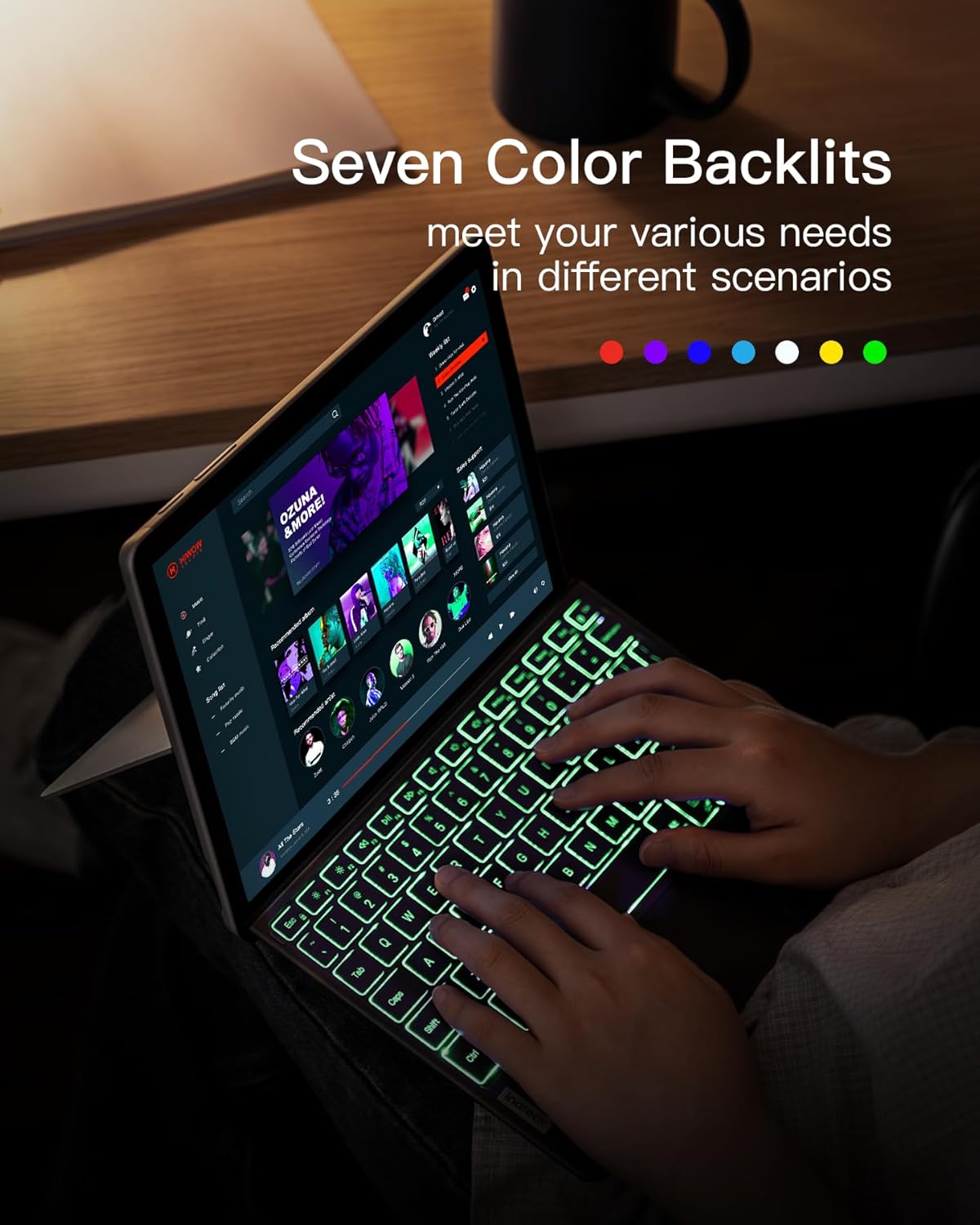
Image: A person carefully placing a Microsoft Surface Go tablet, protected by the Inateck KB02028 keyboard cover, into a backpack, demonstrating its portability and protective function.
6. Troubleshooting
- Keyboard not connecting via Bluetooth:
- Ensure the keyboard is powered on and fully charged.
- Make sure Bluetooth is enabled on your Surface Go.
- Put the keyboard into pairing mode (Fn + C).
- Remove any previous pairings of the keyboard from your Surface Go's Bluetooth settings and try pairing again.
- Restart both the keyboard and your Surface Go.
- Backlight not working or dim:
- Ensure the keyboard has sufficient battery charge.
- Press the backlight control key (e.g., F2) to adjust brightness or cycle through colors.
- Trackpad unresponsive or erratic:
- Ensure the keyboard is securely connected and Bluetooth is stable.
- Clean the trackpad surface with a soft cloth.
- Restart the keyboard and Surface Go.
- Keys not responding:
- Check battery level.
- Ensure Bluetooth connection is active.
- If specific keys are unresponsive, contact customer support.
7. Specifications
| Feature | Detail |
|---|---|
| Model Number | KB02028 |
| Compatibility | Microsoft Surface Go 4/3/2/1 |
| Connectivity | Bluetooth 5.3 |
| Backlight | 7-Color RGB |
| Battery Capacity | 500 mAh Lithium Ion |
| Continuous Working Time (Backlight On) | Approx. 5 hours |
| Standby Time | Up to 180 days |
| Dimensions (LxWxH) | 9.65 x 7.35 x 0.27 inches (24.5 x 18.7 x 0.67 cm) |
| Weight | Approx. 8.6 ounces (245g) |
| Material | Plastic (keyboard), PU Microfiber (back) |
| Trackpad | Five-finger multitouch gestures, anti-misoperation |
8. Warranty and Support
Inateck products come with a standard manufacturer's warranty. For specific warranty terms, technical support, or customer service inquiries, please refer to the warranty card included with your product or visit the official Inateck website. Please retain your proof of purchase for warranty claims.
